Active Directory
On this page, you'll find Microsoft Active Directory GUI applications built on PowerShell
Active Directory Checker
When working at a company, you usually need to manage various company policies, and Active Directory is the best way to manage them. To view Active Directory objects such as users, computers, and AD groups, you use the Active Directory Users and Computers tool. However, the Active Directory Users and Computers tool isn't very user-friendly. To view information, you have to switch between different tabs, and the tool doesn't allow you to copy text. What if you could see everything in a single window and copy information? If you have scripts that collect certain information and you'd like to view that information in the same window alongside Active Directory objects? This can be achieved using a program I developed, which I have named AD Checker.
A GUI application that serves as an alternative to Active Directory Users and Computers (ADUC) (AD Checker) can provide significant operational, administrative, and troubleshooting benefits.
Key Features
1. User Account Management and Visibility
· Search users by full or partial username, display name.
· Display detailed Active Directory user account information.
· View all AD groups to which a user belongs.
· Quickly identify direct and indirect group memberships.
· Copy user information for documentation, reporting, or ticketing purposes.
2. Active Directory Group Management and Analysis
· Search AD groups by partial group name.
Display general group information:
· Group name
· Description
· Group type
· Distinguished Name
· Creation and modification dates
· View all members of a group.
· Export or copy group membership information.
· Simplify access reviews and entitlement verification.
3. Computer Object Discovery
· Search Active Directory computers by partial computer name.
· Display detailed computer object information.
· View AD groups assigned to computer objects.
· Access key computer attributes from a single interface.
· Assist with workstation and server identification during support activities.
4. Advanced Search and Discovery
Unified search for:
· Users
· AD Groups
· AD Computers
· Partial name searching reduces the need to know exact object names.
· Faster object discovery compared to navigating multiple AD Organizational Units (OUs).
5. Data Enrichment and Correlation
· Copy information retrieved from Active Directory.
Combine AD information with external data sources such as:
· Citrix assignments
· Asset management systems
· CMDB platforms
· ServiceNow records
· Security tools
· HR systems
Create enriched views that provide additional business context beyond AD.
5. Business Benefits
· Faster Troubleshooting
Quickly determine:
· Who a user is
· Which groups the user belongs to
· Which computers are associated with relevant groups
· Reduce time spent navigating ADUC.
6. Improved Access Reviews
· Easily validate user permissions through group membership visibility.
· Support security audits and compliance activities.
6. Reduced Administrative Effort
· Eliminate repetitive searches across different AD containers.
· Centralize commonly needed AD information in a single view.
7. Enhanced Helpdesk Efficiency
Helpdesk staff can rapidly identify:
· User accounts
· Security groups
· Distribution groups
· Computer objects
· Accelerate incident and request resolution.
8. Better Reporting
· Exported or copied data can be integrated into reports and documentation.
· Simplifies creation of audit and management reports.
9. Improved Security Visibility
· Identify privileged group memberships more quickly.
· Detect unexpected or unauthorized group assignments.
10 User-Friendly Interface
· More intuitive than native ADUC for everyday lookup tasks.
· Reduces training requirements for support personnel.
11. Centralized Information Access
· Provides a single pane of glass for user, group, and computer information.
· Minimizes switching between multiple administrative tools.
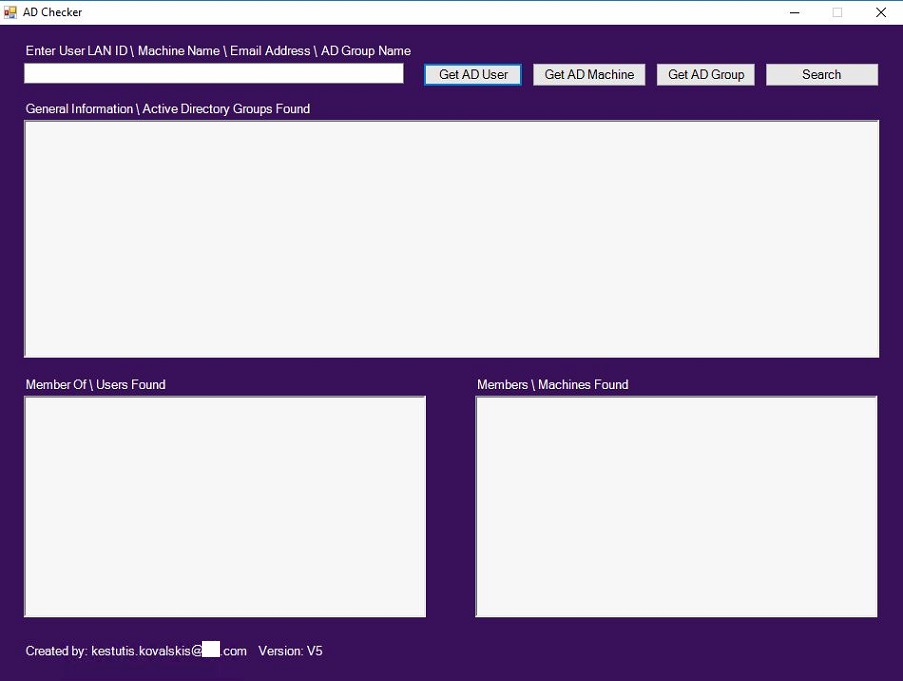
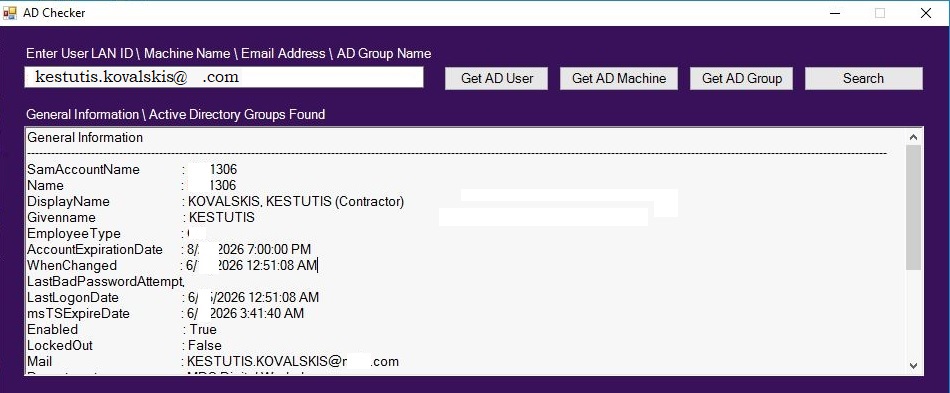
If you want to get information about an Active Directory user, enter the user ID in the search field and press button "Get AD User".
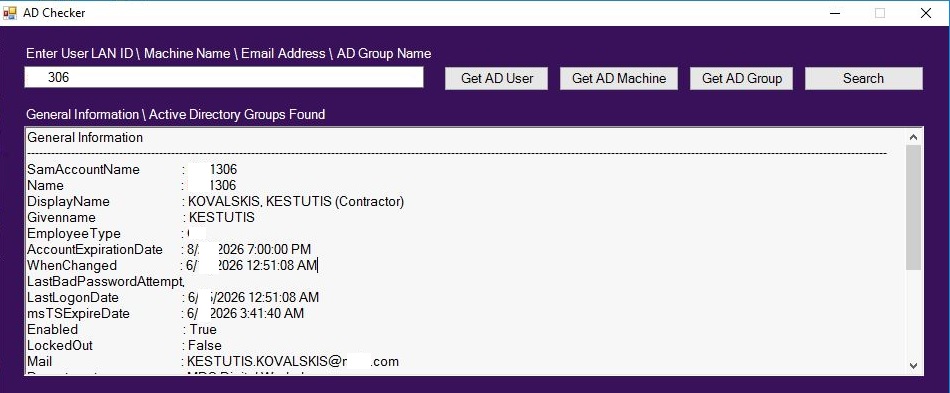
In the General Information tab, you will see information related to the user object. You can copy all of this information.
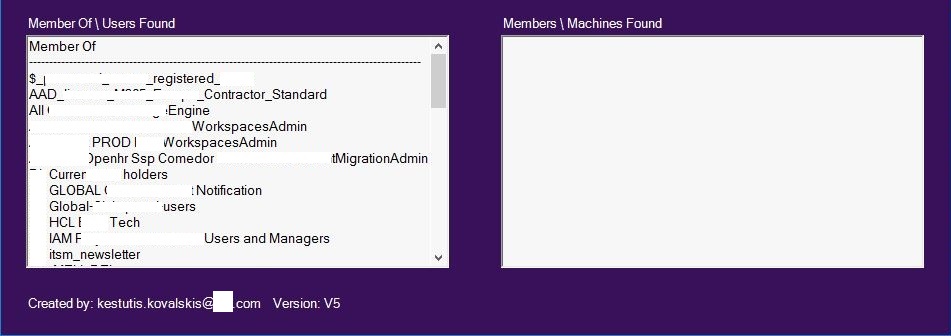
In the "Member Of" field, you will see which AD groups the user ID belongs to. You can also copy this information.
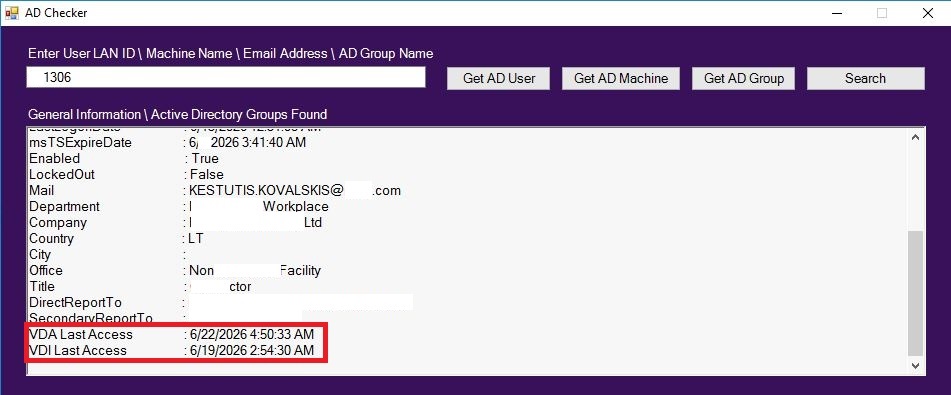
As I mentioned, you can add any information you like, not necessarily related to Active Directory. In our case we added information about last login into VDI and multisession machines.
If you know only user email address, enter it into the search box and you will get the same information as entering LAN ID.
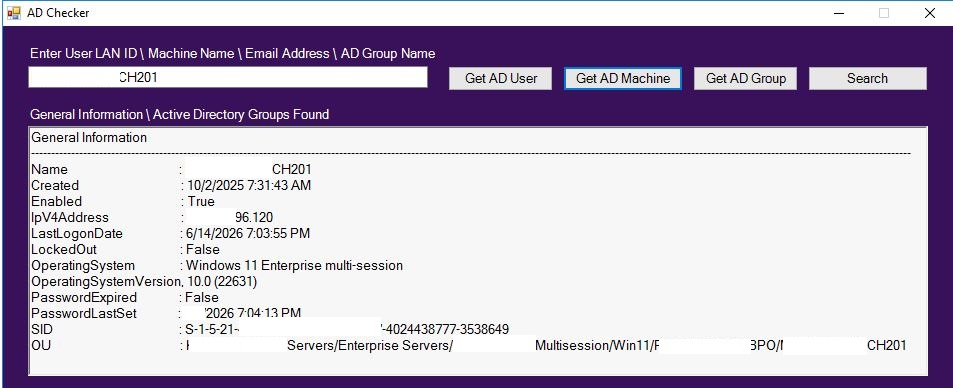
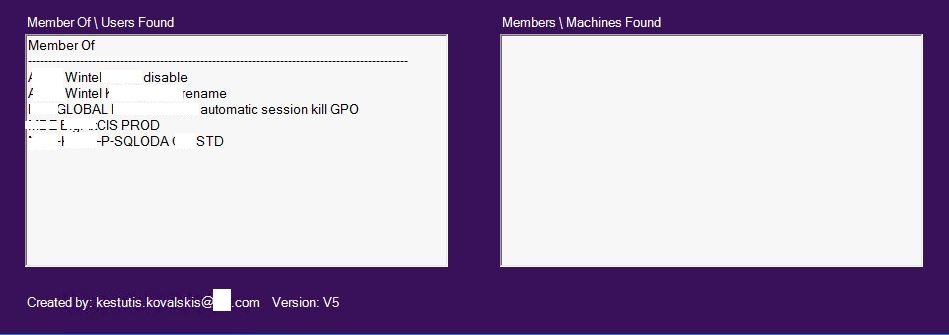
In the "Member Of" field, you will see which AD groups the machine belongs to. You can copy all of this information.
If you want to get information about an Active Directory Group, enter the group name in the search field and press button "Get AD Group".
In the General Information tab, you will see information related to the Group object. You can copy all of this information.
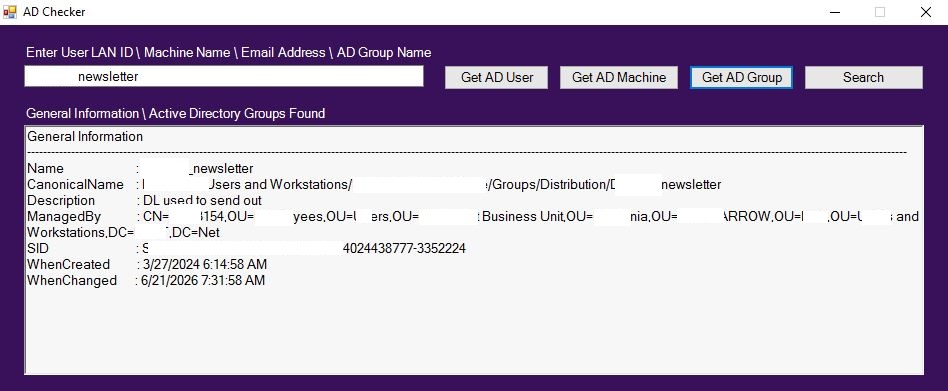
In the "Members" field, you will see members which are added into particular AD group. You can also copy this information.
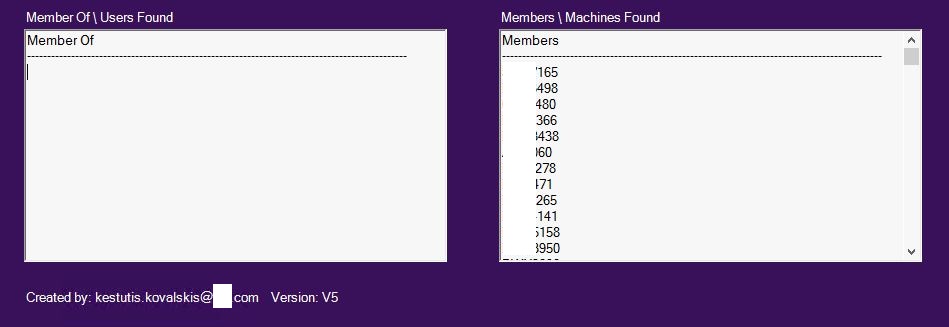
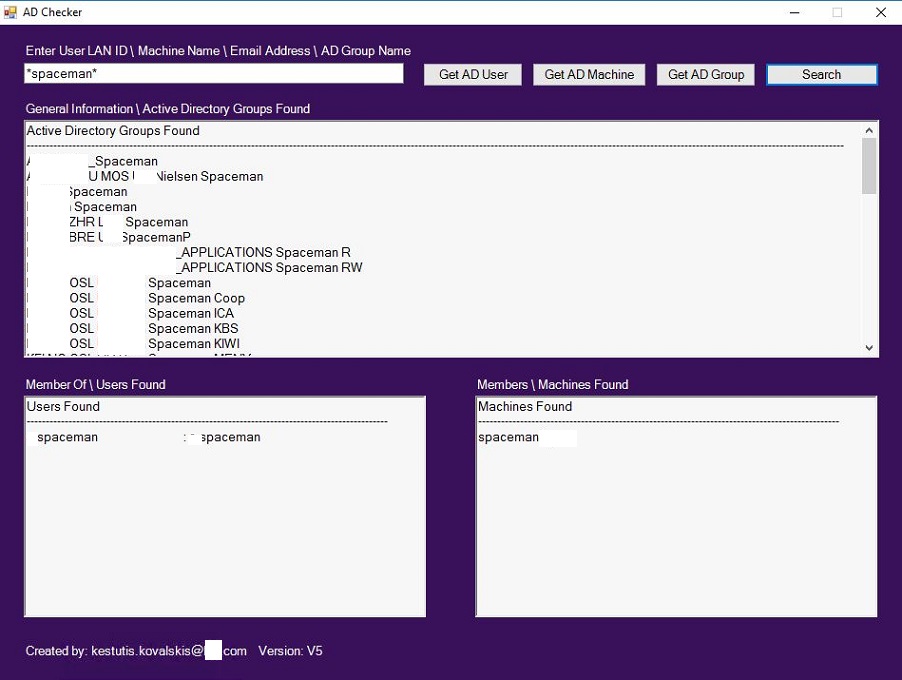
The search button allows you to find information about AD users, groups, and computers. With a single click, the button searches for all three of these objects.
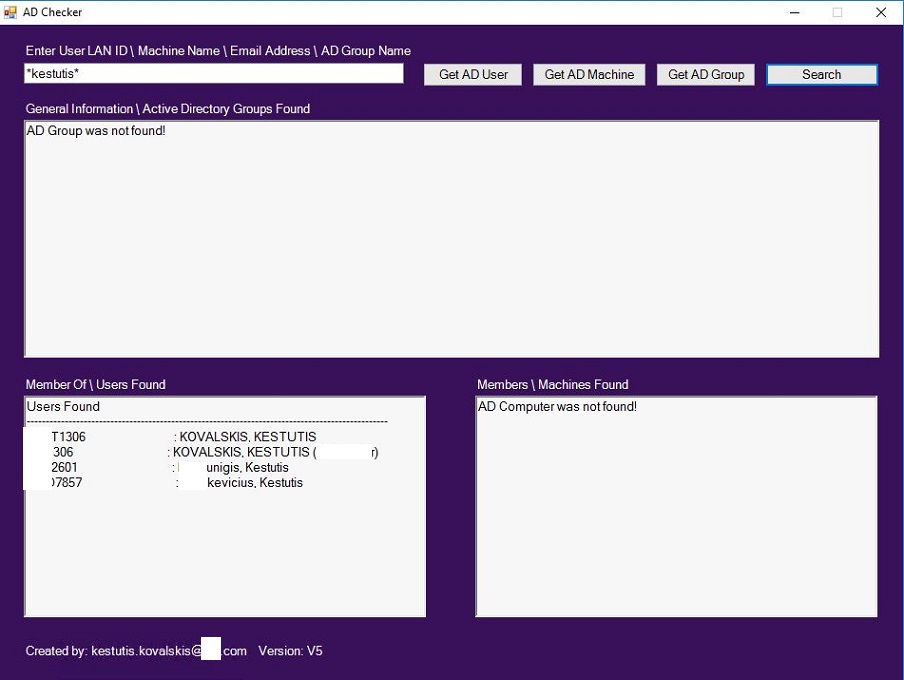
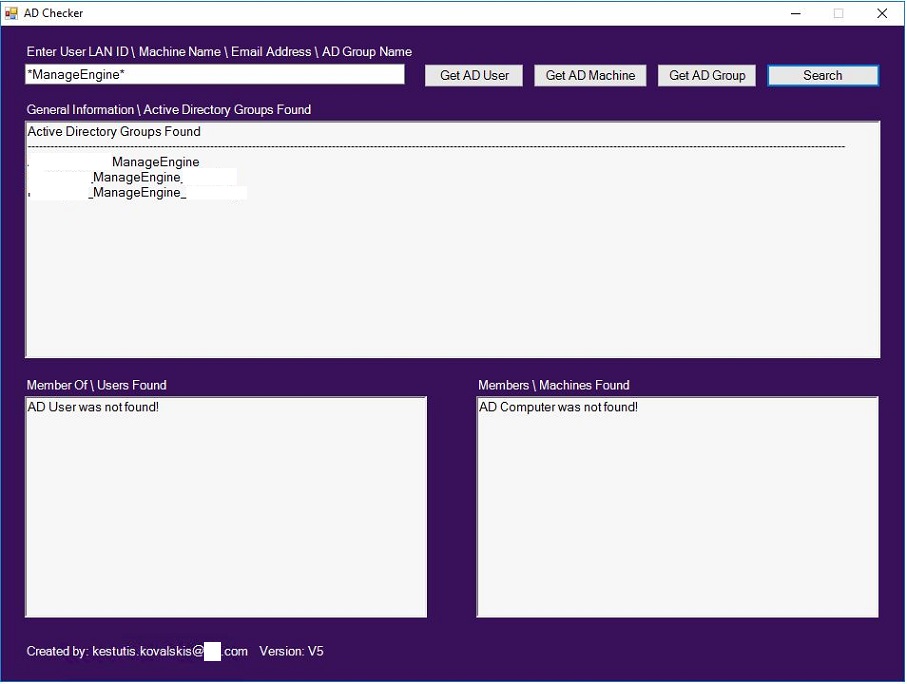
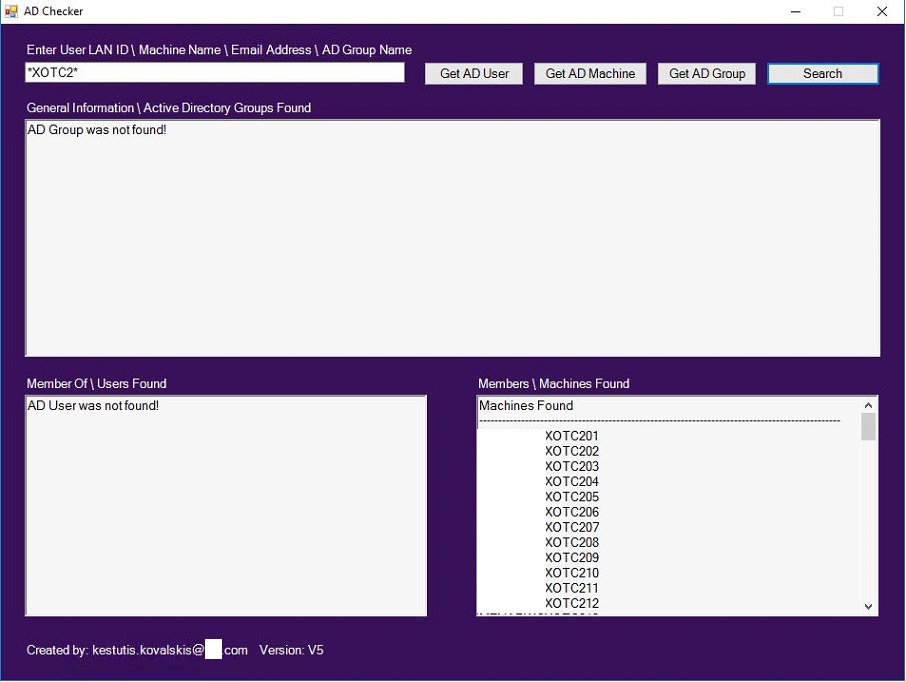
You don't need to have all the information to perform a search; having just some of it is enough. Let's say you're looking for a user, but you only know their first name. Enter the first name between the asterisks and click the search button. You'll get information about all users with the name you entered. You can do the same when searching for computers and AD groups.
Searching for users:
Searching AD groups
Searching AD groups
Searching for computers:
Searching for all 3 objects:
Overall Value
This type of GUI application provides a faster, more efficient, and more user-friendly way to explore Active Directory relationships, enabling administrators and support teams to quickly understand who has access to what, which groups are involved, and how users, computers, and groups are connected, while also allowing the collected information to be enriched with external operational and business data.
This type of GUI application provides a faster, more efficient, and more user-friendly way to explore Active Directory relationships, enabling administrators and support teams to quickly understand who has access to what, which groups are involved, and how users, computers, and groups are connected, while also allowing the collected information to be enriched with external operational and business data.