Citrix related PowerShell Gui applications
In this section, I have provided information about the Citrix related PowerShell Gui applications. .
Citrix Management
When working in a Citrix environment, we can view many aspects related to application and machine management in the Citrix Cloud console. However, if we need to automate certain tasks or perform processes (such as powering on or off machines, rebooting them, etc.) on different individual machines, it can be difficult to do so. This is where a tool that can handle all of this would be very useful.
To perform these and similar tasks, I created a program called "Citrix Management".
Citrix Machine Catalog Reports
Benefits:
Obtain a complete overview of machine catalogs.
· Verify machine inventory.
· Identify catalog inconsistencies.
· Facilitate Citrix environment documentation.
Overall Citrix Machine Reports
Benefits:
· Centralized inventory of all Citrix machines.
· Visibility into machine status and health.
· Easier environment audits.
· Faster infrastructure assessments.
3. Faster Troubleshooting
Machine Information Collected Directly from Computers
Benefits:
· Access real-time machine data.
· Identify issues not visible in Citrix Studio.
· Correlate Citrix problems with Windows-level issues.
· Reduce troubleshooting time.
Computer Status Monitoring
Benefits:
· Quickly identify:
· Offline machines
· Unregistered machines
· Non-responsive machines
· Failed machines
· Accelerate incident resolution.
4. Simplified Citrix Maintenance Operations
Maintenance Mode Management
Benefits:
· Enable or disable maintenance mode from a central interface.
· Prevent accidental user connections during maintenance.
· Streamline patching activities.
· Reduce administrative effort.
Power Management
Supports:
· Power On
· Power Off
· Restart
· Reset
5. Enhanced Access Management Visibility
Delivery Group Access Reporting
Benefits:
· Determine which users and groups have access to delivery groups.
· Detect excessive permissions.
· Verify entitlement configurations.
· Improve compliance reporting.
Published Applications and Access Reporting
Benefits:
· Display all published applications.
· Show users and groups assigned to each application.
· Simplify application access verification.
· Support software licensing reviews.
· Improve application governance.
6. Application Inventory Management
Installed Applications on Machines
Benefits:
· Verify software installation status.
Identify unauthorized software.
· Support software asset management.
· Validate application deployment projects.
· Assist with license compliance audits.
7. Performance Monitoring
· Top 10 CPU Consumers
· Top 10 RAM Consumers
· Machine Boot Time Monitoring
8. User Experience Improvements
· Active User Sessions Visibility
· Profile Size Monitoring
9. Windows Health Monitoring
· Windows Patch Reporting
· Shutdown Event Reporting
· Service Status Monitoring
10. Capacity and Storage Management
· C Drive Space Monitoring
· Machine Resource Overview
11. Microsoft Office Management
· MS Office Information
12. Multi-Machine Data Collection
One of the most valuable capabilities is collecting information from many machines simultaneously.
Benefits
· Analyze number of machines in minutes.
· Eliminate repetitive server-by-server checks.
· Reduce administrative workload.
· Enable large-scale health assessments.
· Increase IT team productivity.
· Support enterprise-wide reporting.
13. Helpdesk Benefits
· Service Desk Advantages
· Faster incident resolution.
· Reduced escalation rates.
· Immediate access to machine health information.
· Less dependence on multiple administrative tools.
· Improved first-call resolution rates.
14. Security and Audit Benefits
· Security Visibility
· Review application access permissions.
· Verify desktop assignments.
· Detect unauthorized access.
· Validate patch compliance.
· Monitor machine configuration status.
Audit Support
· Produce infrastructure reports quickly.
· Demonstrate compliance controls.
· Support internal and external audits.
· Simplify evidence collection.
15. Management and Business Benefits
Operational Benefits
· Reduced administration time.
· Lower support costs.
· Faster troubleshooting.
· Improved infrastructure reliability.
· Better user experience.
Strategic Benefits
· Better capacity planning.
· Improved reporting for management.
· Increased Citrix environment visibility.
· More informed operational decisions.
· Greater control over large Citrix deployments.
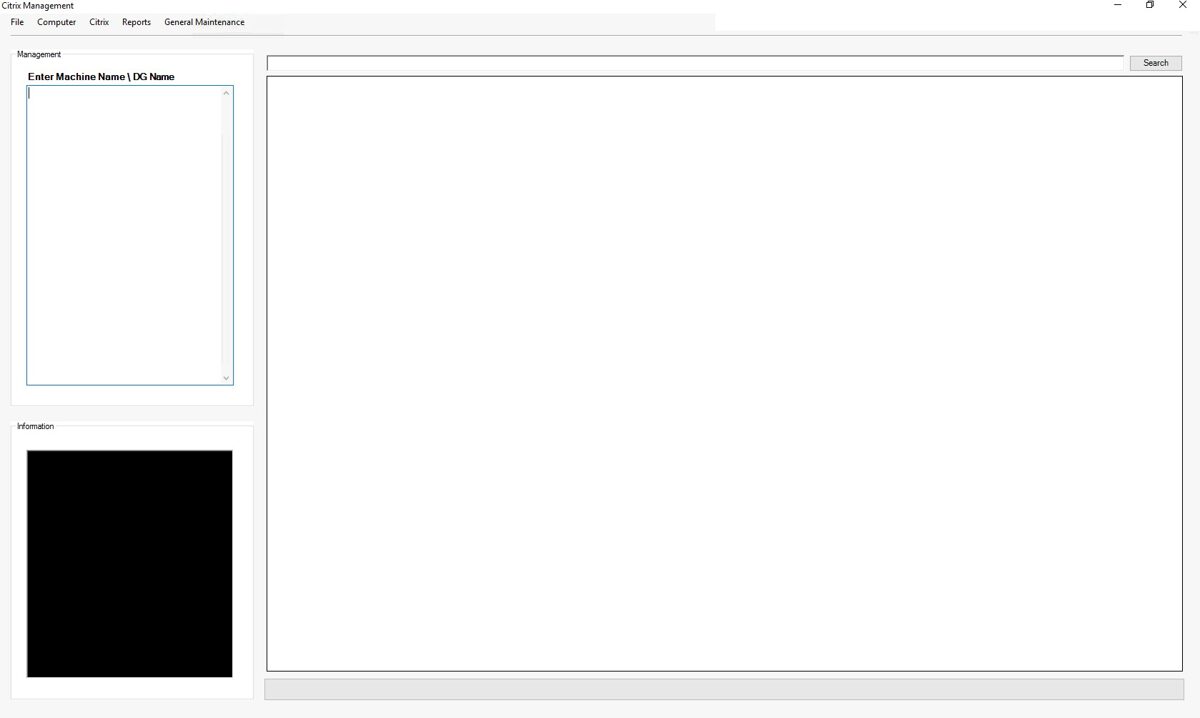
Although the program has a wide range of features, let's start with the most important ones - Reports.
All information is taken from Citrix.
continued
· Catalog Name
· Assigned to the User
· Machines in Delivery Group
· Session Support
· Machines Not In Delivery Group
· Machines Not Assigned To The User
· Machines Are Physical
· Minimum Functional Level
To draw your attention to important details— fields automatically are highlighted in red.
Citrix Machines Report
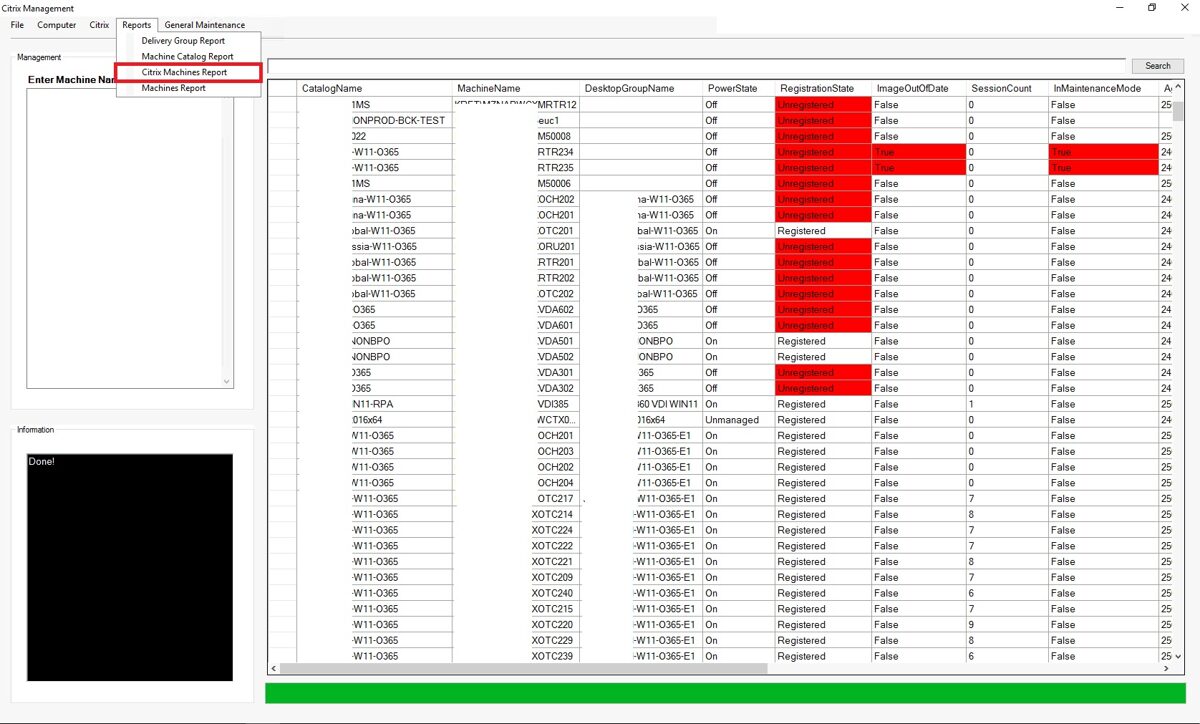
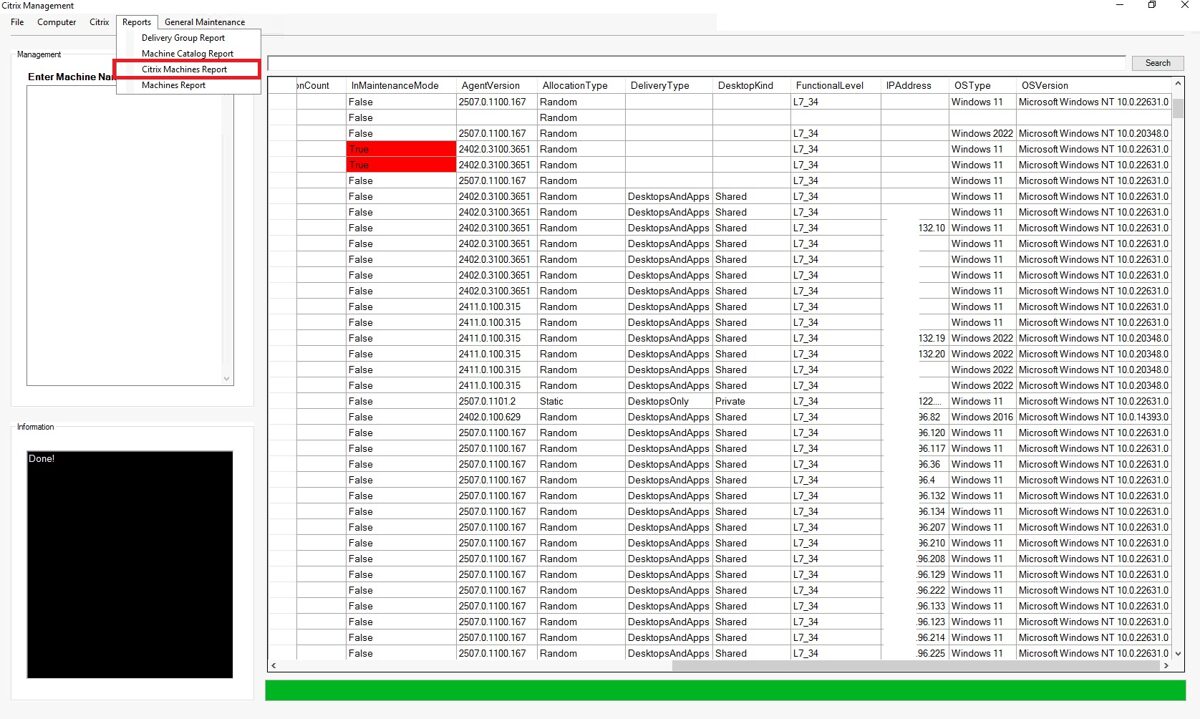
To draw your attention to important details— fields automatically are highlighted in red.
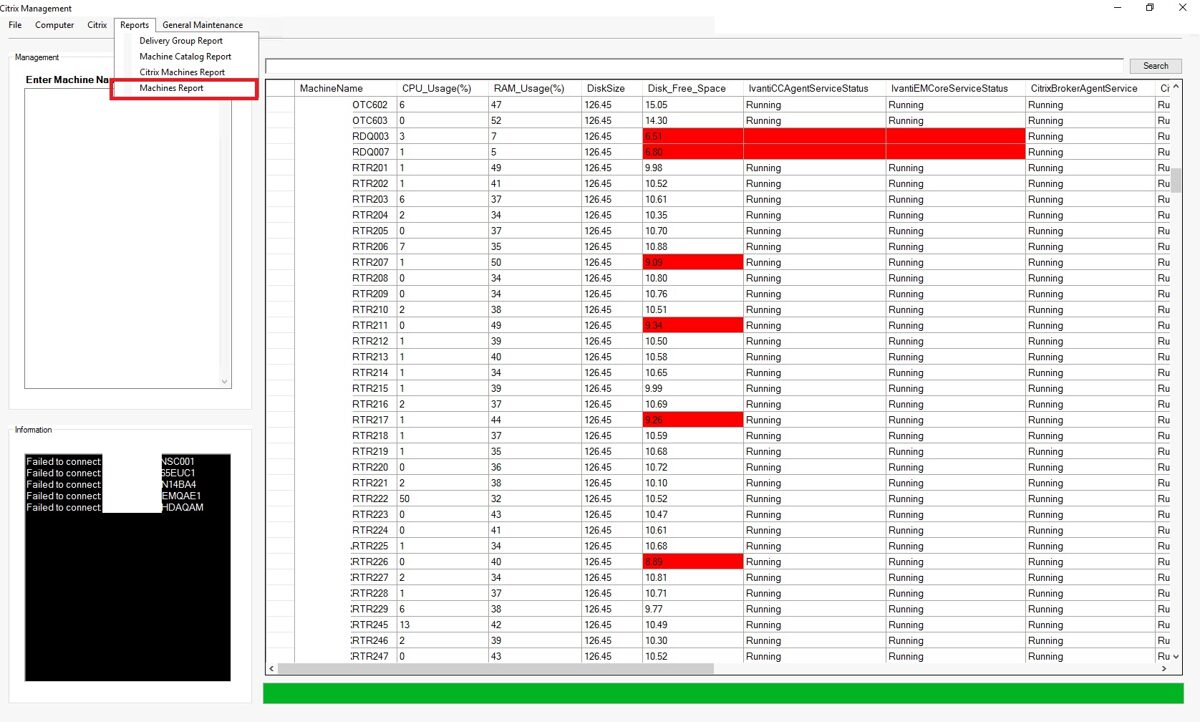
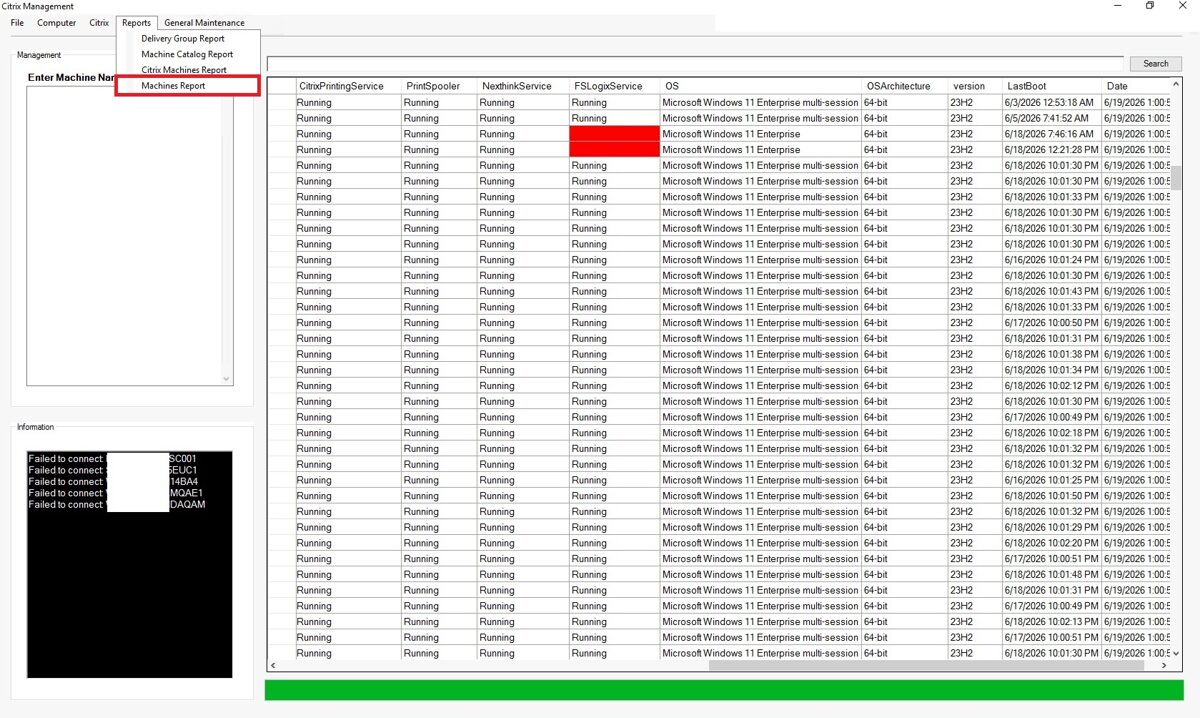
Installed Apps
Information can be retrieved from multiple computers at the same time.
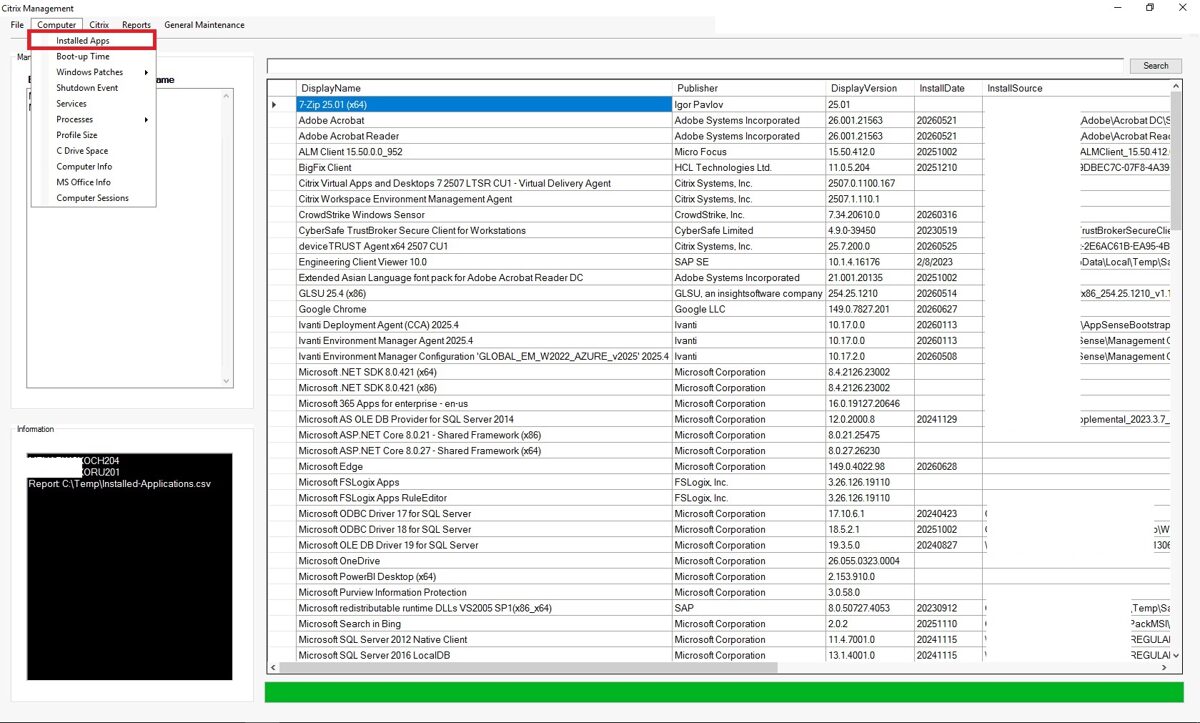
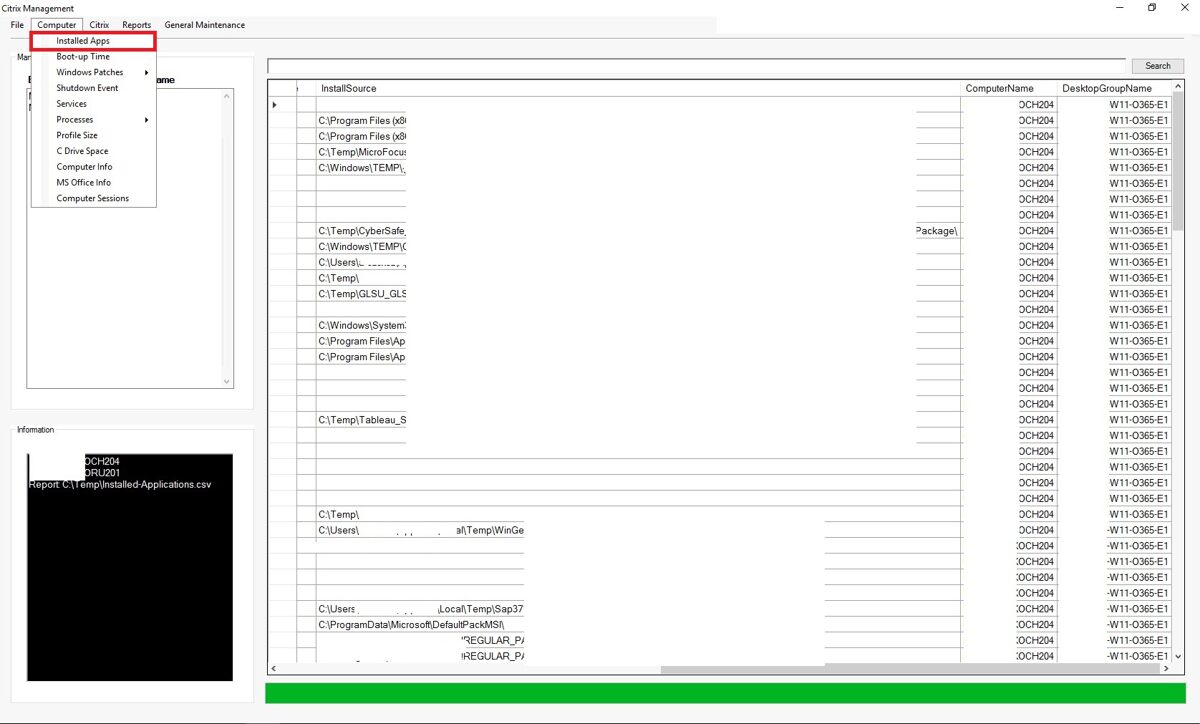
Continued
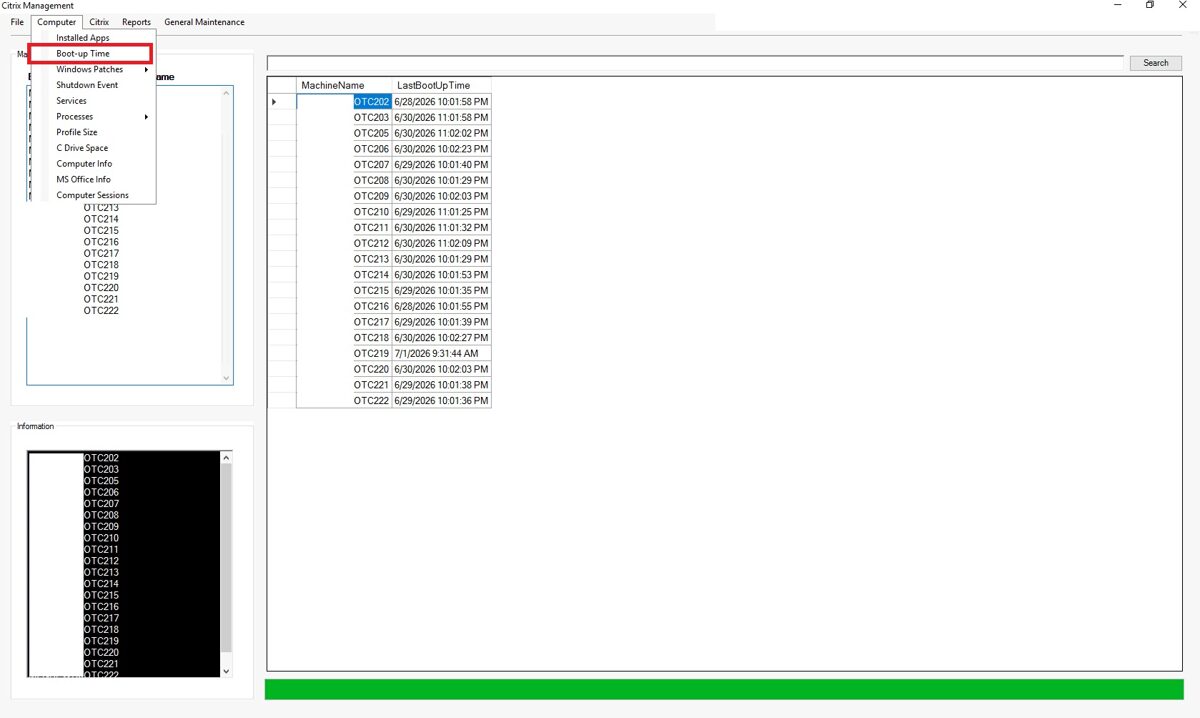
Boot-Up Time
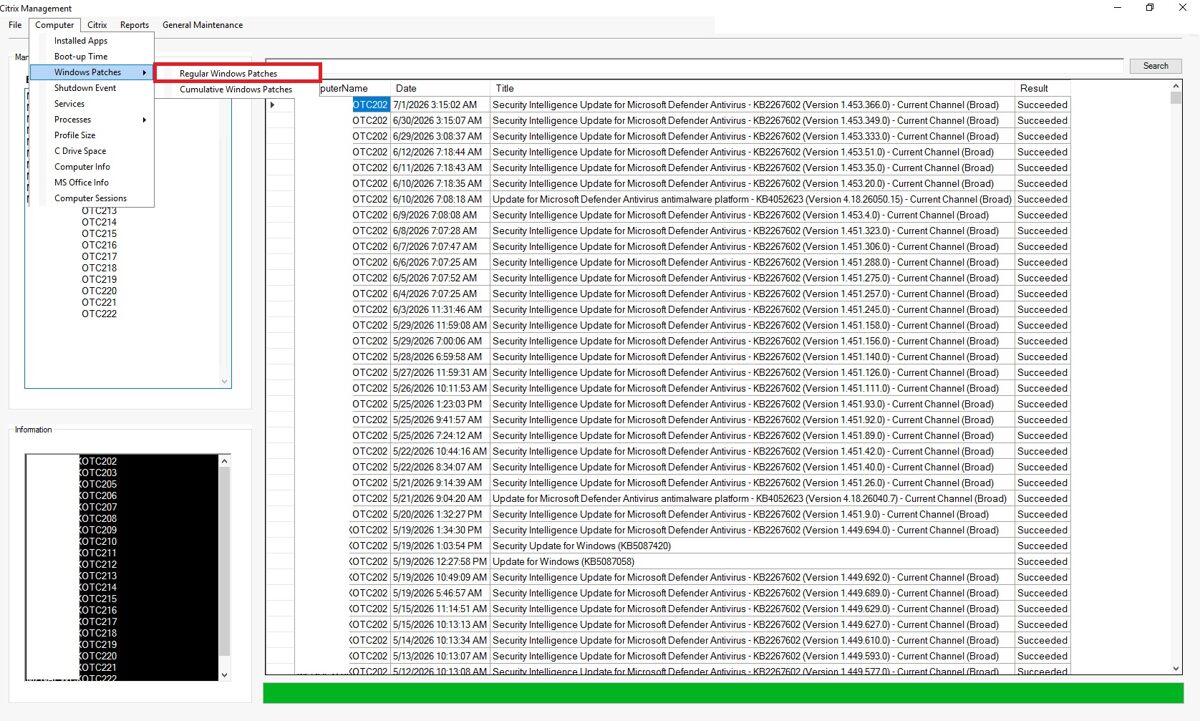
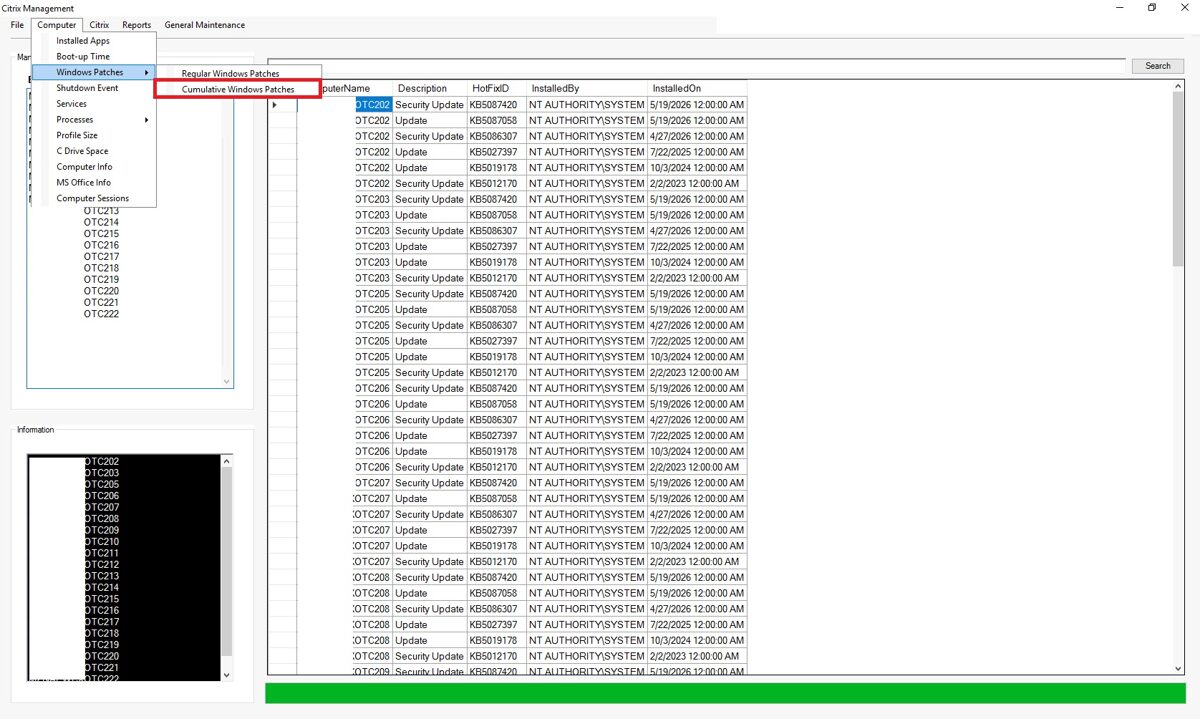
Windows Patches
Cumulative Windows Patches
Power Actions
To perform these and similar tasks, I created a program called "Citrix Management".
Benefits of a Citrix Infrastructure Management and Reporting GUI Application (Citrix management)
A GUI application that centralizes Citrix reporting, machine management, performance monitoring, user access analysis, and operating system information can provide significant operational, administrative, and business value.
1. Centralized Citrix Administration
Benefits
· Single-pane-of-glass view of the Citrix environment.
· Eliminates the need to switch between Citrix Studio, Director, Event Viewer, PowerShell, Task Manager, Services, and Computer Management.
· Provides faster access to critical infrastructure information.
· Simplifies day-to-day administration.
2. Improved Infrastructure Visibility
Citrix Delivery Group Reports
Benefits:
· Quickly identify all delivery groups.
· View machine distribution across delivery groups.
· Simplify capacity planning.
· Detect underutilized or overloaded delivery groups.
· Support management reporting.
A GUI application that centralizes Citrix reporting, machine management, performance monitoring, user access analysis, and operating system information can provide significant operational, administrative, and business value.
1. Centralized Citrix Administration
Benefits
· Single-pane-of-glass view of the Citrix environment.
· Eliminates the need to switch between Citrix Studio, Director, Event Viewer, PowerShell, Task Manager, Services, and Computer Management.
· Provides faster access to critical infrastructure information.
· Simplifies day-to-day administration.
2. Improved Infrastructure Visibility
Citrix Delivery Group Reports
Benefits:
· Quickly identify all delivery groups.
· View machine distribution across delivery groups.
· Simplify capacity planning.
· Detect underutilized or overloaded delivery groups.
· Support management reporting.
Citrix Machine Catalog Reports
Benefits:
Obtain a complete overview of machine catalogs.
· Verify machine inventory.
· Identify catalog inconsistencies.
· Facilitate Citrix environment documentation.
Overall Citrix Machine Reports
Benefits:
· Centralized inventory of all Citrix machines.
· Visibility into machine status and health.
· Easier environment audits.
· Faster infrastructure assessments.
3. Faster Troubleshooting
Machine Information Collected Directly from Computers
Benefits:
· Access real-time machine data.
· Identify issues not visible in Citrix Studio.
· Correlate Citrix problems with Windows-level issues.
· Reduce troubleshooting time.
Computer Status Monitoring
Benefits:
· Quickly identify:
· Offline machines
· Unregistered machines
· Non-responsive machines
· Failed machines
· Accelerate incident resolution.
4. Simplified Citrix Maintenance Operations
Maintenance Mode Management
Benefits:
· Enable or disable maintenance mode from a central interface.
· Prevent accidental user connections during maintenance.
· Streamline patching activities.
· Reduce administrative effort.
Power Management
Supports:
· Power On
· Power Off
· Restart
· Reset
5. Enhanced Access Management Visibility
Delivery Group Access Reporting
Benefits:
· Determine which users and groups have access to delivery groups.
· Detect excessive permissions.
· Verify entitlement configurations.
· Improve compliance reporting.
Published Applications and Access Reporting
Benefits:
· Display all published applications.
· Show users and groups assigned to each application.
· Simplify application access verification.
· Support software licensing reviews.
· Improve application governance.
6. Application Inventory Management
Installed Applications on Machines
Benefits:
· Verify software installation status.
Identify unauthorized software.
· Support software asset management.
· Validate application deployment projects.
· Assist with license compliance audits.
7. Performance Monitoring
· Top 10 CPU Consumers
· Top 10 RAM Consumers
· Machine Boot Time Monitoring
8. User Experience Improvements
· Active User Sessions Visibility
· Profile Size Monitoring
9. Windows Health Monitoring
· Windows Patch Reporting
· Shutdown Event Reporting
· Service Status Monitoring
10. Capacity and Storage Management
· C Drive Space Monitoring
· Machine Resource Overview
11. Microsoft Office Management
· MS Office Information
12. Multi-Machine Data Collection
One of the most valuable capabilities is collecting information from many machines simultaneously.
Benefits
· Analyze number of machines in minutes.
· Eliminate repetitive server-by-server checks.
· Reduce administrative workload.
· Enable large-scale health assessments.
· Increase IT team productivity.
· Support enterprise-wide reporting.
13. Helpdesk Benefits
· Service Desk Advantages
· Faster incident resolution.
· Reduced escalation rates.
· Immediate access to machine health information.
· Less dependence on multiple administrative tools.
· Improved first-call resolution rates.
14. Security and Audit Benefits
· Security Visibility
· Review application access permissions.
· Verify desktop assignments.
· Detect unauthorized access.
· Validate patch compliance.
· Monitor machine configuration status.
Audit Support
· Produce infrastructure reports quickly.
· Demonstrate compliance controls.
· Support internal and external audits.
· Simplify evidence collection.
15. Management and Business Benefits
Operational Benefits
· Reduced administration time.
· Lower support costs.
· Faster troubleshooting.
· Improved infrastructure reliability.
· Better user experience.
Strategic Benefits
· Better capacity planning.
· Improved reporting for management.
· Increased Citrix environment visibility.
· More informed operational decisions.
· Greater control over large Citrix deployments.
Although the program has a wide range of features, let's start with the most important ones - Reports.
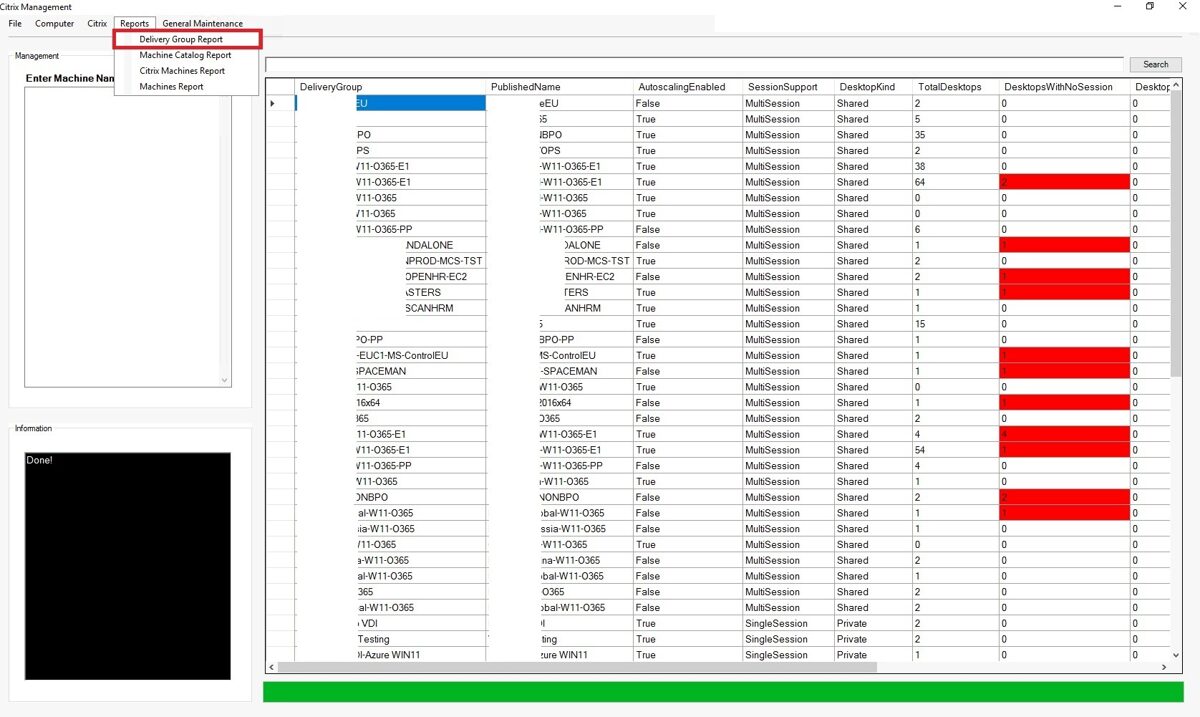
Delivery Group report.
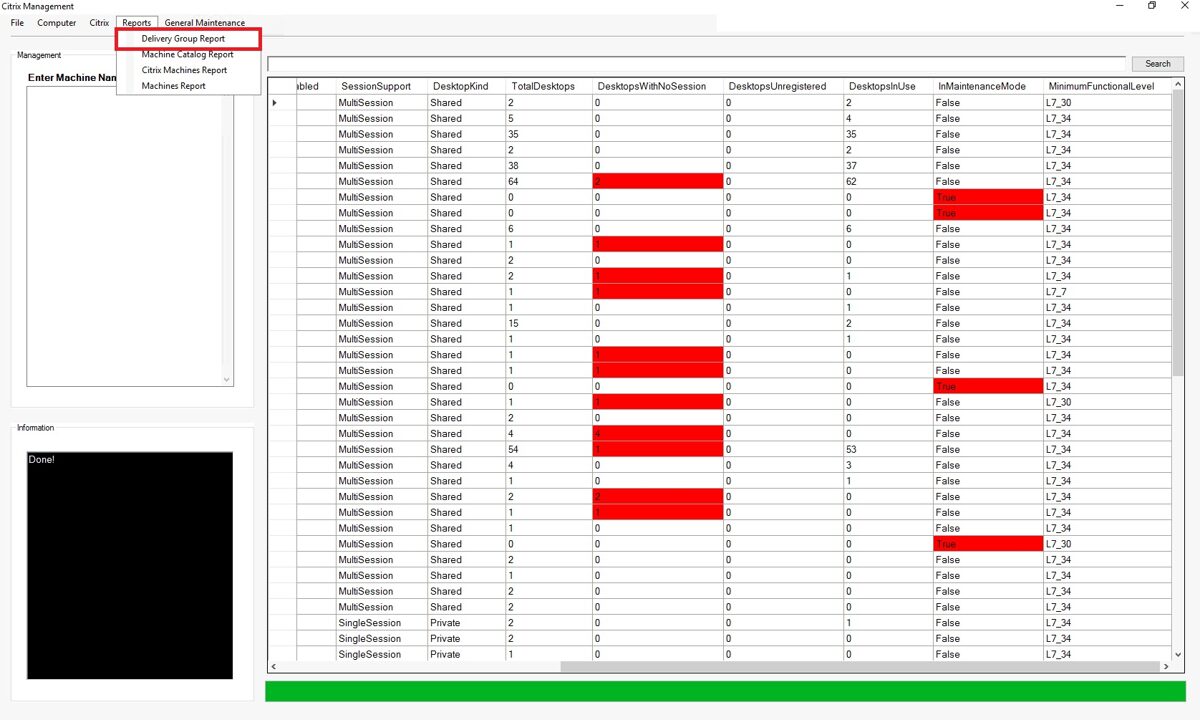
The "Delivery Group" report contains the following information:
· Delivery Group name
· Delivery Group published name
· Autoscaling status
· Session Support
· Desktop Kind
· Total Desktops
· Desktops With No Sessions
· Unregistered Desktops
· Desktops In Use
· In Maintenance mode
· Minimal Functional Level
· Delivery Group published name
· Autoscaling status
· Session Support
· Desktop Kind
· Total Desktops
· Desktops With No Sessions
· Unregistered Desktops
· Desktops In Use
· In Maintenance mode
· Minimal Functional Level
To draw your attention to important details— fields automatically are highlighted in red.
All information is taken from Citrix.
continued
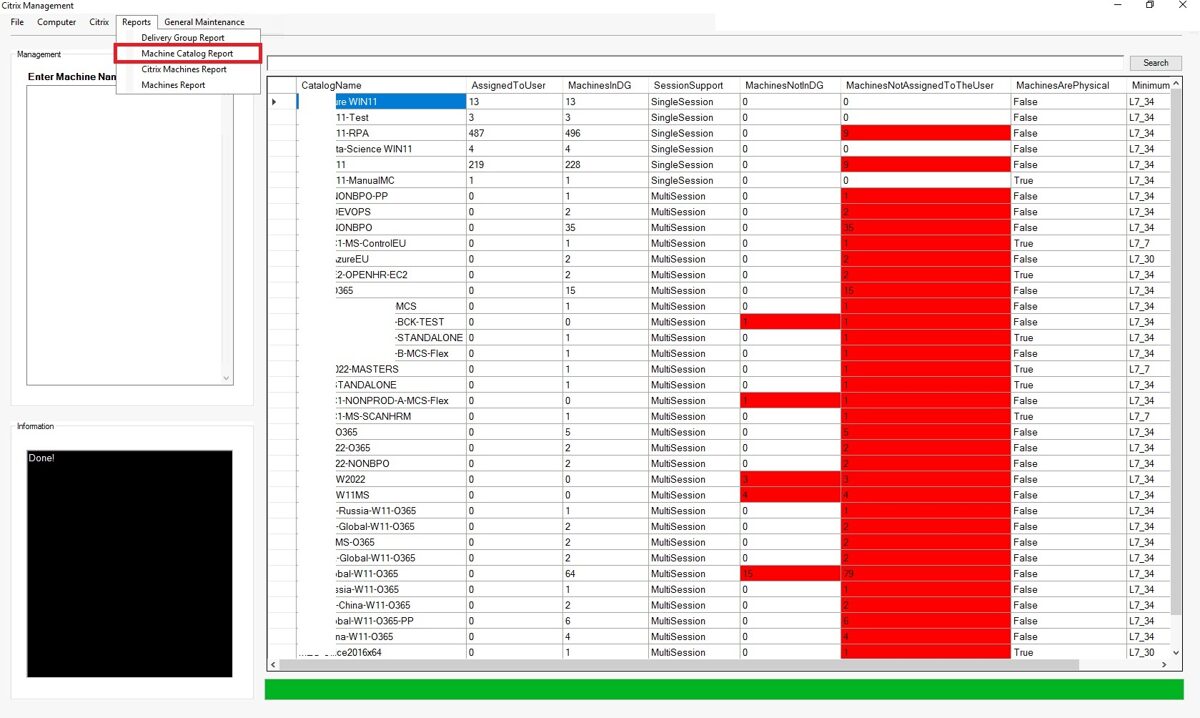
Machine Catalog Report
The "Machine Catalog" report contains the following information:
· Catalog Name
· Assigned to the User
· Machines in Delivery Group
· Session Support
· Machines Not In Delivery Group
· Machines Not Assigned To The User
· Machines Are Physical
· Minimum Functional Level
All information is taken from Citrix.
To draw your attention to important details— fields automatically are highlighted in red.
Citrix Machines Report
The "Machine Catalog" report contains the following information:
· Machine Name
· Catalog Nane
· Desktop Group Name
· Machine Power State
· Machine Registration State
· Image Out Of Date status
· Session Count
· In Maintenance Mode
· Installed Agent Version
· Allocation Type
· Desktop Kind
· Functional Level
· IP Address
· OS Type
· OS Version
· Catalog Nane
· Desktop Group Name
· Machine Power State
· Machine Registration State
· Image Out Of Date status
· Session Count
· In Maintenance Mode
· Installed Agent Version
· Allocation Type
· Desktop Kind
· Functional Level
· IP Address
· OS Type
· OS Version
All information is taken from Citrix.
To draw your attention to important details— fields automatically are highlighted in red.
Continued
Machines Report
The "Machines" report contains the following information:
· Machine Name
· CPU Usage
· RAM Usage
· Disk Size
· Disk Free Space
· Ivanti Agent Service Status
· Ivanti EM Core service Status
· Citrix Broker Agent Service Status
· Citrix Printing Service Status
· Print Spooler Service Status
· Nexthink Service Status
· FSLogix Service Status
· OS Installed On Machine
· OS Architecture
· OS Version
· Last Boot Time
· Date when report was generated
· CPU Usage
· RAM Usage
· Disk Size
· Disk Free Space
· Ivanti Agent Service Status
· Ivanti EM Core service Status
· Citrix Broker Agent Service Status
· Citrix Printing Service Status
· Print Spooler Service Status
· Nexthink Service Status
· FSLogix Service Status
· OS Installed On Machine
· OS Architecture
· OS Version
· Last Boot Time
· Date when report was generated
All the information in this report is extracted by connecting to the virtual machines themselves. A separate Citrix script was created to generate this information.
The script also provides information about which computers it was unable to connect to.
The script also provides information about which computers it was unable to connect to.
To draw your attention to important details— fields automatically are highlighted in red.
Continued
Computer section
The "Computer" section covers what kind of information can be extracted from the computer itself. It consists of the following parts:
· Installed Applications
· Computer Boot-up Time
· Windows Patches - Regular Windows Patches and Cumulative Windows Patches
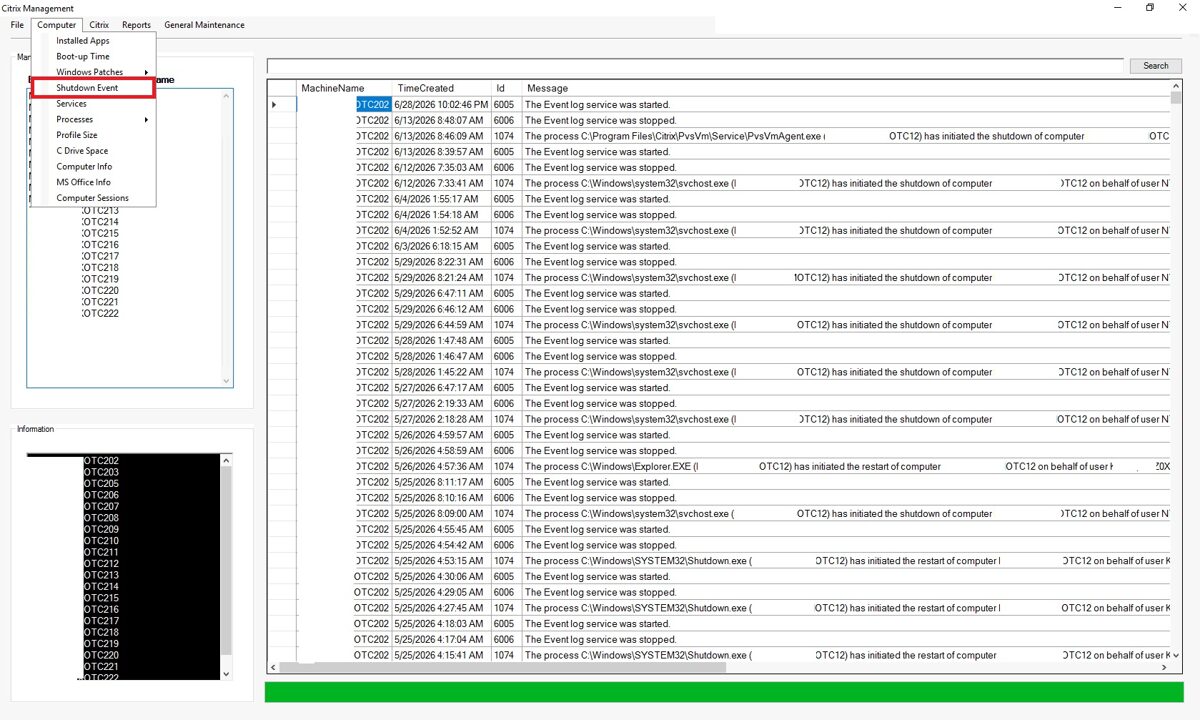
· Computer Shutdown and Reboot events
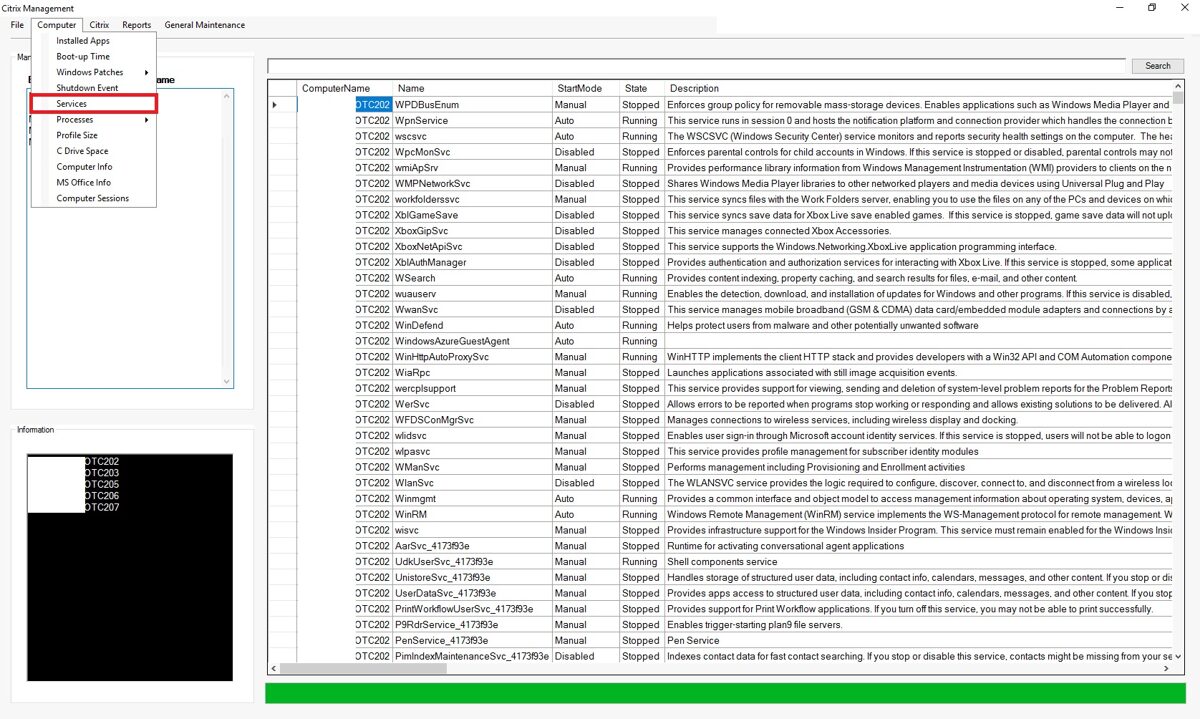
· Services running on the computer
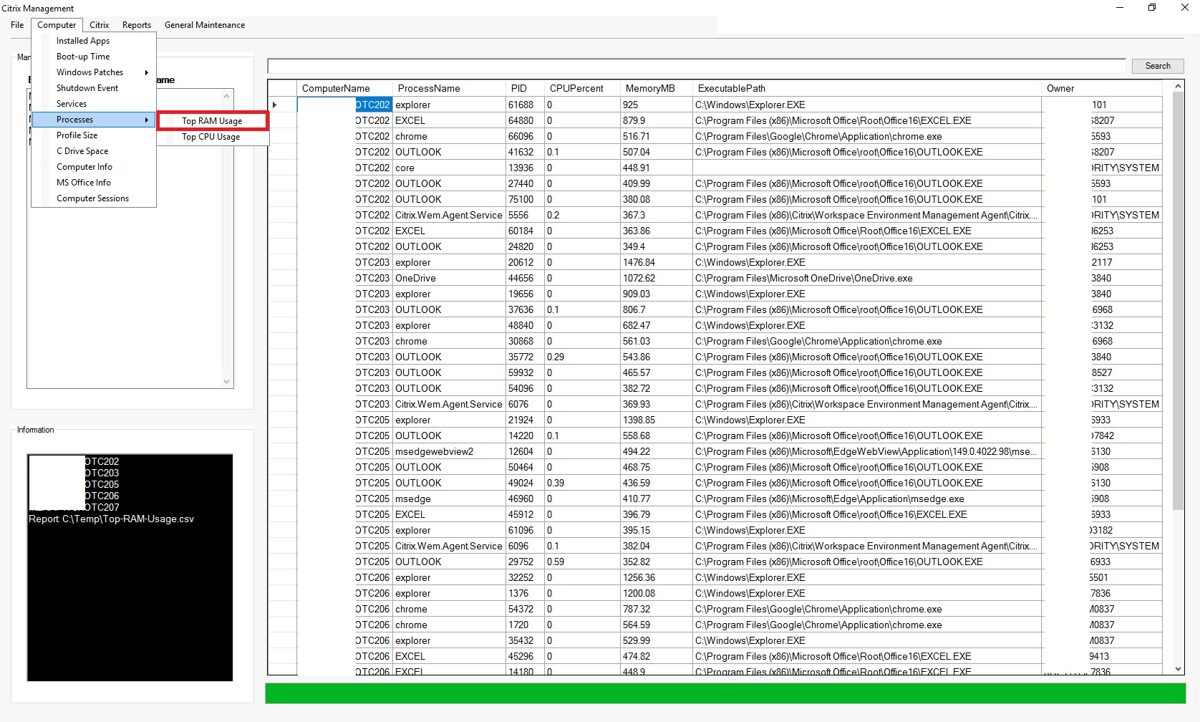
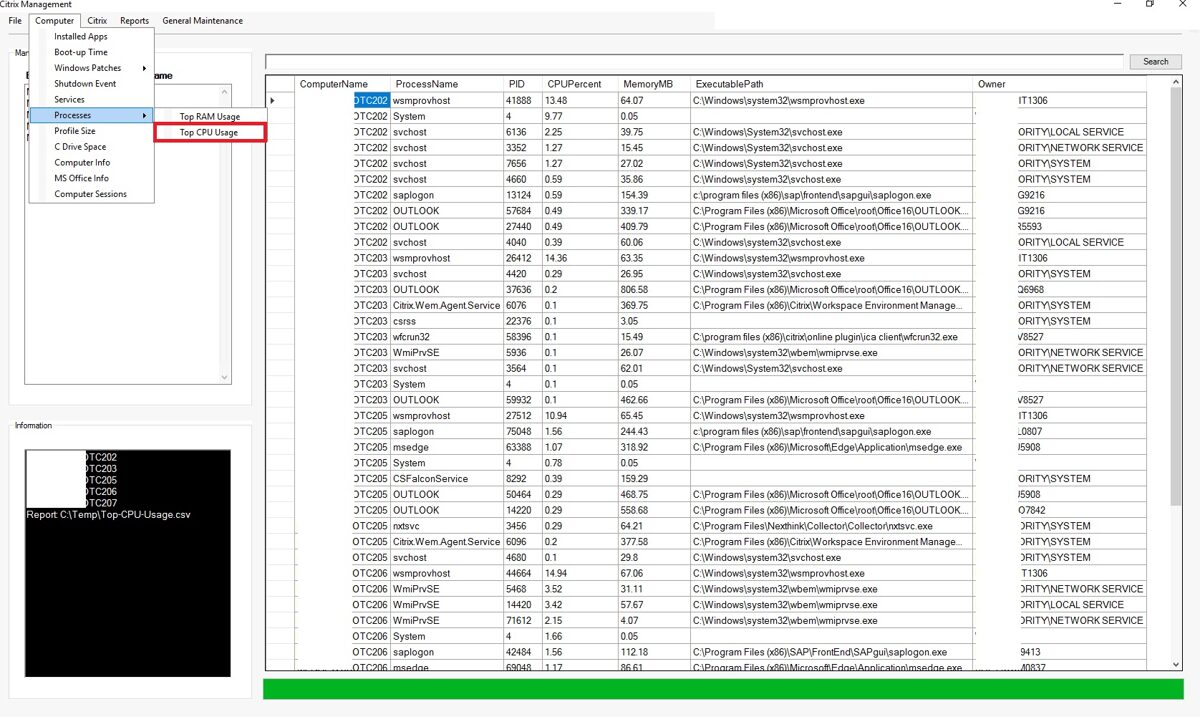
· Processes - The 10 processes that use the most RAM, The 10 processes that use the most CPU,
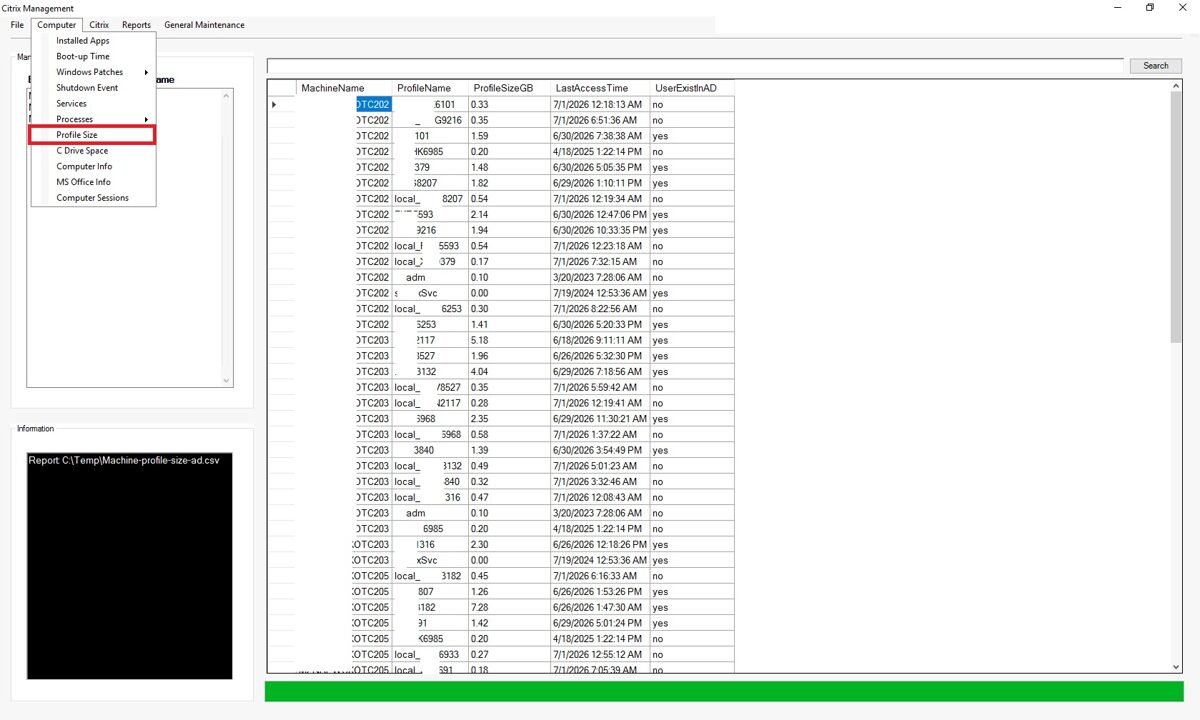
· User Profile sizes
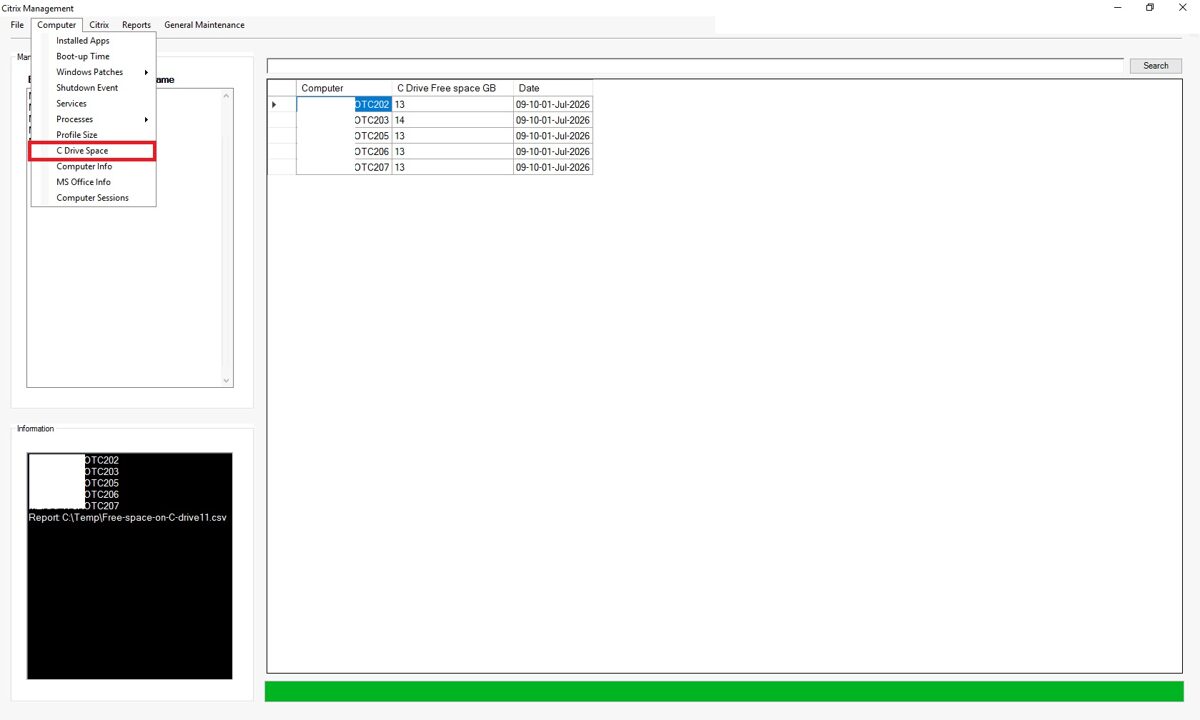
· C drive Space
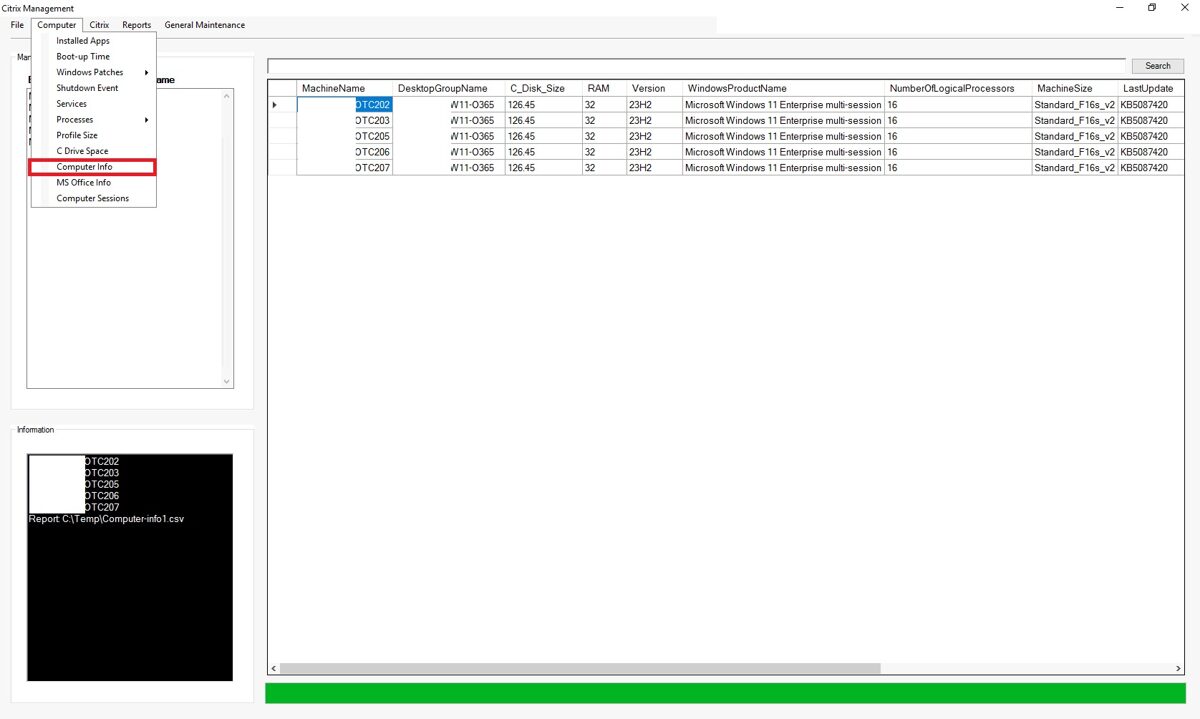
· Computer Info
· MS Office Info
· Active session on the computer
· Computer Boot-up Time
· Windows Patches - Regular Windows Patches and Cumulative Windows Patches
· Computer Shutdown and Reboot events
· Services running on the computer
· Processes - The 10 processes that use the most RAM, The 10 processes that use the most CPU,
· User Profile sizes
· C drive Space
· Computer Info
· MS Office Info
· Active session on the computer
Installed Apps
Information can be retrieved from multiple computers at the same time.
Continued
Boot-Up Time
Information can be retrieved from multiple computers at the same time.
Windows Patches
Regular Windows Patches
Information can be retrieved from multiple computers at the same time.
Cumulative Windows Patches
Information can be retrieved from multiple computers at the same time.
Shutdown Events
Information can be retrieved from multiple computers at the same time.
Services
Information can be retrieved from multiple computers at the same time.
Processes - Top 10 Processes used most of RAM
Information can be retrieved from multiple computers at the same time.
Processes - TOP 10 processes used most of CPU
Information can be retrieved from multiple computers at the same time.
Profile Size
The Windows OS creates a local profile for every user who has logged in to the computer. In this report, we can see the user profiles that have been created, their size, when the user last logged in, and whether their ID exists in Active Directory.
Information can be retrieved from multiple computers at the same time.
Free Space on C drive
Information can be retrieved from multiple computers at the same time.
Computer Info
Information can be retrieved from multiple computers at the same time.
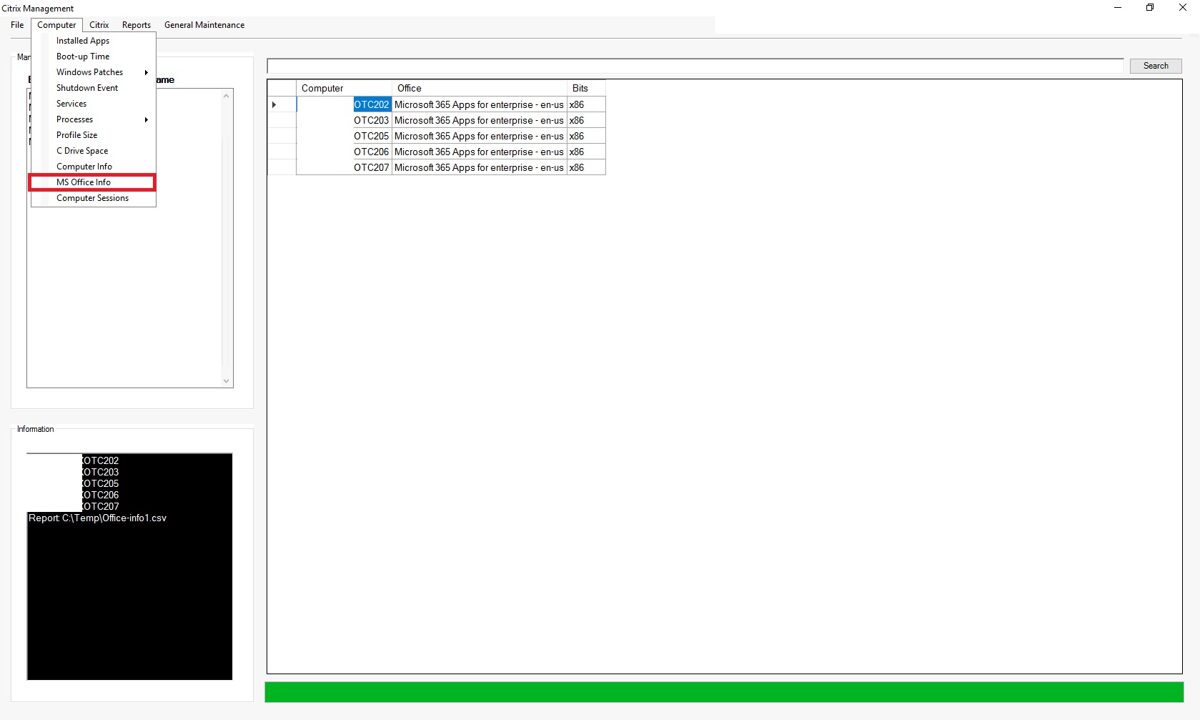
MS Office Info
In the "MS Office Info" section, you can see which version of MS Office is installed on your computer.
Information can be retrieved from multiple computers at the same time.
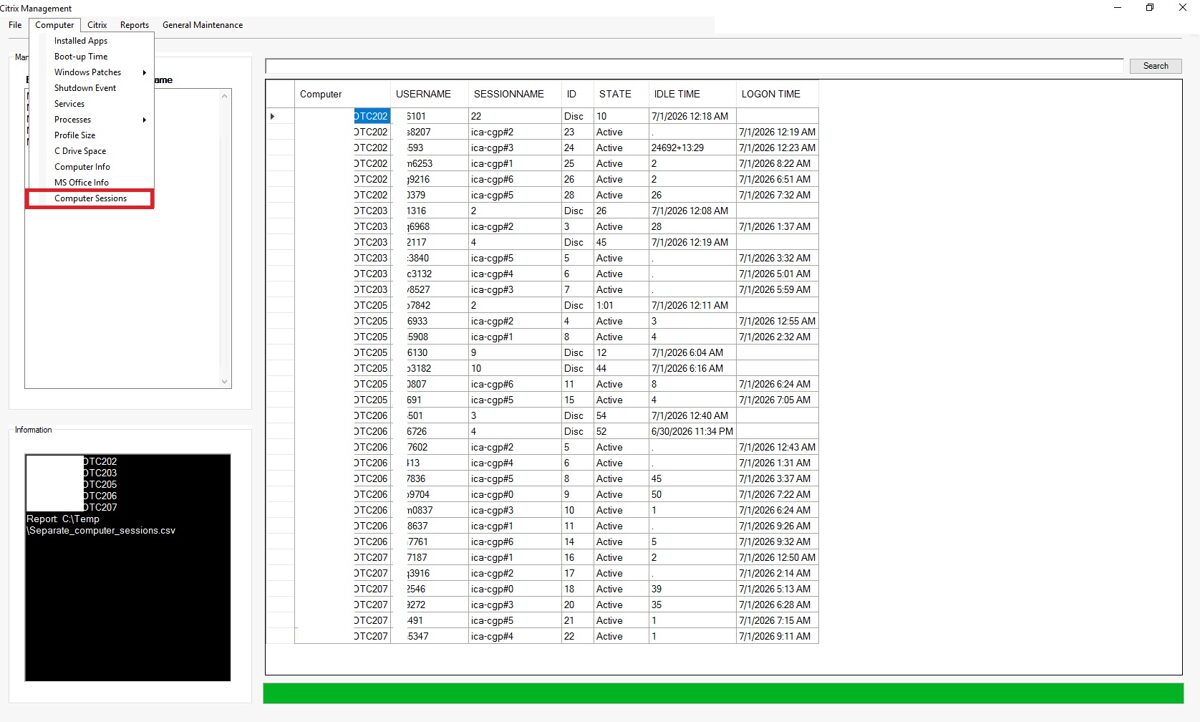
Computer Session
The information is obtained directly from the computers and shows the status of the user sessions at that moment.
Information can be retrieved from multiple computers at the same time.
Citrix
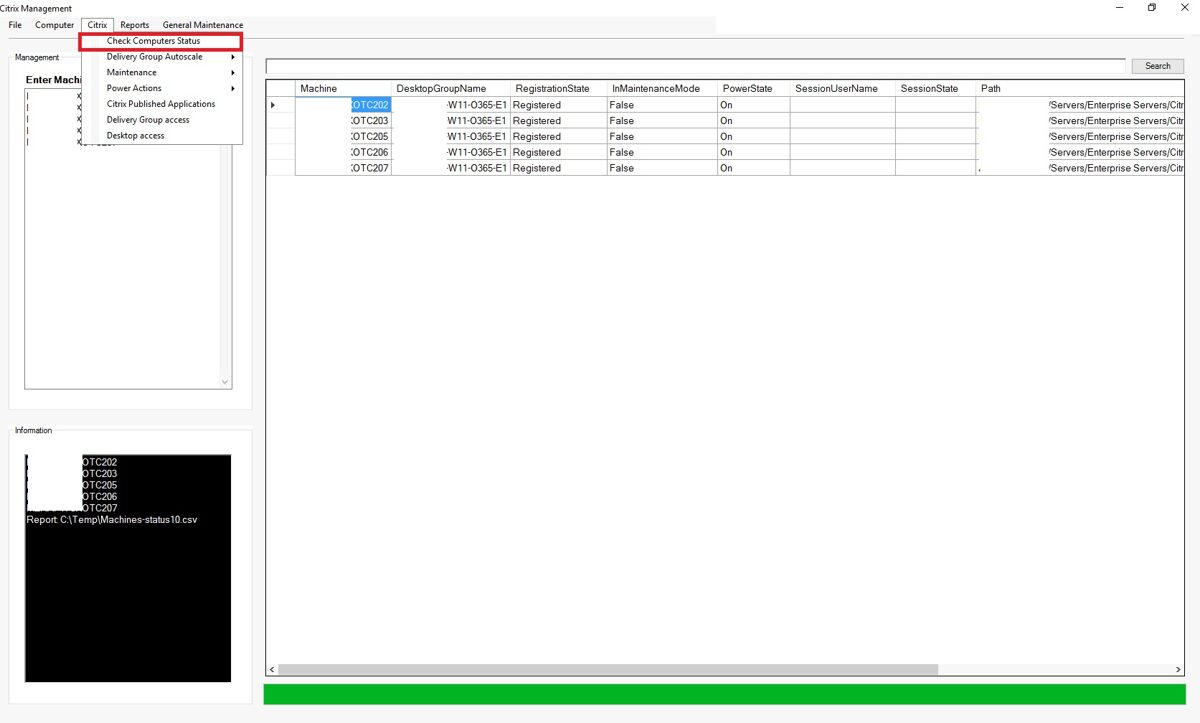
Check Computer Status
"Check computer status" allows you to check the status of individual computers in a Citrix environment. Path column - displays the computer's location in the Active Directory OU.
Information can be retrieved from multiple computers at the same time.
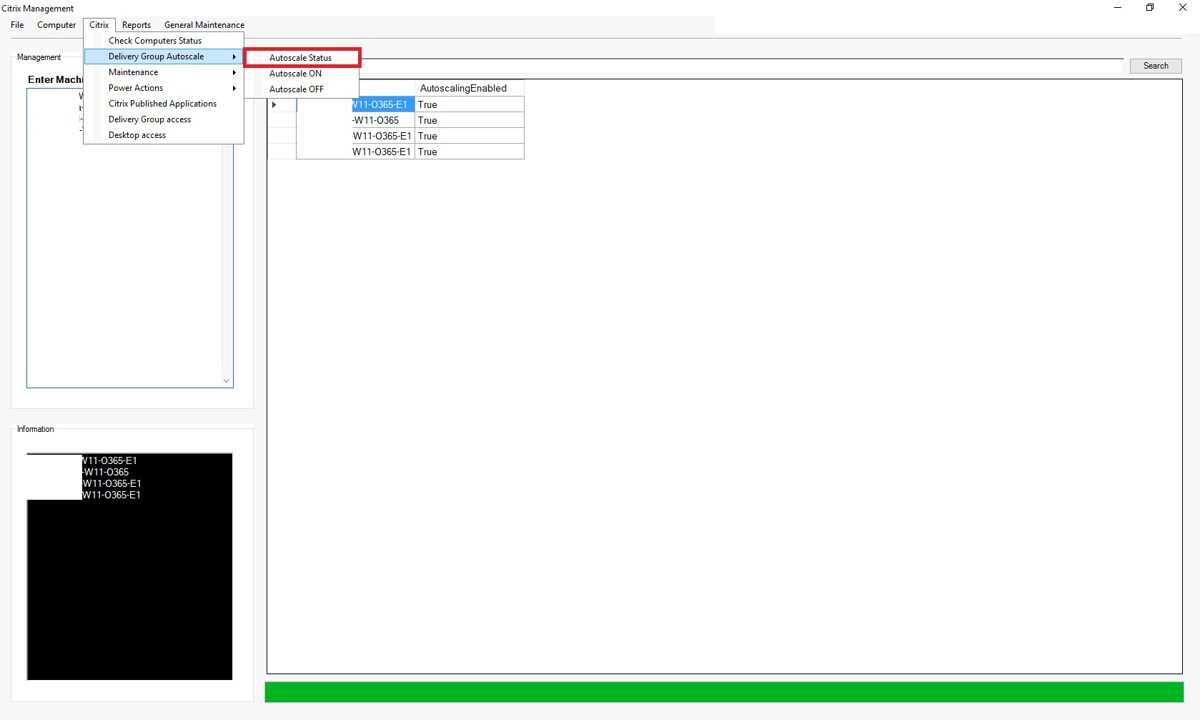
Delivery Group Autoscale.
Delivery Group Autoscale - allows you to check the Autoscale status for a Citrix Delivery Group. You can also enable or disable Autoscale for different Delivery Groups in this section.
Information can be retrieved from multiple Delivery Groups at the same time.
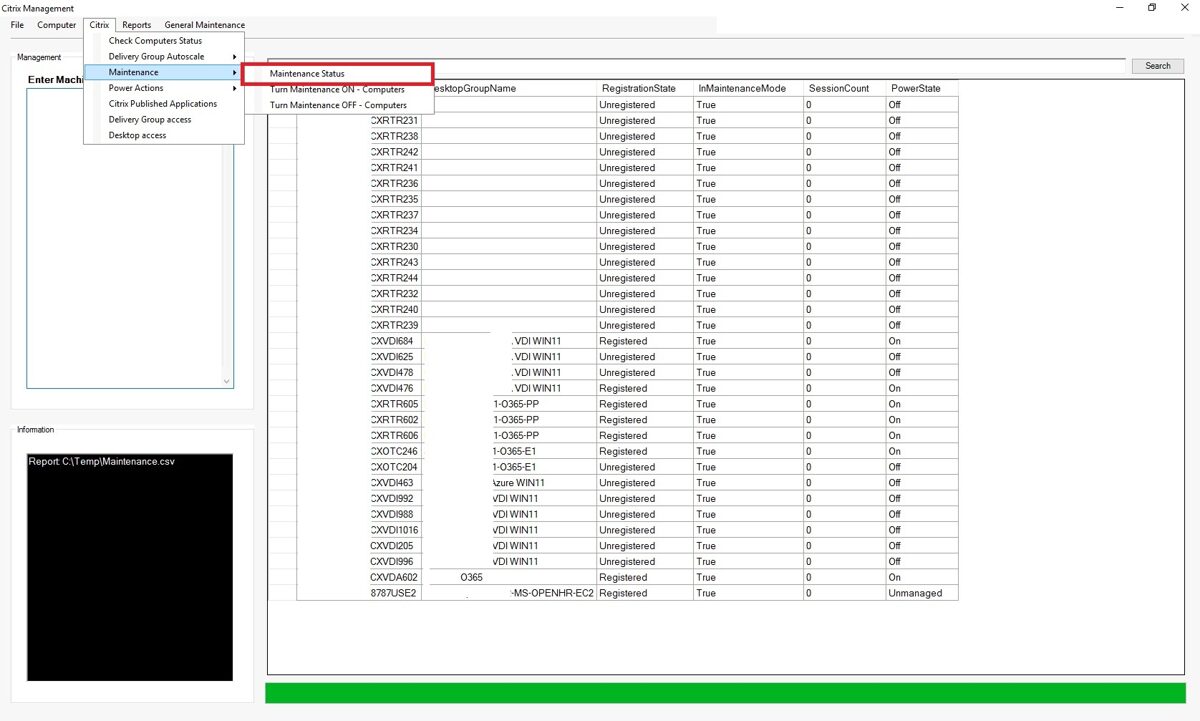
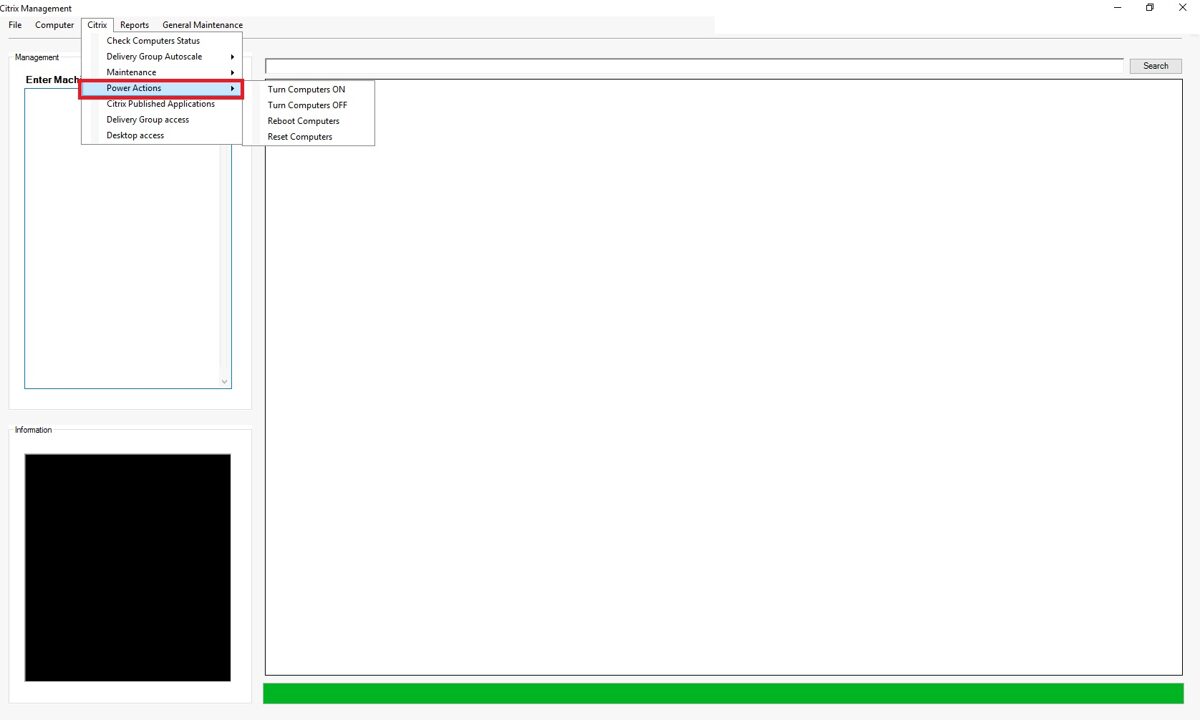
Maintenance
The Maintenance section allows you to check which machines are in Citrix Maintenance Mode. You can also use this section to add or remove individual machines from Maintenance Mode.
You can put several machines into Maintenance mode or take them out of it all at once.
In this section, you can power off, power on, reboot, or reset individual Citrix computers.
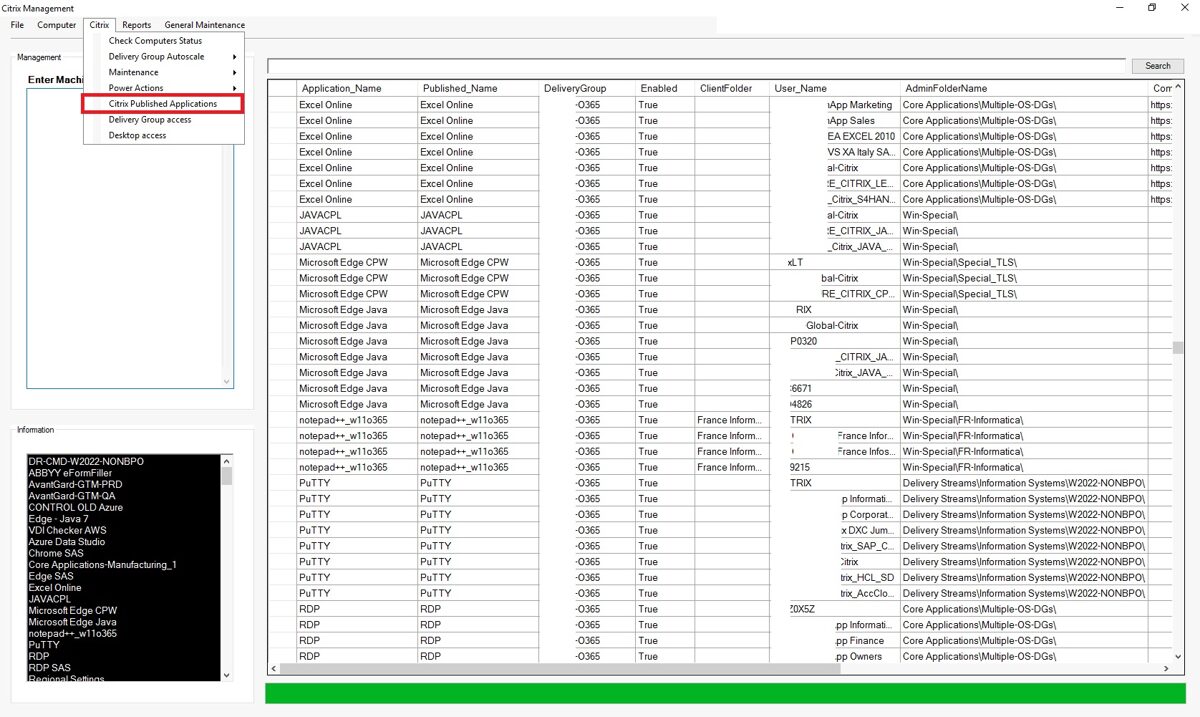
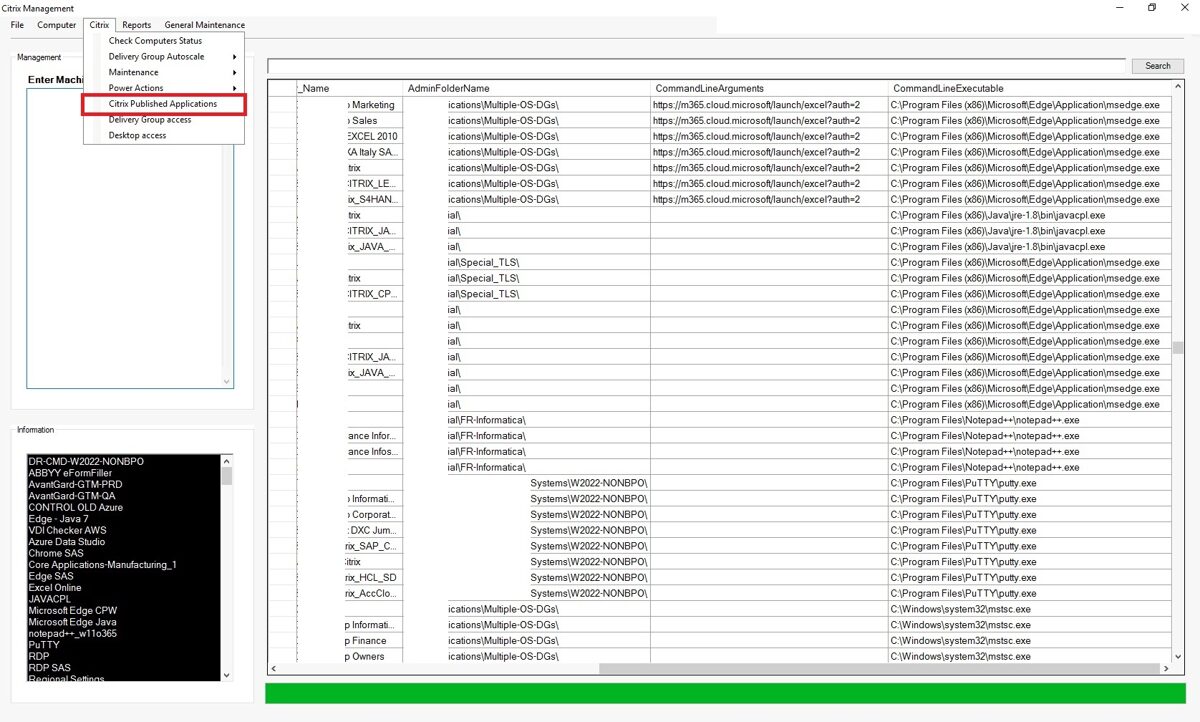
Citrix Published Applications
In this section, you can view all Citrix published applications and information related with it.
Continued
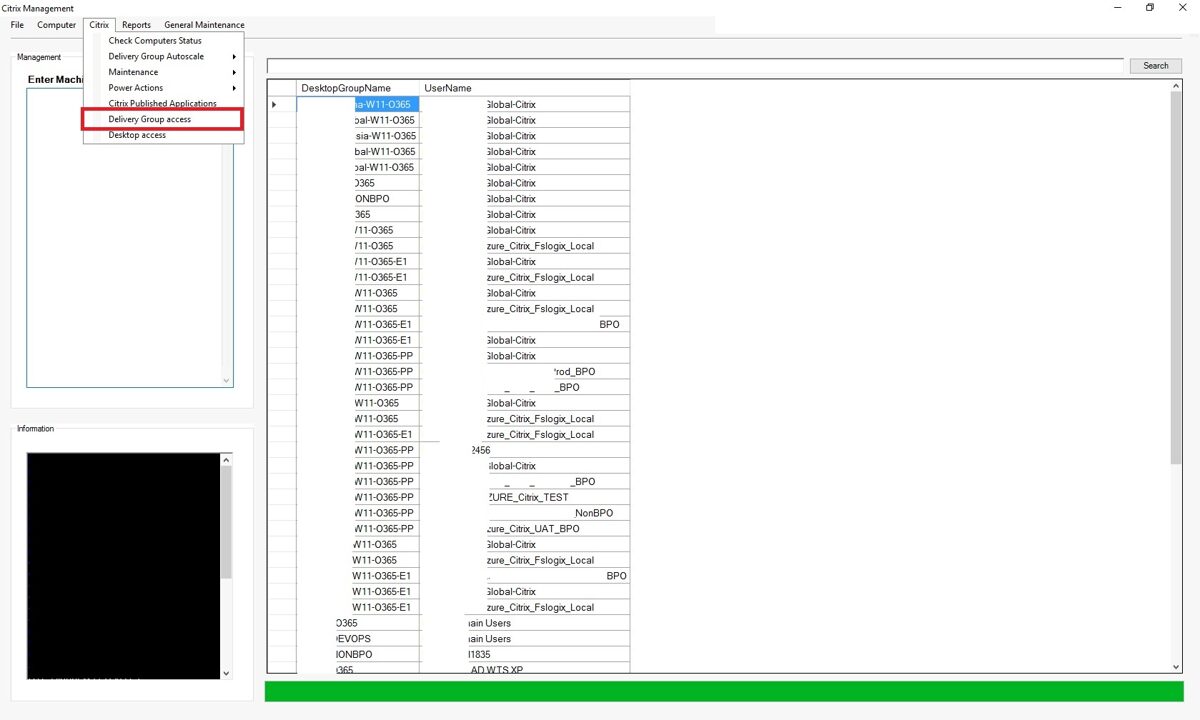
Delivery Group Access
In the "Delivery Group Access" section, you can view all delivery groups and see which users and Active Directory groups have access to them.
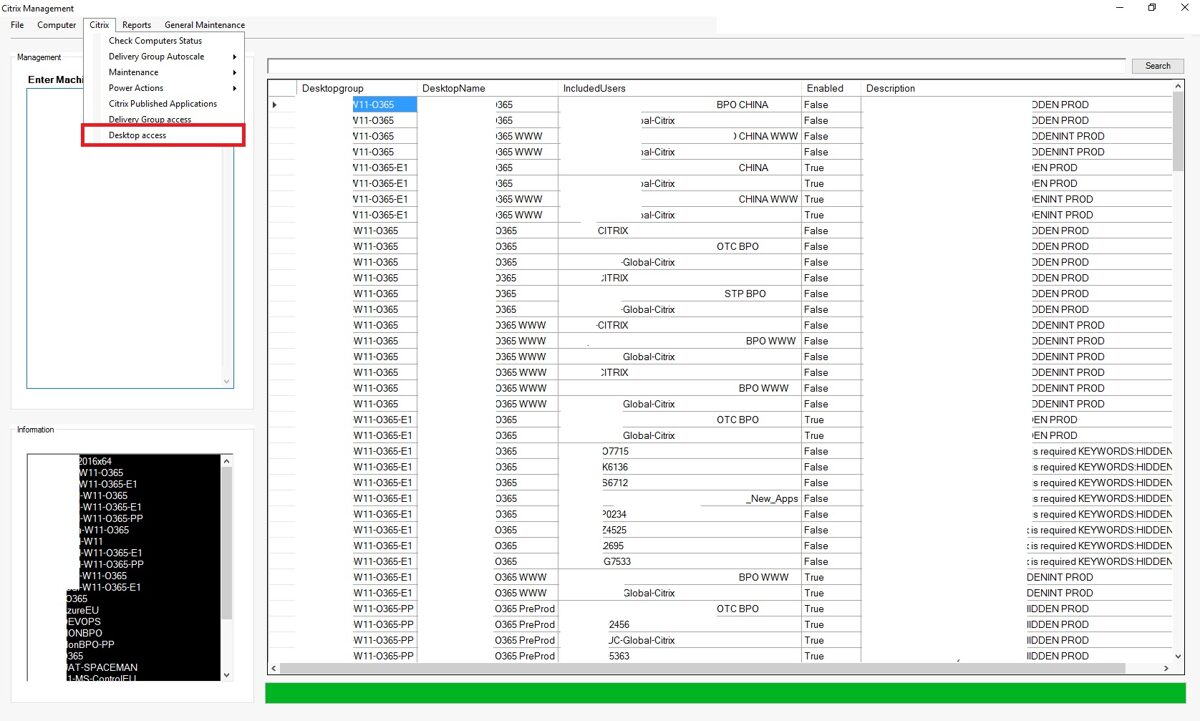
Desktop Access
In the "Desktop Access" section, you can view all desktops created within Citrix, their status (enabled/disabled), the Delivery Group to which each desktop belongs, and which users or Active Directory groups have access to the desktops.
Overall Value
This GUI application would serve as a comprehensive Citrix operations, reporting, monitoring, and management platform, providing administrators with centralized visibility into Citrix delivery groups, machine catalogs, desktops, applications, machine health, operating system status, performance metrics, user sessions, capacity utilization, patching, services, storage, and access permissions. By gathering information from multiple machines simultaneously and combining Citrix and Windows data in a single interface, it can significantly reduce administration effort, accelerate troubleshooting, improve security and compliance, and increase the overall stability and efficiency of the Citrix environment.
Overall Value
This GUI application would serve as a comprehensive Citrix operations, reporting, monitoring, and management platform, providing administrators with centralized visibility into Citrix delivery groups, machine catalogs, desktops, applications, machine health, operating system status, performance metrics, user sessions, capacity utilization, patching, services, storage, and access permissions. By gathering information from multiple machines simultaneously and combining Citrix and Windows data in a single interface, it can significantly reduce administration effort, accelerate troubleshooting, improve security and compliance, and increase the overall stability and efficiency of the Citrix environment.
User session latency in Citrix
One of the common problems users encounter and complain about in a Citrix environment is delay. This delay is noticeable when launching applications, clicking buttons, moving documents, and so on. And very often, users report that their internet speed is excellent, and that they don't experience any lag anywhere else except in the Citrix environment. The easiest way to check this is to view the delay of his Citrix ICA session in the Citrix Cloud console. However, there are situations where a user submits a ticket but cannot be reached on the same day. So, how can you view historical information? As you know, the Citrix Cloud console displays information about Citrix user sessions only for the last 24 hours. To solve these problems, I created an app and named it "User Sessions Latency".
1. Improved User Experience Monitoring
2. Faster Issue Resolution
· Real-time display of critical performance indicators reduces the time needed to diagnose user-reported slowness.
· Correlates session latency with server resource utilization, helping identify the root cause more quickly.
· Eliminates the need to manually run multiple PowerShell commands or open several monitoring tools.
3. Proactive Infrastructure Monitoring
· Continuous monitoring of CPU, RAM, and Disk Queue Length helps detect resource bottlenecks before users are significantly impacted.
· Supports proactive capacity planning and performance optimization efforts.
4. Better Server Performance Visibility
· CPU Usage Monitoring
· Identifies overloaded servers and processes.
· Helps balance workloads across Citrix hosts.
· RAM Usage Monitoring
· Detects memory pressure and potential resource exhaustion.
· Helps identify memory leaks or applications consuming excessive resources.
· Disk Queue Length Monitoring
· Reveals storage bottlenecks that may affect application launches, profile loading, and session responsiveness.
· Helps determine whether performance issues originate from disk subsystems.
5. Reduced Administrative Effort
· Consolidates multiple health checks into a single GUI interface.
· Allows administrators with limited PowerShell knowledge to access advanced performance data easily.
· Minimizes time spent collecting diagnostic information during incident investigations.
6. Enhanced Troubleshooting Accuracy
· By displaying latency and resource metrics together, administrators can quickly answer questions such as:
· Is the issue network-related or server-related?
· Is high ICA latency caused by CPU saturation?
· Is excessive RAM consumption affecting user sessions?
· Is storage performance impacting logon times or application launches?
7. Improved Service Availability
· Early detection of resource constraints helps prevent session degradation and outages.
· Supports more stable Citrix and remote desktop environments, resulting in higher end-user satisfaction and productivity.
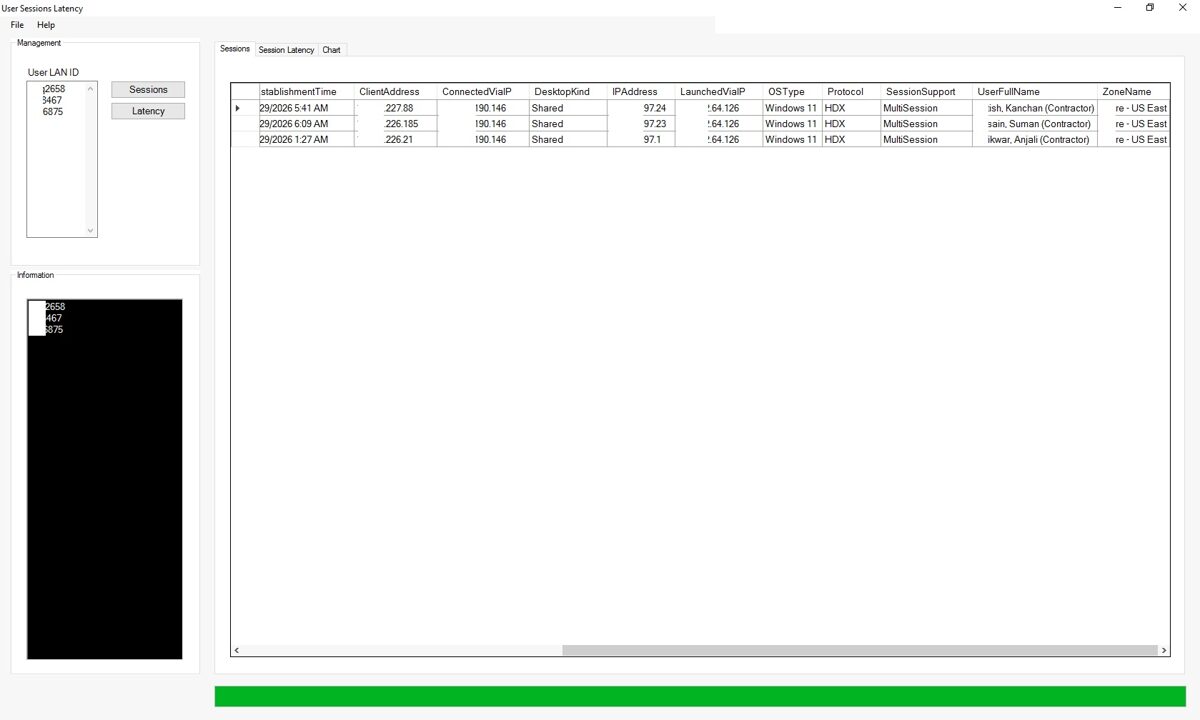
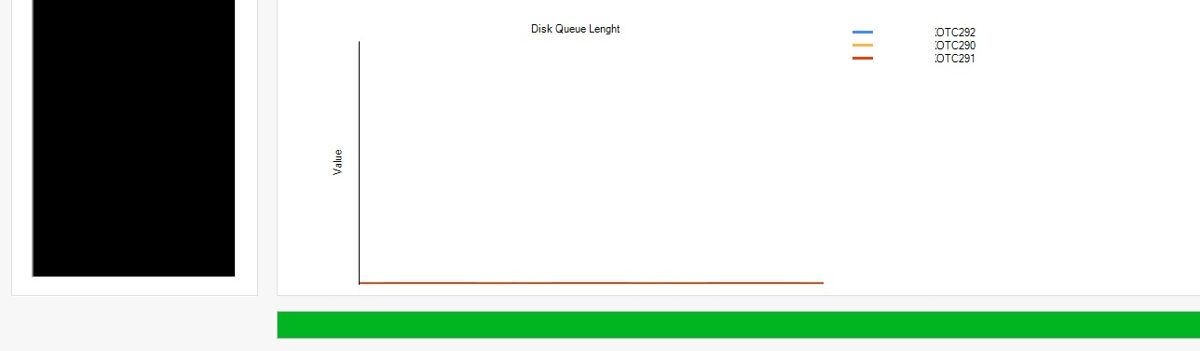
This PowerShell GUI application provides IT administrators and support teams with a centralized view of key Citrix and Windows performance metrics, enabling faster troubleshooting and proactive issue resolution.
Benefits of the User Session Latency application:
1. Improved User Experience Monitoring
· ICA Session Latency monitoring helps identify delays between the Citrix session and the end user.
· RRT (Round Trip Time) Session Latency provides visibility into overall connection responsiveness, including client, network, and server components.
· Enables administrators to quickly determine whether performance complaints are caused by the network, Citrix infrastructure, or endpoint device.
· RRT (Round Trip Time) Session Latency provides visibility into overall connection responsiveness, including client, network, and server components.
· Enables administrators to quickly determine whether performance complaints are caused by the network, Citrix infrastructure, or endpoint device.
2. Faster Issue Resolution
· Real-time display of critical performance indicators reduces the time needed to diagnose user-reported slowness.
· Correlates session latency with server resource utilization, helping identify the root cause more quickly.
· Eliminates the need to manually run multiple PowerShell commands or open several monitoring tools.
3. Proactive Infrastructure Monitoring
· Continuous monitoring of CPU, RAM, and Disk Queue Length helps detect resource bottlenecks before users are significantly impacted.
· Supports proactive capacity planning and performance optimization efforts.
4. Better Server Performance Visibility
· CPU Usage Monitoring
· Identifies overloaded servers and processes.
· Helps balance workloads across Citrix hosts.
· RAM Usage Monitoring
· Detects memory pressure and potential resource exhaustion.
· Helps identify memory leaks or applications consuming excessive resources.
· Disk Queue Length Monitoring
· Reveals storage bottlenecks that may affect application launches, profile loading, and session responsiveness.
· Helps determine whether performance issues originate from disk subsystems.
5. Reduced Administrative Effort
· Consolidates multiple health checks into a single GUI interface.
· Allows administrators with limited PowerShell knowledge to access advanced performance data easily.
· Minimizes time spent collecting diagnostic information during incident investigations.
6. Enhanced Troubleshooting Accuracy
· By displaying latency and resource metrics together, administrators can quickly answer questions such as:
· Is the issue network-related or server-related?
· Is high ICA latency caused by CPU saturation?
· Is excessive RAM consumption affecting user sessions?
· Is storage performance impacting logon times or application launches?
7. Improved Service Availability
· Early detection of resource constraints helps prevent session degradation and outages.
· Supports more stable Citrix and remote desktop environments, resulting in higher end-user satisfaction and productivity.
Behind the scenes, an exe file is copied to remote computers, which collects the following information:
· ICA Session Latency
· RRT Session Latency
· CPU usage
· RAM usage
· Disk queue length
And it stores the collected information in one place. The program simply retrieves the collected information and displays it.

The program allows you to view the current status of the user sessions in Citrix.
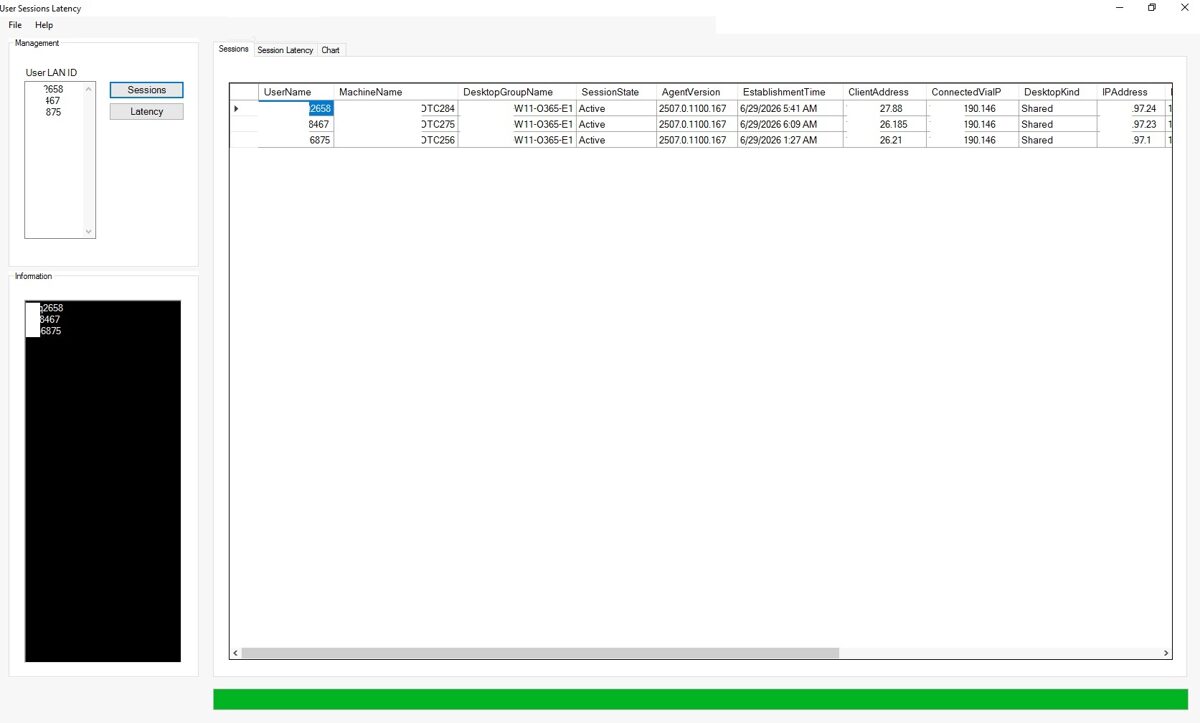
continued
· RRT Session Latency
· CPU usage
· RAM usage
· Disk queue length
And it stores the collected information in one place. The program simply retrieves the collected information and displays it.
The program allows you to view the current status of the user sessions in Citrix.
When you click the "Session Latency" tab, you'll see historical information about user sessions entered into the program.
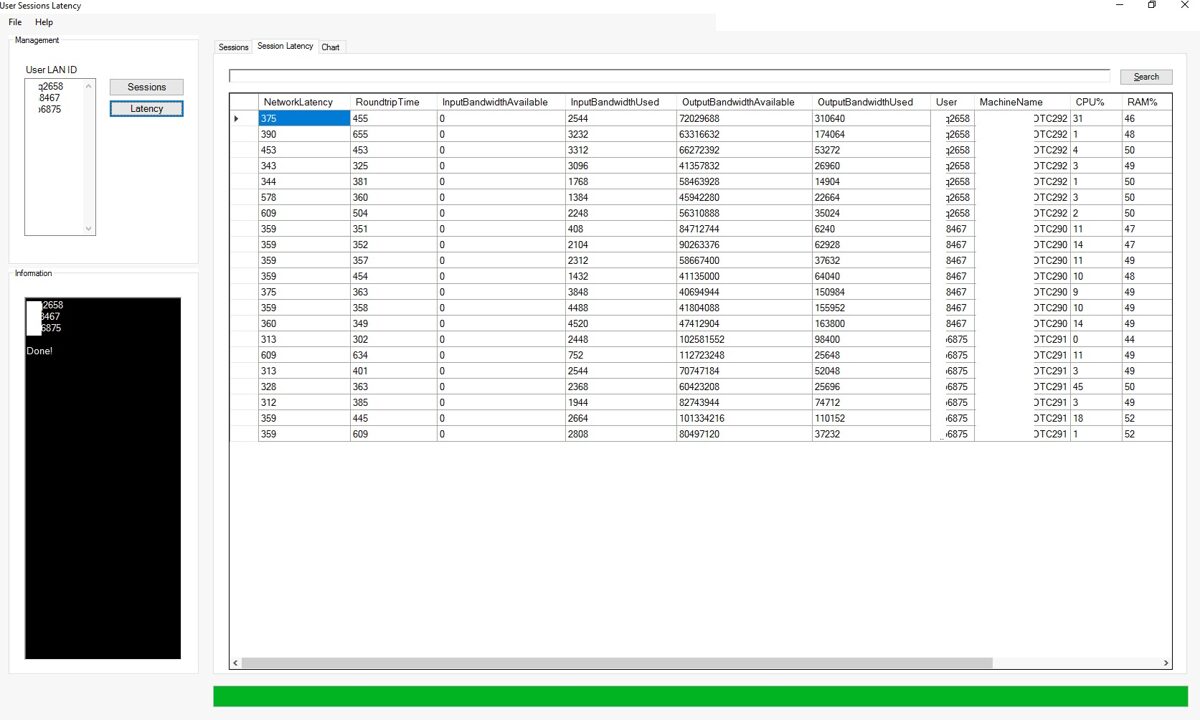
Continued
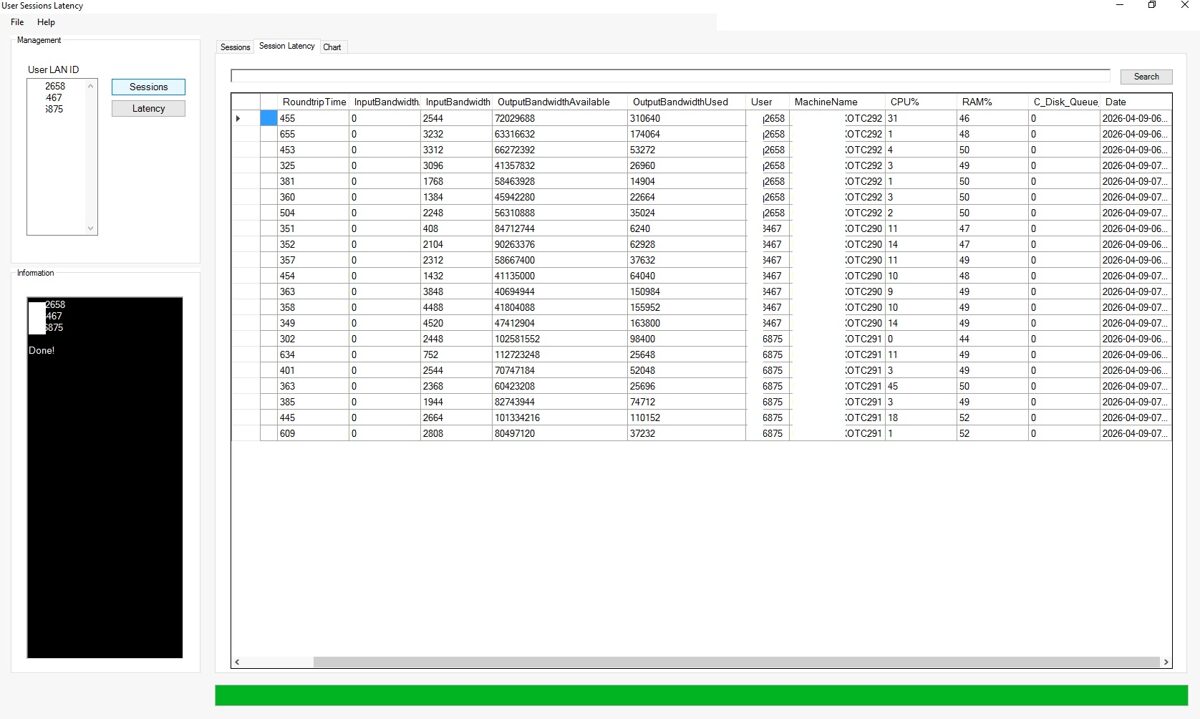
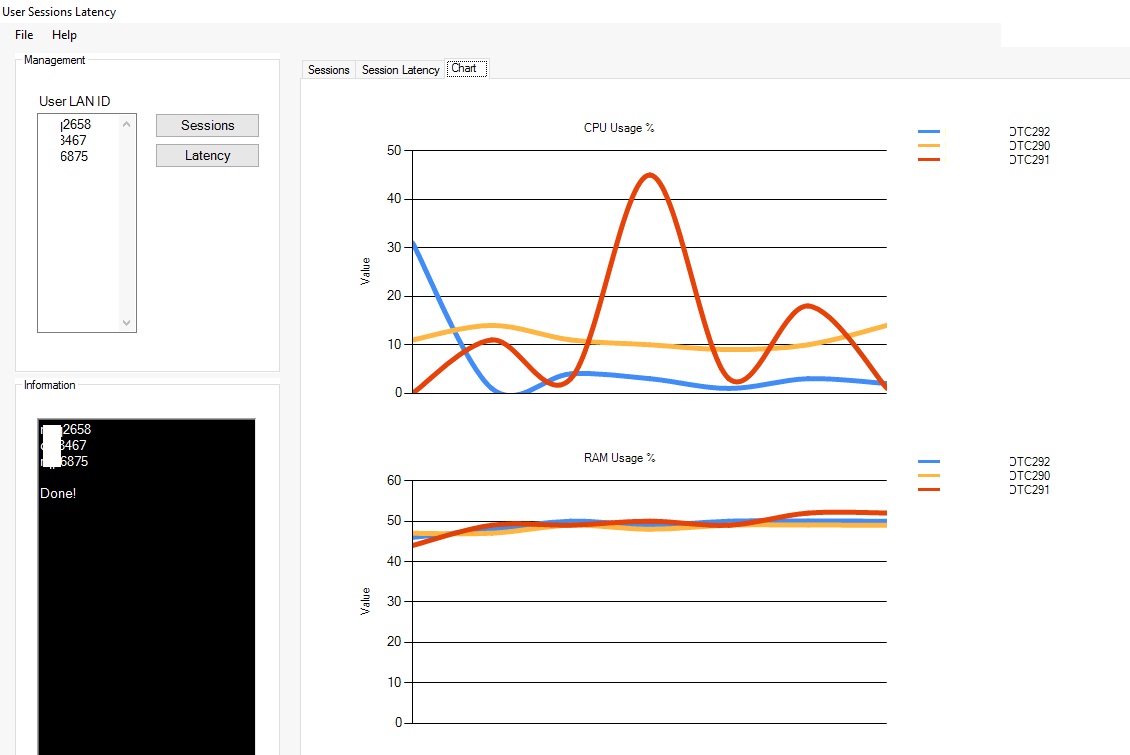
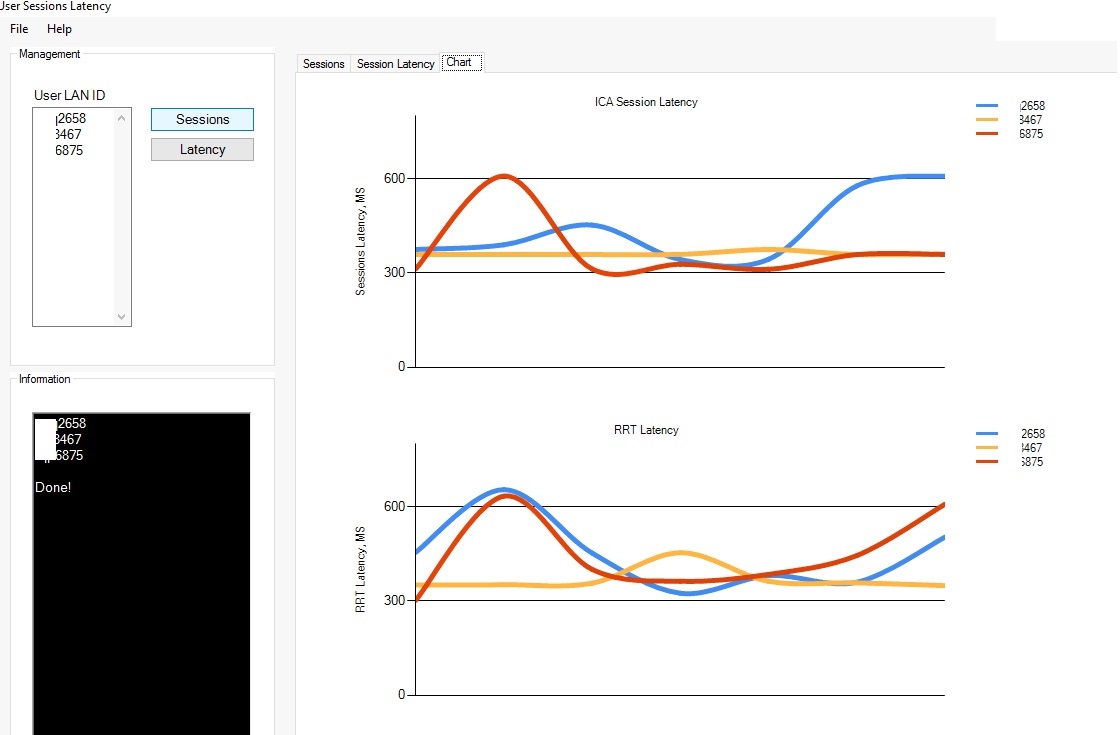
Chart tab displays visual charts related with user sessions in Citrix.
Continued
Chart tab displays visual charts related with user sessions in Citrix.
Continued
Continued
The application enables proactive monitoring, faster troubleshooting, reduced downtime, and improved end-user experience by providing a single-pane view of Citrix session latency and critical system performance metrics. This leads to lower support costs, increased administrator efficiency, and improved reliability of the virtual desktop environment.
Citrix VDI Access Control
When working with Citrix, you may encounter situations where you need to grant access to a certain number of users to different Citrix single session computers. Doing this manually through the Citrix console is time-consuming and you may make a mistakes. To prevent errors and ensure that the process runs smoothly and quickly, I created a PowerShell-based GUI application that allows you to grant or revoke user access to different VDI machines simultaneously. In addition to granting or revoking access to VDI computers, the program also sends emails to users to notify them of these changes. As you will see, the program creates a log file containing information about which users were granted or denied access to the VDI computer, which Citrix engineer performed the action, the service request number, and the date the action was taken. The program can also generate a report listing all users and the machines assigned to them. So if you make a mistake, you’ll always be able to correct it, since all the information will be included in the generated report.
6. Benefits of Reporting
· Supports security reviews
Application overview:
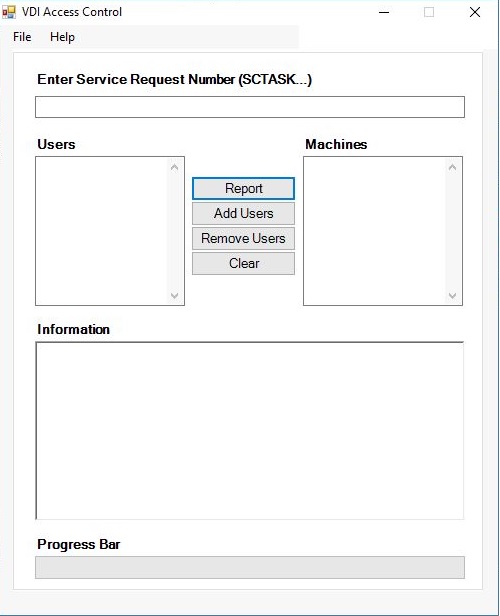
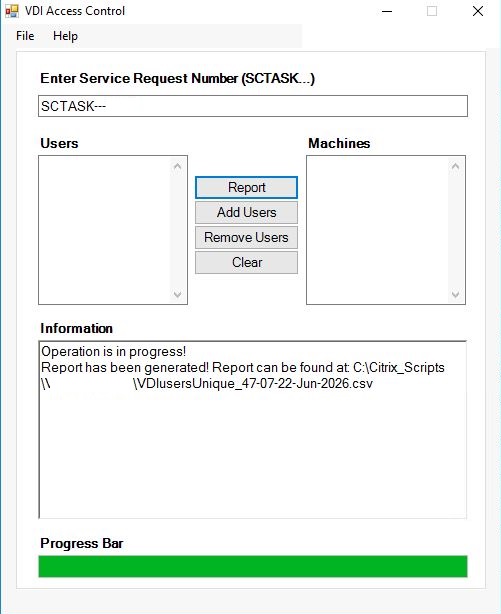
To create a report, click the "Report" button. After the report will be generated application will show the exact place where it was saved.
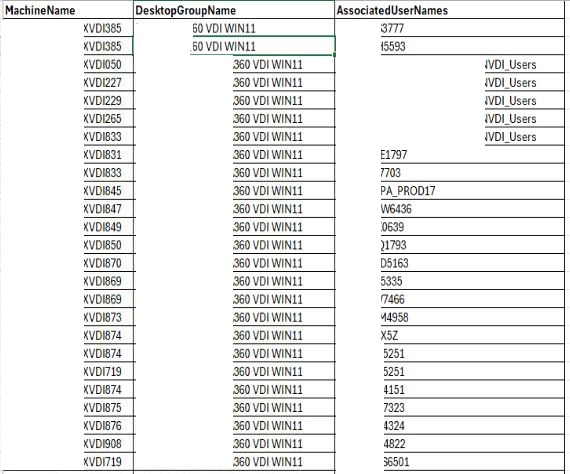
Report is generated into csv file, so it may be opened with MS Excel application. The report displays the names of VDI computers, Delivery Groups, and users, as well as the AD groups assigned to the VDI computers.
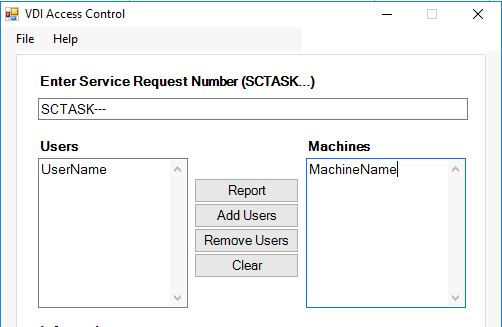
To grant a user access, enter the user ID in the "Users" field and the computer names in the "Machines" field.
If there is a single user who needs access to single computer, enter below.
If there are different users and different computers, enter them all in both fields.
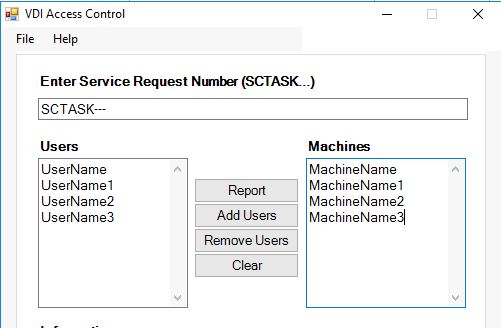
If there is a single user who needs to be granted access to multiple computers, enter below:
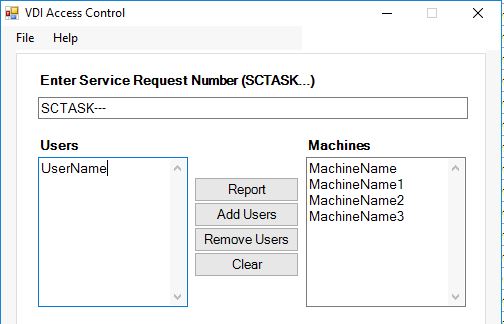
The same 3 things apply when you want to revoke a user's access.
During each operation, you will see a confirmation window. You can always cancel the operation.
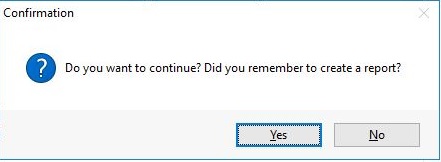
When you grant or revoke a user's access, you see the information in the Information window.
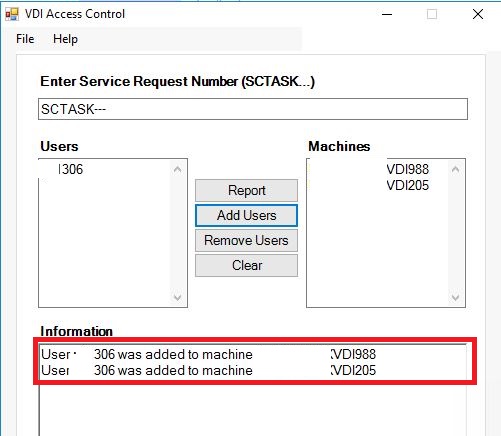
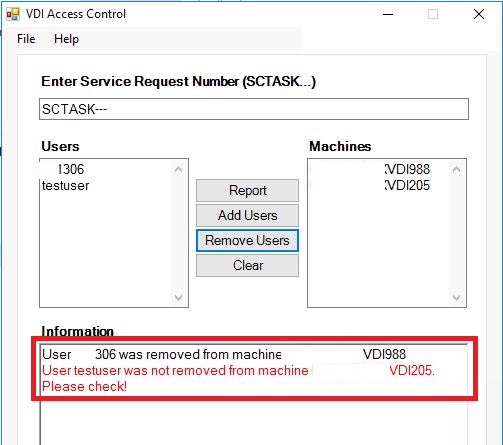
If you make a mistake and that user or computer does not exist, you will see a message in the "Information" box.
The "Clear" button clears all fields.
A progress bar will display the progress of the operation.
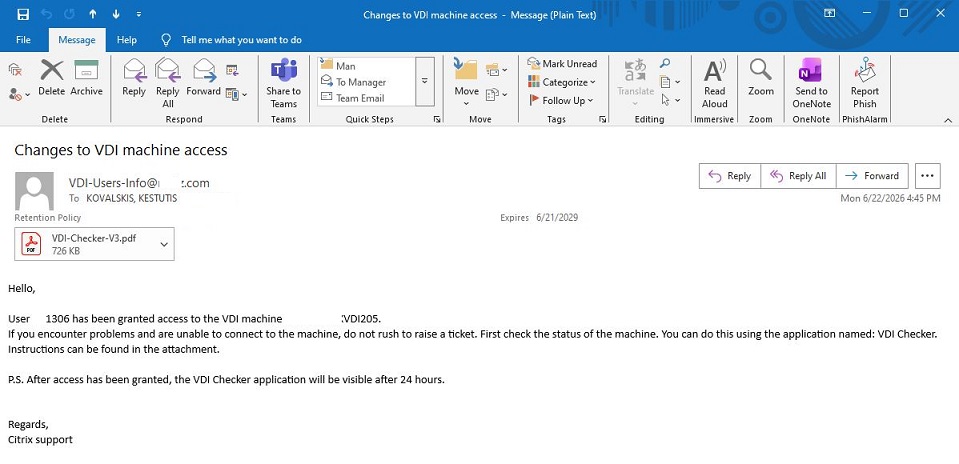
Revoking access email:
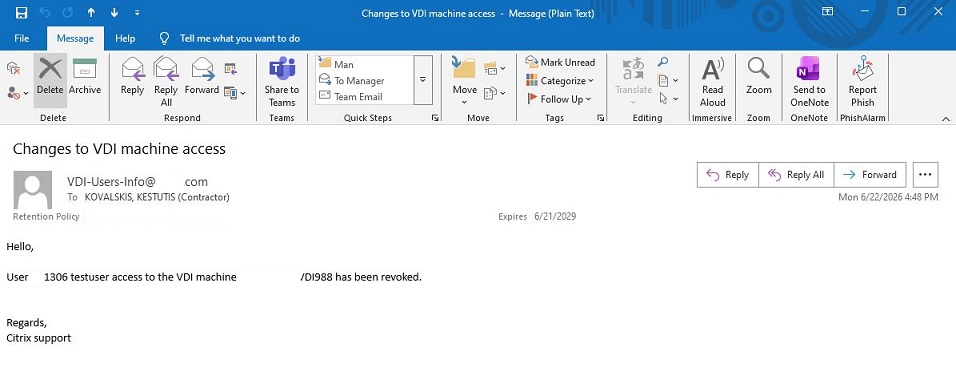
This GUI application enables Citrix administrators and support teams to perform bulk user assignment operations, generate reports, maintain audit logs, and receive real-time feedback during administrative tasks. The result is faster administration, improved accuracy, enhanced security, and reduced operational effort.
Benefits of the Citrix VDI User Assignment Management GUI Application (VDI Access Control)
This GUI application enables Citrix administrators and support teams to perform bulk user assignment operations, generate reports, maintain audit logs, and receive real-time feedback during administrative tasks. The result is faster administration, improved accuracy, enhanced security, and reduced operational effort.
This GUI application enables Citrix administrators and support teams to perform bulk user assignment operations, generate reports, maintain audit logs, and receive real-time feedback during administrative tasks. The result is faster administration, improved accuracy, enhanced security, and reduced operational effort.
1. Significant Time Savings Through Bulk Operations
Add Many Users to One Citrix VDI Machine
· Assign multiple users to a VDI machine in a single operation.
· Eliminates repetitive manual assignments.
· Reduces administrative workload significantly.
· Enables rapid onboarding of teams and project groups.
Add Many Users to Many Citrix VDI Machines
· Supports mass provisioning scenarios.
· Ideal for migrations, new projects, and organizational changes.
· Allows administrators to complete tasks that might otherwise take hours in just minutes.
Remove Many Users from One Citrix VDI Machine
· Quickly revoke access when projects end or users change roles.
· Improves administrative efficiency.
· Reduces the risk of forgotten access permissions.
Remove Many Users from Many Citrix VDI Machines
· Accelerates offboarding activities.
· Simplifies security remediation activities.
· Supports large-scale access cleanup initiatives.
2. Reduced Human Error
· Automates repetitive access management tasks.
· Minimizes manual entry mistakes.
· Ensures consistent assignment processes.
· Reduces the risk of assigning users to incorrect machines.
Information Window Validation
· Provides immediate feedback during operations.
· Detects invalid usernames or machine names.
· Highlights failed assignments before changes become a larger issue.
Benefit: Administrators can identify and correct problems immediately.
3. Improved Administrator Productivity
· Replaces multiple manual Citrix Studio actions.
· Reduces the number of clicks required to perform assignments.
· Enables administrators to manage large environments efficiently.
· Accelerates routine administration tasks.
Result: More time available for strategic and higher-value activities.
4. Enhanced Security and Access Governance
· Supports rapid removal of obsolete user access.
· Helps ensure only authorized users have access to VDI resources.
· Reduces security risks associated with stale permissions.
· Provides visibility into who was granted or removed from a machine.
Benefit: Better compliance with access management and security policies.
5. Comprehensive Reporting Capabilities
· VDI Machine and User Assignment Report
· The application can generate reports showing:
· Citrix VDI machine names
· Assigned users
· Assignment relationships
· Access distribution across the environment
Add Many Users to One Citrix VDI Machine
· Assign multiple users to a VDI machine in a single operation.
· Eliminates repetitive manual assignments.
· Reduces administrative workload significantly.
· Enables rapid onboarding of teams and project groups.
Add Many Users to Many Citrix VDI Machines
· Supports mass provisioning scenarios.
· Ideal for migrations, new projects, and organizational changes.
· Allows administrators to complete tasks that might otherwise take hours in just minutes.
Remove Many Users from One Citrix VDI Machine
· Quickly revoke access when projects end or users change roles.
· Improves administrative efficiency.
· Reduces the risk of forgotten access permissions.
Remove Many Users from Many Citrix VDI Machines
· Accelerates offboarding activities.
· Simplifies security remediation activities.
· Supports large-scale access cleanup initiatives.
2. Reduced Human Error
· Automates repetitive access management tasks.
· Minimizes manual entry mistakes.
· Ensures consistent assignment processes.
· Reduces the risk of assigning users to incorrect machines.
Information Window Validation
· Provides immediate feedback during operations.
· Detects invalid usernames or machine names.
· Highlights failed assignments before changes become a larger issue.
Benefit: Administrators can identify and correct problems immediately.
3. Improved Administrator Productivity
· Replaces multiple manual Citrix Studio actions.
· Reduces the number of clicks required to perform assignments.
· Enables administrators to manage large environments efficiently.
· Accelerates routine administration tasks.
Result: More time available for strategic and higher-value activities.
4. Enhanced Security and Access Governance
· Supports rapid removal of obsolete user access.
· Helps ensure only authorized users have access to VDI resources.
· Reduces security risks associated with stale permissions.
· Provides visibility into who was granted or removed from a machine.
Benefit: Better compliance with access management and security policies.
5. Comprehensive Reporting Capabilities
· VDI Machine and User Assignment Report
· The application can generate reports showing:
· Citrix VDI machine names
· Assigned users
· Assignment relationships
· Access distribution across the environment
6. Benefits of Reporting
· Supports security reviews
Application overview:
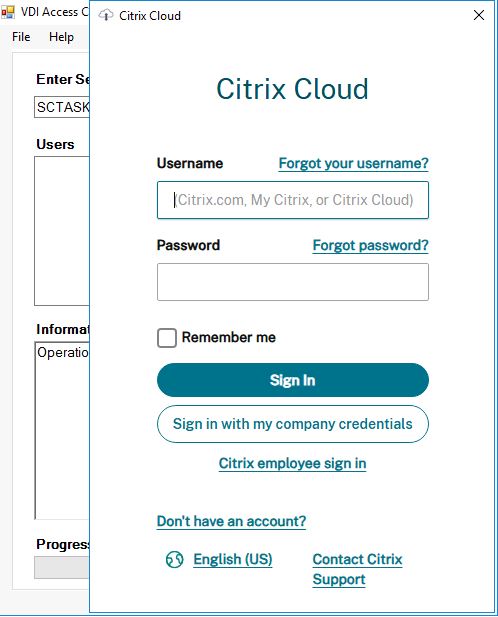
To get the app up and running, you'll need to sign in to your Citrix Cloud account first.
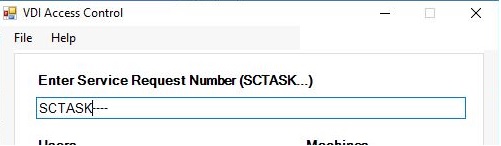
To grant or revoke access for users, you must first enter a service request number. The program is designed so that the user cannot avoid entering a service request number; without it, you can generate only report.
To create a report, click the "Report" button. After the report will be generated application will show the exact place where it was saved.
Report is generated into csv file, so it may be opened with MS Excel application. The report displays the names of VDI computers, Delivery Groups, and users, as well as the AD groups assigned to the VDI computers.
To grant a user access, enter the user ID in the "Users" field and the computer names in the "Machines" field.
If there is a single user who needs access to single computer, enter below.
If there are different users and different computers, enter them all in both fields.
If there is a single user who needs to be granted access to multiple computers, enter below:
During each operation, you will see a confirmation window. You can always cancel the operation.
When you grant or revoke a user's access, you see the information in the Information window.
If you make a mistake and that user or computer does not exist, you will see a message in the "Information" box.
This information will also be recorded in the log file. The log file contains information about which users were granted\revoked access to which computers, who performed the operation, when it was performed, and the service request number.
Granted access:

Revoked access:
The "Clear" button clears all fields.
A progress bar will display the progress of the operation.
When users are granted or denied access to the VDI computers, they are also notified of this via email. When they gain access to a computer, they are also informed via email about another program I have created which they may use to check VDI computer status.
Granting access email:
Revoking access email:
Overall Value
This GUI application enables Citrix administrators and support teams to perform bulk user assignment operations, generate reports, maintain audit logs, and receive real-time feedback during administrative tasks. The result is faster administration, improved accuracy, enhanced security, and reduced operational effort.
Citrix Access Information
When working in a Citrix environment—especially when a user encounters some kind of problem at the start—it’s helpful to know what kind of access the user has in general. The Citrix Cloud Console usually does not provide complete information, so you have to look for additional information, which takes time. What if you had a program that displayed all the information related to user access in a Citrix environment? To address these issues, I created a program that provides information about all of the user's Citrix access and name it "Citrix Access information".
Benefits of the Citrix Access Control PowerShell GUI Application
This PowerShell GUI application provides centralized visibility into Citrix resource assignments, user entitlements, Active Directory group memberships, and Microsoft Office licensing information. It simplifies administration, improves security, and accelerates troubleshooting.
1. Single Pane of Glass for Citrix Access Management
· Displays user and group assignments from one interface.
· Eliminates the need to navigate multiple Citrix Studio sections.
· Reduces administrative effort and accelerates access reviews.
2. Faster User Access Troubleshooting
Separate User Access to Citrix VDI Machines
· Quickly identifies which VDI machines are assigned to a specific user.
· Reduces time spent investigating "I cannot access my desktop" incidents.
· Verifies whether the assignment exists and is configured correctly.
· Separate User Access to Citrix Desktops
· Instantly shows desktop entitlements for individual users.
· Helps Service Desk teams validate access without requiring Citrix Studio expertise.
· Speeds up incident resolution and reduces escalations.
Separate User Access to Citrix Applications
· Displays individual applications assigned to the user
· Identifies missing applications or incorrect assignments.
· Simplifies application access audits.
3. Active Directory Group Visibility
· AD Group Access to Citrix VDI Machines
· Shows which AD groups provide access to VDI resources.
· Quickly identifies inherited permissions.
· Simplifies troubleshooting of complex group-based assignments.
AD Group Access to Citrix Applications
· Displays application assignments linked to AD groups.
· Makes application entitlement reviews significantly faster.
· Supports role-based access management.
4. Delivery Group Access Analysis
5. Improved Security and Compliance
· Helps identify excessive permissions.
· Supports periodic access reviews and security audits.
· Detects direct user assignments that bypass standard AD group controls.
· Improves governance by promoting group-based entitlement management.
· Assists with compliance requirements related to user access management.
6. Office License Visibility
Microsoft Office License Information
· Displays assigned Office licenses for user.
· Helps verify license allocation and entitlement status.
· Identifies users missing required licenses.
· Supports license optimization initiatives.
· Reduces costs by identifying unused or duplicate licenses.
· Eliminates the need to execute multiple PowerShell commands manually.
· Consolidates data from::
Administrators can quickly answer questions such as:
· Which VDI machines can a user access?
· Why does a user have access to a specific desktop?
· Through which AD group was access granted?
· Which applications are assigned directly versus through groups?
· Who has access to a specific Delivery Group?
· Does the user have a valid Microsoft Office license?
· Are there orphaned or unused assignments?
This GUI application serves as a centralized Citrix entitlement and licensing management portal, providing administrators with immediate visibility into user, group, desktop, VDI, application, Delivery Group, and Microsoft Office license assignments. The result is significantly faster troubleshooting, stronger security governance, simpler audits, and more efficient Citrix environment management.
Benefits of the Citrix Access Control PowerShell GUI Application
This PowerShell GUI application provides centralized visibility into Citrix resource assignments, user entitlements, Active Directory group memberships, and Microsoft Office licensing information. It simplifies administration, improves security, and accelerates troubleshooting.
1. Single Pane of Glass for Citrix Access Management
· Displays user and group assignments from one interface.
· Eliminates the need to navigate multiple Citrix Studio sections.
· Reduces administrative effort and accelerates access reviews.
2. Faster User Access Troubleshooting
Separate User Access to Citrix VDI Machines
· Quickly identifies which VDI machines are assigned to a specific user.
· Reduces time spent investigating "I cannot access my desktop" incidents.
· Verifies whether the assignment exists and is configured correctly.
· Separate User Access to Citrix Desktops
· Instantly shows desktop entitlements for individual users.
· Helps Service Desk teams validate access without requiring Citrix Studio expertise.
· Speeds up incident resolution and reduces escalations.
Separate User Access to Citrix Applications
· Displays individual applications assigned to the user
· Identifies missing applications or incorrect assignments.
· Simplifies application access audits.
3. Active Directory Group Visibility
· AD Group Access to Citrix VDI Machines
· Shows which AD groups provide access to VDI resources.
· Quickly identifies inherited permissions.
· Simplifies troubleshooting of complex group-based assignments.
AD Group Access to Citrix Desktops
· Provides visibility into desktop entitlements delivered through AD security groups.
· Help administrators understand how access is granted.
· Reduces configuration errors during changes.
· Provides visibility into desktop entitlements delivered through AD security groups.
· Help administrators understand how access is granted.
· Reduces configuration errors during changes.
AD Group Access to Citrix Applications
· Displays application assignments linked to AD groups.
· Makes application entitlement reviews significantly faster.
· Supports role-based access management.
4. Delivery Group Access Analysis
Separate Access to Citrix Delivery Groups
· Shows users and groups assigned to each Delivery Group.
· Simplifies Delivery Group auditing.
· Helps identify unauthorized or obsolete access permissions.
· Provides a quick impact assessment before making changes.
· Shows users and groups assigned to each Delivery Group.
· Simplifies Delivery Group auditing.
· Helps identify unauthorized or obsolete access permissions.
· Provides a quick impact assessment before making changes.
5. Improved Security and Compliance
· Helps identify excessive permissions.
· Supports periodic access reviews and security audits.
· Detects direct user assignments that bypass standard AD group controls.
· Improves governance by promoting group-based entitlement management.
· Assists with compliance requirements related to user access management.
6. Office License Visibility
Microsoft Office License Information
· Displays assigned Office licenses for user.
· Helps verify license allocation and entitlement status.
· Identifies users missing required licenses.
· Supports license optimization initiatives.
· Reduces costs by identifying unused or duplicate licenses.
7. Reduced Administrative Effort
· Eliminates the need to execute multiple PowerShell commands manually.
· Consolidates data from::
· Citrix
· Active Directory
· Enables helpdesk staff to access critical information without deep Citrix expertise.
· Reduces repetitive administrative tasks.
· Active Directory
· Enables helpdesk staff to access critical information without deep Citrix expertise.
· Reduces repetitive administrative tasks.
8. Faster Access Audits
Administrators can quickly answer questions such as:
· Which VDI machines can a user access?
· Why does a user have access to a specific desktop?
· Through which AD group was access granted?
· Which applications are assigned directly versus through groups?
· Who has access to a specific Delivery Group?
· Does the user have a valid Microsoft Office license?
· Are there orphaned or unused assignments?
9. Improved Change Management
· Allows administrators to validate access before and after changes.
· Reduces the risk of accidental permission removal.
· Improves confidence during Citrix migrations and environment updates.
· Helps assess the impact of AD group membership modifications.
· Allows administrators to validate access before and after changes.
· Reduces the risk of accidental permission removal.
· Improves confidence during Citrix migrations and environment updates.
· Helps assess the impact of AD group membership modifications.
10. Business Value
The application delivers:
✅ Faster troubleshooting
✅ Reduced helpdesk effort
✅ Improved Citrix visibility
✅ Enhanced security and compliance
✅ Quicker access audits
✅ Better license management
✅ Lower operational costs
✅ Increased administrator productivity
✅ Improved end-user experience
The program itself consists of 3 separate parts:
Access to a single-session VDI computer
Access to a multi-session shared computer
Access to the published applications.
The program allows you to check each part separately, or you can check them all at once. Additionally, you can verify the user's Microsoft Office license.
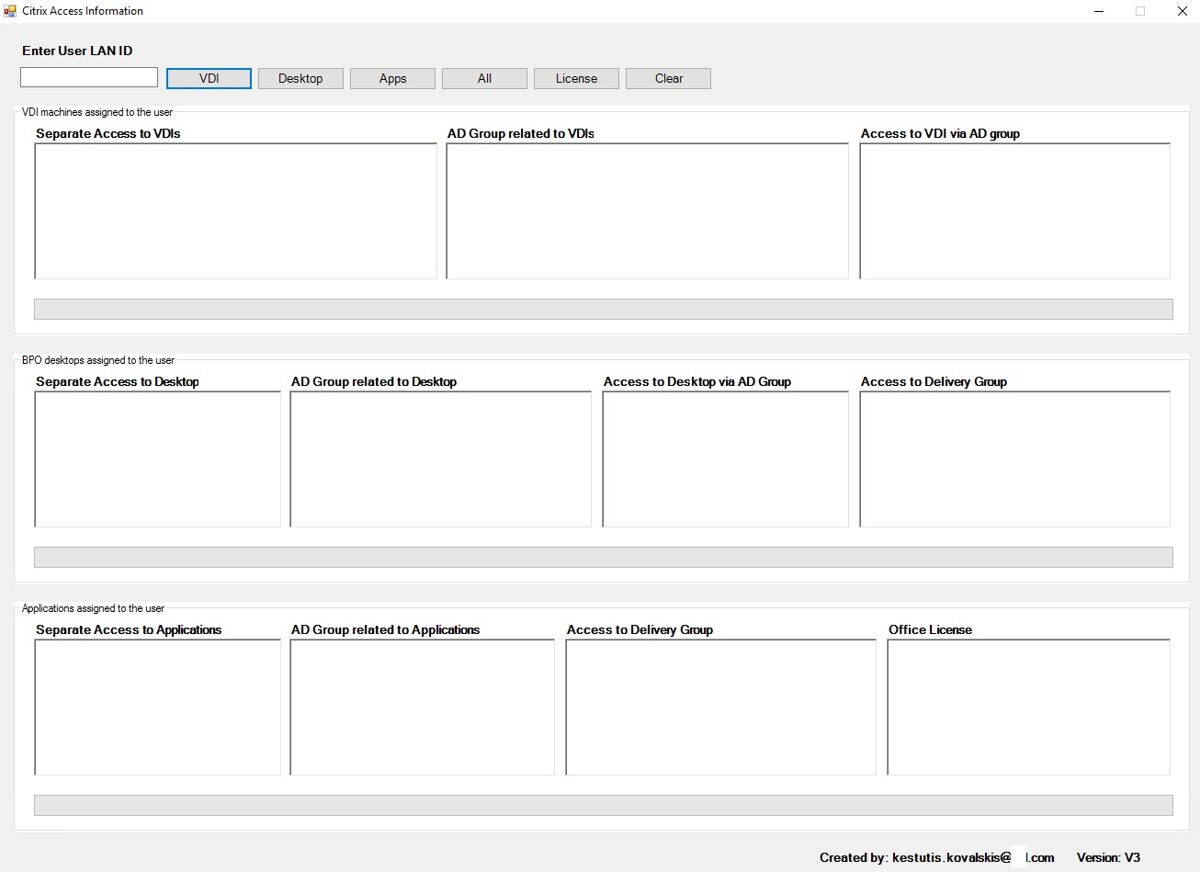
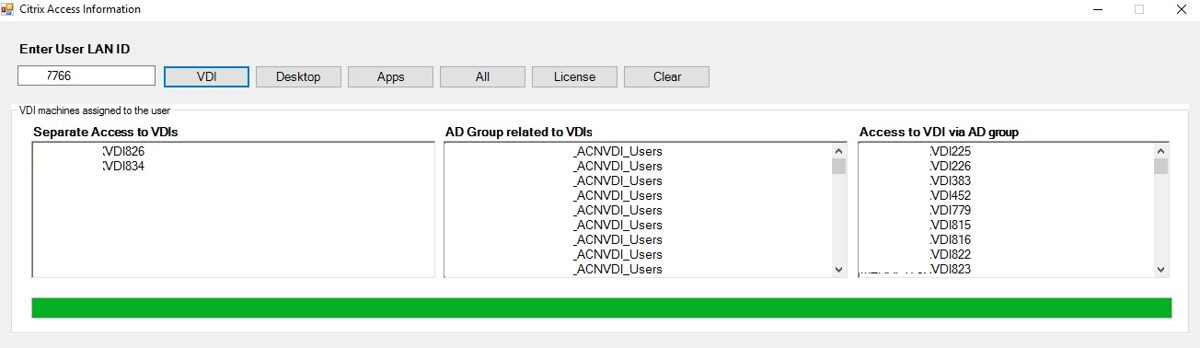
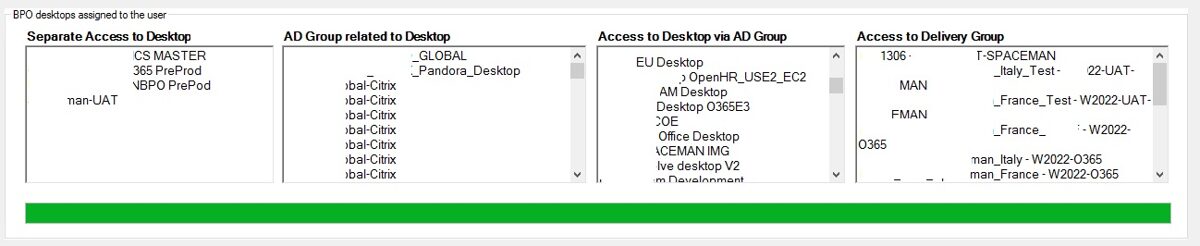
To check what access a user has to a shared desktop, enter the user ID and click the desktop button. The program will show what access the user has, not only if access was provided by his ID, but also through an Active Directory group. Also, it shows access to the Citrix Delivery Group.
The application delivers:
✅ Faster troubleshooting
✅ Reduced helpdesk effort
✅ Improved Citrix visibility
✅ Enhanced security and compliance
✅ Quicker access audits
✅ Better license management
✅ Lower operational costs
✅ Increased administrator productivity
✅ Improved end-user experience
The program itself consists of 3 separate parts:
Access to a single-session VDI computer
Access to a multi-session shared computer
Access to the published applications.
The program allows you to check each part separately, or you can check them all at once. Additionally, you can verify the user's Microsoft Office license.
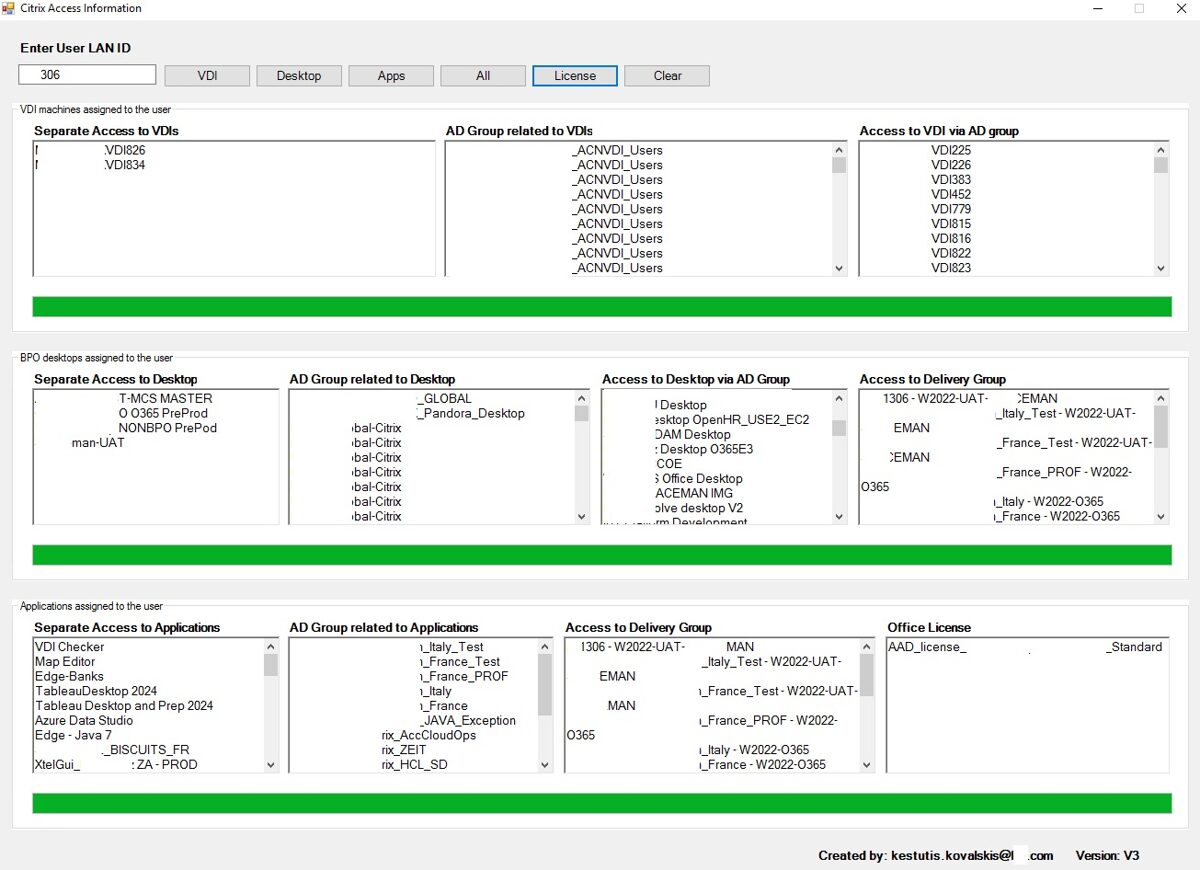
To check what access a user has to a single-session VDI computer, enter the user ID and click the VDI button. The program will show what access the user has, not only if access was provided by his ID, but also through an Active Directory group.
To check what access a user has to a shared desktop, enter the user ID and click the desktop button. The program will show what access the user has, not only if access was provided by his ID, but also through an Active Directory group. Also, it shows access to the Citrix Delivery Group.
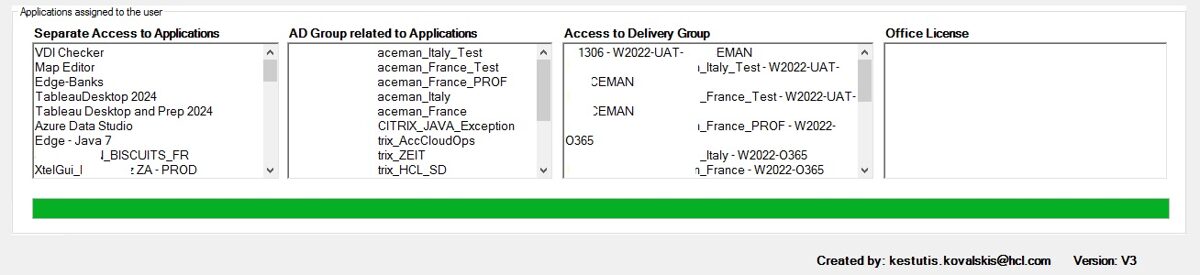
To check what access a user has to a published applications, enter the user ID and click the Apps button. The program will show what access the user has, not only if access was provided by his ID, but also through an Active Directory group. Also, it shows access to the Citrix Delivery Group.
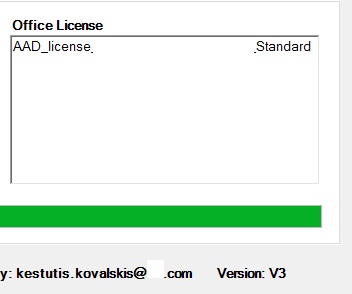
To check what license a user has, enter his ID and click the "License" button.
To check all access at once, press on "All" button.
The "Clear" button clears all windows.
Overall Value
This GUI application serves as a centralized Citrix entitlement and licensing management portal, providing administrators with immediate visibility into user, group, desktop, VDI, application, Delivery Group, and Microsoft Office license assignments. The result is significantly faster troubleshooting, stronger security governance, simpler audits, and more efficient Citrix environment management.
VDI Checker
In our company, Citrix single-session VDI virtual machines are assigned to more than one user. A problem arises when one user is working on a VDI computer and another user attempts to connect to that same computer at the same time. The user trying to connect is unable to do so and does not know why. Previously, they would submit a ticket to the Citrix support team, asking for help connecting to the desired VDI computer.
Benefits of the Citrix VDI Status Self-Service GUI Application (VDI Checker)
This GUI application empowers end users to independently check the status of a specific Citrix VDI machine by simply entering the machine name. It provides immediate visibility into machine availability, user sessions, and operational status without requiring assistance from the Citrix support team.
1. Reduced Dependency on Citrix Support Team
· Enables users to perform basic health and availability checks themselves.
· Reduces the number of routine support tickets.
· Frees Citrix administrators to focus on complex issues and infrastructure improvements.
Provides immediate answers instead of waiting for support responses.
2. Faster Issue Identification
· Users can instantly determine whether a problem is related to:
· VDI machine availability
· Machine registration status
· Existing user sessions
· Maintenance activities
· Machine power state
· Stale machine information
· This significantly reduces troubleshooting time.
3. Real-Time Machine Availability Verification
MachineName
· Confirms the exact VDI machine being investigated.
· Helps avoid confusion when users have access to multiple VDIs.
· Simplifies communication with support when escalation is required.
RegistrationState
· Shows whether the VDI is properly registered with Citrix Delivery Controller.
· Allows users to identify registration issues immediately.
· Helps determine if the machine is available for connections.
Benefit: Users can quickly understand why a desktop may not be launching.
4. Session Visibility
SessionUserName
· Displays which user is currently logged into the machine.
· Helps identify session ownership.
· Useful for shared or assigned VDI environments.
UserFullName
· Provides user-friendly identification of the active user.
· Eliminates the need to interpret usernames.
SessionState
· Shows whether the session is:
· Active
· Disconnected
· Connected
· Logging Off
Benefit: Helps users determine whether an existing session can be reconnected.
5. Connection Status Insights
SessionProtocol
· Displays the connection protocol being used.
· Confirms whether ICA connectivity is established.
· Benefit: Faster identification of session connectivity problems.
6. Activity and Session Duration Tracking
TimeInState
· Shows how long the session has been in its current state.
Helps identify:
· Stuck sessions
· Long-disconnected sessions
· Hanging logoff operations
Benefit: Provides valuable context before deciding to reconnect or contact support.
7. Maintenance Awareness
InMaintenanceMode
· Indicates whether the machine is currently in maintenance mode.
· Helps users understand why new connections may be blocked.
· Reduces confusion during planned maintenance windows.
Benefit: Fewer unnecessary support requests during maintenance activities.
8. Machine Power Status Visibility
MachinePowerState
· Displays whether the machine is:
· Powered On
· Powered Off
· Suspended
· Starting
Benefit:
· Users can immediately identify if a machine is unavailable due to power state.
· Eliminates unnecessary troubleshooting when the root cause is simply that the machine is powered off.
9. Data Freshness Validation
· Updated Before (Min)
· Displays how recently the machine status information was updated.
· Ensures users know whether they are viewing current information.
· Helps identify potential monitoring or communication delays.
· Benefit: Increased confidence in the accuracy of displayed information.
10. Improved End-User Experience
· The application allows users to quickly answer questions such as:
· Is my VDI machine available?
· Is the machine registered with Citrix?
· Is somebody already logged in?
· Is my session disconnected or active?
· Is the VDI under maintenance?
· Is the machine powered on?
· When was the status last updated?
· Without opening a support ticket.
11. Reduced Support Costs
· By shifting basic status checks to a self-service model, organizations can:
· Reduce Level 1 support workload.
· Decrease ticket volume.
· Improve support response times for critical incidents.
· Minimize operational costs associated with routine Citrix inquiries.
12. Increased Operational Transparency
Users gain direct visibility into Citrix resource health and availability, creating a more transparent and efficient virtual desktop environment.
Overall Business Value
✅ Reduced Citrix support tickets
✅ Faster issue identification
✅ Improved self-service capabilities
✅ Greater transparency of VDI status
✅ Faster problem resolution
✅ Better user productivity
✅ Lower support costs
✅ Improved end-user satisfaction
✅ Increased efficiency for Citrix administrators
Application overview:
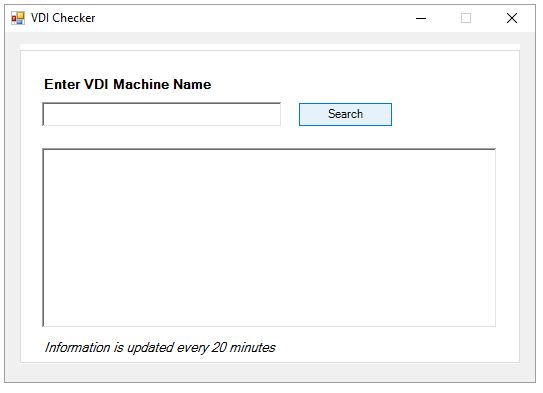
Once the user launches the program, they need to enter the VDI computer's name, and they can then view information about that computer's status.
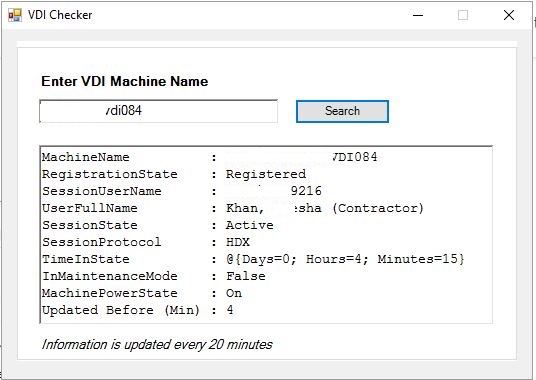
The program displays the following information:
· MachineName
· RegistrationState
· SessionUserName
· UserFullName
· SessionState
· SessionProtocol
· TimeInState
· InMaintenanceMode
· MachinePowerState
· Updated Before (Min)
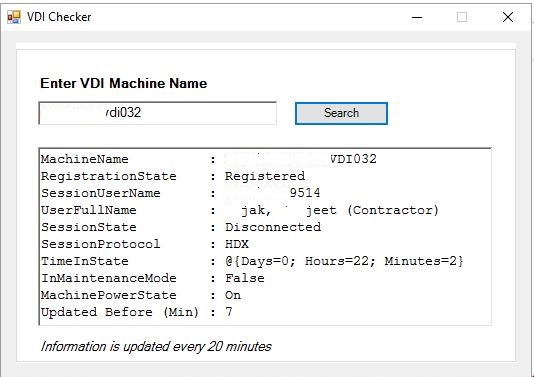
Another example:
Overall Value
This self-service Citrix VDI Status GUI enables users to instantly verify machine availability, registration state, active sessions, maintenance status, power state, and data freshness. By providing real-time visibility into Citrix VDI health, the application reduces support dependency, accelerates troubleshooting, improves user productivity, and delivers significant operational efficiency benefits across the organization.
This GUI application empowers end users to independently check the status of a specific Citrix VDI machine by simply entering the machine name. It provides immediate visibility into machine availability, user sessions, and operational status without requiring assistance from the Citrix support team.
1. Reduced Dependency on Citrix Support Team
· Enables users to perform basic health and availability checks themselves.
· Reduces the number of routine support tickets.
· Frees Citrix administrators to focus on complex issues and infrastructure improvements.
Provides immediate answers instead of waiting for support responses.
2. Faster Issue Identification
· Users can instantly determine whether a problem is related to:
· VDI machine availability
· Machine registration status
· Existing user sessions
· Maintenance activities
· Machine power state
· Stale machine information
· This significantly reduces troubleshooting time.
3. Real-Time Machine Availability Verification
MachineName
· Confirms the exact VDI machine being investigated.
· Helps avoid confusion when users have access to multiple VDIs.
· Simplifies communication with support when escalation is required.
RegistrationState
· Shows whether the VDI is properly registered with Citrix Delivery Controller.
· Allows users to identify registration issues immediately.
· Helps determine if the machine is available for connections.
Benefit: Users can quickly understand why a desktop may not be launching.
4. Session Visibility
SessionUserName
· Displays which user is currently logged into the machine.
· Helps identify session ownership.
· Useful for shared or assigned VDI environments.
UserFullName
· Provides user-friendly identification of the active user.
· Eliminates the need to interpret usernames.
SessionState
· Shows whether the session is:
· Active
· Disconnected
· Connected
· Logging Off
Benefit: Helps users determine whether an existing session can be reconnected.
5. Connection Status Insights
SessionProtocol
· Displays the connection protocol being used.
· Confirms whether ICA connectivity is established.
· Benefit: Faster identification of session connectivity problems.
6. Activity and Session Duration Tracking
TimeInState
· Shows how long the session has been in its current state.
Helps identify:
· Stuck sessions
· Long-disconnected sessions
· Hanging logoff operations
Benefit: Provides valuable context before deciding to reconnect or contact support.
7. Maintenance Awareness
InMaintenanceMode
· Indicates whether the machine is currently in maintenance mode.
· Helps users understand why new connections may be blocked.
· Reduces confusion during planned maintenance windows.
Benefit: Fewer unnecessary support requests during maintenance activities.
8. Machine Power Status Visibility
MachinePowerState
· Displays whether the machine is:
· Powered On
· Powered Off
· Suspended
· Starting
Benefit:
· Users can immediately identify if a machine is unavailable due to power state.
· Eliminates unnecessary troubleshooting when the root cause is simply that the machine is powered off.
9. Data Freshness Validation
· Updated Before (Min)
· Displays how recently the machine status information was updated.
· Ensures users know whether they are viewing current information.
· Helps identify potential monitoring or communication delays.
· Benefit: Increased confidence in the accuracy of displayed information.
10. Improved End-User Experience
· The application allows users to quickly answer questions such as:
· Is my VDI machine available?
· Is the machine registered with Citrix?
· Is somebody already logged in?
· Is my session disconnected or active?
· Is the VDI under maintenance?
· Is the machine powered on?
· When was the status last updated?
· Without opening a support ticket.
11. Reduced Support Costs
· By shifting basic status checks to a self-service model, organizations can:
· Reduce Level 1 support workload.
· Decrease ticket volume.
· Improve support response times for critical incidents.
· Minimize operational costs associated with routine Citrix inquiries.
12. Increased Operational Transparency
Users gain direct visibility into Citrix resource health and availability, creating a more transparent and efficient virtual desktop environment.
Overall Business Value
✅ Reduced Citrix support tickets
✅ Faster issue identification
✅ Improved self-service capabilities
✅ Greater transparency of VDI status
✅ Faster problem resolution
✅ Better user productivity
✅ Lower support costs
✅ Improved end-user satisfaction
✅ Increased efficiency for Citrix administrators
Application overview:
Once the user launches the program, they need to enter the VDI computer's name, and they can then view information about that computer's status.
The program displays the following information:
· MachineName
· RegistrationState
· SessionUserName
· UserFullName
· SessionState
· SessionProtocol
· TimeInState
· InMaintenanceMode
· MachinePowerState
· Updated Before (Min)
Another example:
Overall Value
This self-service Citrix VDI Status GUI enables users to instantly verify machine availability, registration state, active sessions, maintenance status, power state, and data freshness. By providing real-time visibility into Citrix VDI health, the application reduces support dependency, accelerates troubleshooting, improves user productivity, and delivers significant operational efficiency benefits across the organization.
Citrix related PowerShell scripts
In this section, I have provided information about the Citrix related PowerShell scripts I have created.
However, this does not include all of the scripts I have
Find Disconnected Citrix sessions
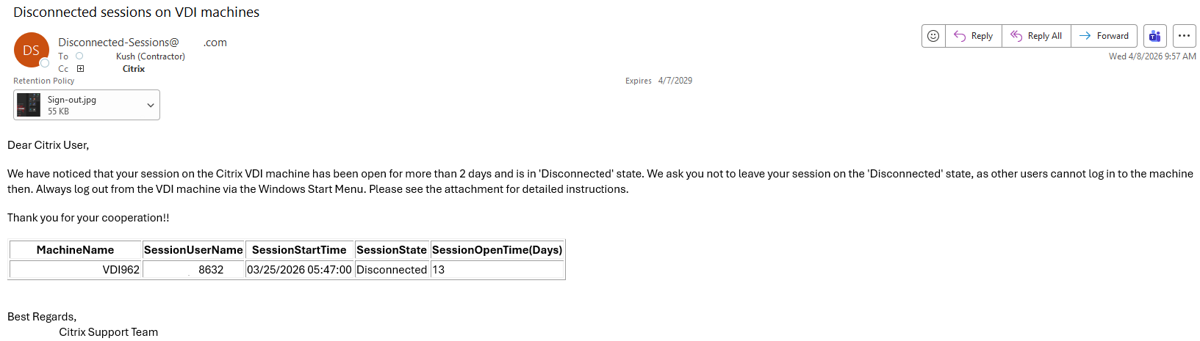
Users very often leave their Citrix sessions in a disconnected state on Citrix single-session machines. And until they log out completely, no other user can log in. I created a PowerShell script that collects information from Citrix DAAS about disconnected sessions. It then retrieves the user’s email address from Active Directory and sends the user a message about their disconnected session, along with instructions to sign out of the VDI computer next time.
1. Increases VDI Availability
· Frees up single-session VDI machines more quickly.
· Reduces the time desktops remain unavailable because of abandoned disconnected sessions.
· Allows other users to access available resources sooner.
2. Improves Resource Utilization
· Maximizes the use of existing Citrix infrastructure without adding more VDIs.
· Prevents virtual desktops from being unnecessarily occupied by inactive users.
· Helps organizations get more value from their licensed and provisioned resources.
3. Reduces Help Desk Tickets
· Users receive proactive reminders instead of waiting until they cannot reconnect.
· Fewer support requests related to unavailable desktops or login issues.
· Reduces manual intervention by IT administrators.
4. Educates Users
· Reminds users of the difference between disconnecting and signing out.
· Reinforces proper VDI usage habits.
· Provides clear instructions on how to correctly end a session.
5. Improves User Experience
· Shorter wait times for users who need an available VDI.
· Fewer situations where users are blocked because another user's disconnected session is still active.
· Creates a smoother login experience.
6. Saves Administrator Time
· Eliminates the need for administrators to manually identify and contact users.
· Reduces repetitive monitoring tasks.
· Automates a previously manual process.
7. Enables Proactive Management
· Identifies disconnected sessions before they become a widespread problem.
· Encourages users to resolve the issue themselves.
· Helps prevent resource bottlenecks during peak business hours.
8. Supports Operational Efficiency
· Improves overall Citrix environment health.
· Helps maintain higher desktop availability without infrastructure changes.
· Scheduled to run automatically with minimal maintenance.
9. Integrates Existing Systems
· Uses Citrix DaaS APIs to retrieve session information.
· Retrieves user email addresses directly from Active Directory.
· Leverages existing enterprise infrastructure without requiring additional software.
10. Cost-Effective Solution
· Avoids the need to purchase additional VDI capacity simply because desktops are left disconnected.
· Makes better use of existing hardware and licensing investments.
· Delays or reduces infrastructure expansion costs.
11. Promotes Accountability
· Users become aware that disconnected sessions are being monitored.
· Encourages responsible use of shared VDI resources.
· Helps establish good operational practices across the organization.
· Escalation emails if a session remains disconnected for an extended period.
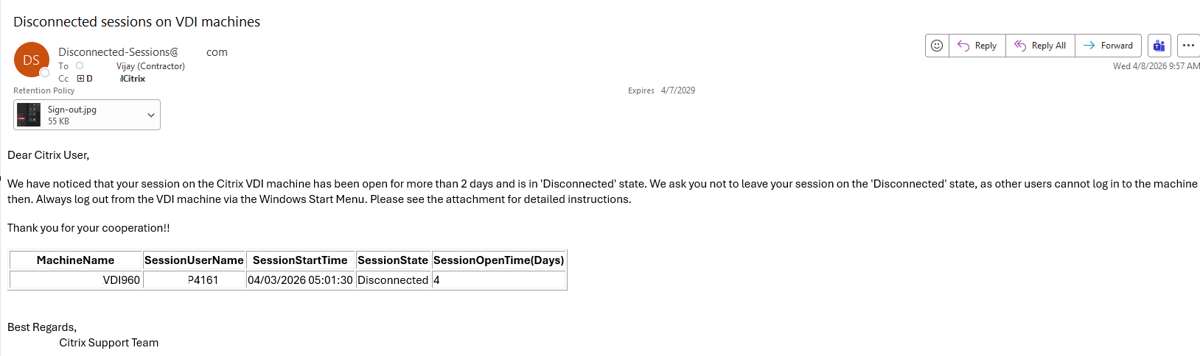
Another Email example:
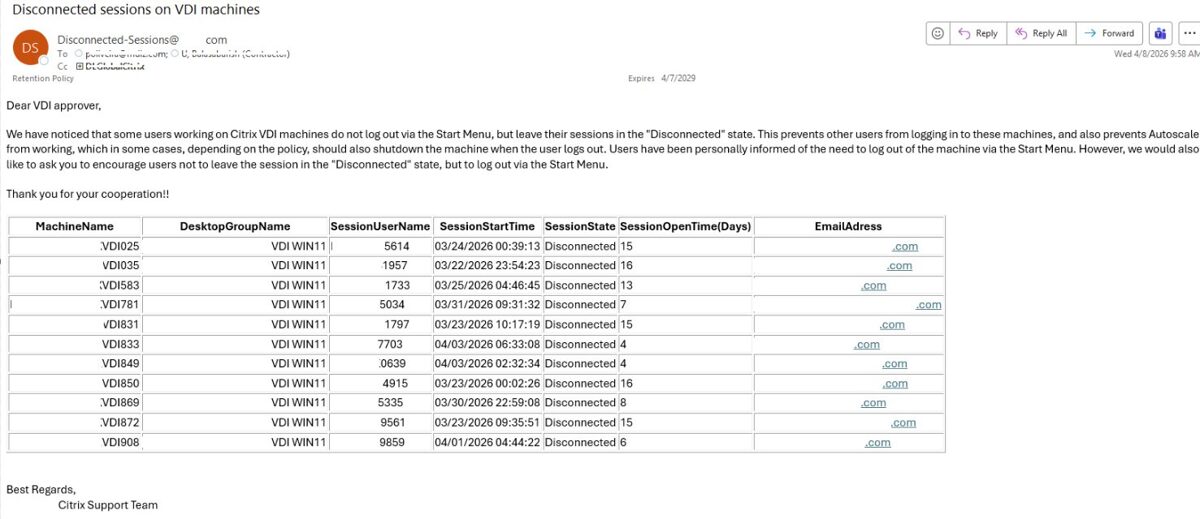
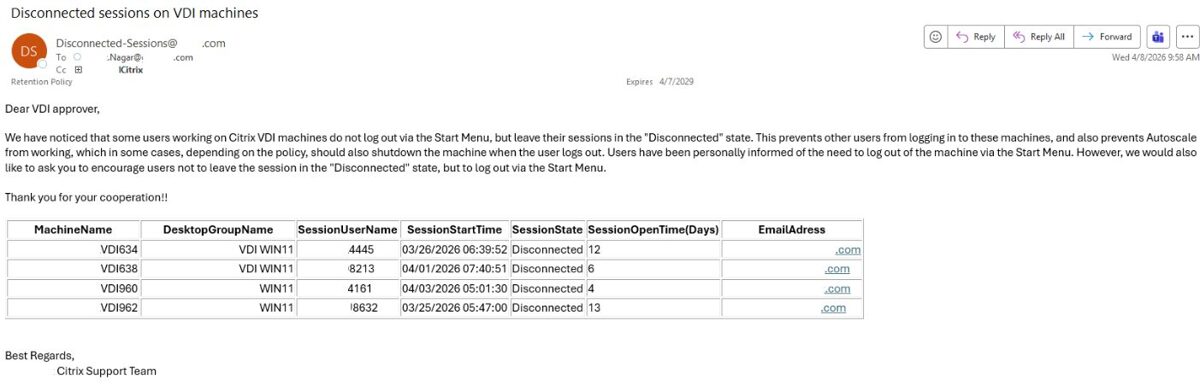
The information is also collected and sent separately to each Citrix Delivery Group approver.
Benefits of the Citrix Disconnected Session Notification Script:
1. Increases VDI Availability
· Frees up single-session VDI machines more quickly.
· Reduces the time desktops remain unavailable because of abandoned disconnected sessions.
· Allows other users to access available resources sooner.
2. Improves Resource Utilization
· Maximizes the use of existing Citrix infrastructure without adding more VDIs.
· Prevents virtual desktops from being unnecessarily occupied by inactive users.
· Helps organizations get more value from their licensed and provisioned resources.
3. Reduces Help Desk Tickets
· Users receive proactive reminders instead of waiting until they cannot reconnect.
· Fewer support requests related to unavailable desktops or login issues.
· Reduces manual intervention by IT administrators.
4. Educates Users
· Reminds users of the difference between disconnecting and signing out.
· Reinforces proper VDI usage habits.
· Provides clear instructions on how to correctly end a session.
5. Improves User Experience
· Shorter wait times for users who need an available VDI.
· Fewer situations where users are blocked because another user's disconnected session is still active.
· Creates a smoother login experience.
6. Saves Administrator Time
· Eliminates the need for administrators to manually identify and contact users.
· Reduces repetitive monitoring tasks.
· Automates a previously manual process.
7. Enables Proactive Management
· Identifies disconnected sessions before they become a widespread problem.
· Encourages users to resolve the issue themselves.
· Helps prevent resource bottlenecks during peak business hours.
8. Supports Operational Efficiency
· Improves overall Citrix environment health.
· Helps maintain higher desktop availability without infrastructure changes.
· Scheduled to run automatically with minimal maintenance.
9. Integrates Existing Systems
· Uses Citrix DaaS APIs to retrieve session information.
· Retrieves user email addresses directly from Active Directory.
· Leverages existing enterprise infrastructure without requiring additional software.
10. Cost-Effective Solution
· Avoids the need to purchase additional VDI capacity simply because desktops are left disconnected.
· Makes better use of existing hardware and licensing investments.
· Delays or reduces infrastructure expansion costs.
11. Promotes Accountability
· Users become aware that disconnected sessions are being monitored.
· Encourages responsible use of shared VDI resources.
· Helps establish good operational practices across the organization.
· Escalation emails if a session remains disconnected for an extended period.
· Delivery Groups approvers are also notified, with information provided about users whose sessions have left in the "Disconnected" state. This allows Delivery Groups approvers to contact the user, if necessary, and ask them to log out of their computer.
12. Easily Extensible
· The script can be expanded to include features such as:
· Automatic logoff after a configurable grace period.
· Reporting dashboards showing disconnected session trends.
· Daily or weekly reports for administrators.
· Automatic logoff after a configurable grace period.
· Reporting dashboards showing disconnected session trends.
· Daily or weekly reports for administrators.
Sample emails are provided below:
Another Email example:
The information is also collected and sent separately to each Citrix Delivery Group approver.
Another email example sent to the approver:
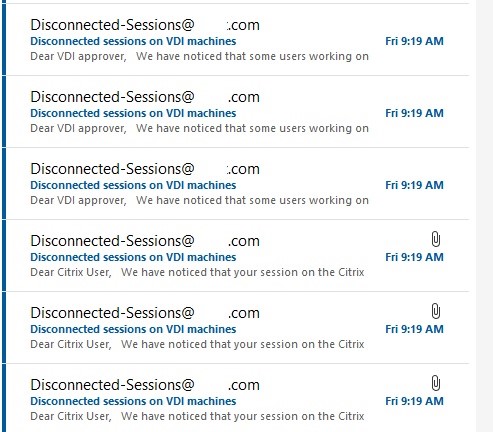
All emails are generated and sent automatically; no user intervention is required
Overall Value
This PowerShell script provides a proactive and automated solution for managing disconnected sessions in a Citrix DaaS single-session environment. By identifying disconnected sessions, retrieving the corresponding users' email addresses from Active Directory, and sending personalized reminders to sign out properly, the script helps ensure that virtual desktops are released promptly for other users.Find Unused files in users Citrix profiles
We noticed in our Citrix environment that users often leave unused files in their Citrix profiles, which take up space. I wrote a PowerShell script that collects information about the user folders in the Citrix profile, their sizes, and when they were last accessed. If a folder hasn’t been accessed for more than a year, all this information is compiled into a table and sent to the user as a reminder that the Citrix profile is not intended for storing files for long time. It is intended for storing files that are currently being worked on.
1. Reduces Profile Storage Consumption
· Encourages users to remove outdated and unnecessary files.
· Helps keep Citrix profile sizes under control.
· Reduces overall storage requirements for profile repositories.
2. Improves Login and Logoff Performance
· Smaller profiles generally synchronize faster.
· Reduces profile loading and unloading times.
· Improves the overall user experience during logon and logoff.
3. Improves Citrix Environment Performance
· Reduces I/O activity associated with large user profiles.
· Helps maintain consistent performance across the Citrix environment.
· Minimizes delays caused by oversized profiles.
4. Promotes Good Data Management Practices
· Educates users about the intended purpose of Citrix profiles.
· Reinforces the distinction between temporary working storage and long-term file storage.
· Encourages users to move important files to appropriate locations, such as network drives or approved cloud storage.
5. Prevents Profile Growth
· Identifies folders that have not been accessed for more than a year.
· Encourages regular housekeeping before profiles become excessively large.
· Helps prevent future profile-related performance issues.
6. Provides Personalized Information
· Sends each user a report specific to their profile.
· Includes folder names, sizes, and last accessed dates.
· Gives users actionable information instead of generic reminders.
7. Raises User Awareness
· Many users are unaware of how much data they have accumulated.
· The report helps users understand where storage is being consumed.
· Encourages users to review whether old files are still needed.
8. Reduces Administrative Effort
· Eliminates the need for administrators to manually review user profiles.
· Automates the collection and distribution of profile storage information.
· Reduces time spent investigating oversized profiles.
9. Delays Storage Expansion
· Helps organizations make better use of existing storage.
· Reduces unnecessary growth of profile storage infrastructure.
· Can postpone additional storage investments.
10. Supports Storage Governance
· Encourages compliance with organizational storage guidelines.
· Reinforces policies regarding appropriate use of Citrix profiles.
· Promotes consistent storage practices across the organization.
11. Improves Backup and Disaster Recovery
· Smaller profiles require less backup storage.
· Can reduce backup windows and restore times.
· Makes profile recovery more efficient when needed.
12. Non-Intrusive Approach
· Notifies users without deleting any data.
· Allows users to decide what should be kept or removed.
· Minimizes the risk of accidentally deleting important files.
13. Enables Proactive Profile Maintenance
· Identifies potential storage issues before they become operational problems.
· Encourages regular profile cleanup instead of reactive maintenance.
· Helps maintain a healthy Citrix environment over time.
14. Easily Extensible
· The script can be enhanced with features such as:
· Highlighting the largest folders or files.
· Configurable inactivity thresholds (e.g., 6 months, 1 year, 2 years).
15. Department-specific storage policies.
· Trend reporting to monitor profile growth over time.
· Administrative dashboards showing profile usage across the environment.
· Automatic notifications when profile size exceeds defined limits.
Email sent examples:
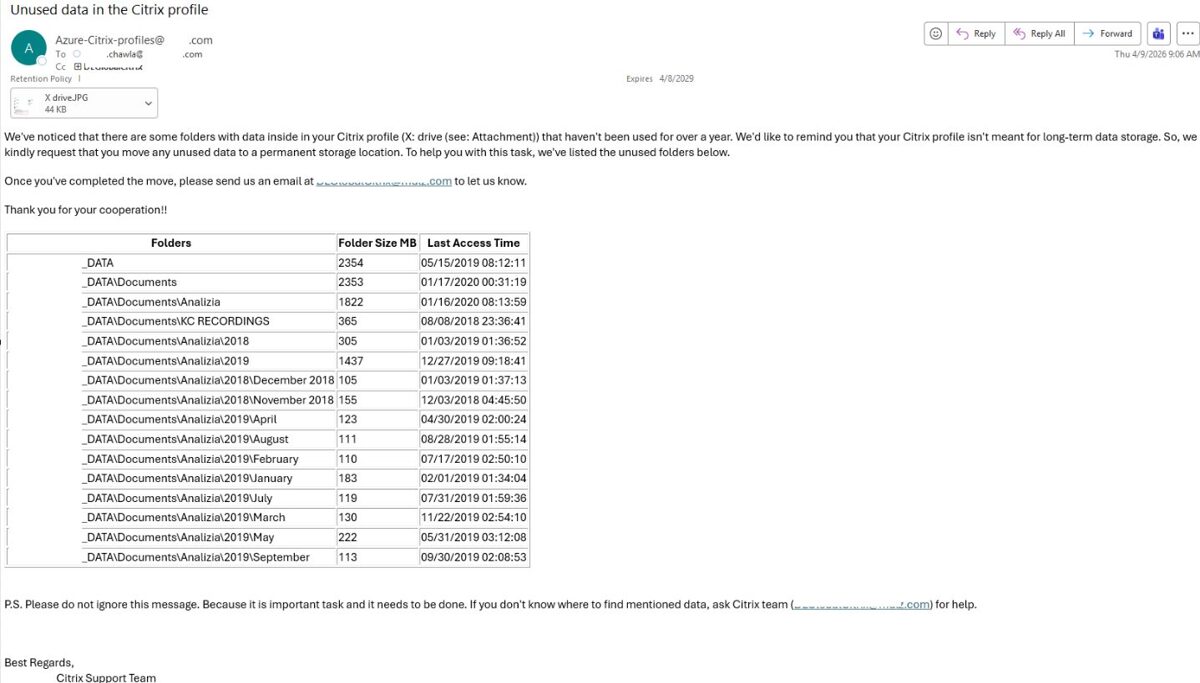
Another example:
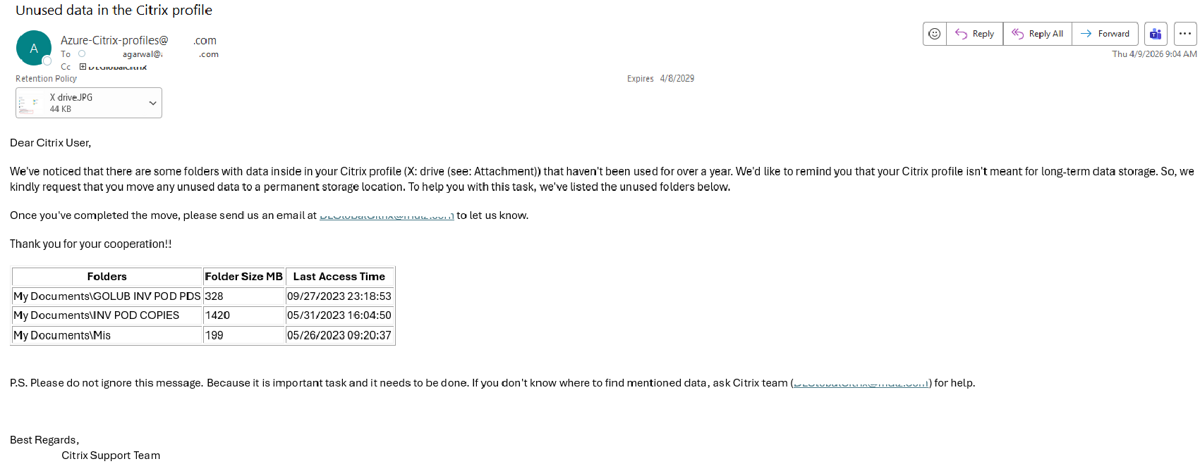
We send this information not only to the users, but also to their managers
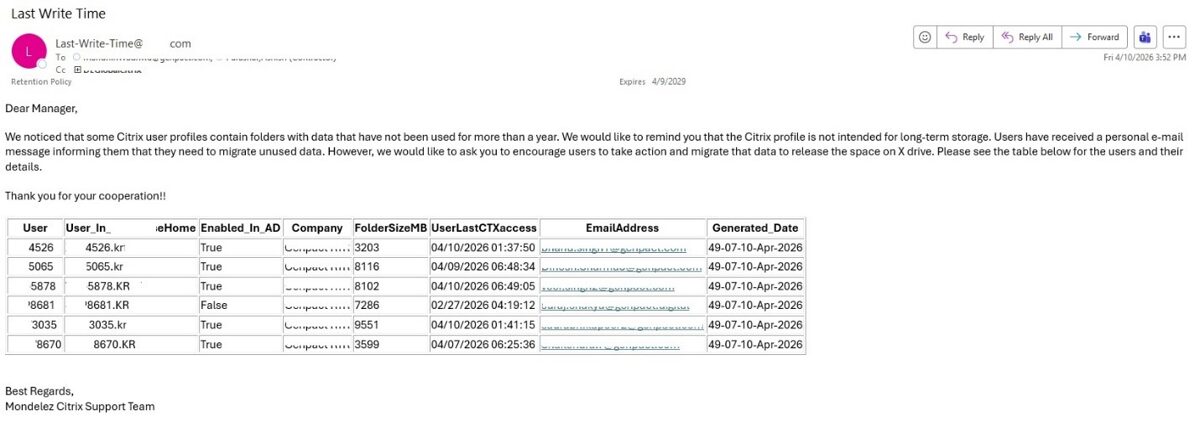
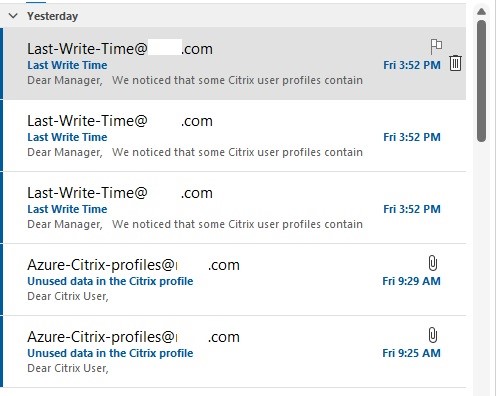
Overall Value
This script helps maintain an efficient and well-managed Citrix environment by reducing profile bloat, improving login performance, optimizing storage usage, and educating users about proper profile management. By providing users with personalized, actionable reports rather than enforcing automatic cleanup, it encourages responsible storage practices while minimizing administrative effort and preserving user control over their data.
Benefits of the Citrix Profile Storage Reminder Script:
1. Reduces Profile Storage Consumption
· Encourages users to remove outdated and unnecessary files.
· Helps keep Citrix profile sizes under control.
· Reduces overall storage requirements for profile repositories.
2. Improves Login and Logoff Performance
· Smaller profiles generally synchronize faster.
· Reduces profile loading and unloading times.
· Improves the overall user experience during logon and logoff.
3. Improves Citrix Environment Performance
· Reduces I/O activity associated with large user profiles.
· Helps maintain consistent performance across the Citrix environment.
· Minimizes delays caused by oversized profiles.
4. Promotes Good Data Management Practices
· Educates users about the intended purpose of Citrix profiles.
· Reinforces the distinction between temporary working storage and long-term file storage.
· Encourages users to move important files to appropriate locations, such as network drives or approved cloud storage.
5. Prevents Profile Growth
· Identifies folders that have not been accessed for more than a year.
· Encourages regular housekeeping before profiles become excessively large.
· Helps prevent future profile-related performance issues.
6. Provides Personalized Information
· Sends each user a report specific to their profile.
· Includes folder names, sizes, and last accessed dates.
· Gives users actionable information instead of generic reminders.
7. Raises User Awareness
· Many users are unaware of how much data they have accumulated.
· The report helps users understand where storage is being consumed.
· Encourages users to review whether old files are still needed.
8. Reduces Administrative Effort
· Eliminates the need for administrators to manually review user profiles.
· Automates the collection and distribution of profile storage information.
· Reduces time spent investigating oversized profiles.
9. Delays Storage Expansion
· Helps organizations make better use of existing storage.
· Reduces unnecessary growth of profile storage infrastructure.
· Can postpone additional storage investments.
10. Supports Storage Governance
· Encourages compliance with organizational storage guidelines.
· Reinforces policies regarding appropriate use of Citrix profiles.
· Promotes consistent storage practices across the organization.
11. Improves Backup and Disaster Recovery
· Smaller profiles require less backup storage.
· Can reduce backup windows and restore times.
· Makes profile recovery more efficient when needed.
12. Non-Intrusive Approach
· Notifies users without deleting any data.
· Allows users to decide what should be kept or removed.
· Minimizes the risk of accidentally deleting important files.
13. Enables Proactive Profile Maintenance
· Identifies potential storage issues before they become operational problems.
· Encourages regular profile cleanup instead of reactive maintenance.
· Helps maintain a healthy Citrix environment over time.
· Notifies user's manager
14. Easily Extensible
· The script can be enhanced with features such as:
· Highlighting the largest folders or files.
· Configurable inactivity thresholds (e.g., 6 months, 1 year, 2 years).
15. Department-specific storage policies.
· Trend reporting to monitor profile growth over time.
· Administrative dashboards showing profile usage across the environment.
· Automatic notifications when profile size exceeds defined limits.
Email sent examples:
Another example:
We send this information not only to the users, but also to their managers
Another example:
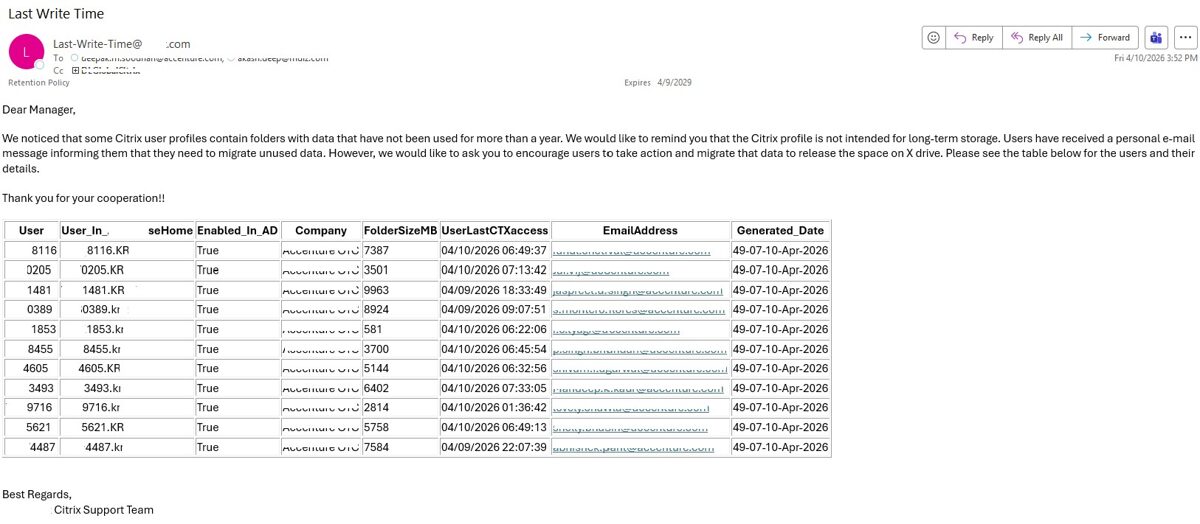
All emails are generated and sent automatically; no user intervention is required
All emails are generated and sent automatically; no user intervention is required
Overall Value
This script helps maintain an efficient and well-managed Citrix environment by reducing profile bloat, improving login performance, optimizing storage usage, and educating users about proper profile management. By providing users with personalized, actionable reports rather than enforcing automatic cleanup, it encourages responsible storage practices while minimizing administrative effort and preserving user control over their data.
Find Citrix unregistered computers
If the connection to the Citrix DAAS is lost on a user's computer where the Citrix VDA agent is installed, the computer switches to "Unregistered" mode. We can see these computers in the Citrix DAAS console, but we don’t monitor the console all the time. To detect such computers more quickly, I wrote a PowerShell script that identifies computers in “Unregistered” mode and sends this information to Citrix support team agents via email.
Benefits of the Citrix VDA Unregistered Monitoring Script:
1. Faster Detection of VDA Registration Issues
· Detects computers that have entered the Unregistered state shortly after the issue occurs.
· Eliminates reliance on administrators manually checking the Citrix DaaS console.
· Reduces the time between issue occurrence and detection.
2. Reduces Service Downtime
· Enables the support team to begin troubleshooting sooner.
· Helps restore affected VDAs more quickly.
· Minimizes the period during which users cannot access affected desktops.
3. Improves User Experience
· Reduces the likelihood that users encounter unavailable desktops.
· Allows support teams to resolve issues before multiple users are affected.
· Improves overall reliability of the Citrix environment.
4. Enables Proactive Monitoring
· Automatically monitors the health of Citrix VDAs.
· Converts a reactive support process into a proactive one.
· Ensures critical infrastructure issues are identified without constant manual oversight.
Benefits of the Citrix VDA Unregistered Monitoring Script:
1. Faster Detection of VDA Registration Issues
· Detects computers that have entered the Unregistered state shortly after the issue occurs.
· Eliminates reliance on administrators manually checking the Citrix DaaS console.
· Reduces the time between issue occurrence and detection.
2. Reduces Service Downtime
· Enables the support team to begin troubleshooting sooner.
· Helps restore affected VDAs more quickly.
· Minimizes the period during which users cannot access affected desktops.
3. Improves User Experience
· Reduces the likelihood that users encounter unavailable desktops.
· Allows support teams to resolve issues before multiple users are affected.
· Improves overall reliability of the Citrix environment.
4. Enables Proactive Monitoring
· Automatically monitors the health of Citrix VDAs.
· Converts a reactive support process into a proactive one.
· Ensures critical infrastructure issues are identified without constant manual oversight.
· Generates a report
5. Reduces Manual Monitoring
· Eliminates the need for administrators to continuously watch the Citrix DaaS console.
· Frees support staff to focus on higher-value tasks.
· Provides continuous monitoring without additional effort.
6. Improves Incident Response Time
· Email notifications alert Citrix support agents immediately.
· Enables faster investigation and remediation.
· Helps reduce Mean Time to Detect (MTTD) and Mean Time to Resolve (MTTR).
5. Reduces Manual Monitoring
· Eliminates the need for administrators to continuously watch the Citrix DaaS console.
· Frees support staff to focus on higher-value tasks.
· Provides continuous monitoring without additional effort.
6. Improves Incident Response Time
· Email notifications alert Citrix support agents immediately.
· Enables faster investigation and remediation.
· Helps reduce Mean Time to Detect (MTTD) and Mean Time to Resolve (MTTR).
· Reduce number of incidents
7. Increases Infrastructure Availability
· Supports maintaining a healthy pool of registered VDAs.
· Reduces the risk of desktop capacity shortages caused by unregistered machines.
· Helps maintain consistent service availability.
8. Enhances Operational Visibility
· Provides clear visibility into registration failures.
· Ensures support teams are aware of infrastructure health even when not logged into the Citrix DaaS console.
· Makes it easier to identify recurring or widespread issues.
9. Supports Capacity Management
· Helps identify whether registration failures are isolated or affecting multiple machines.
· Enables administrators to respond before capacity constraints impact users.
· Assists in maintaining adequate desktop availability.
10. Automates Routine Monitoring
· Replaces repetitive manual checks with automated health monitoring.
· Reduces the possibility of human error or missed incidents.
· Provides consistent and reliable notifications.
11. Easily Extensible
The script can be enhanced with additional capabilities such as:
· Including the duration each VDA has remained unregistered.
· Producing daily or weekly reports showing registration trends.
Below is example emails:
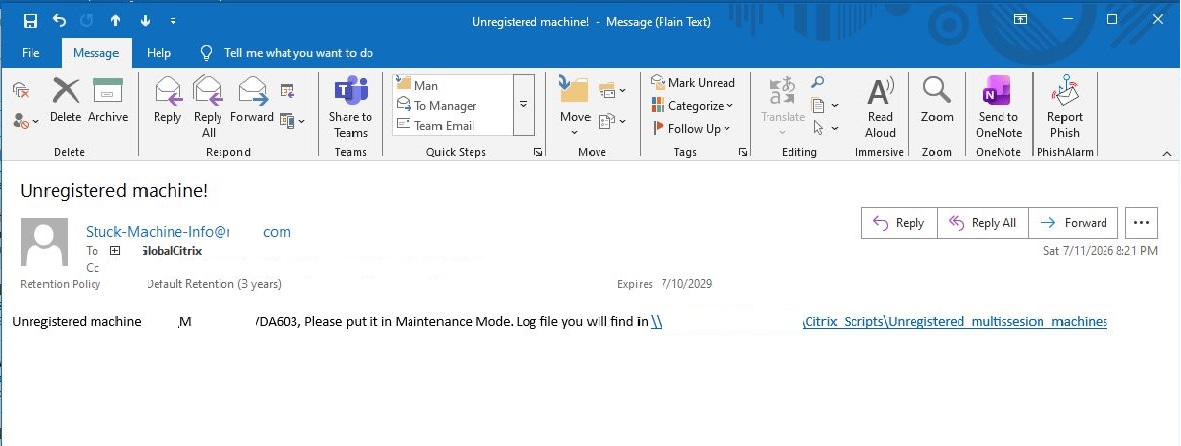
Another email example:
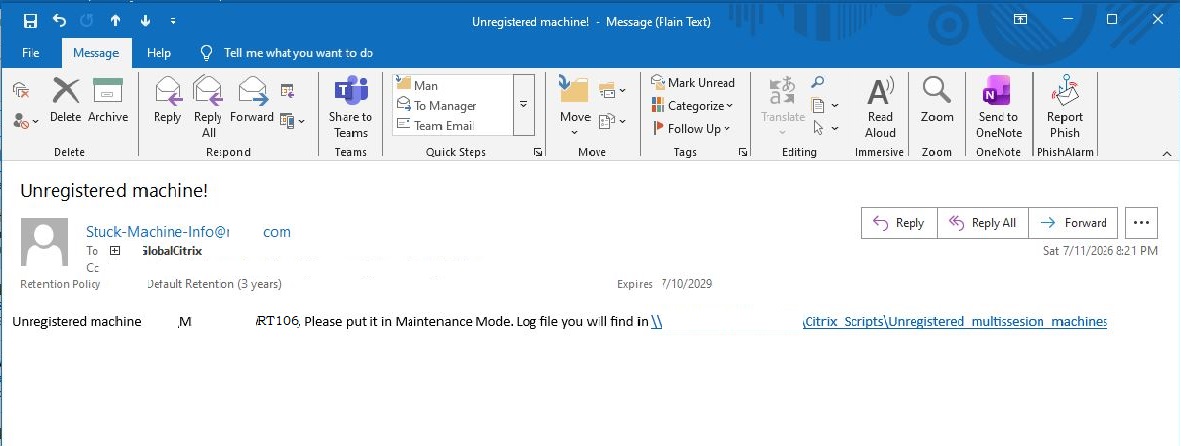
All emails are generated and sent automatically; no user intervention is required
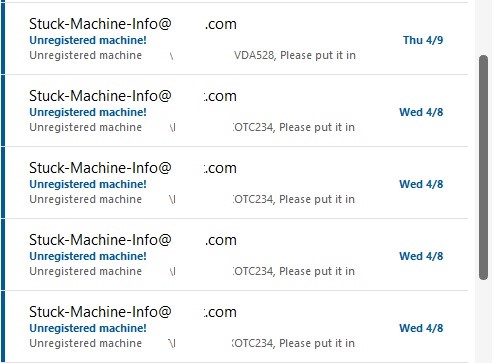
A log file is also generated, which contains the following information:
· Computer name:
· DesktopGroupName;
· Registration State;
· User LAN ID;
· User's computer name;
· User's computer IP address;
· Application in use;
· Log generation date
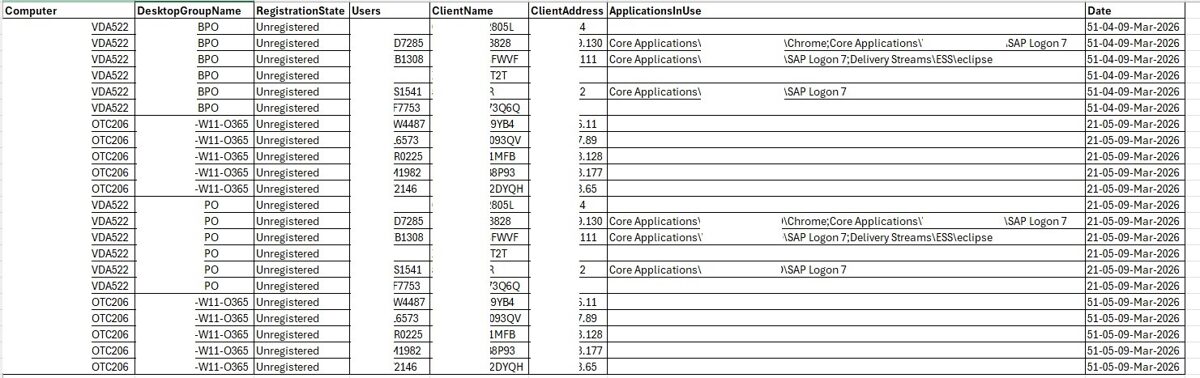
Overall Value
This script improves the operational resilience of your Citrix DaaS environment by providing timely alerts whenever VDAs become Unregistered. It reduces reliance on manual console monitoring, shortens incident detection and resolution times, increases desktop availability, and enables the Citrix support team to address infrastructure issues before they have a significant impact on end users.
7. Increases Infrastructure Availability
· Supports maintaining a healthy pool of registered VDAs.
· Reduces the risk of desktop capacity shortages caused by unregistered machines.
· Helps maintain consistent service availability.
8. Enhances Operational Visibility
· Provides clear visibility into registration failures.
· Ensures support teams are aware of infrastructure health even when not logged into the Citrix DaaS console.
· Makes it easier to identify recurring or widespread issues.
9. Supports Capacity Management
· Helps identify whether registration failures are isolated or affecting multiple machines.
· Enables administrators to respond before capacity constraints impact users.
· Assists in maintaining adequate desktop availability.
10. Automates Routine Monitoring
· Replaces repetitive manual checks with automated health monitoring.
· Reduces the possibility of human error or missed incidents.
· Provides consistent and reliable notifications.
11. Easily Extensible
The script can be enhanced with additional capabilities such as:
· Including the duration each VDA has remained unregistered.
· Producing daily or weekly reports showing registration trends.
Below is example emails:
Another email example:
All emails are generated and sent automatically; no user intervention is required
A log file is also generated, which contains the following information:
· Computer name:
· DesktopGroupName;
· Registration State;
· User LAN ID;
· User's computer name;
· User's computer IP address;
· Application in use;
· Log generation date
Overall Value
This script improves the operational resilience of your Citrix DaaS environment by providing timely alerts whenever VDAs become Unregistered. It reduces reliance on manual console monitoring, shortens incident detection and resolution times, increases desktop availability, and enables the Citrix support team to address infrastructure issues before they have a significant impact on end users.
Find Stuck user session
Sometimes Citrix user sessions get stuck and cannot be viewed because the Citrix computer is not in 'Unregistered' mode, and the Citrix DAAS console does not send any information about such sessions. I wrote a PowerShell script that finds these stuck sessions and notifies Citrix support team agents via email so they can log them out and thus reduce the number of incidents.
Benefits of the Stuck Citrix Session Detection Script:
1. Detects Hidden Session Issues
· Identifies stuck user sessions that are not visible or easily identifiable in the Citrix DaaS console.
· Detects issues that standard Citrix monitoring may not report.
· Provides visibility into otherwise unnoticed session problems.
2. Reduces User Incidents
· Enables support agents to resolve stuck sessions before users report login or reconnect issues.
· Reduces the number of service desk tickets related to inaccessible or hung sessions.
· Minimizes disruption to end users.
3. Improves User Experience
· Prevents users from being blocked by stale or unresponsive sessions.
· Reduces failed login and reconnection attempts.
· Helps ensure users can access their virtual desktops more reliably.
4. Enables Proactive Support
· Automatically identifies problematic sessions without requiring manual investigation.
· Allows Citrix support agents to act before issues escalate.
· Shifts support from a reactive to a proactive approach.
5. Accelerates Incident Resolution
· Immediately notifies the Citrix support team when a stuck session is detected.
· Enables faster session logoff and recovery.
· Reduces Mean Time to Detect (MTTD) and Mean Time to Resolve (MTTR).
6. Reduces Manual Monitoring
· Eliminates the need for administrators to manually search for hidden session issues.
· Continuously monitors the environment with minimal administrative effort.
· Frees support staff to focus on higher-value tasks.
7. Improves Desktop Availability
· Logging off stuck sessions releases affected desktops for normal use.
· Helps maintain the availability of Citrix resources.
· Reduces situations where users cannot access an otherwise healthy VDI.
8. Complements Native Citrix Monitoring
· Extends monitoring beyond the capabilities of the Citrix DaaS console.
· Identifies issues that are not exposed through standard administrative views.
· Provides an additional layer of operational visibility.
9. Reduces Operational Risk
· Prevents hidden session issues from accumulating over time.
· Helps maintain a cleaner and healthier Citrix environment.
· Reduces the likelihood of widespread user impact during peak usage.
10. Automates Repetitive Tasks
· Replaces manual session checks with an automated detection process.
· Provides consistent monitoring and notifications.
· Reduces the risk of human error or overlooked issues.
11. Improves Troubleshooting
· Notifications provide support staff with immediate information about affected sessions.
· Enables faster investigation and corrective action.
· Can help identify recurring session-related problems for further analysis.
12. Easily Extensible
· The script can be enhanced with additional capabilities such as:
· Automatically logging off confirmed stuck sessions after a configurable grace period.
· Generating daily or weekly reports on stuck session trends.
· Escalating alerts if a stuck session is not resolved within a defined timeframe.

Email sent to the Citrix agents:
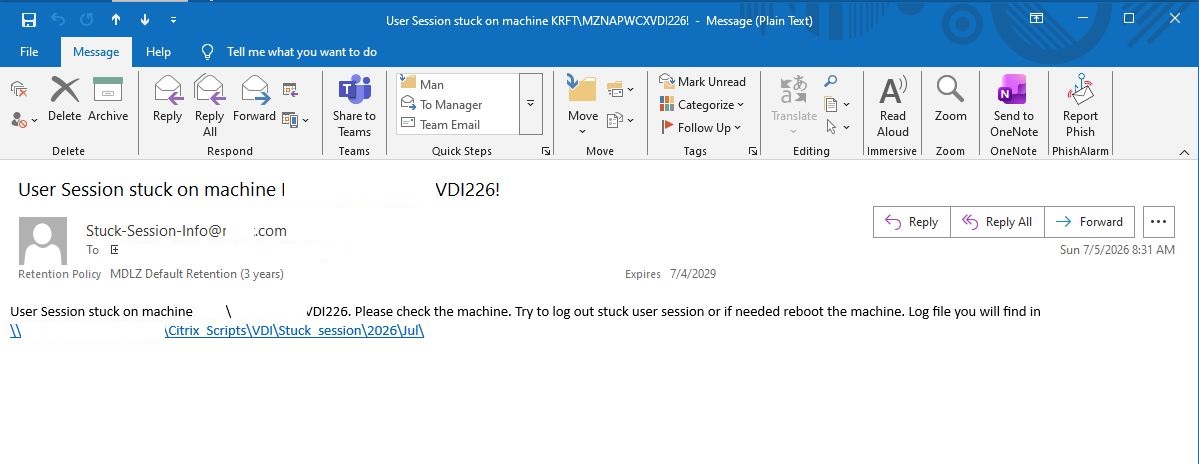 Overall Value
This script fills a monitoring gap by detecting Citrix user sessions that become stuck and are not reported by the Citrix DaaS console. By automatically notifying the Citrix support team, it enables timely session cleanup, reduces user-facing incidents, improves desktop availability, and enhances the overall reliability and operational efficiency of the Citrix environment.
1. Detects Hidden Session Issues
· Identifies stuck user sessions that are not visible or easily identifiable in the Citrix DaaS console.
· Detects issues that standard Citrix monitoring may not report.
· Provides visibility into otherwise unnoticed session problems.
2. Reduces User Incidents
· Enables support agents to resolve stuck sessions before users report login or reconnect issues.
· Reduces the number of service desk tickets related to inaccessible or hung sessions.
· Minimizes disruption to end users.
3. Improves User Experience
· Prevents users from being blocked by stale or unresponsive sessions.
· Reduces failed login and reconnection attempts.
· Helps ensure users can access their virtual desktops more reliably.
4. Enables Proactive Support
· Automatically identifies problematic sessions without requiring manual investigation.
· Allows Citrix support agents to act before issues escalate.
· Shifts support from a reactive to a proactive approach.
5. Accelerates Incident Resolution
· Immediately notifies the Citrix support team when a stuck session is detected.
· Enables faster session logoff and recovery.
· Reduces Mean Time to Detect (MTTD) and Mean Time to Resolve (MTTR).
6. Reduces Manual Monitoring
· Eliminates the need for administrators to manually search for hidden session issues.
· Continuously monitors the environment with minimal administrative effort.
· Frees support staff to focus on higher-value tasks.
7. Improves Desktop Availability
· Logging off stuck sessions releases affected desktops for normal use.
· Helps maintain the availability of Citrix resources.
· Reduces situations where users cannot access an otherwise healthy VDI.
8. Complements Native Citrix Monitoring
· Extends monitoring beyond the capabilities of the Citrix DaaS console.
· Identifies issues that are not exposed through standard administrative views.
· Provides an additional layer of operational visibility.
9. Reduces Operational Risk
· Prevents hidden session issues from accumulating over time.
· Helps maintain a cleaner and healthier Citrix environment.
· Reduces the likelihood of widespread user impact during peak usage.
10. Automates Repetitive Tasks
· Replaces manual session checks with an automated detection process.
· Provides consistent monitoring and notifications.
· Reduces the risk of human error or overlooked issues.
11. Improves Troubleshooting
· Notifications provide support staff with immediate information about affected sessions.
· Enables faster investigation and corrective action.
· Can help identify recurring session-related problems for further analysis.
12. Easily Extensible
· The script can be enhanced with additional capabilities such as:
· Automatically logging off confirmed stuck sessions after a configurable grace period.
· Generating daily or weekly reports on stuck session trends.
· Escalating alerts if a stuck session is not resolved within a defined timeframe.
Stuck session example taken from Citrix console:
Email sent to the Citrix agents:
Overall ValueThis script fills a monitoring gap by detecting Citrix user sessions that become stuck and are not reported by the Citrix DaaS console. By automatically notifying the Citrix support team, it enables timely session cleanup, reduces user-facing incidents, improves desktop availability, and enhances the overall reliability and operational efficiency of the Citrix environment.
Automatically delete non-existent Citrix users
In our Citrix environment, many Citrix users have access to single-session virtual machines. Not all of them use virtual machines at the same time. However, the problem is that some users leave the organization and their accounts are deleted from Active Directory, yet they still retain access to Citrix single-session virtual machines. Going through and checking whether each user’s account exists in Active Directory would take a very long time.
I wrote a PowerShell script that checks whether user accounts exist in Active Directory. If the account exists, no action is taken; if it does not exist, access to that account is revoked from the Citrix single-session virtual machine.
All of this is done automatically, and no user intervention is required.
A log file is also created and sent to all Citrix agents via email
The email looks like this:
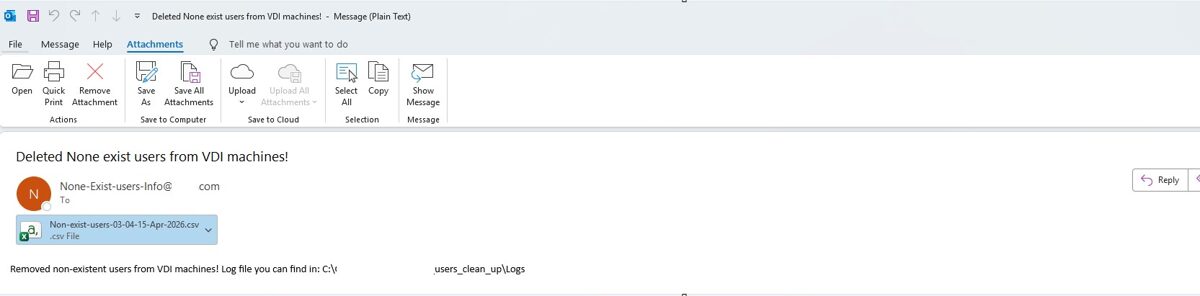
Log file looks like this:
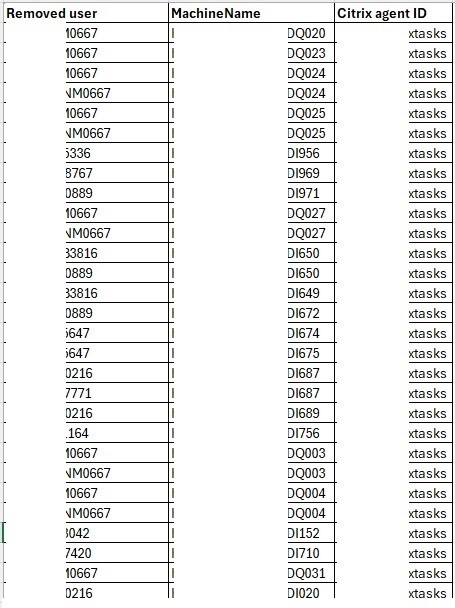
Overall Value
This PowerShell script automates the synchronization of Citrix single-session virtual machine assignments with Active Directory by removing access for users whose accounts no longer exist. It improves security, optimizes desktop utilization, reduces administrative effort, and ensures that Citrix resources are allocated only to active users. By generating logs and notifying the Citrix support team, it also provides transparency and an audit trail for ongoing operational management.
I wrote a PowerShell script that checks whether user accounts exist in Active Directory. If the account exists, no action is taken; if it does not exist, access to that account is revoked from the Citrix single-session virtual machine.
All of this is done automatically, and no user intervention is required.
A log file is also created and sent to all Citrix agents via email
Benefits of the Active Directory Account Validation and Citrix Access Cleanup Script:
1. Automates User Access Validation
· Automatically verifies whether users assigned to Citrix single-session virtual machines still have active Active Directory accounts.
· Eliminates the need for administrators to manually review user assignments.
· Ensures access validation is performed consistently.
2. Improves Security
· Removes Citrix access for users whose Active Directory accounts no longer exist.
· Reduces the risk of obsolete or orphaned user assignments remaining in the environment.
· Helps ensure that only valid Active Directory users retain access to Citrix resources.
3. Improves License and Resource Utilization
· Frees Citrix single-session virtual machines previously assigned to inactive users.
· Makes desktops available for reassignment to current employees.
· Prevents virtual resources from being unnecessarily reserved for former users.
4. Reduces Administrative Effort
· Eliminates time-consuming manual comparisons between Active Directory and Citrix assignments.
· Automates a repetitive administrative task.
· Allows Citrix administrators to focus on higher-value operational activities.
5. Ensures Data Consistency
· Keeps Citrix user assignments aligned with Active Directory.
· Prevents discrepancies between identity management and desktop assignments.
· Maintains an accurate and up-to-date Citrix environment.
6. Supports User Lifecycle Management
· Automatically reflects user departures in the Citrix environment.
· Complements existing account deprovisioning processes.
· Helps ensure that user access is removed promptly when employment ends.
7. Reduces the Risk of Human Error
· Removes reliance on manual reviews, which can overlook inactive or deleted accounts.
· Applies the same validation process to every assigned user.
· Provides consistent and repeatable results.
8. Improves Operational Efficiency
· Continuously maintains clean Citrix assignments without administrator intervention.
· Reduces the administrative overhead associated with managing single-session desktops.
· Keeps the environment organized and easier to manage.
9. Provides Audit and Reporting Capabilities
· Generates a log file documenting all access removals.
· Sends the log automatically to the Citrix support team via email.
· Creates an audit trail for operational review and compliance purposes.
10. Increases Desktop Availability
· Releases virtual machines assigned to users who no longer exist in Active Directory.
· Makes additional desktops available for new or existing users.
· Helps maximize utilization of the Citrix infrastructure.
11. Supports Governance and Compliance
· Helps enforce the principle that only active, authorized users should have access to corporate resources.
· Supports identity and access management best practices.
· Assists with internal audits by demonstrating automated access validation.
12. Scalable Across Large Environments
· Performs validation efficiently even in environments with hundreds or thousands of assigned users.
· Reduces administrative workload as the Citrix environment grows.
· Provides a scalable solution for ongoing account maintenance.
13. Easily Extensible
· The script can be enhanced with additional capabilities such as:
· Producing summary reports showing the number of validated and removed assignments.
· Verifying additional account attributes, such as whether an account is disabled or expired.
· Maintaining historical reports to identify long-term trends in account cleanup activities.
1. Automates User Access Validation
· Automatically verifies whether users assigned to Citrix single-session virtual machines still have active Active Directory accounts.
· Eliminates the need for administrators to manually review user assignments.
· Ensures access validation is performed consistently.
2. Improves Security
· Removes Citrix access for users whose Active Directory accounts no longer exist.
· Reduces the risk of obsolete or orphaned user assignments remaining in the environment.
· Helps ensure that only valid Active Directory users retain access to Citrix resources.
3. Improves License and Resource Utilization
· Frees Citrix single-session virtual machines previously assigned to inactive users.
· Makes desktops available for reassignment to current employees.
· Prevents virtual resources from being unnecessarily reserved for former users.
4. Reduces Administrative Effort
· Eliminates time-consuming manual comparisons between Active Directory and Citrix assignments.
· Automates a repetitive administrative task.
· Allows Citrix administrators to focus on higher-value operational activities.
5. Ensures Data Consistency
· Keeps Citrix user assignments aligned with Active Directory.
· Prevents discrepancies between identity management and desktop assignments.
· Maintains an accurate and up-to-date Citrix environment.
6. Supports User Lifecycle Management
· Automatically reflects user departures in the Citrix environment.
· Complements existing account deprovisioning processes.
· Helps ensure that user access is removed promptly when employment ends.
7. Reduces the Risk of Human Error
· Removes reliance on manual reviews, which can overlook inactive or deleted accounts.
· Applies the same validation process to every assigned user.
· Provides consistent and repeatable results.
8. Improves Operational Efficiency
· Continuously maintains clean Citrix assignments without administrator intervention.
· Reduces the administrative overhead associated with managing single-session desktops.
· Keeps the environment organized and easier to manage.
9. Provides Audit and Reporting Capabilities
· Generates a log file documenting all access removals.
· Sends the log automatically to the Citrix support team via email.
· Creates an audit trail for operational review and compliance purposes.
10. Increases Desktop Availability
· Releases virtual machines assigned to users who no longer exist in Active Directory.
· Makes additional desktops available for new or existing users.
· Helps maximize utilization of the Citrix infrastructure.
11. Supports Governance and Compliance
· Helps enforce the principle that only active, authorized users should have access to corporate resources.
· Supports identity and access management best practices.
· Assists with internal audits by demonstrating automated access validation.
12. Scalable Across Large Environments
· Performs validation efficiently even in environments with hundreds or thousands of assigned users.
· Reduces administrative workload as the Citrix environment grows.
· Provides a scalable solution for ongoing account maintenance.
13. Easily Extensible
· The script can be enhanced with additional capabilities such as:
· Producing summary reports showing the number of validated and removed assignments.
· Verifying additional account attributes, such as whether an account is disabled or expired.
· Maintaining historical reports to identify long-term trends in account cleanup activities.
The email looks like this:
Log file looks like this:
Overall Value
This PowerShell script automates the synchronization of Citrix single-session virtual machine assignments with Active Directory by removing access for users whose accounts no longer exist. It improves security, optimizes desktop utilization, reduces administrative effort, and ensures that Citrix resources are allocated only to active users. By generating logs and notifying the Citrix support team, it also provides transparency and an audit trail for ongoing operational management.
Citrix images out of date
When Citrix images are updated via MCS, virtual machines receive the new image only after they are reset. However, if there are users logged into the Citrix machines at that time, you cannot reset those machines. Furthermore, there may be many of them, and they may be in different Delivery Groups. My PowerShell script finds all Citrix computers that are waiting for an image update. If such computers are found, they are listed in a CSV file and information sent to members of the Citrix support team via email.
Benefits of the Citrix MCS Image Update Monitoring Script:
1. Identifies Machines Waiting for Image Updates
· Automatically detects Citrix virtual machines that have not yet received the latest Machine Creation Services (MCS) image.
· Eliminates the need to manually search through multiple Delivery Groups.
· Provides a consolidated view of machines awaiting an update.
2. Improves Patch and Image Compliance
· Helps ensure that virtual desktops are updated to the latest approved image.
· Reduces the number of machines running outdated operating systems or application versions.
· Supports consistent deployment of security patches and software updates.
3. Accelerates Image Rollout
· Allows administrators to quickly identify which machines still require a restart to apply the new image.
· Helps complete image deployments more efficiently.
· Reduces the time required to bring the environment to a consistent state.
4. Improves Operational Visibility
· Provides clear insight into the progress of MCS image deployments.
· Makes it easy to determine which Delivery Groups still contain machines pending an update.
· Enables administrators to track deployment progress across the environment.
5. Reduces Manual Administration
· Eliminates the need to manually inspect each Delivery Group for machines awaiting image updates.
· Automates a repetitive and time-consuming administrative task.
· Saves valuable administrator time, particularly in large environments.
6. Supports Maintenance Planning
· Identifies machines that require a reboot when users log off.
· Helps administrators plan maintenance activities with minimal disruption.
· Enables informed decisions about scheduling image deployment completion.
7. Improves Desktop Consistency
· Reduces the number of desktops running different image versions.
· Helps maintain a standardized and predictable virtual desktop environment.
· Simplifies troubleshooting by ensuring desktops are based on the same image.
8. Reduces User Impact
· Allows support teams to identify which machines should be restarted after users log off instead of interrupting active sessions.
· Helps balance timely updates with user productivity.
· Minimizes unnecessary disruption during business hours.
· Reduce number of tickets
9. Supports Change Management
· Provides visibility into the deployment status following an image update.
· Helps verify that planned changes are being successfully implemented.
· Assists administrators in validating maintenance activities.
· Sending automatic email notifications listing machines awaiting image updates
10. Improves Reporting
· Produces a list of machines still waiting for the latest image.
· Can be used to measure deployment progress and identify delays.
· Supports operational reporting and documentation.
11. Scales Across Large Environments
· Efficiently monitors hundreds or thousands of virtual desktops across multiple Delivery Groups.
· Provides a centralized method for tracking image deployment status.
· Reduces administrative effort as the environment grows.
12. Easily Extensible
· The script can be enhanced with additional capabilities such as:
· Highlighting machines that have remained pending beyond a configurable threshold.
· Grouping results by Delivery Group, machine catalog, or image version.
· Generating deployment progress dashboards and historical reports.
· Automatically scheduling pending machines for restart once users have logged off.
Information retrieved from the Citrix console:

Email example
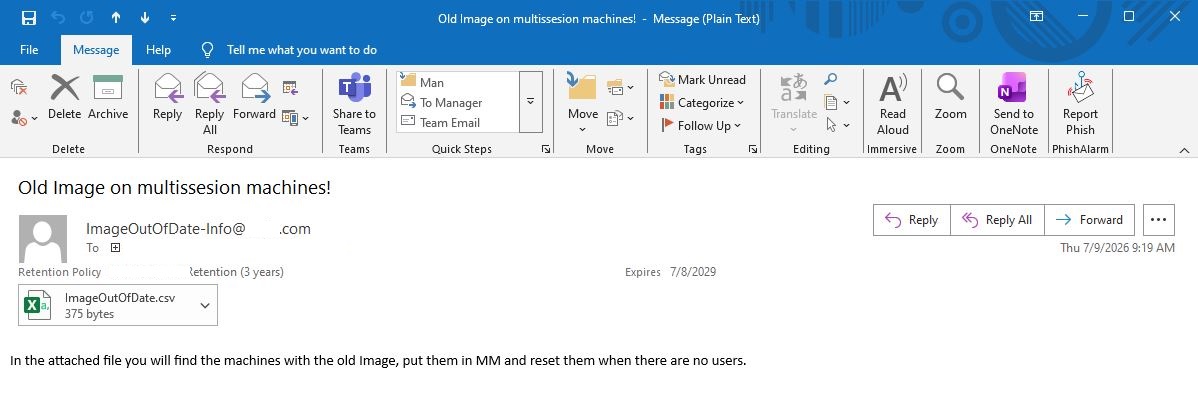
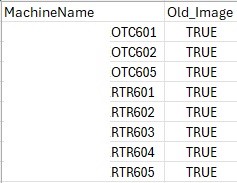
Overall Value
This PowerShell script provides centralized visibility into Citrix MCS image deployments by identifying virtual machines that are still waiting to receive the latest image after publication. It simplifies administration across multiple Delivery Groups, accelerates deployment completion, improves compliance with approved images, and helps maintain a consistent, secure, and up-to-date Citrix environment while minimizing disruption to active users.
Benefits of the Citrix MCS Image Update Monitoring Script:
1. Identifies Machines Waiting for Image Updates
· Automatically detects Citrix virtual machines that have not yet received the latest Machine Creation Services (MCS) image.
· Eliminates the need to manually search through multiple Delivery Groups.
· Provides a consolidated view of machines awaiting an update.
2. Improves Patch and Image Compliance
· Helps ensure that virtual desktops are updated to the latest approved image.
· Reduces the number of machines running outdated operating systems or application versions.
· Supports consistent deployment of security patches and software updates.
3. Accelerates Image Rollout
· Allows administrators to quickly identify which machines still require a restart to apply the new image.
· Helps complete image deployments more efficiently.
· Reduces the time required to bring the environment to a consistent state.
4. Improves Operational Visibility
· Provides clear insight into the progress of MCS image deployments.
· Makes it easy to determine which Delivery Groups still contain machines pending an update.
· Enables administrators to track deployment progress across the environment.
5. Reduces Manual Administration
· Eliminates the need to manually inspect each Delivery Group for machines awaiting image updates.
· Automates a repetitive and time-consuming administrative task.
· Saves valuable administrator time, particularly in large environments.
6. Supports Maintenance Planning
· Identifies machines that require a reboot when users log off.
· Helps administrators plan maintenance activities with minimal disruption.
· Enables informed decisions about scheduling image deployment completion.
7. Improves Desktop Consistency
· Reduces the number of desktops running different image versions.
· Helps maintain a standardized and predictable virtual desktop environment.
· Simplifies troubleshooting by ensuring desktops are based on the same image.
8. Reduces User Impact
· Allows support teams to identify which machines should be restarted after users log off instead of interrupting active sessions.
· Helps balance timely updates with user productivity.
· Minimizes unnecessary disruption during business hours.
· Reduce number of tickets
9. Supports Change Management
· Provides visibility into the deployment status following an image update.
· Helps verify that planned changes are being successfully implemented.
· Assists administrators in validating maintenance activities.
· Sending automatic email notifications listing machines awaiting image updates
10. Improves Reporting
· Produces a list of machines still waiting for the latest image.
· Can be used to measure deployment progress and identify delays.
· Supports operational reporting and documentation.
11. Scales Across Large Environments
· Efficiently monitors hundreds or thousands of virtual desktops across multiple Delivery Groups.
· Provides a centralized method for tracking image deployment status.
· Reduces administrative effort as the environment grows.
12. Easily Extensible
· The script can be enhanced with additional capabilities such as:
· Highlighting machines that have remained pending beyond a configurable threshold.
· Grouping results by Delivery Group, machine catalog, or image version.
· Generating deployment progress dashboards and historical reports.
· Automatically scheduling pending machines for restart once users have logged off.
Information retrieved from the Citrix console:
Email example
Log file example:
Overall Value
This PowerShell script provides centralized visibility into Citrix MCS image deployments by identifying virtual machines that are still waiting to receive the latest image after publication. It simplifies administration across multiple Delivery Groups, accelerates deployment completion, improves compliance with approved images, and helps maintain a consistent, secure, and up-to-date Citrix environment while minimizing disruption to active users.
Citrix virtual machines and their associated master names
We have received a request to provide a monthly list of Citrix multisession virtual machines and the master servers from which those virtual machines are loaded.
I wrote a PowerShell script that lists all virtual machines and checks the Citrix machine catalog to see which master machine has been uploaded to that catalog. All the information is compiled into a CSV file and sent to a shared email address as well as to the user who submitted the request.
Email example:
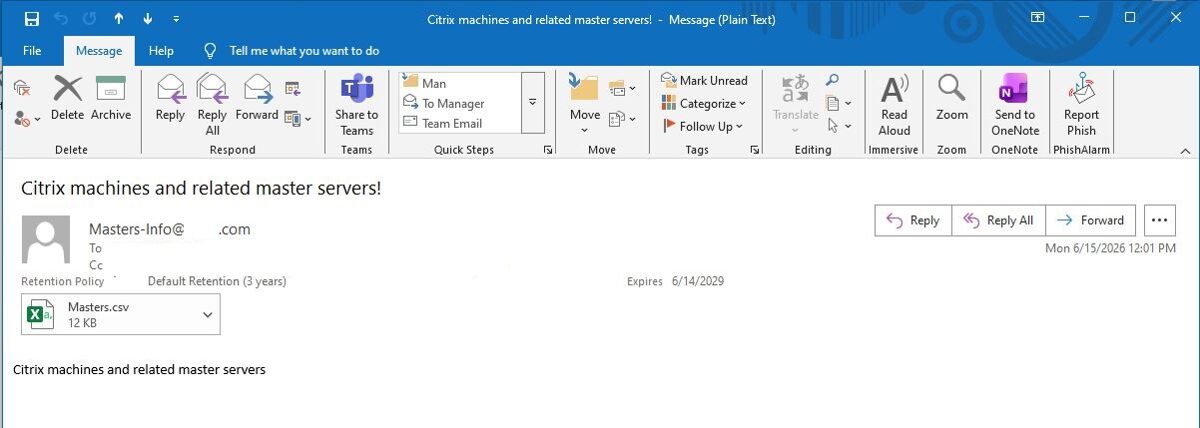
Log file:
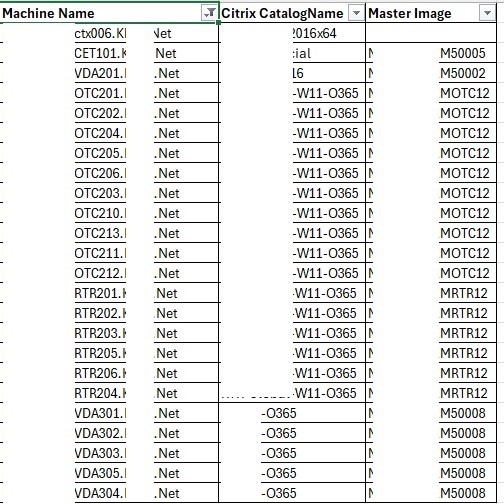
Overall Value
This PowerShell script automates the creation and distribution of a monthly inventory report that maps Citrix multi-session virtual machines to their corresponding master images. It reduces manual effort, improves reporting accuracy, supports audits and change management, and provides a reliable, repeatable process for maintaining visibility into the Citrix infrastructure. By automatically generating a CSV report and distributing it to both the requester and the support team, the script streamlines reporting while ensuring stakeholders have access to accurate and up-to-date information.
I wrote a PowerShell script that lists all virtual machines and checks the Citrix machine catalog to see which master machine has been uploaded to that catalog. All the information is compiled into a CSV file and sent to a shared email address as well as to the user who submitted the request.
Benefits of the Citrix Master Image Inventory Script:
1. Automates Monthly Reporting
· Automatically generates the required monthly report without manual data collection.
· Eliminates repetitive administrative work.
· Ensures reports are produced consistently and on time.
2. Provides Complete Infrastructure Visibility
· Lists all Citrix multi-session virtual machines.
· Identifies the master image associated with each Citrix Machine Catalog.
· Gives administrators a clear overview of the relationship between virtual machines and their source images.
3. Reduces Manual Effort
· Eliminates the need to manually review each Machine Catalog.
· Saves significant administrative time, especially in large Citrix environments.
· Reduces the workload associated with recurring reporting requests.
4. Improves Reporting Accuracy
· Retrieves information directly from the Citrix environment.
· Reduces the risk of human error associated with manual documentation.
· Ensures that reports reflect the current infrastructure configuration.
5. Supports Change Management
· Provides an accurate inventory of deployed master images.
· Helps verify that Machine Catalogs are using the expected master image.
· Assists in validating image deployment and maintenance activities.
6. Simplifies Audits
· Produces a documented inventory that can be used during internal or external audits.
· Demonstrates which master images are associated with production virtual machines.
· Supports compliance and governance requirements.
7. Improves Operational Visibility
· Makes it easy to identify which virtual machines are based on a particular master image.
· Helps administrators understand the distribution of images across the Citrix environment.
· Provides useful information for planning image updates and maintenance.
8. Standardizes Reporting
· Generates reports in CSV format for consistent presentation.
· Produces the same report structure every month.
· Makes it easy to compare reports over time.
9. Facilitates Data Analysis
· CSV output can be opened in Microsoft Excel or imported into reporting tools.
· Enables sorting, filtering, and analysis of virtual machine and master image information.
· Supports trend analysis and inventory management.
10. Improves Communication
· Automatically distributes the report to both the shared support mailbox and the requesting user.
· Ensures all stakeholders receive the same information simultaneously.
· Eliminates the need for manual report distribution.
11. Saves Time for Support Teams
· Removes the need to respond manually to recurring inventory requests.
· Allows Citrix administrators to focus on operational and strategic tasks.
· Reduces delays in fulfilling reporting requests.
12. Scales Across Large Environments
· Efficiently inventories hundreds or thousands of multi-session virtual machines.
· Provides centralized reporting regardless of the number of Machine Catalogs.
· Continues to deliver consistent results as the environment grows.
13. Easily Extensible
· The script can be enhanced with additional capabilities such as:
· Including the master image version or snapshot name.
· Reporting the operating system version of each virtual machine.
· Grouping results by Machine Catalog or Delivery Group.
· Comparing reports month over month to identify infrastructure changes.
· Automatically archiving historical reports.
· Publishing reports to SharePoint or a document management system.
1. Automates Monthly Reporting
· Automatically generates the required monthly report without manual data collection.
· Eliminates repetitive administrative work.
· Ensures reports are produced consistently and on time.
2. Provides Complete Infrastructure Visibility
· Lists all Citrix multi-session virtual machines.
· Identifies the master image associated with each Citrix Machine Catalog.
· Gives administrators a clear overview of the relationship between virtual machines and their source images.
3. Reduces Manual Effort
· Eliminates the need to manually review each Machine Catalog.
· Saves significant administrative time, especially in large Citrix environments.
· Reduces the workload associated with recurring reporting requests.
4. Improves Reporting Accuracy
· Retrieves information directly from the Citrix environment.
· Reduces the risk of human error associated with manual documentation.
· Ensures that reports reflect the current infrastructure configuration.
5. Supports Change Management
· Provides an accurate inventory of deployed master images.
· Helps verify that Machine Catalogs are using the expected master image.
· Assists in validating image deployment and maintenance activities.
6. Simplifies Audits
· Produces a documented inventory that can be used during internal or external audits.
· Demonstrates which master images are associated with production virtual machines.
· Supports compliance and governance requirements.
7. Improves Operational Visibility
· Makes it easy to identify which virtual machines are based on a particular master image.
· Helps administrators understand the distribution of images across the Citrix environment.
· Provides useful information for planning image updates and maintenance.
8. Standardizes Reporting
· Generates reports in CSV format for consistent presentation.
· Produces the same report structure every month.
· Makes it easy to compare reports over time.
9. Facilitates Data Analysis
· CSV output can be opened in Microsoft Excel or imported into reporting tools.
· Enables sorting, filtering, and analysis of virtual machine and master image information.
· Supports trend analysis and inventory management.
10. Improves Communication
· Automatically distributes the report to both the shared support mailbox and the requesting user.
· Ensures all stakeholders receive the same information simultaneously.
· Eliminates the need for manual report distribution.
11. Saves Time for Support Teams
· Removes the need to respond manually to recurring inventory requests.
· Allows Citrix administrators to focus on operational and strategic tasks.
· Reduces delays in fulfilling reporting requests.
12. Scales Across Large Environments
· Efficiently inventories hundreds or thousands of multi-session virtual machines.
· Provides centralized reporting regardless of the number of Machine Catalogs.
· Continues to deliver consistent results as the environment grows.
13. Easily Extensible
· The script can be enhanced with additional capabilities such as:
· Including the master image version or snapshot name.
· Reporting the operating system version of each virtual machine.
· Grouping results by Machine Catalog or Delivery Group.
· Comparing reports month over month to identify infrastructure changes.
· Automatically archiving historical reports.
· Publishing reports to SharePoint or a document management system.
Email example:
Log file:
Overall Value
This PowerShell script automates the creation and distribution of a monthly inventory report that maps Citrix multi-session virtual machines to their corresponding master images. It reduces manual effort, improves reporting accuracy, supports audits and change management, and provides a reliable, repeatable process for maintaining visibility into the Citrix infrastructure. By automatically generating a CSV report and distributing it to both the requester and the support team, the script streamlines reporting while ensuring stakeholders have access to accurate and up-to-date information.