Powershell GUI applications
In this section, I will describe the PowerShell GUI applications I have developed. To give a brief overview of these applications: they do not require installation, they can be used by multiple users at the same time, and a single user can run multiple instances of the application. So if the program freezes or is performing a lot of operations, you don't have to wait for it to finish. To continue working, simply launch another instance of the program. For the Active Directory program to work, the PowerShell Active Directory module must be installed on the computer. For Citrix applications to work, the Citrix Powershell SDK module must be installed on your computer.
Citrix Management
When working in a Citrix environment, we can view many aspects related to application and machine management in the Citrix Cloud console. However, if we need to automate certain tasks or perform processes (such as powering on or off machines, rebooting them, etc.) on different individual machines, it can be difficult to do so. This is where a tool that can handle all of this would be very useful.
To perform these and similar tasks, I created a program called "Citrix Management".
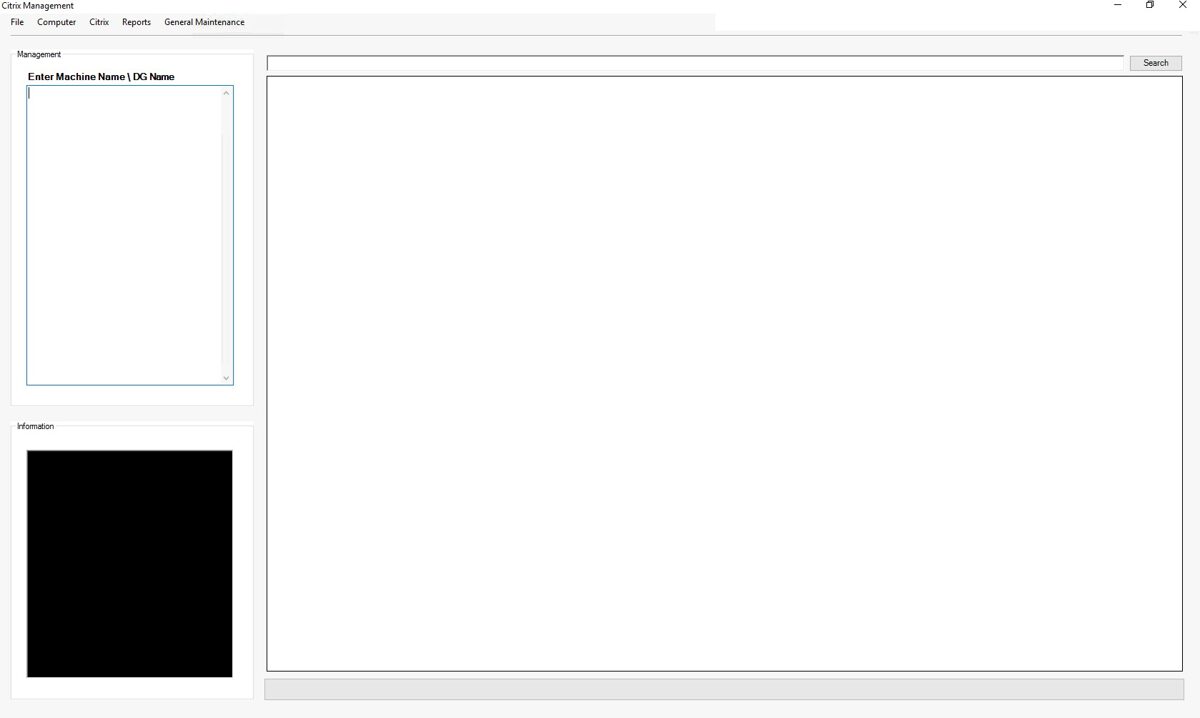
Although the program has a wide range of features, let's start with the most important ones - Reports.
Delivery Group report.
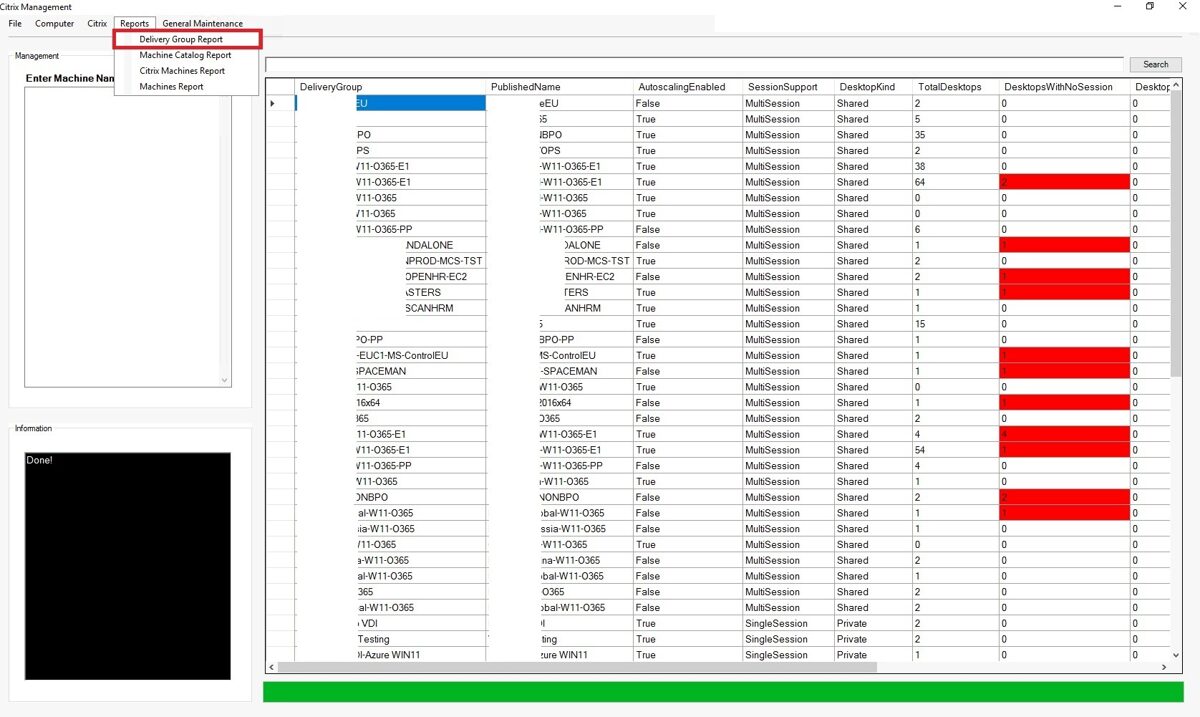
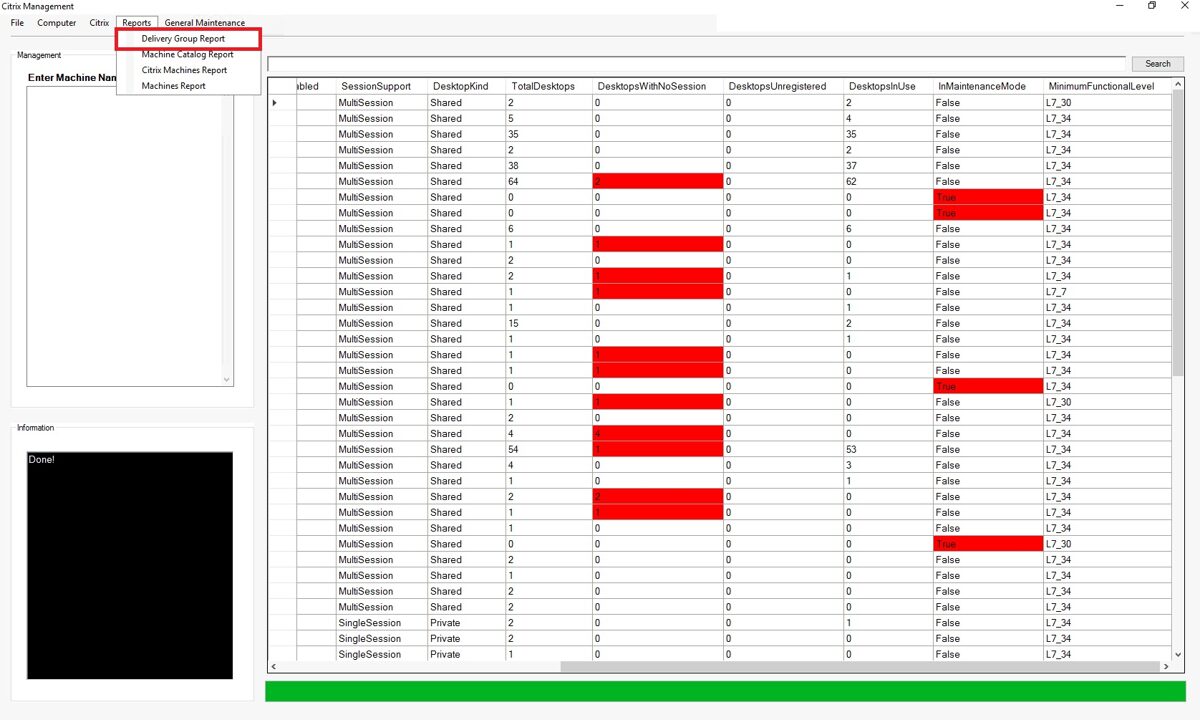
The "Delivery Group" report contains the following information:
·
Delivery Group name
· Delivery Group published name
· Autoscaling status
· Session Support
· Desktop Kind
· Total Desktops
· Desktops With No Sessions
· Unregistered Desktops
· Desktops In Use
· In Maintenance mode
· Minimal Functional Level
· Delivery Group published name
· Autoscaling status
· Session Support
· Desktop Kind
· Total Desktops
· Desktops With No Sessions
· Unregistered Desktops
· Desktops In Use
· In Maintenance mode
· Minimal Functional Level
To draw your attention to important details— fields automatically are highlighted in red.
All information is taken from Citrix.
continued
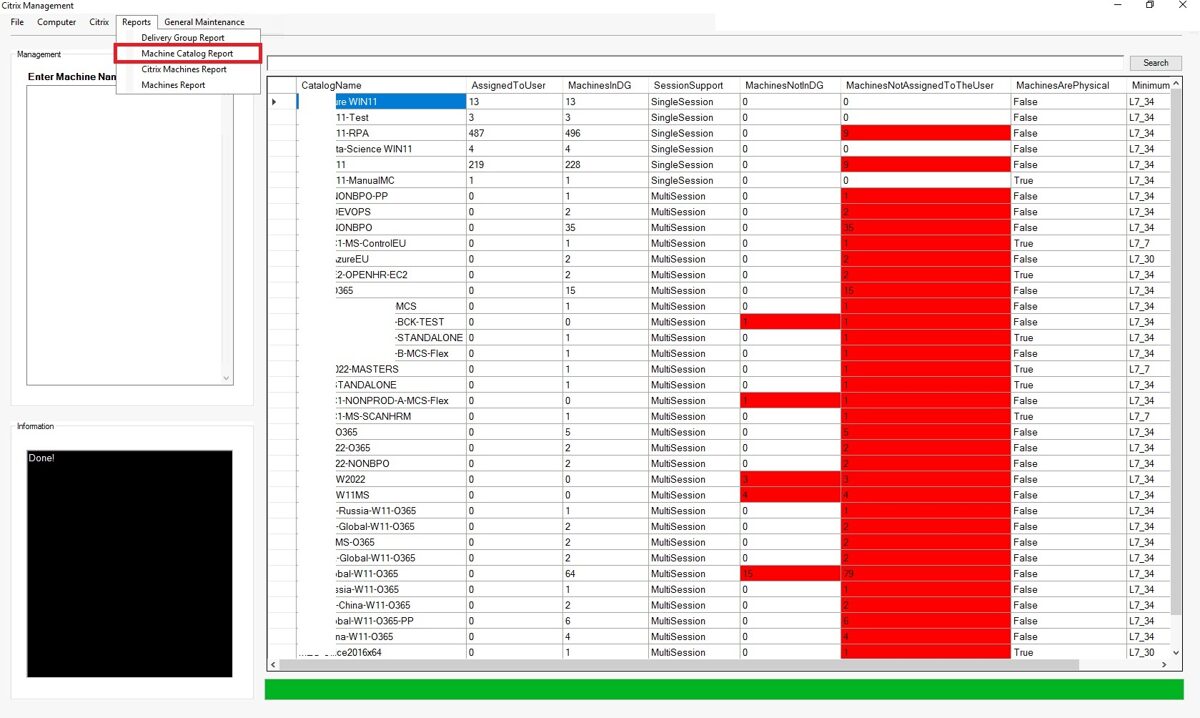
Machine Catalog Report
The "Machine Catalog" report contains the following information:
· Catalog Name
· Assigned to the User
· Machines in Delivery Group
· Session Support
· Machines Not In Delivery Group
· Machines Not Assigned To The User
· Machines Are Physical
· Minimum Functional Level
All information is taken from Citrix.
To draw your attention to important details— fields automatically are highlighted in red.
Citrix Machines Report
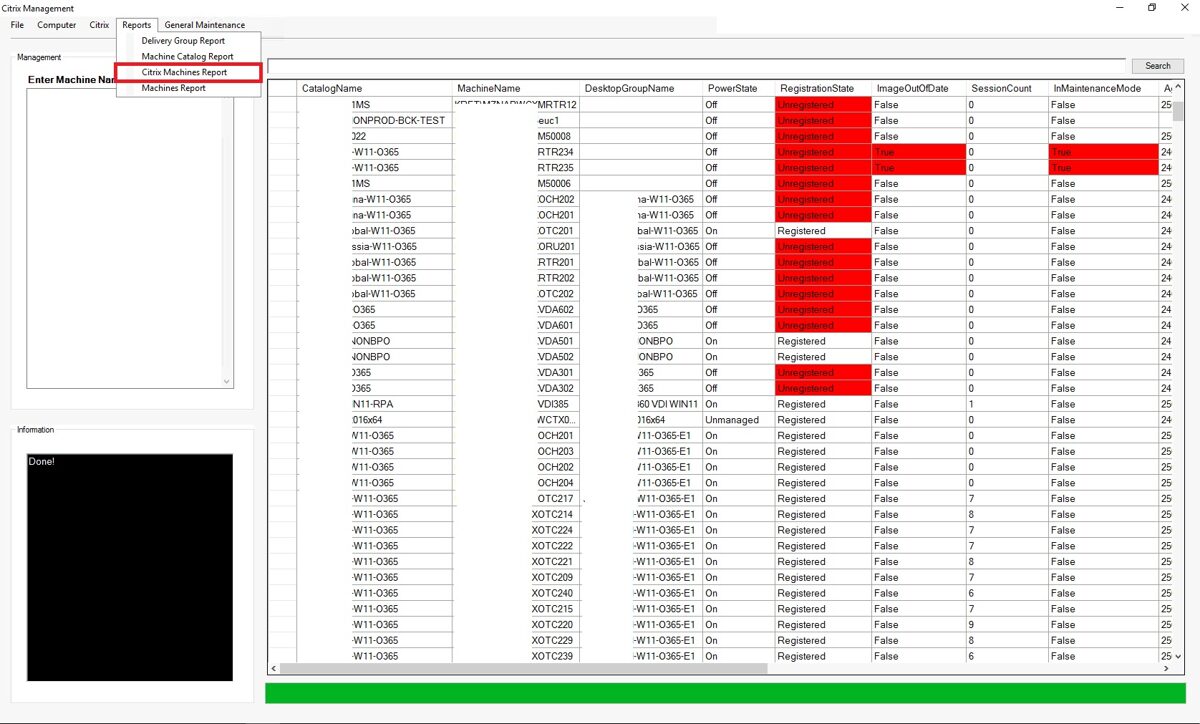
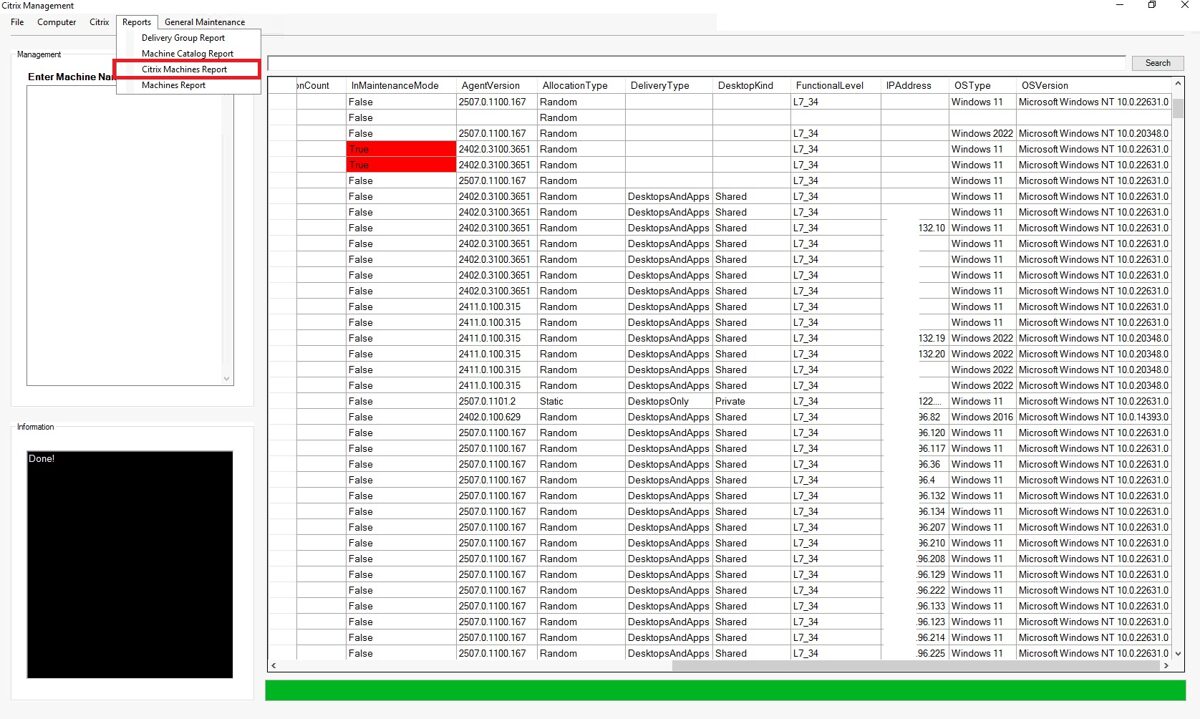
The "Machine Catalog" report contains the following information:
·
Machine Name
· Catalog Nane
· Desktop Group Name
· Machine Power State
· Machine Registration State
· Image Out Of Date status
· Session Count
· In Maintenance Mode
· Installed Agent Version
· Allocation Type
· Desktop Kind
· Functional Level
· IP Address
· OS Type
· OS Version
· Catalog Nane
· Desktop Group Name
· Machine Power State
· Machine Registration State
· Image Out Of Date status
· Session Count
· In Maintenance Mode
· Installed Agent Version
· Allocation Type
· Desktop Kind
· Functional Level
· IP Address
· OS Type
· OS Version
All information is taken from Citrix.
To draw your attention to important details— fields automatically are highlighted in red.
Continued
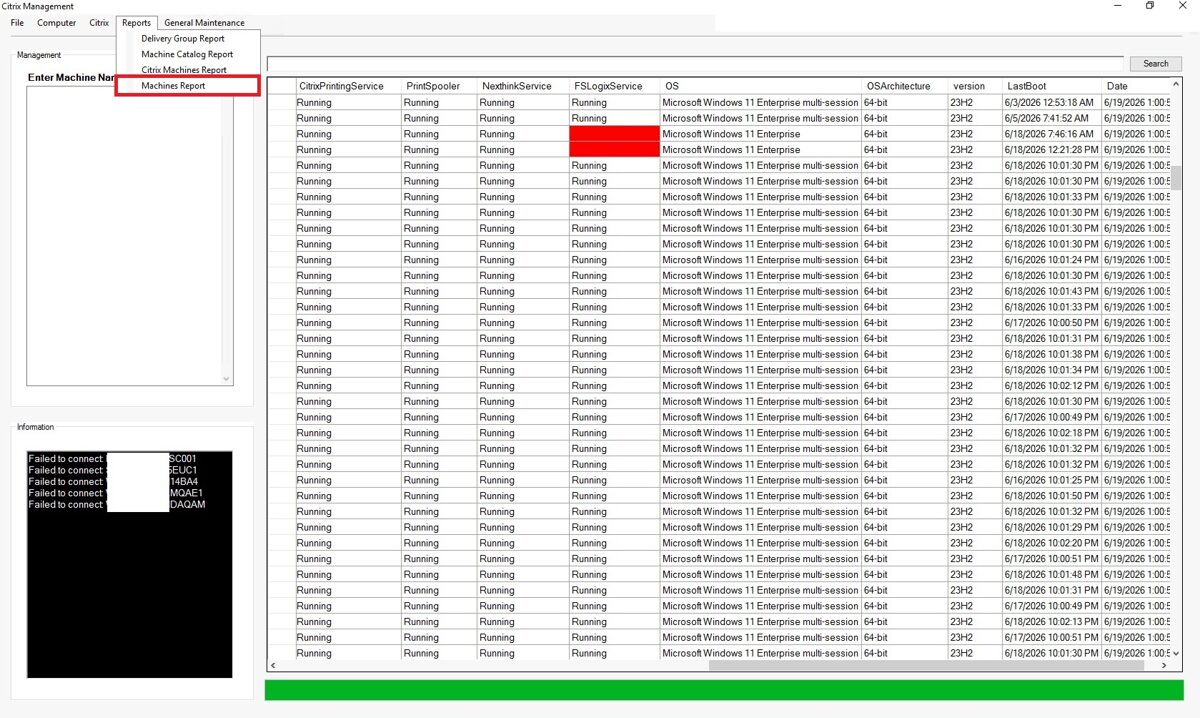
Machines Report
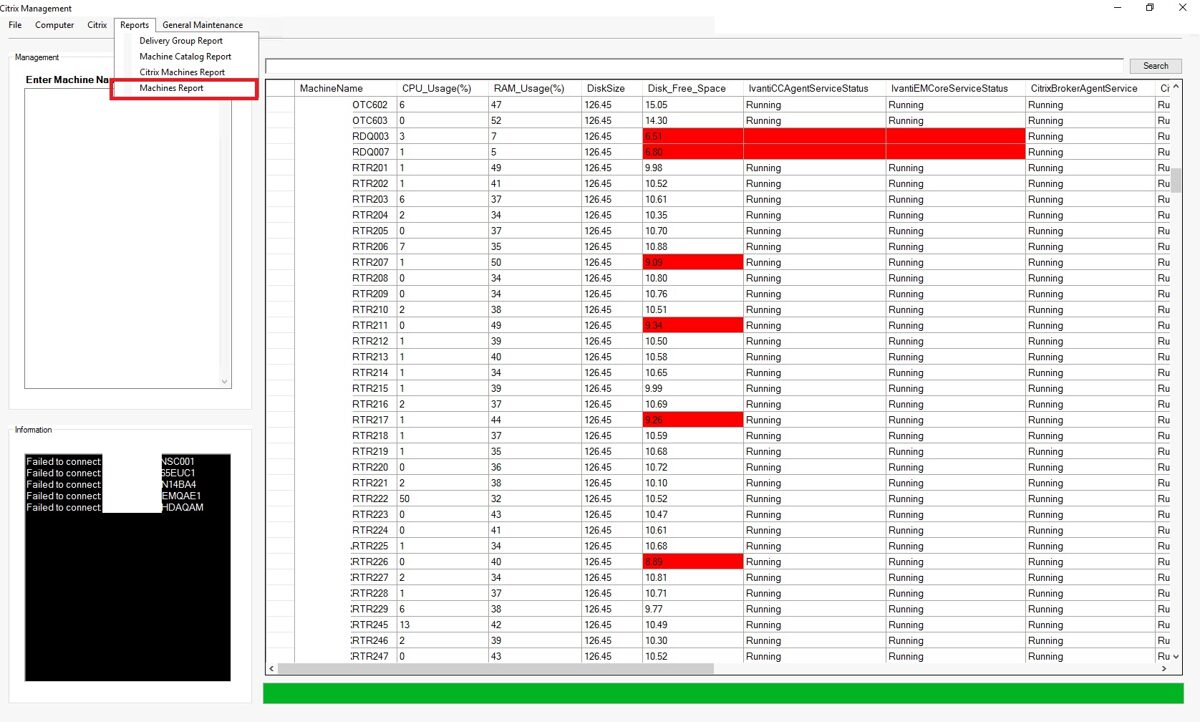
The "Machines" report contains the following information:
·
Machine Name
· CPU Usage
· RAM Usage
· Disk Size
· Disk Free Space
· Ivanti Agent Service Status
· Ivanti EM Core service Status
· Citrix Broker Agent Service Status
· Citrix Printing Service Status
· Print Spooler Service Status
· Nexthink Service Status
· FSLogix Service Status
· OS Installed On Machine
· OS Architecture
· OS Version
· Last Boot Time
· Date when report was generated
· CPU Usage
· RAM Usage
· Disk Size
· Disk Free Space
· Ivanti Agent Service Status
· Ivanti EM Core service Status
· Citrix Broker Agent Service Status
· Citrix Printing Service Status
· Print Spooler Service Status
· Nexthink Service Status
· FSLogix Service Status
· OS Installed On Machine
· OS Architecture
· OS Version
· Last Boot Time
· Date when report was generated
All the information in this report is extracted by connecting to the virtual machines themselves. A separate Citrix script was created to generate this information.
The script also provides information about which computers it was unable to connect to.
The script also provides information about which computers it was unable to connect to.
To draw your attention to important details— fields automatically are highlighted in red.
Continued
Computer section
The "Computer" section covers what kind of information can be extracted from the computer itself. It consists of the following parts:
·
Installed Applications
· Computer Boot-up Time
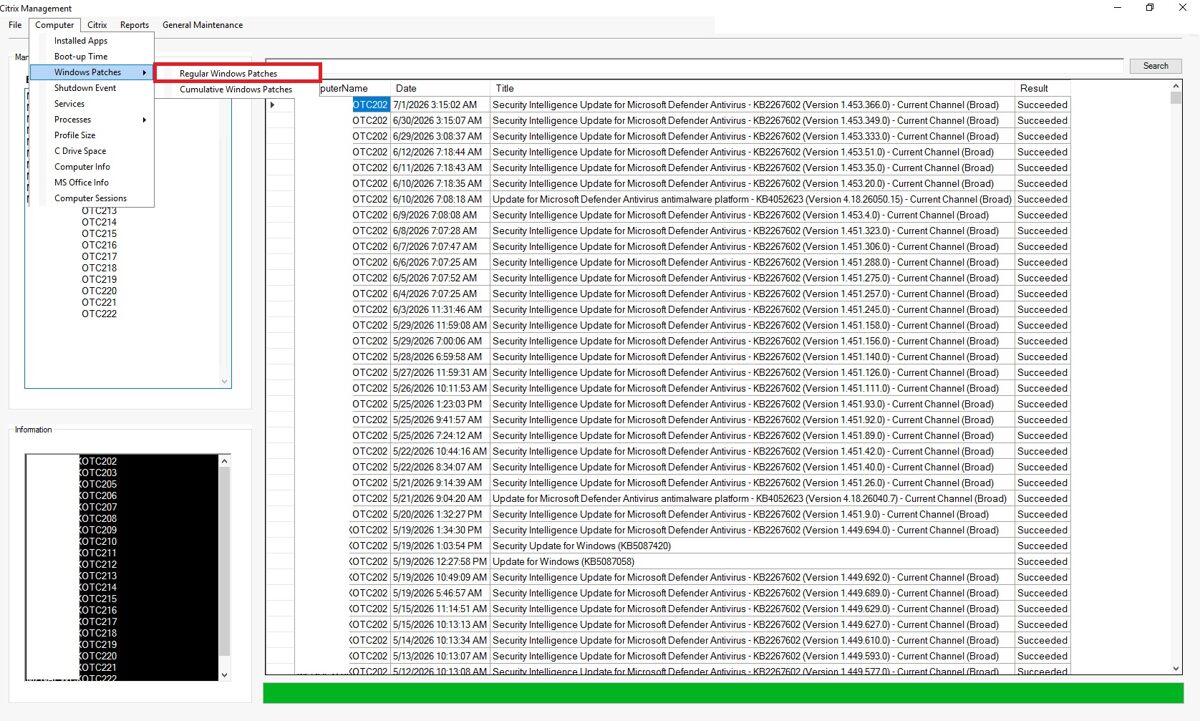
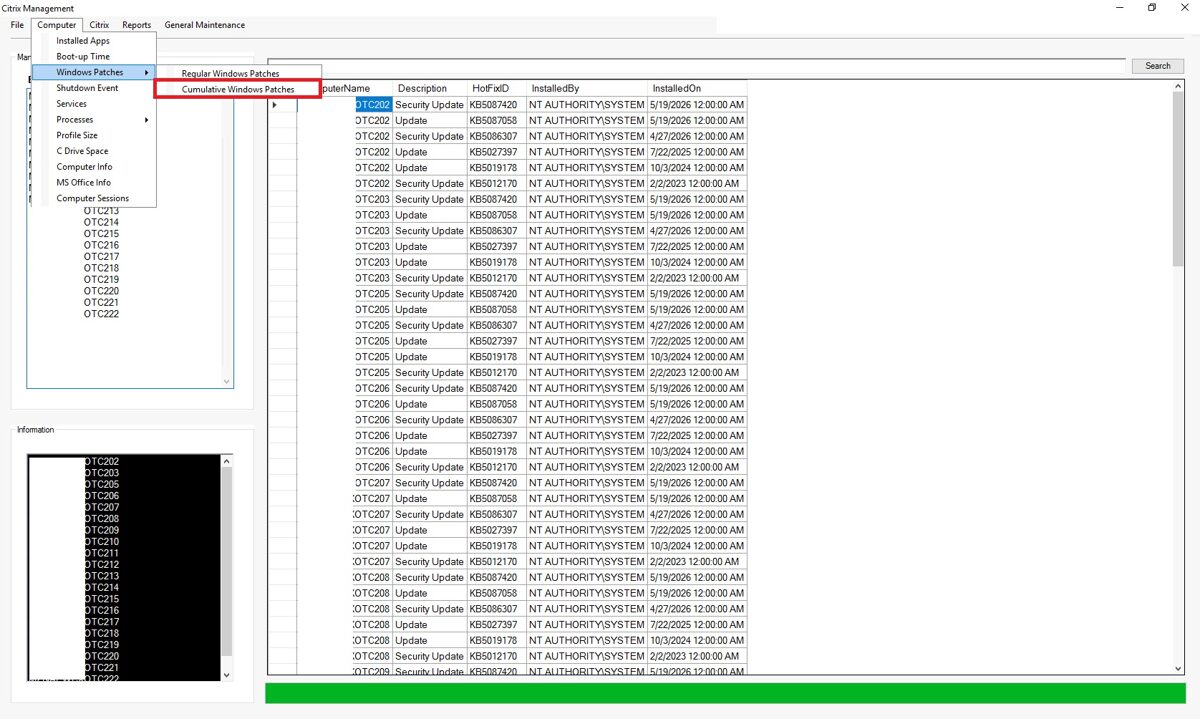
· Windows Patches - Regular Windows Patches and Cumulative Windows Patches
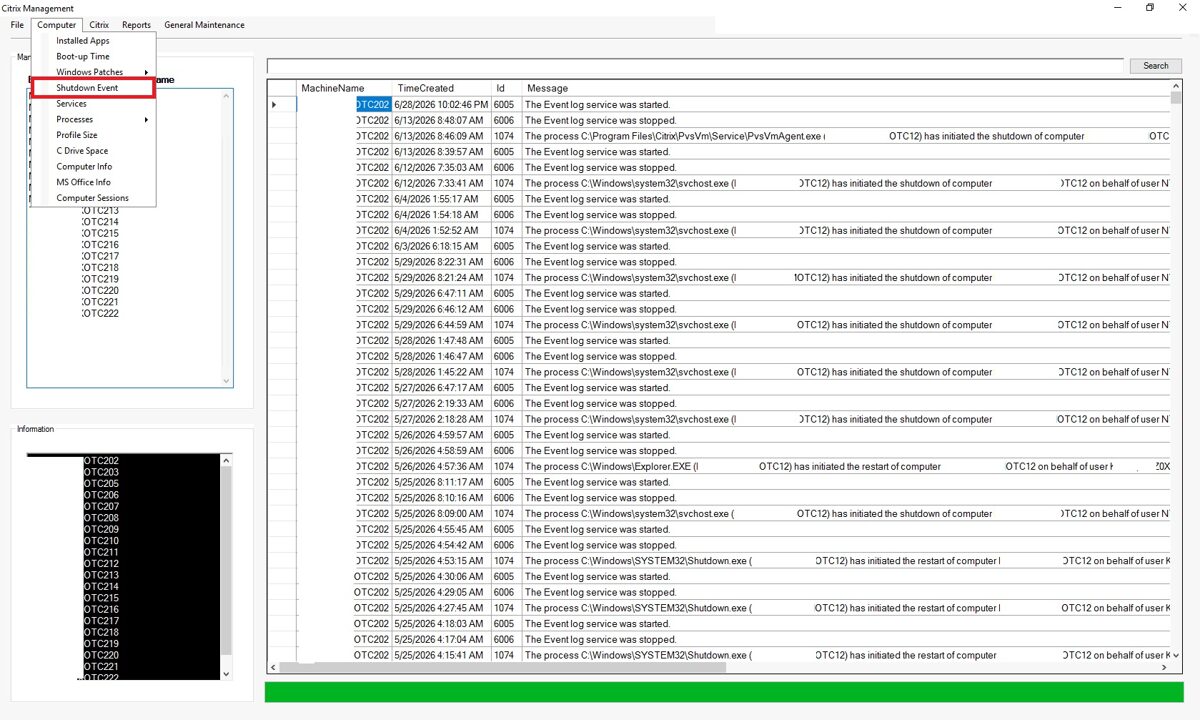
· Computer Shutdown and Reboot events
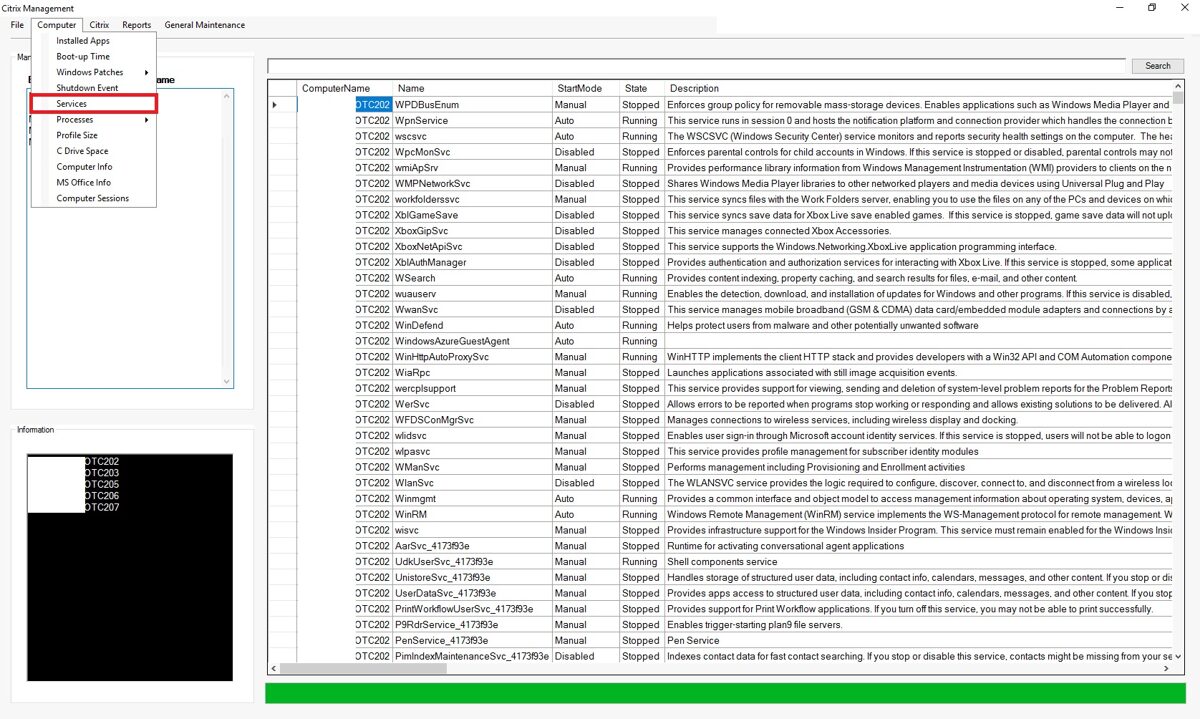
· Services running on the computer
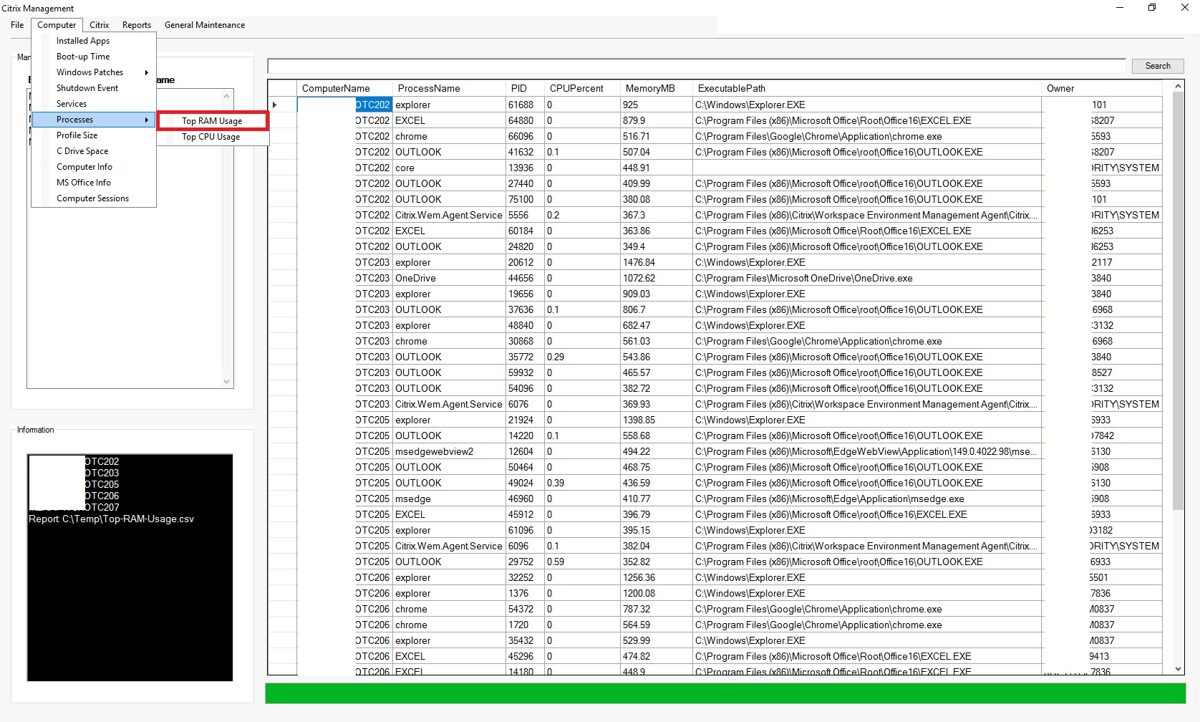
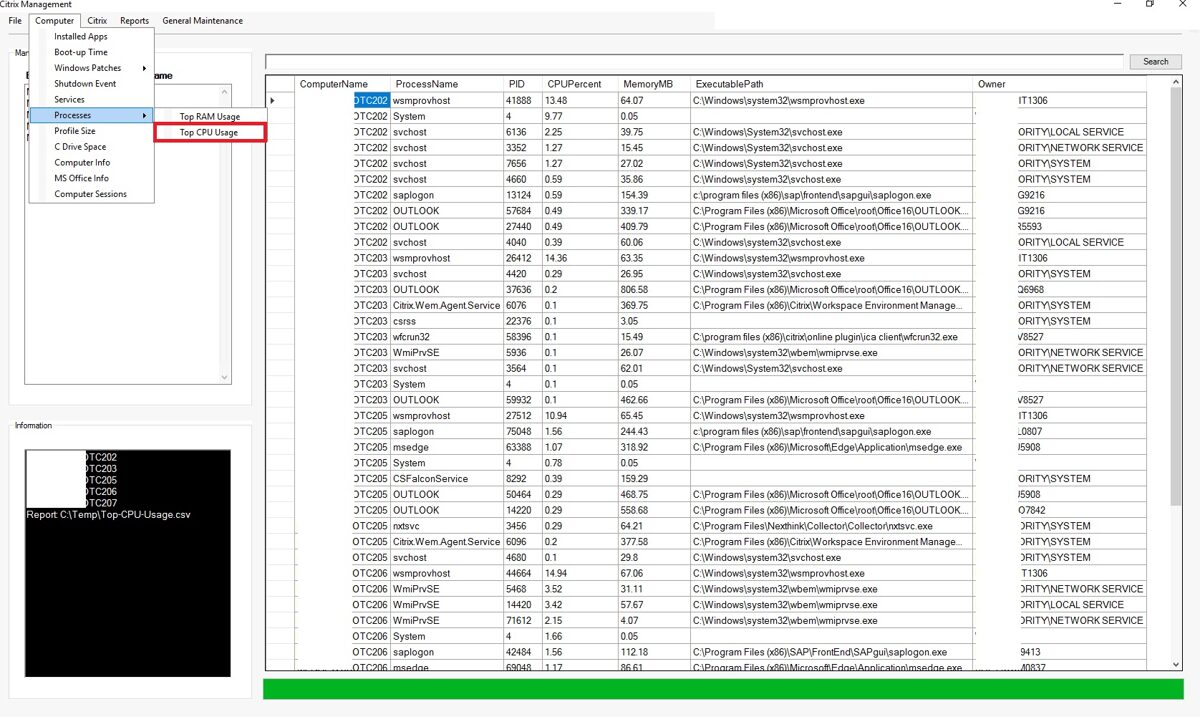
· Processes - The 10 processes that use the most RAM, The 10 processes that use the most CPU,
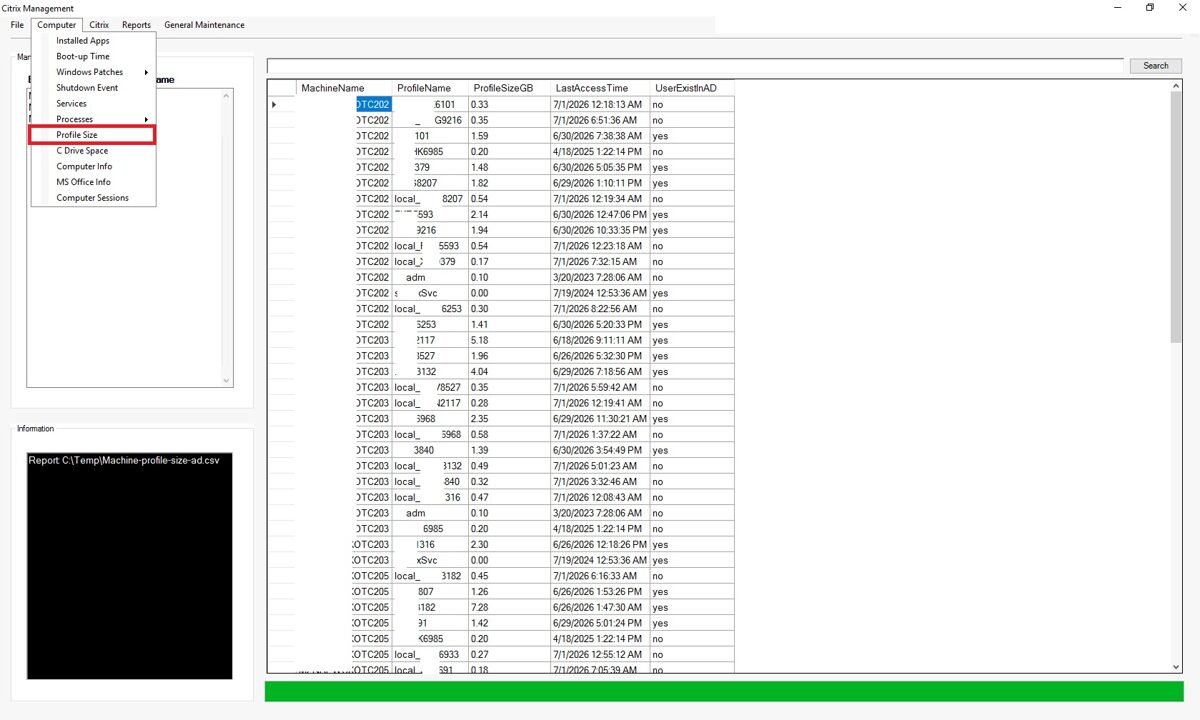
· User Profile sizes
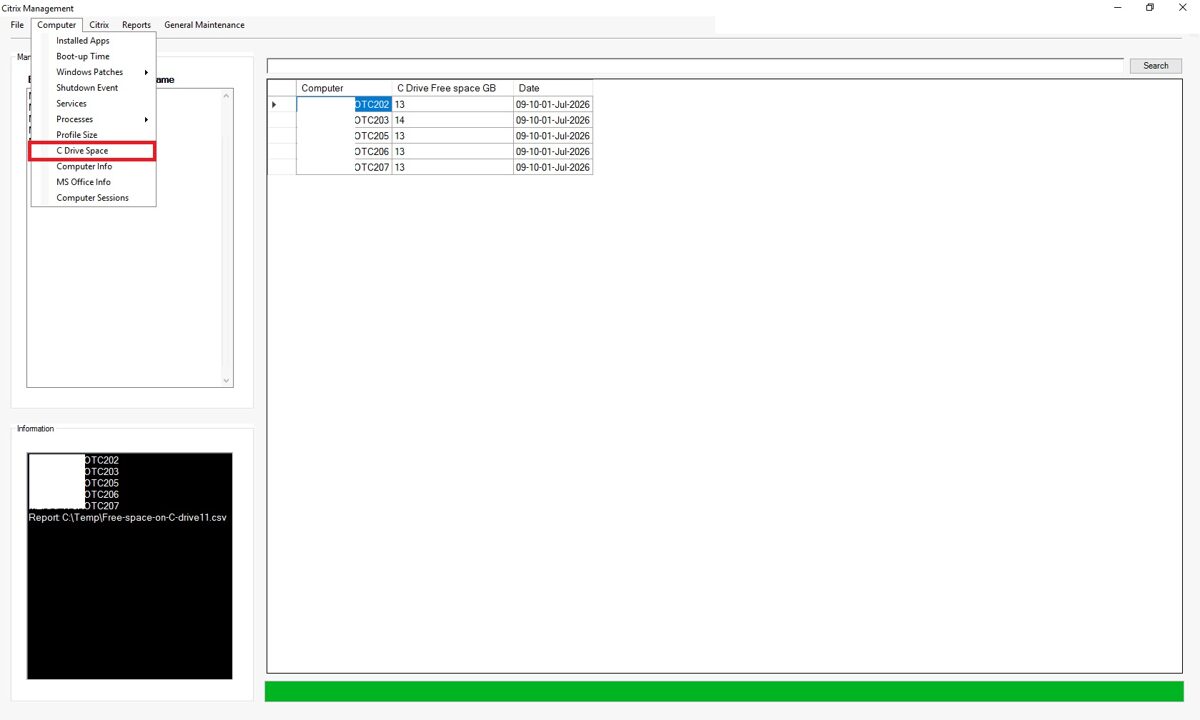
· C drive Space
· Computer Info
· MS Office Info
· Active session on the computer
· Computer Boot-up Time
· Windows Patches - Regular Windows Patches and Cumulative Windows Patches
· Computer Shutdown and Reboot events
· Services running on the computer
· Processes - The 10 processes that use the most RAM, The 10 processes that use the most CPU,
· User Profile sizes
· C drive Space
· Computer Info
· MS Office Info
· Active session on the computer
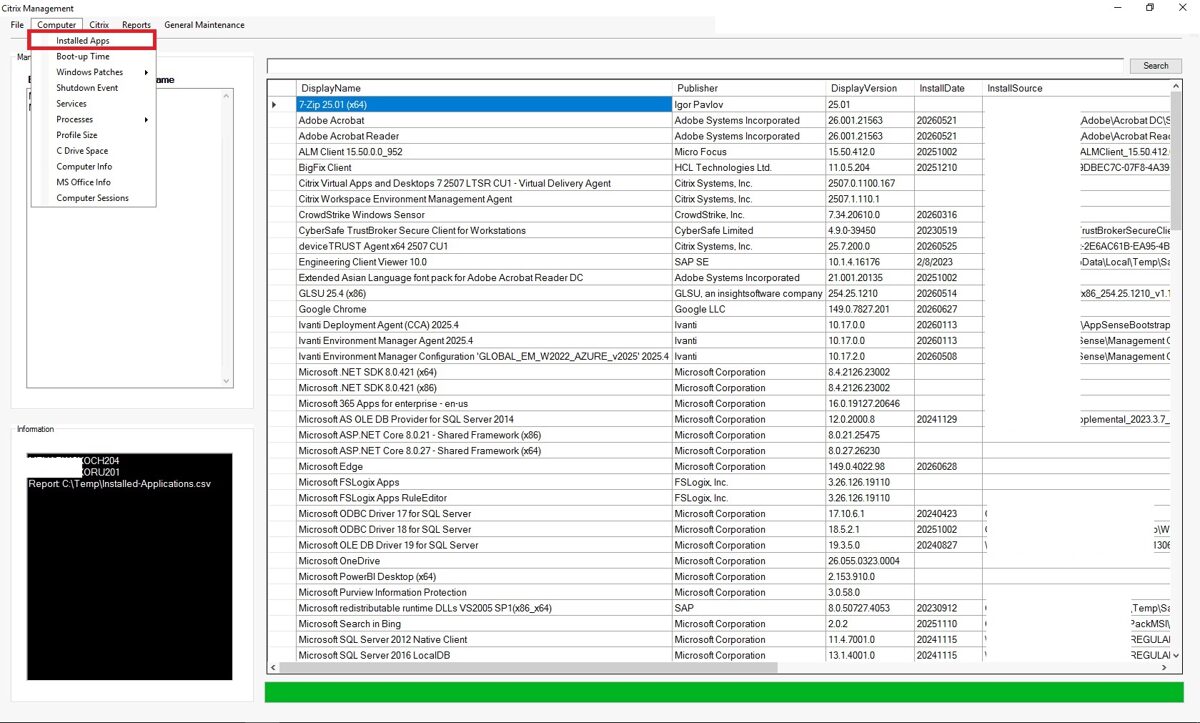
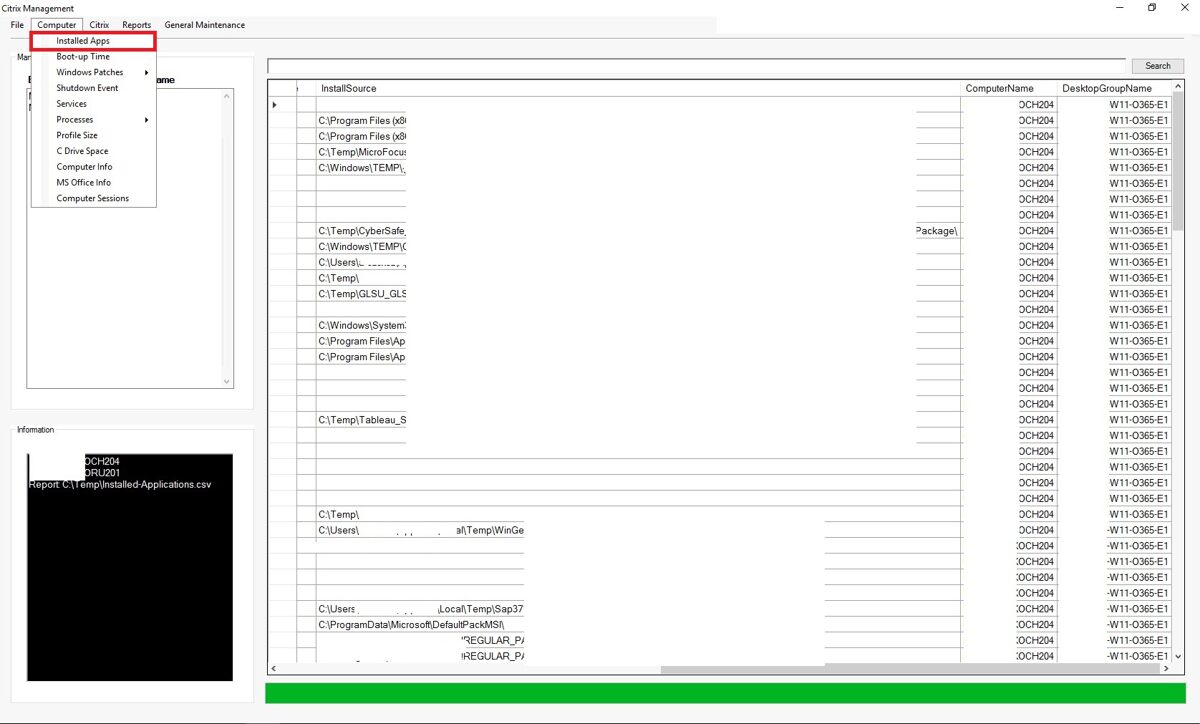
Installed Apps
Information can be retrieved from multiple computers at the same time.
Continued
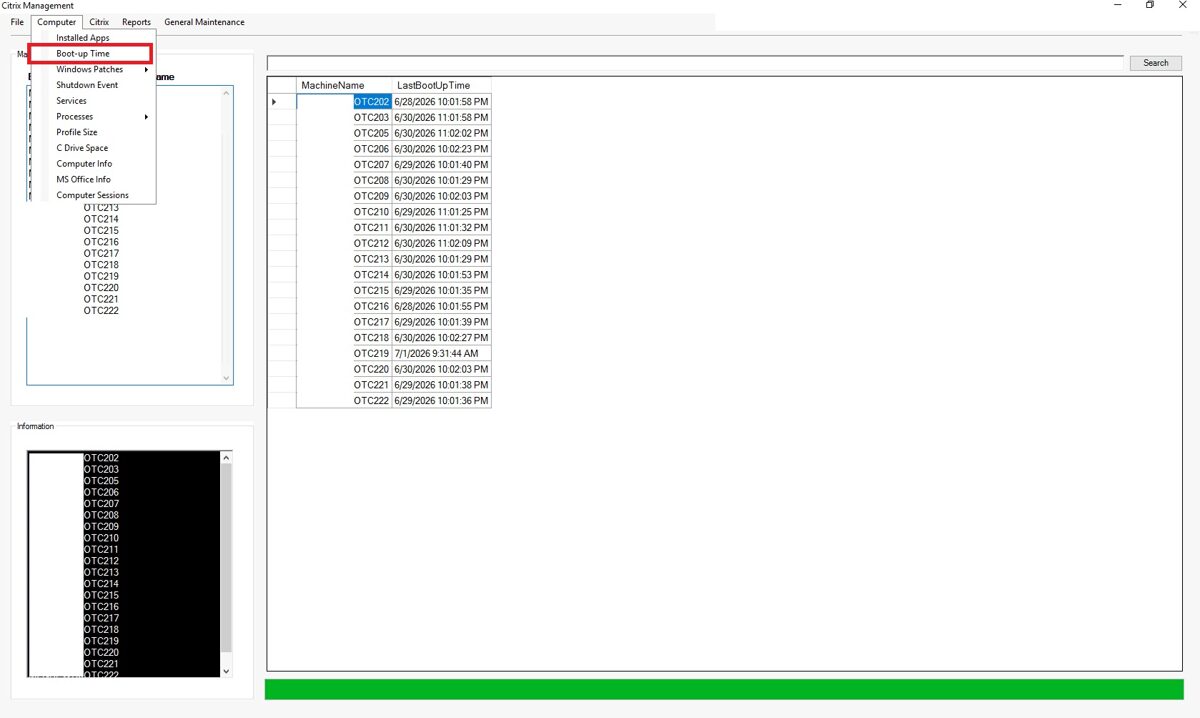
Boot-Up Time
Information can be retrieved from multiple computers at the same time.
Windows Patches
Regular Windows Patches
Information can be retrieved from multiple computers at the same time.
Cumulative Windows Patches
Information can be retrieved from multiple computers at the same time.
Shutdown Events
Information can be retrieved from multiple computers at the same time.
Services
Information can be retrieved from multiple computers at the same time.
Processes - Top 10 Processes used most of RAM
Information can be retrieved from multiple computers at the same time.
Processes - TOP 10 processes used most of CPU
Information can be retrieved from multiple computers at the same time.
Profile Size
The Windows OS creates a local profile for every user who has logged in to the computer. In this report, we can see the user profiles that have been created, their size, when the user last logged in, and whether their ID exists in Active Directory.
Information can be retrieved from multiple computers at the same time.
Free Space on C drive
Information can be retrieved from multiple computers at the same time.
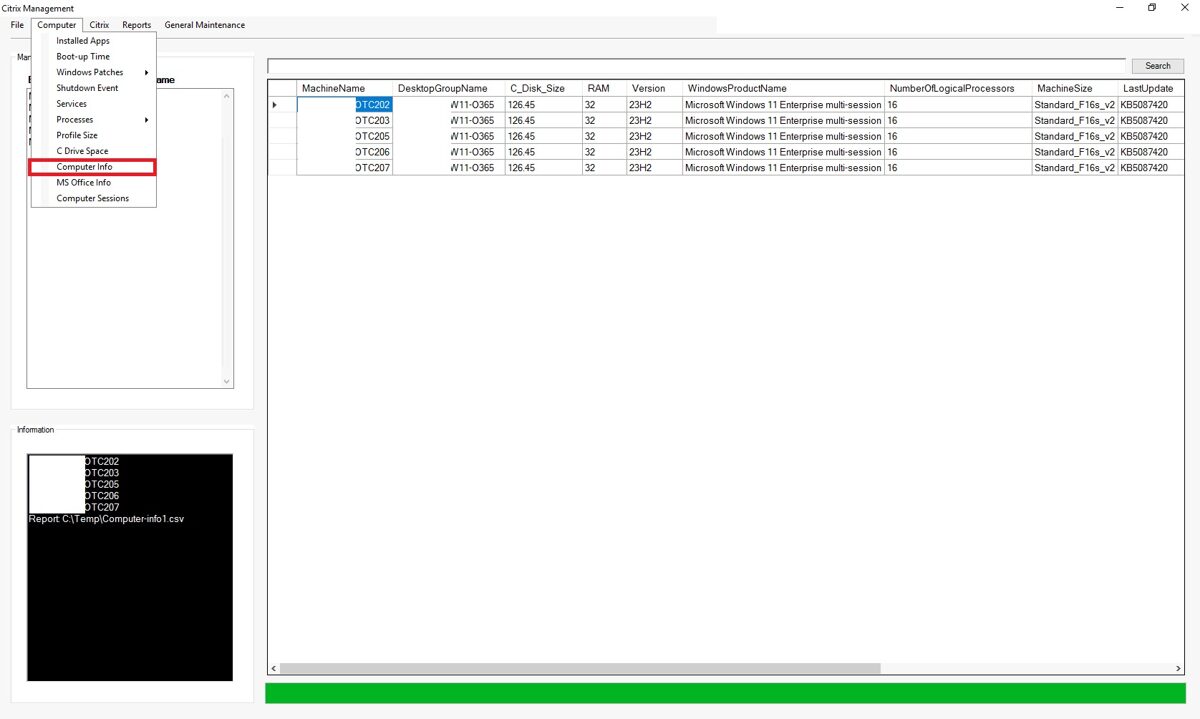
Computer Info
Information can be retrieved from multiple computers at the same time.
MS Office Info
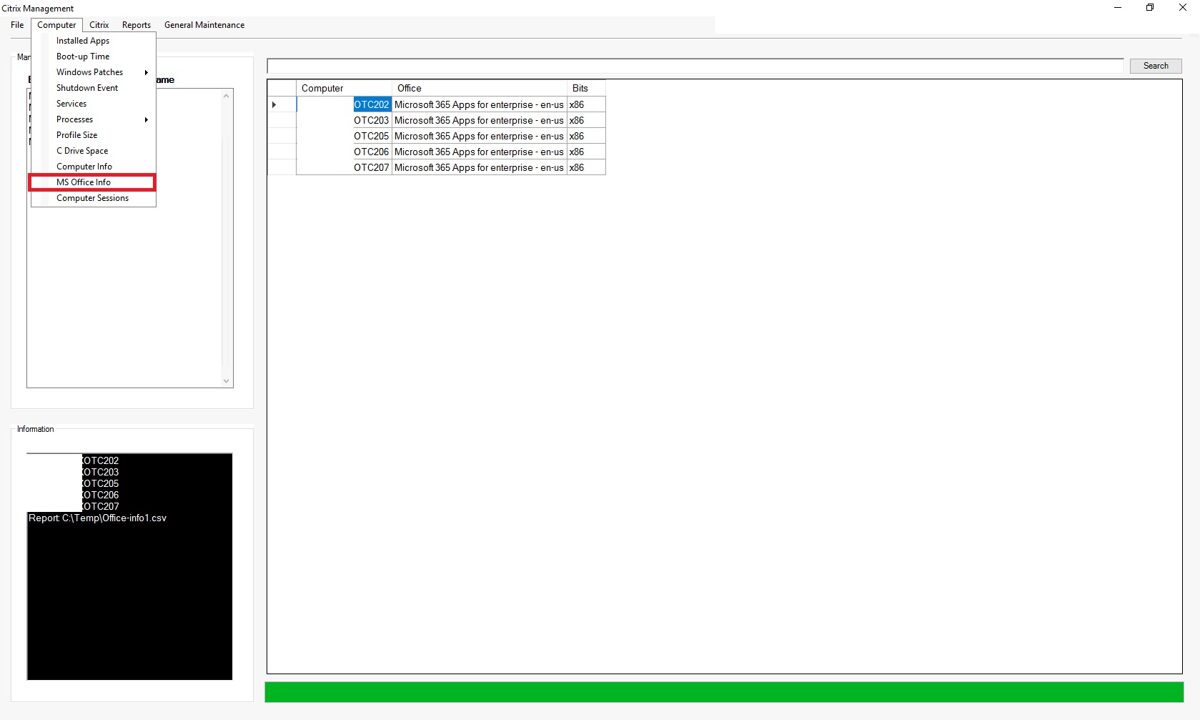
In the "MS Office Info" section, you can see which version of MS Office is installed on your computer.
Information can be retrieved from multiple computers at the same time.
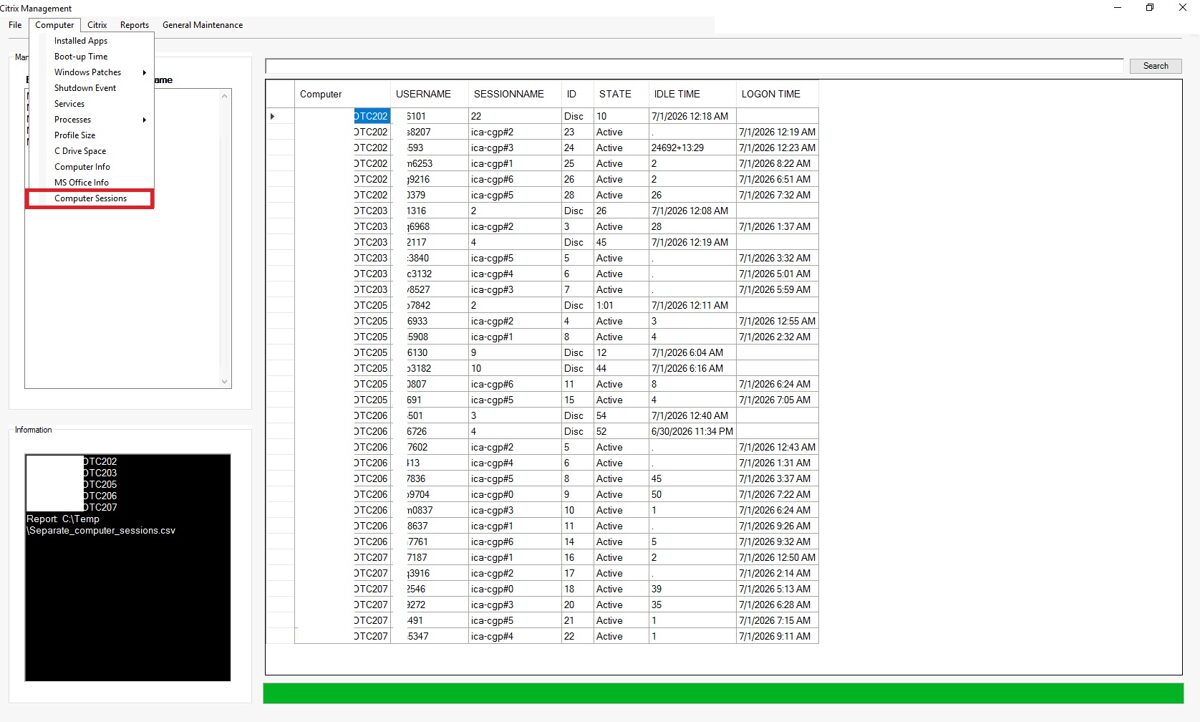
Computer Session
The information is obtained directly from the computers and shows the status of the user sessions at that moment.
Information can be retrieved from multiple computers at the same time.
Citrix
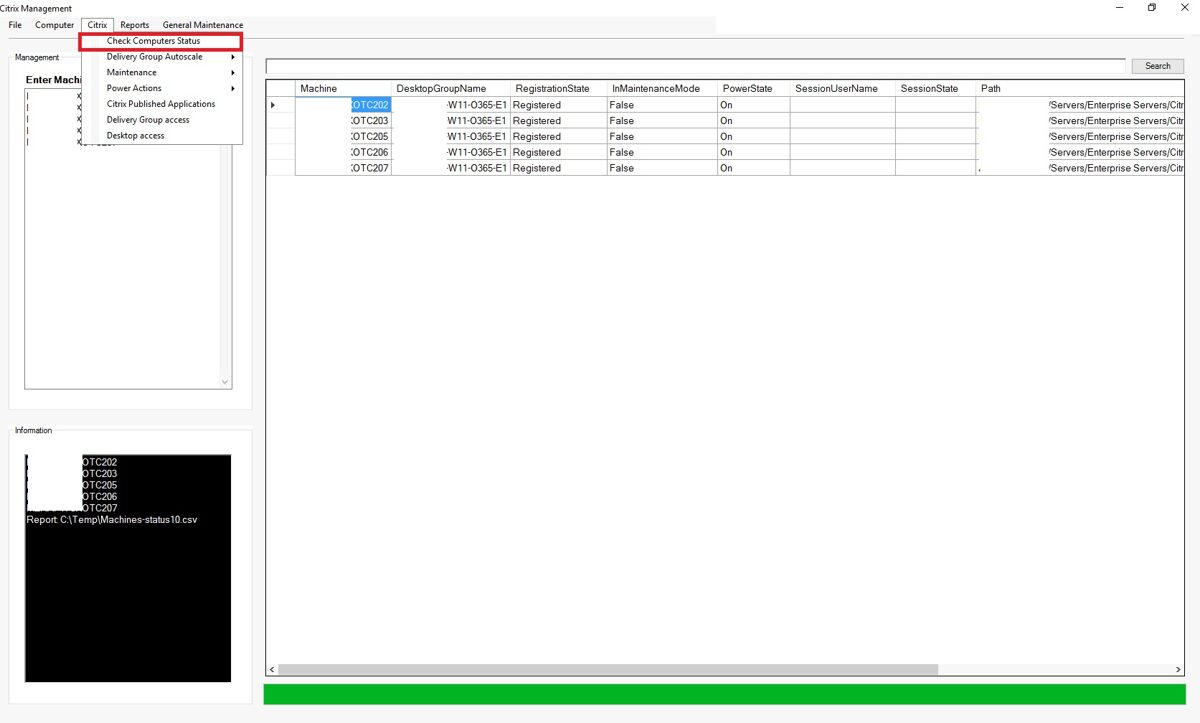
Check Computer Status
"Check computer status" allows you to check the status of individual computers in a Citrix environment. Path column - displays the computer's location in the Active Directory OU.
Information can be retrieved from multiple computers at the same time.
Delivery Group Autoscale.
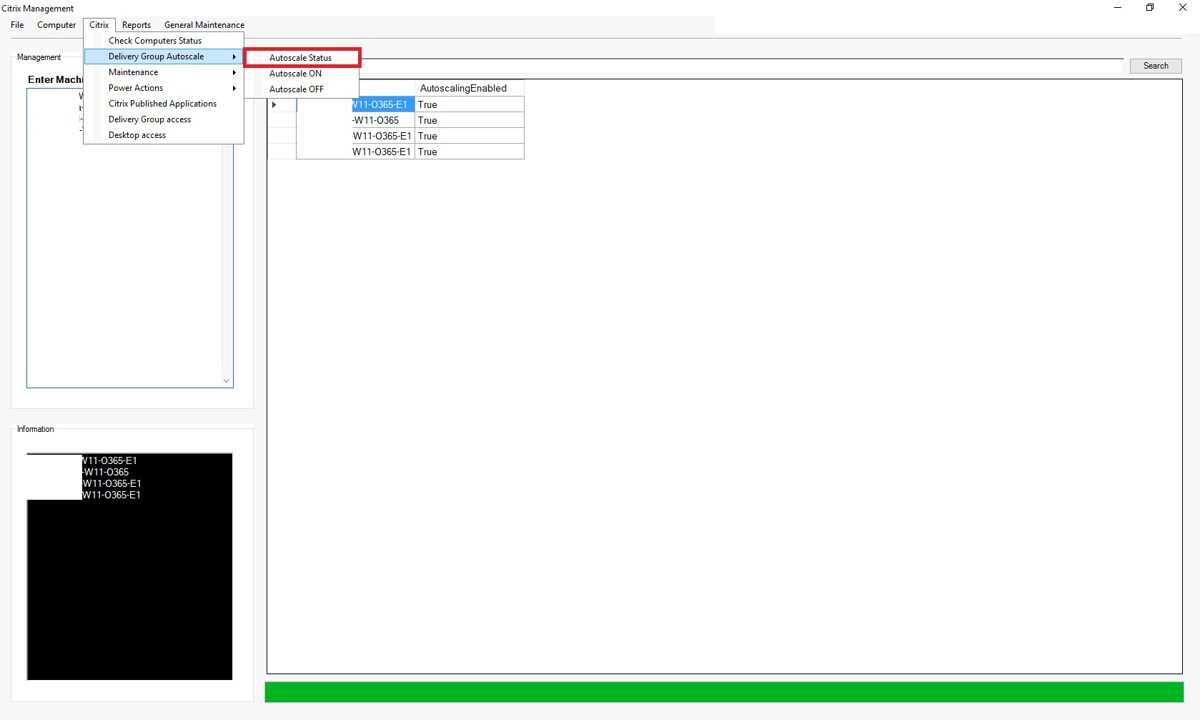
Delivery Group Autoscale - allows you to check the Autoscale status for a Citrix Delivery Group. You can also enable or disable Autoscale for different Delivery Groups in this section.
Information can be retrieved from multiple Delivery Groups at the same time.
Maintenance
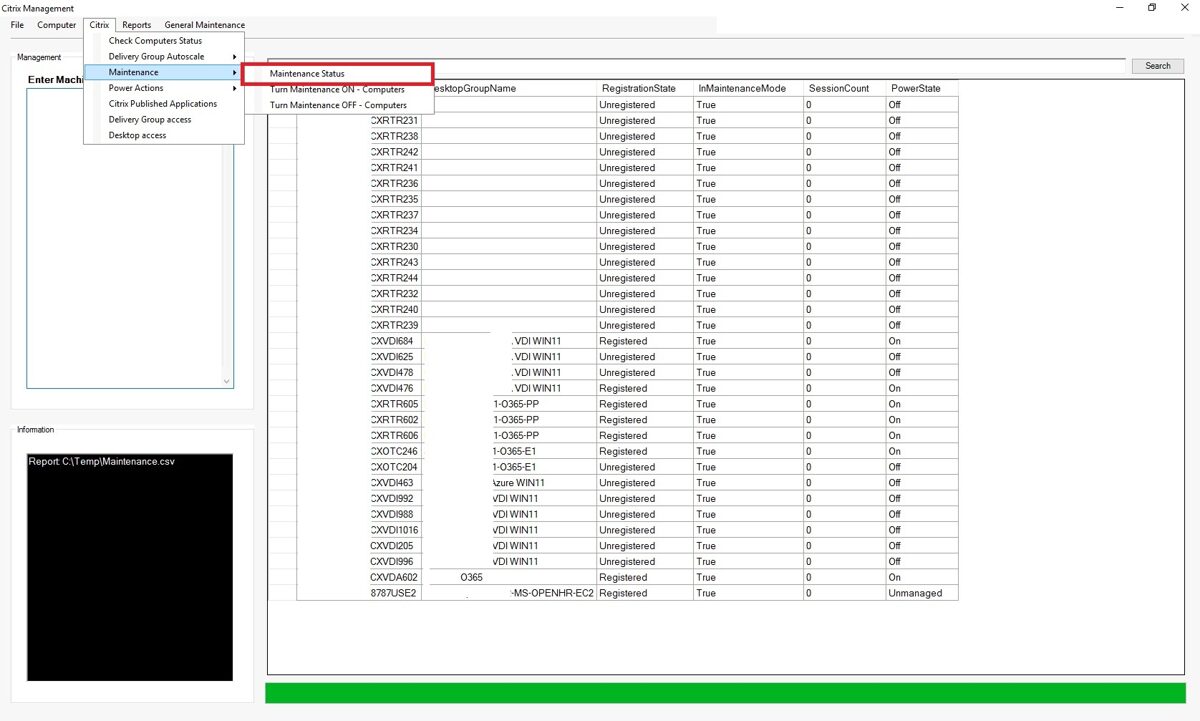
The Maintenance section allows you to check which machines are in Citrix Maintenance Mode. You can also use this section to add or remove individual machines from Maintenance Mode.
You can put several machines into Maintenance mode or take them out of it all at once.
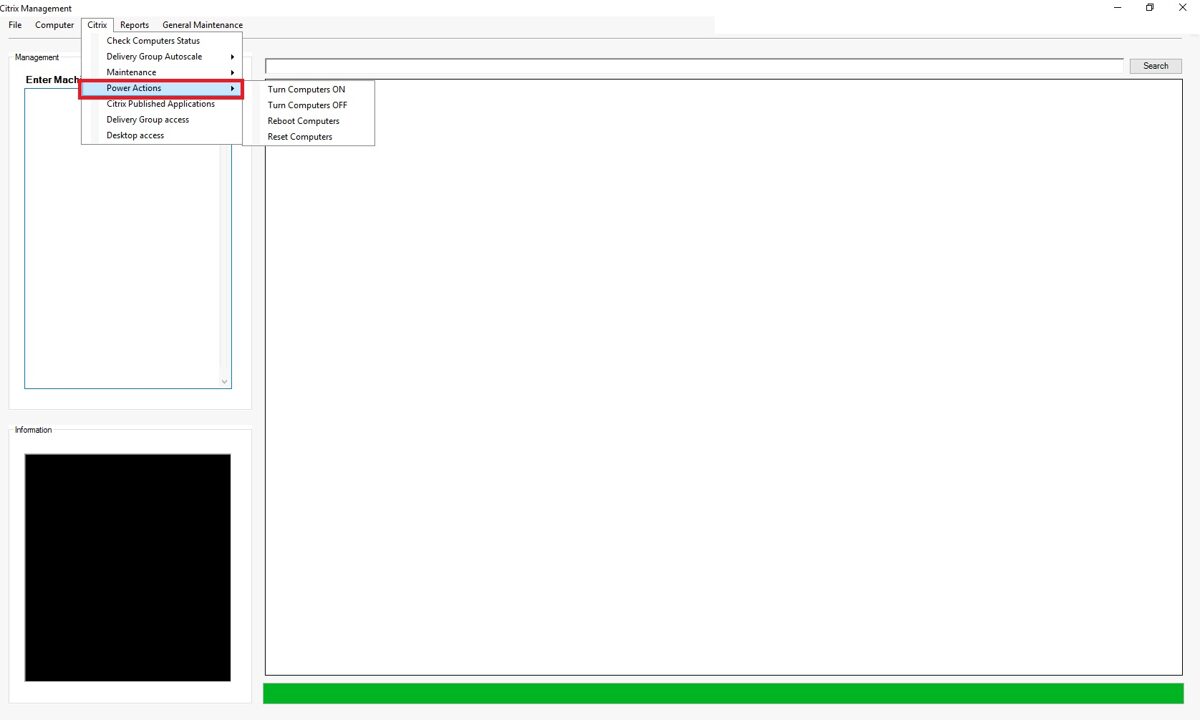
In this section, you can power off, power on, reboot, or reset individual Citrix computers.
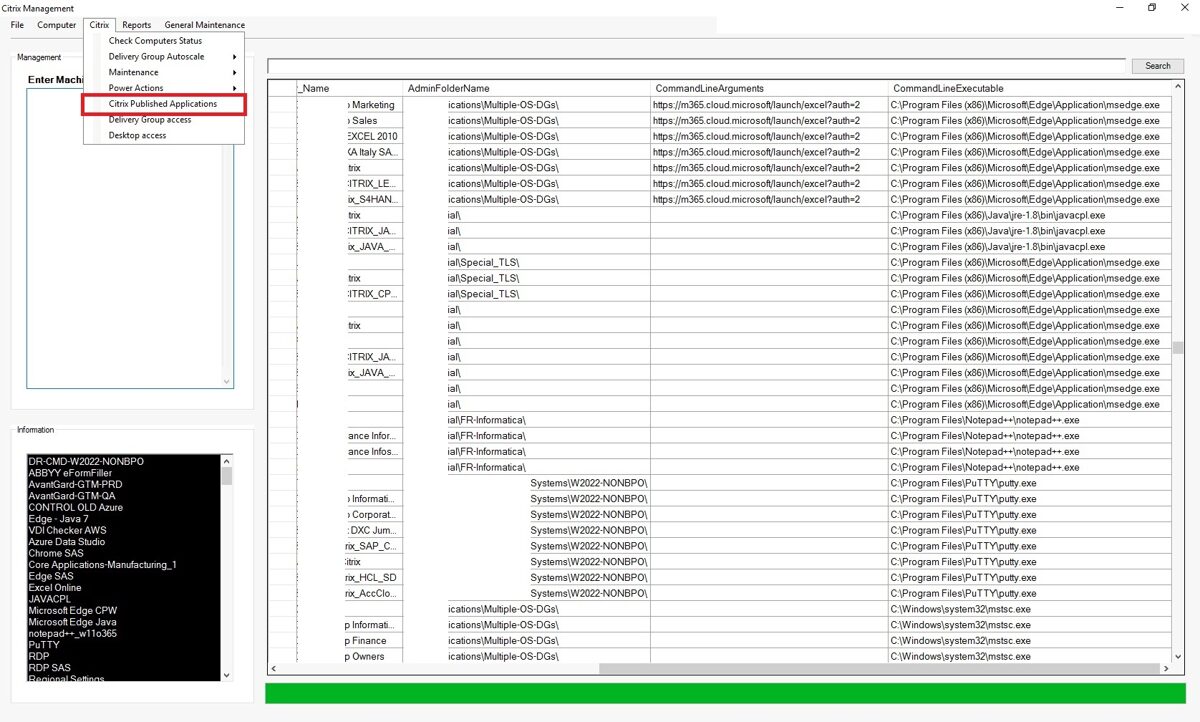
Citrix Published Applications
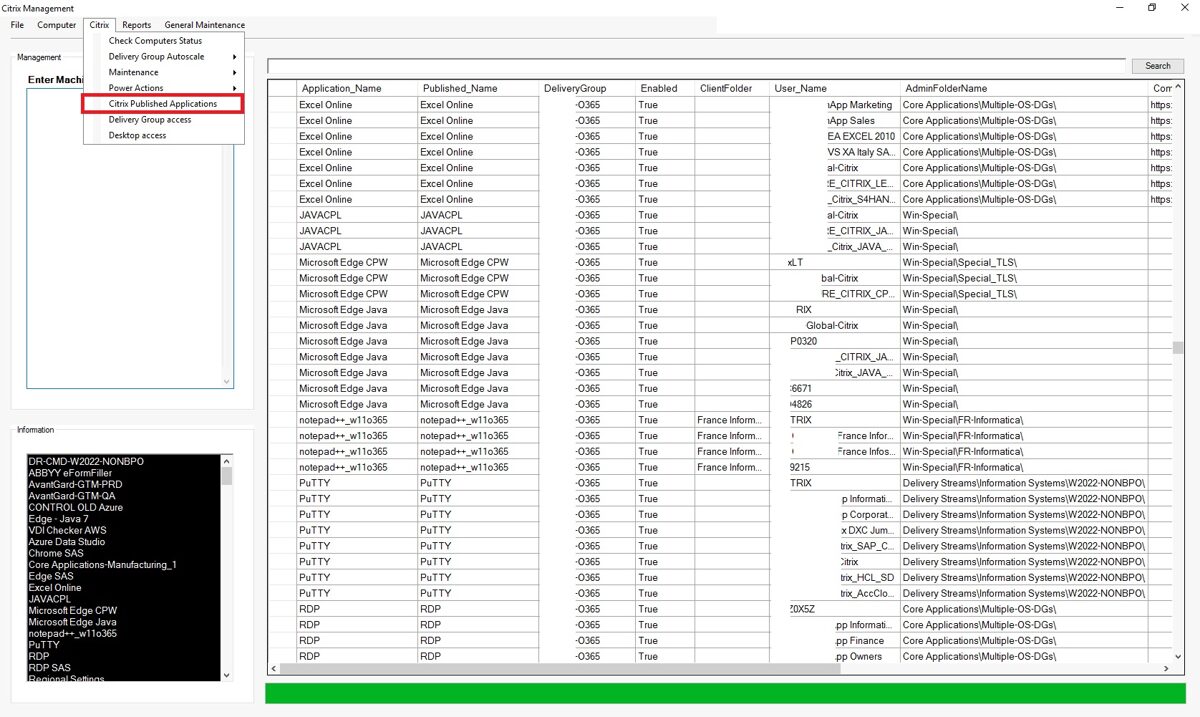
In this section, you can view all Citrix published applications and information related with it.
Continued
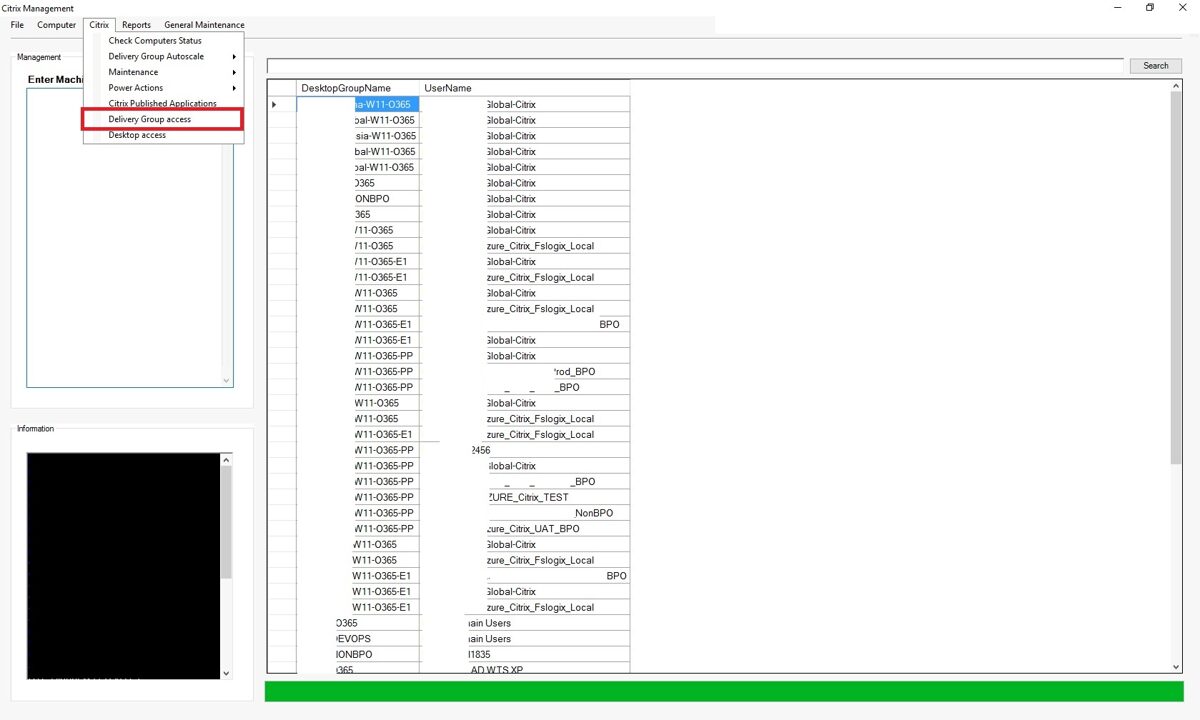
Delivery Group Access
In the "Delivery Group Access" section, you can view all delivery groups and see which users and Active Directory groups have access to them.
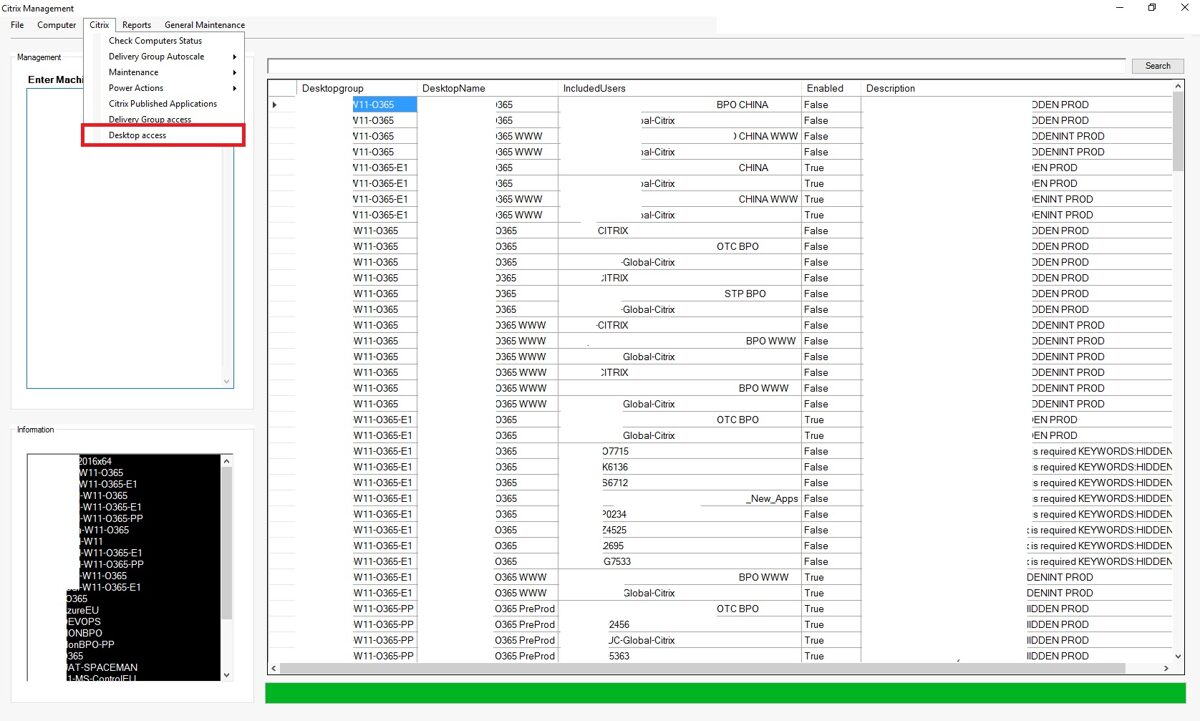
Desktop Access
In the "Desktop Access" section, you can view all desktops created within Citrix, their status (enabled/disabled), the Delivery Group to which each desktop belongs, and which users or Active Directory groups have access to the desktops.
To be continued
To be continued
Registry Checker
As you probably know, when working with computers, it is sometimes necessary to make changes to the Windows registry. This can be easily done using the regedit program. However, problems arise when you need to compare the registries of several computers and make changes on multiple computers. Doing this manually would take a lot of time and you’d most likely make mistakes.
To solve these problems, I created a program that I called "Registry Checker."
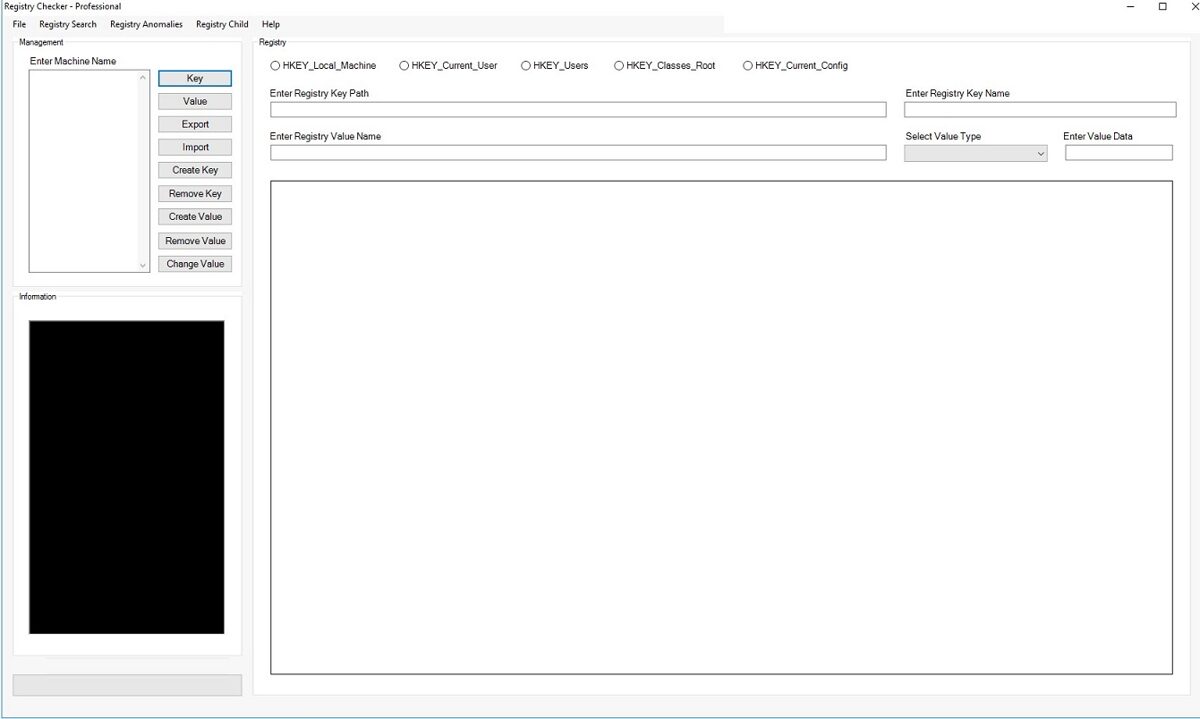
This application allows you to perform the following actions on multiple servers at once:
· Check registry keys
· Check registry values
· Export registries
· Import registries
· Create registry keys
· Delete registry keys
· Create registry values
· Delete registry values
· Change registry values
· Find registry keys by key name
· Find registry keys by value name
· Find registry keys by value data name
· Find registry anomalies by computer and user
· Display child values of registry keys
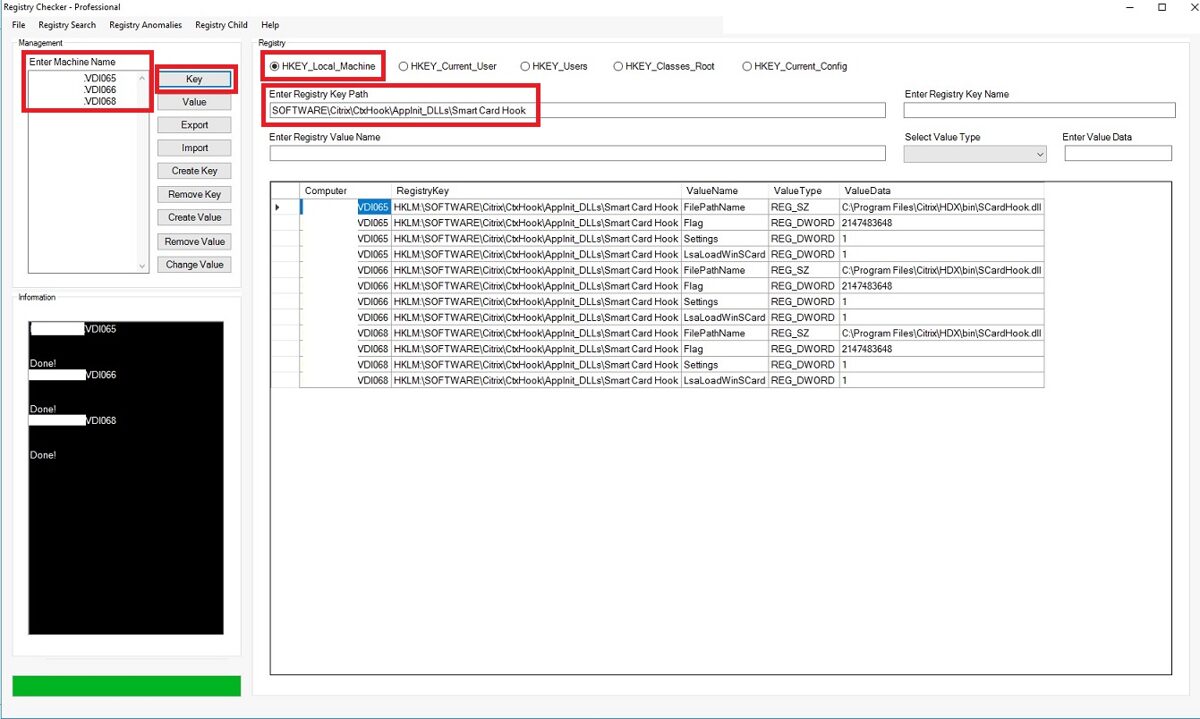
If you want to see only the registry keys, enter the computer names and the registry key paths.
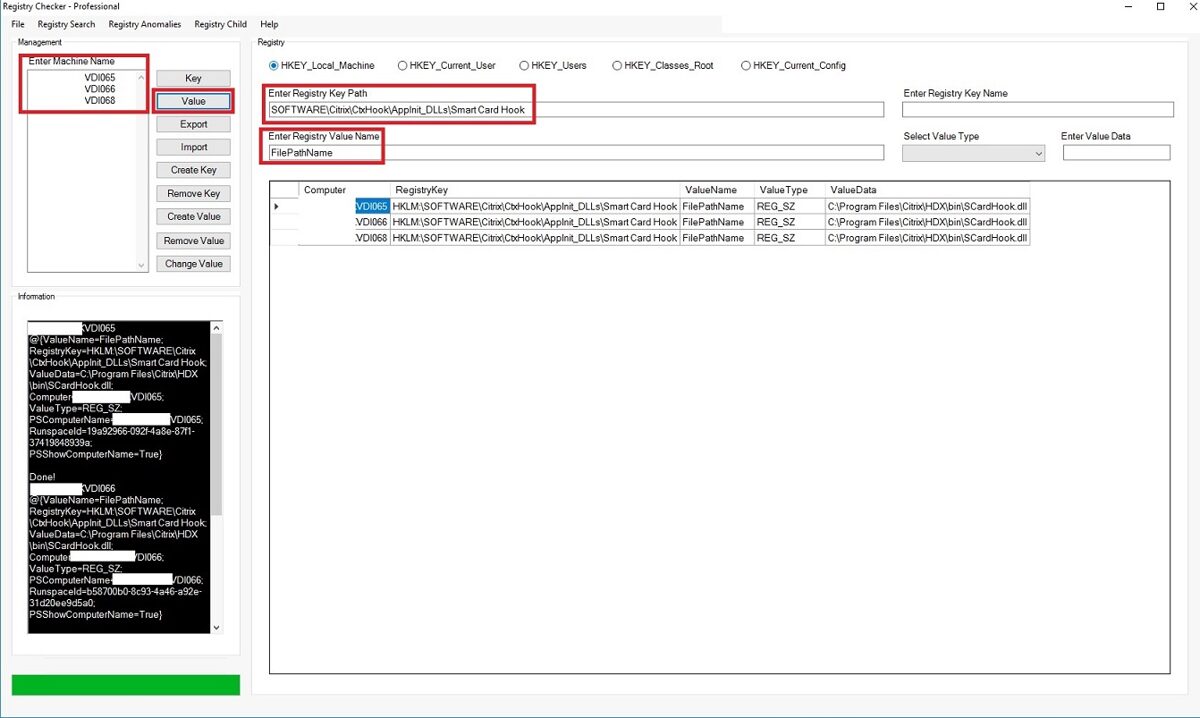
If you want to see only the values, enter the value name and click the "Value" button.
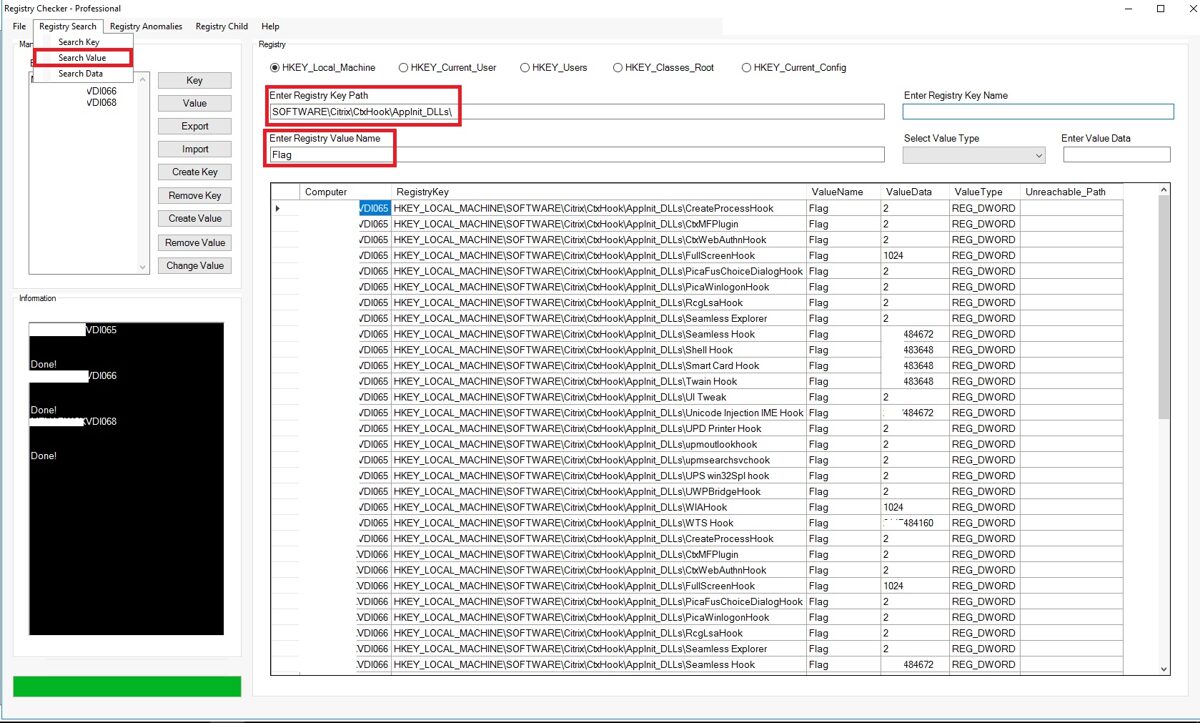
If you want to find a key by its name, enter the key name and click "Search KEY"
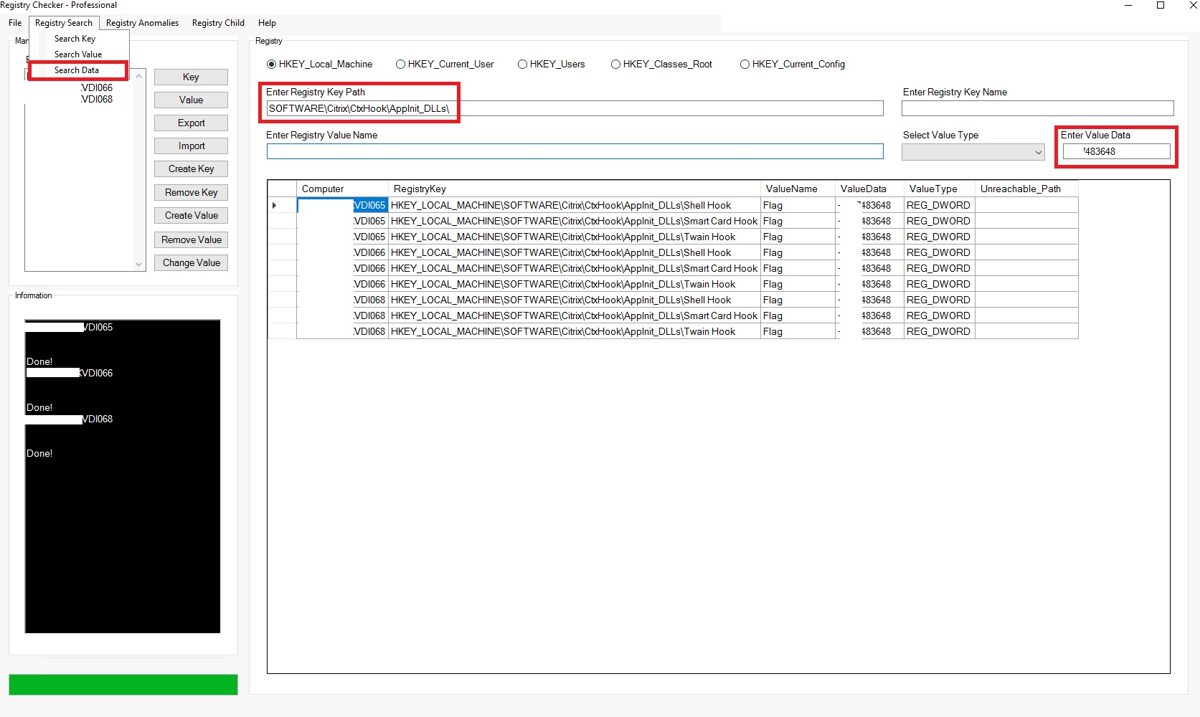
If you want to find a Data by its name, enter the key name and click "Search DATA".
Registry anomalies
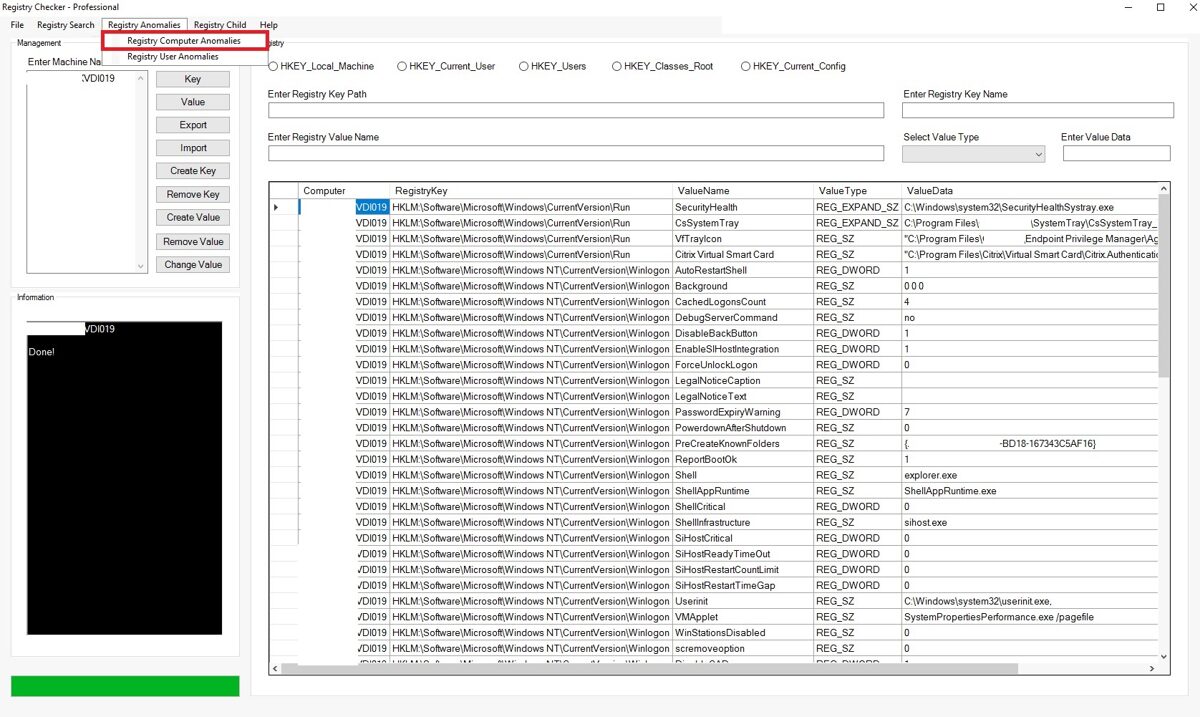
Below registry keys are checked by the program when you press on Computer Registry Anomalies button:
·
"HKU:\$SID\Software\Microsoft\Windows\CurrentVersion\Run"
· "HKU:\$SID\Software\Microsoft\Windows\CurrentVersion\RunOnce"
· "HKU:\$SID\Software\Microsoft\Windows\CurrentVersion\Explorer\StartupApproved"
· "HKU:\$SID\Software\Microsoft\Internet Explorer\SearchScopes"
· "HKU:\$SID\Software\Microsoft\Windows\CurrentVersion\Policies"
Information can be retrieved from multiple computers at the same time.
To solve these problems, I created a program that I called "Registry Checker."
This application allows you to perform the following actions on multiple servers at once:
· Check registry keys
· Check registry values
· Export registries
· Import registries
· Create registry keys
· Delete registry keys
· Create registry values
· Delete registry values
· Change registry values
· Find registry keys by key name
· Find registry keys by value name
· Find registry keys by value data name
· Find registry anomalies by computer and user
· Display child values of registry keys
If you want to see only the registry keys, enter the computer names and the registry key paths.
Information can be retrieved from multiple computers at the same time.
If you want to see only the values, enter the value name and click the "Value" button.
Information can be retrieved from multiple computers at the same time.
If you want to find a key by its name, enter the key name and click "Search KEY"
Information can be retrieved from multiple computers at the same time.
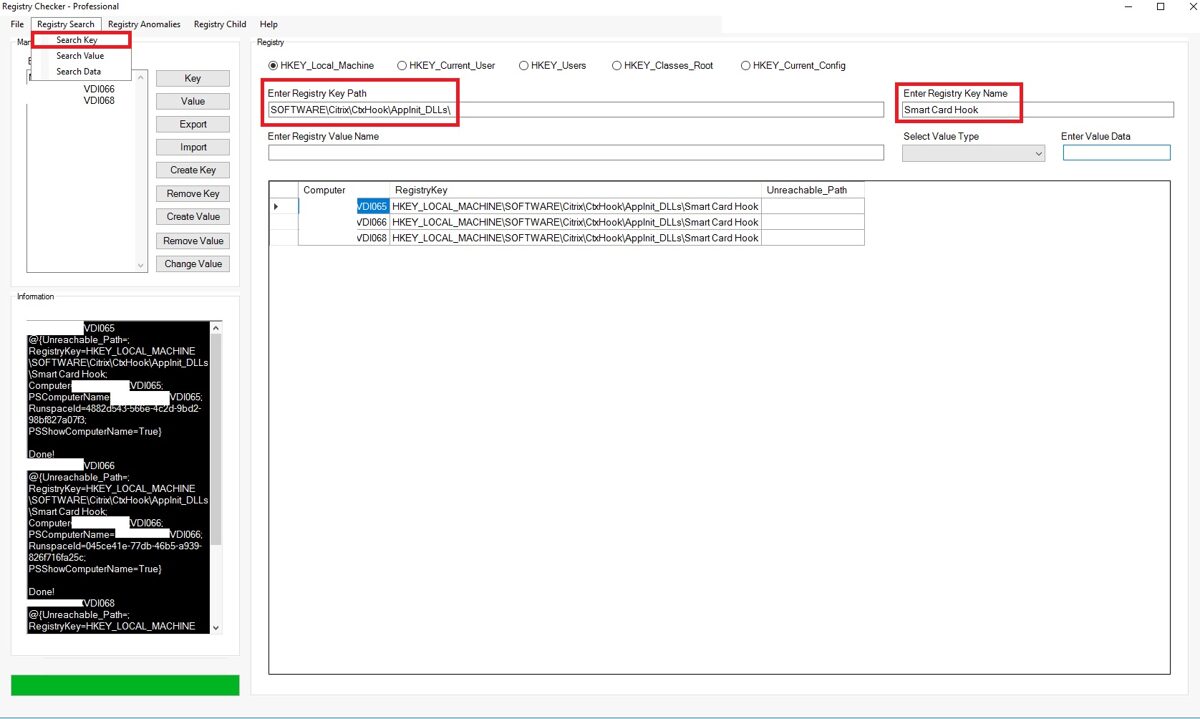
If you want to find a Value by its name, enter the key name and click "Search VALUE".
Information can be retrieved from multiple computers at the same time.
If you want to find a Data by its name, enter the key name and click "Search DATA".
Information can be retrieved from multiple computers at the same time.
Registry anomalies
In a
Windows/enterprise context, registry anomalies refer to anything
unusual, unexpected, or suspicious in the Windows Registry that deviates from a
known-good baseline. These anomalies are often indicators of misconfiguration,
software issues, persistence mechanisms, or even malware activity.
Below is a structured breakdown tailored to an admin/engineering perspective.
What counts as a registry anomaly
A registry anomaly is typically one of these:
Below is a structured breakdown tailored to an admin/engineering perspective.
A registry anomaly is typically one of these:
·
Unexpected keys or values
· Unauthorized modifications to existing entries
· Missing keys
· that should exist
· Incorrect permissions (ACLs)
· Unusual data types or values
· Abnormal frequency of changes
· Unauthorized modifications to existing entries
· Missing keys
· that should exist
· Incorrect permissions (ACLs)
· Unusual data types or values
· Abnormal frequency of changes
Registry anomalies consist of two parts (Computer Registry Anomalies and user Registry Anomalies) in application.
Computer Registry Anomalies
Below registry keys are checked by the program when you press on Computer Registry Anomalies button:
·
'HKLM:\Software\Microsoft\Windows\CurrentVersion\Run'
· 'HKLM:\Software\Microsoft\Windows\CurrentVersion\RunServices'
· 'HKLM:\SYSTEM\CurrentControlSet\Services'
· 'HKLM:\Software\Microsoft\Windows NT\CurrentVersion\Winlogon'
· 'HKLM:\Software\Microsoft\Windows NT\CurrentVersion\Image File Execution Options'
· 'HKLM:\Software\Microsoft\Windows NT\CurrentVersion\Windows'
· 'HKLM:\Software\Microsoft\Windows\CurrentVersion\Explorer\Browser Helper Objects'
· 'HKLM:\Software\Microsoft\Windows\CurrentVersion\Shell Extensions'
· 'HKLM:\Software\Microsoft\Windows\CurrentVersion\Explorer\StartupApproved'
· 'HKLM:\Software\Microsoft\Windows NT\CurrentVersion\Schedule'
· 'HKLM:\Software\Classes\CLSID'
· 'HKLM:\Software\Microsoft\Windows\CurrentVersion\Policies'
Information can be retrieved from multiple computers at the same time.
· 'HKLM:\Software\Microsoft\Windows\CurrentVersion\RunServices'
· 'HKLM:\SYSTEM\CurrentControlSet\Services'
· 'HKLM:\Software\Microsoft\Windows NT\CurrentVersion\Winlogon'
· 'HKLM:\Software\Microsoft\Windows NT\CurrentVersion\Image File Execution Options'
· 'HKLM:\Software\Microsoft\Windows NT\CurrentVersion\Windows'
· 'HKLM:\Software\Microsoft\Windows\CurrentVersion\Explorer\Browser Helper Objects'
· 'HKLM:\Software\Microsoft\Windows\CurrentVersion\Shell Extensions'
· 'HKLM:\Software\Microsoft\Windows\CurrentVersion\Explorer\StartupApproved'
· 'HKLM:\Software\Microsoft\Windows NT\CurrentVersion\Schedule'
· 'HKLM:\Software\Classes\CLSID'
· 'HKLM:\Software\Microsoft\Windows\CurrentVersion\Policies'
Information can be retrieved from multiple computers at the same time.
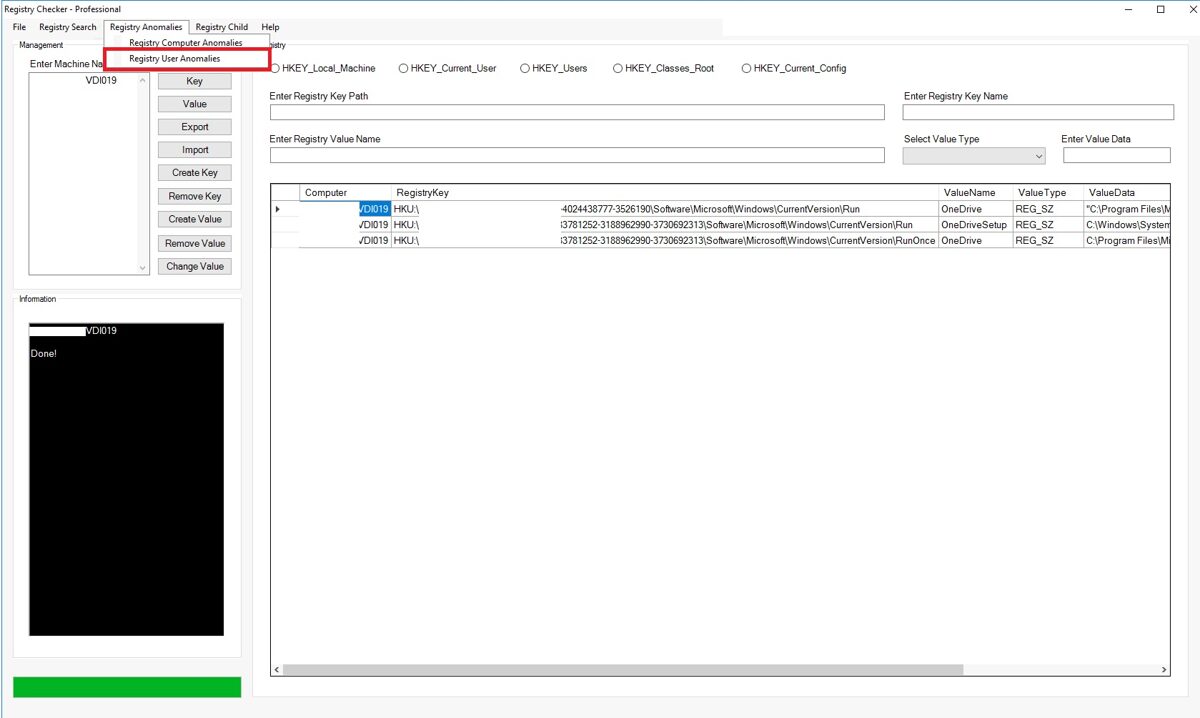
Registry User Anomalies
Below registry keys are checked by the program when you press on Computer Registry Anomalies button:
· "HKU:\$SID\Software\Microsoft\Windows\CurrentVersion\RunOnce"
· "HKU:\$SID\Software\Microsoft\Windows\CurrentVersion\Explorer\StartupApproved"
· "HKU:\$SID\Software\Microsoft\Internet Explorer\SearchScopes"
· "HKU:\$SID\Software\Microsoft\Windows\CurrentVersion\Policies"
Information can be retrieved from multiple computers at the same time.
Registry Child Data
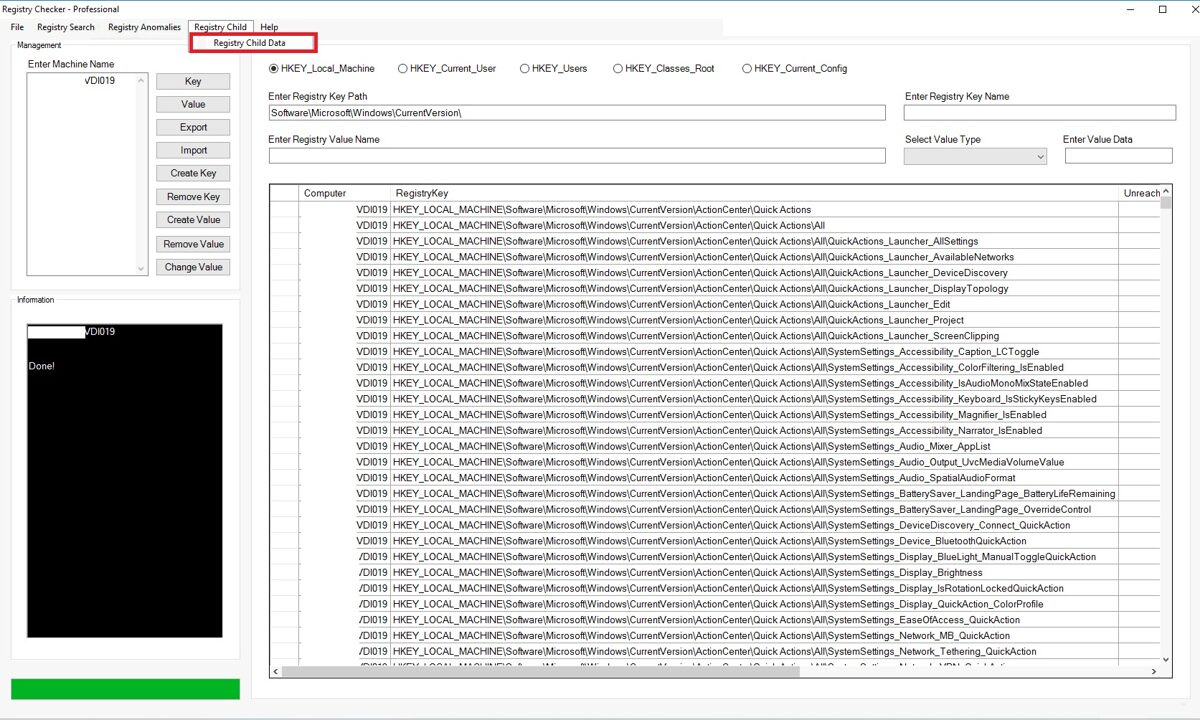
The program also shows which registry keys are located under a specific (child) registry path. In this example we see the registry keys that are located under HKLM\Software\Microsoft\Windows\CurrentVersion\ActionCenter\Quick Actions registry path.
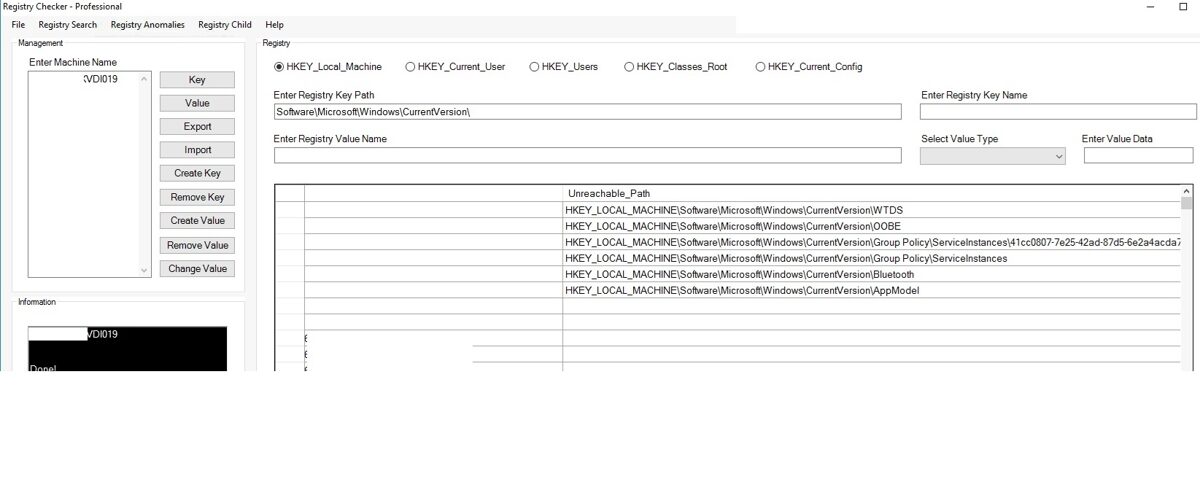
If you do not have a permission to access certain windows registry keys, you will see this information in the program.
Active Directory Checker
When working at a company, you usually need to manage various company policies, and Active Directory is the best way to manage them. To view Active Directory objects such as users, computers, and AD groups, you use the Active Directory Users and Computers tool. However, the Active Directory Users and Computers tool isn't very user-friendly. To view information, you have to switch between different tabs, and the tool doesn't allow you to copy text. What if you could see everything in a single window and copy information? If you have scripts that collect certain information and you'd like to view that information in the same window alongside Active Directory objects? This can be achieved using a program I developed, which I have named AD Checker.
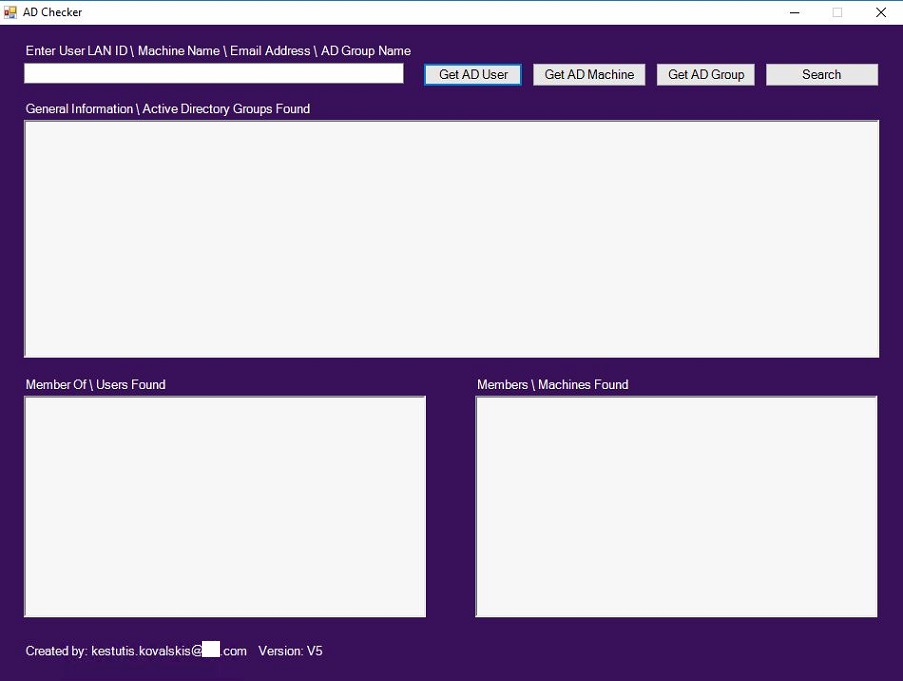
If you want to get information about an Active Directory user, enter the user ID in the search field and press button "Get AD User".
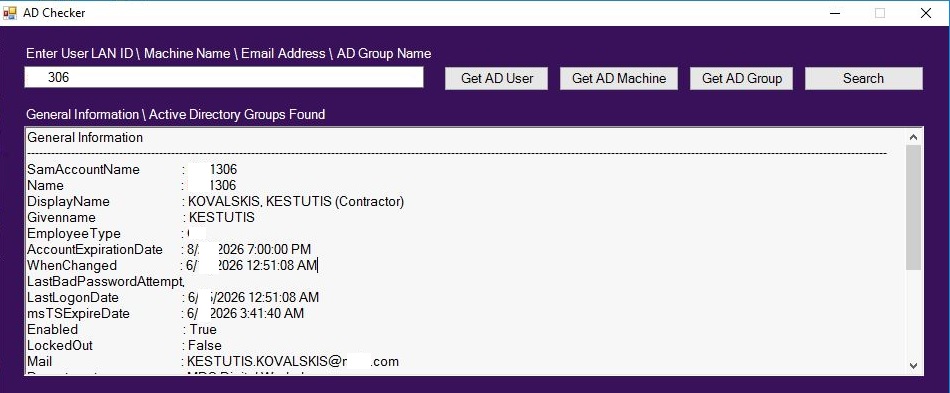
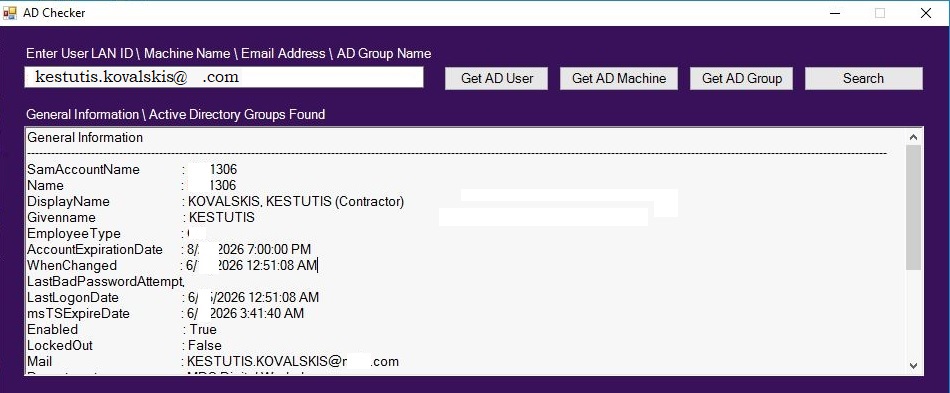
In the General Information tab, you will see information related to the user object. You can copy all of this information.
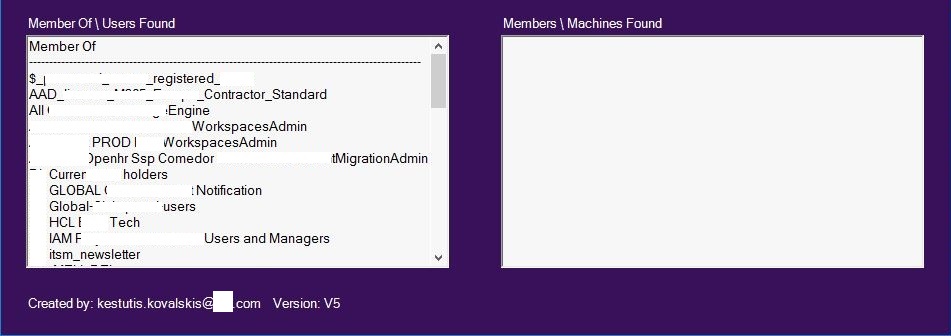
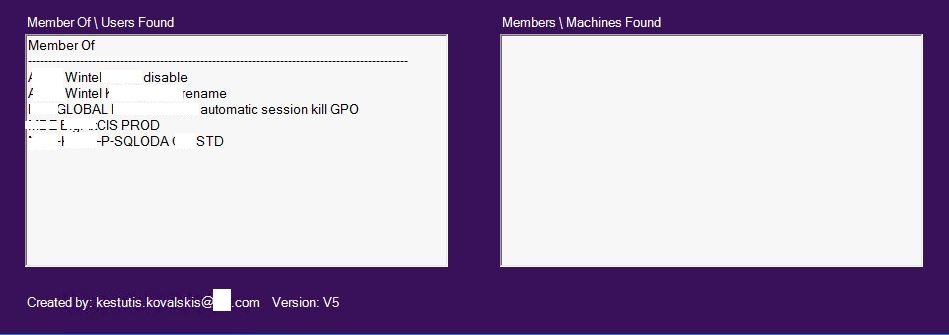
In the "Member Of" field, you will see which AD groups the user ID belongs to. You can also copy this information.
As I mentioned, you can add any information you like, not necessarily related to Active Directory. In our case we added information about last login into VDI and multisession machines.
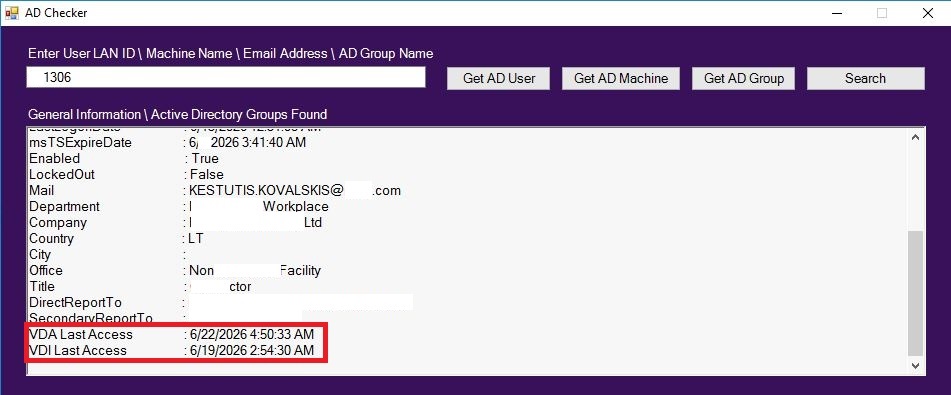
If you know only user email address, enter it into the search box and you will get the same information as entering LAN ID.
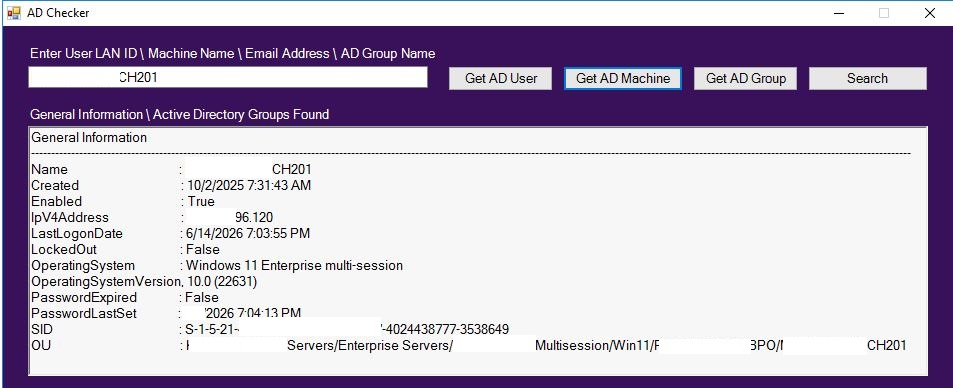
In the "Member Of" field, you will see which AD groups the machine belongs to. You can copy all of this information.
If you want to get information about an Active Directory Group, enter the group name in the search field and press button "Get AD Group".
In the General Information tab, you will see information related to the Group object. You can copy all of this information.
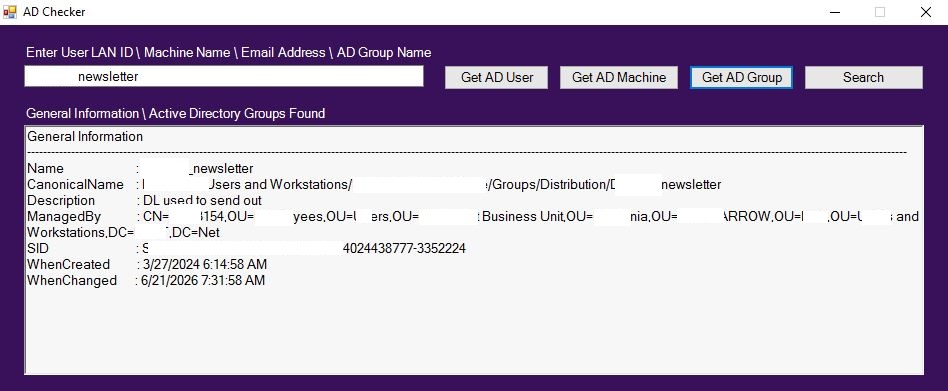
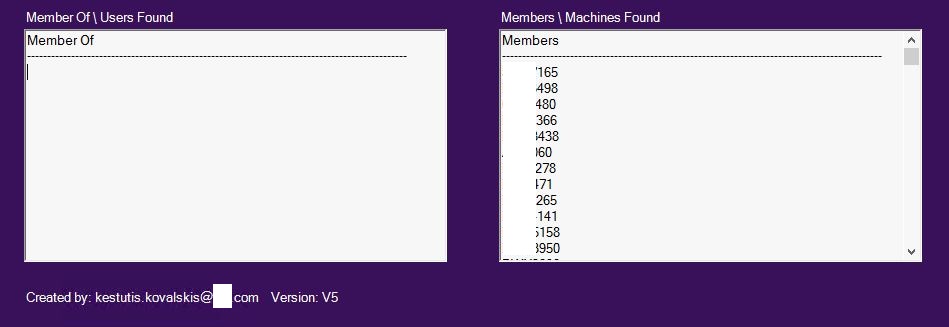
In the "Members" field, you will see members which are added into particular AD group. You can also copy this information.
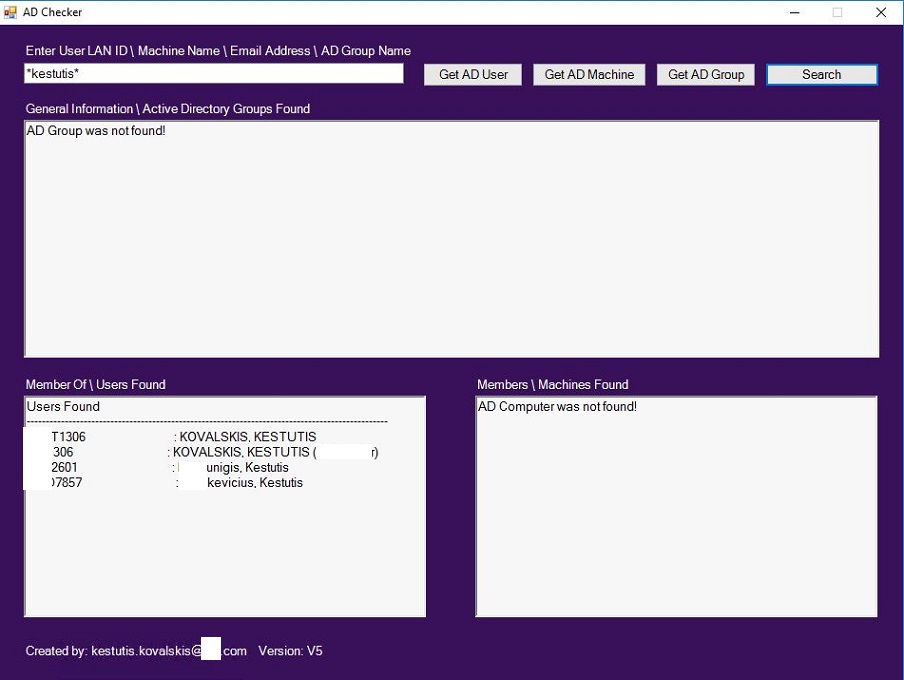
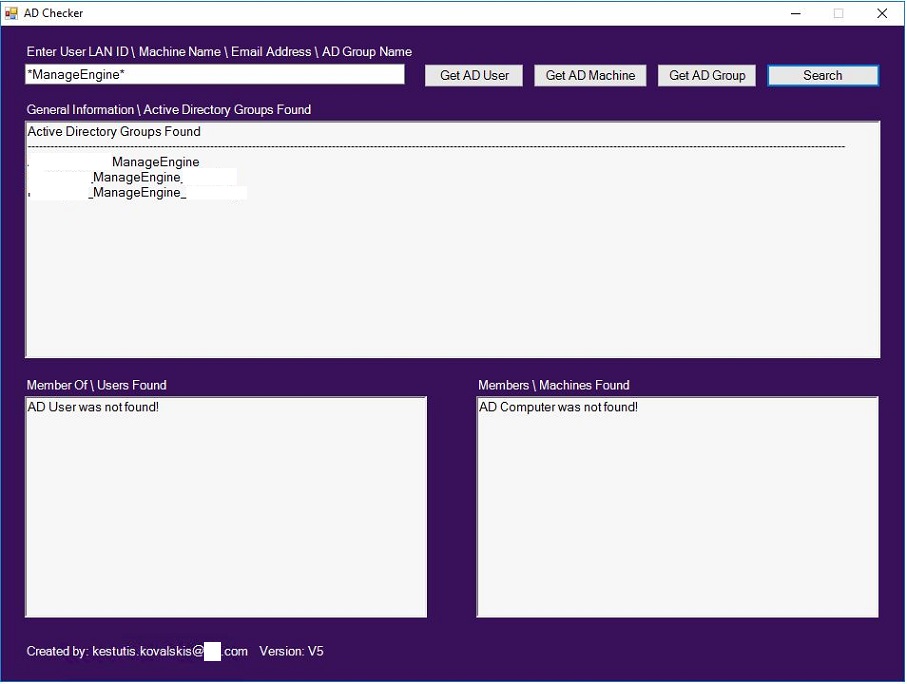
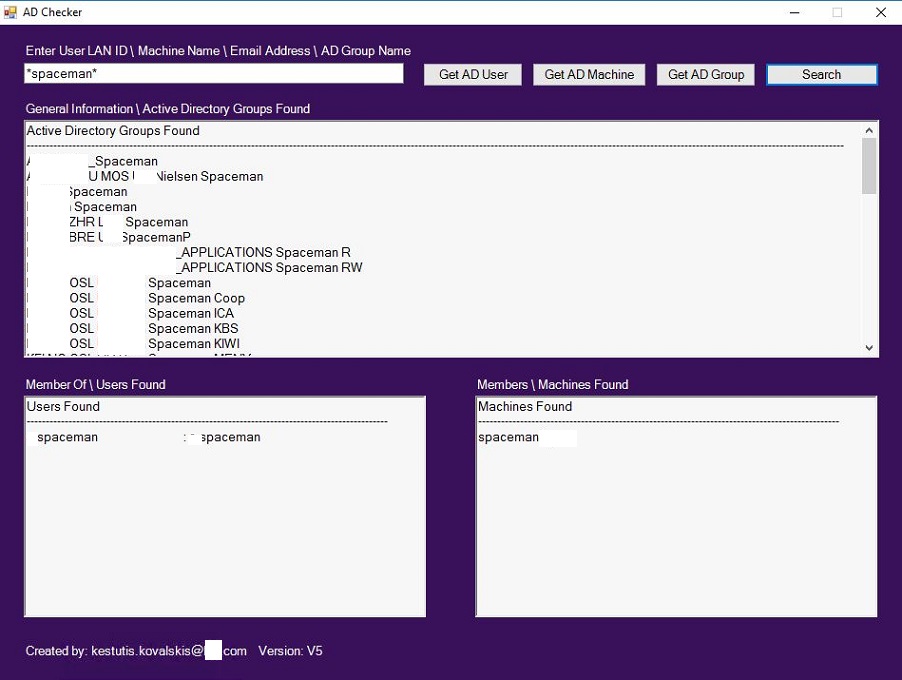
The search button allows you to find information about AD users, groups, and computers. With a single click, the button searches for all three of these objects.
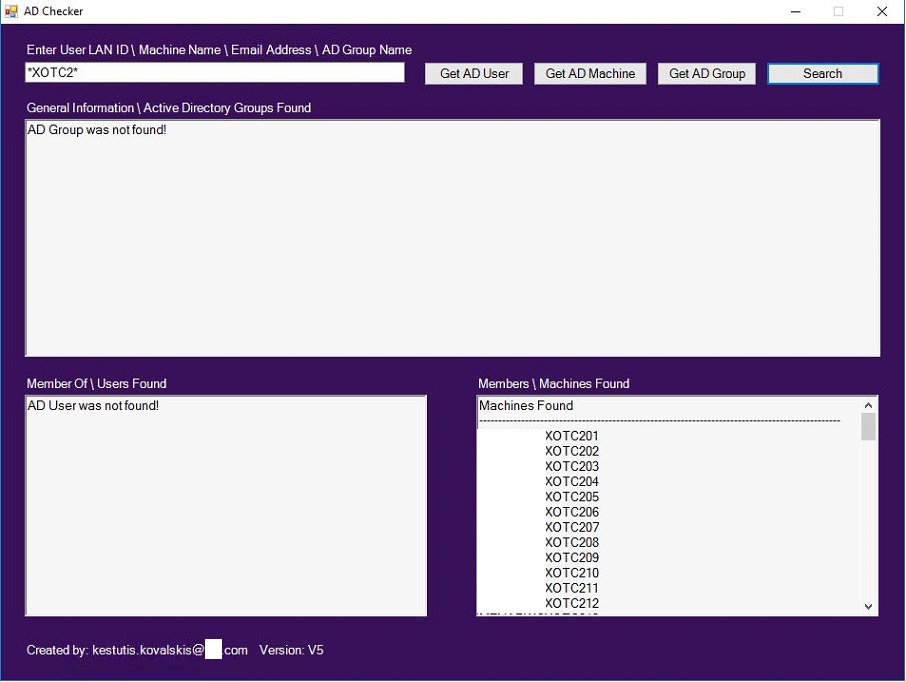
You don't need to have all the information to perform a search; having just some of it is enough. Let's say you're looking for a user, but you only know their first name. Enter the first name between the asterisks and click the search button. You'll get information about all users with the name you entered. You can do the same when searching for computers and AD groups.
Searching for users:
Searching AD groups
Searching AD groups
Searching for computers:
Searching for all 3 objects:
Citrix VDI Access Control
When working with Citrix, you may encounter situations where you need to grant access to a certain number of users to different Citrix single session computers. Doing this manually through the Citrix console is time-consuming and you may make a mistakes. To prevent errors and ensure that the process runs smoothly and quickly, I created a PowerShell-based GUI application that allows you to grant or revoke user access to different VDI machines simultaneously. In addition to granting or revoking access to VDI computers, the program also sends emails to users to notify them of these changes. As you will see, the program creates a log file containing information about which users were granted or denied access to the VDI computer, which Citrix engineer performed the action, the service request number, and the date the action was taken. The program can also generate a report listing all users and the machines assigned to them. So if you make a mistake, you’ll always be able to correct it, since all the information will be included in the generated report.
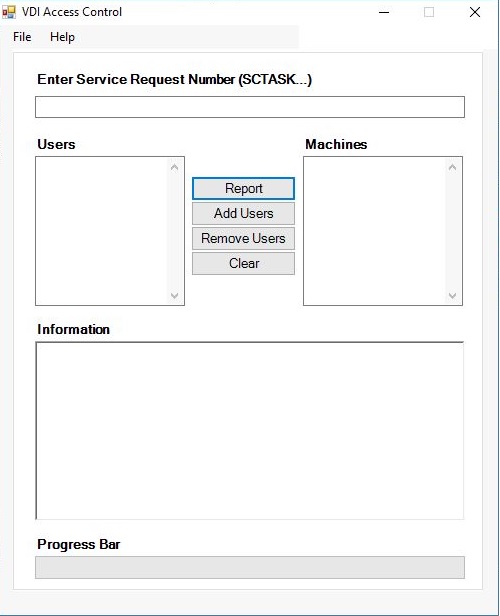
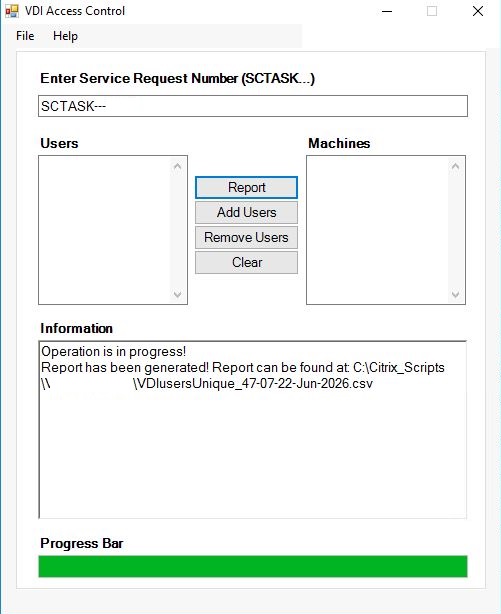
To create a report, click the "Report" button. After the report will be generated application will show the exact place where it was saved.
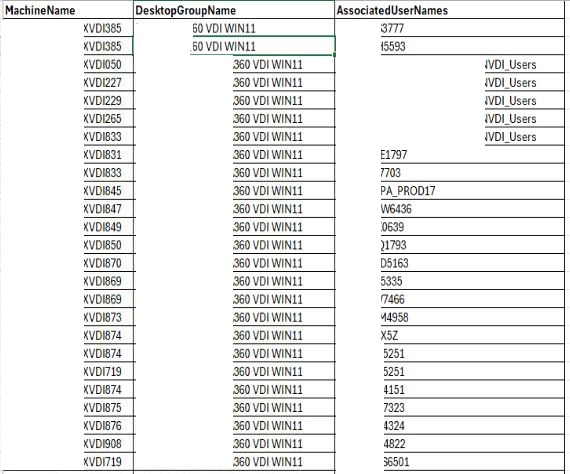
Report is generated into csv file, so it may be opened with MS Excel application. The report displays the names of VDI computers, Delivery Groups, and users, as well as the AD groups assigned to the VDI computers.
To grant a user access, enter the user ID in the "Users" field and the computer names in the "Machines" field.
If there is a single user who needs access to single computer, enter below.
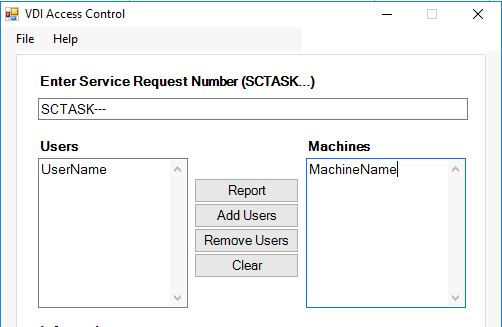
If there are different users and different computers, enter them all in both fields.
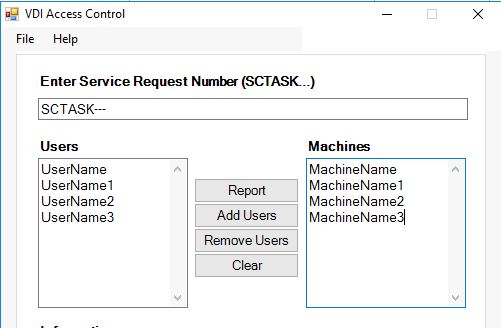
If there is a single user who needs to be granted access to multiple computers, enter below:
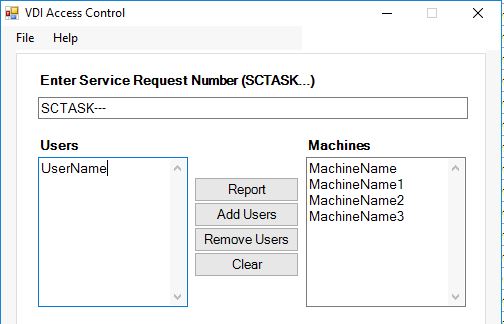
The same 3 things apply when you want to revoke a user's access.
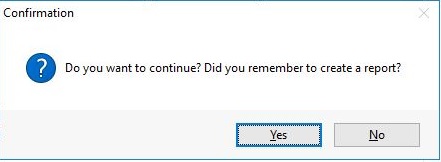
During each operation, you will see a confirmation window. You can always cancel the operation.
When you grant or revoke a user's access, you see the information in the Information window.
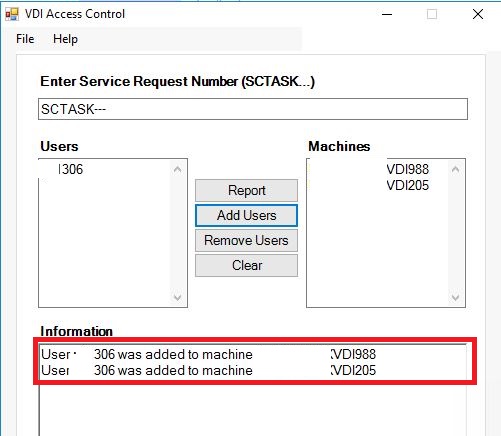
If you make a mistake and that user or computer does not exist, you will see a message in the "Information" box.
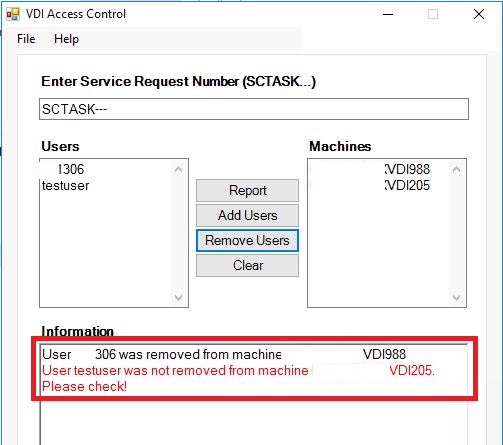
The "Clear" button clears all fields.
A progress bar will display the progress of the operation.
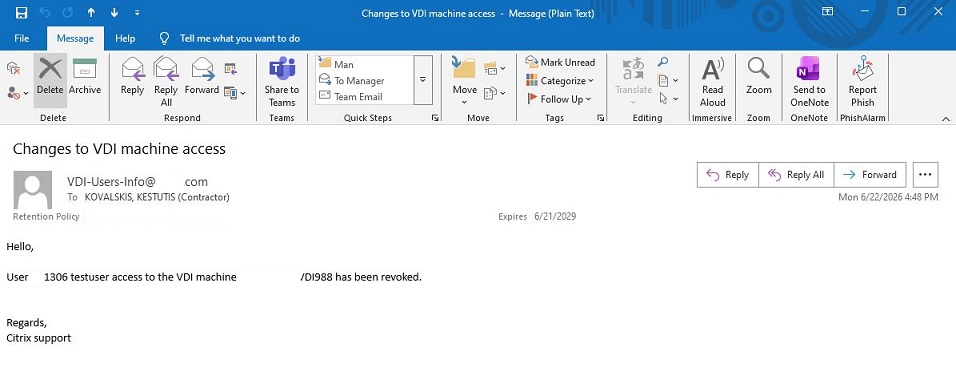
Revoking access email:
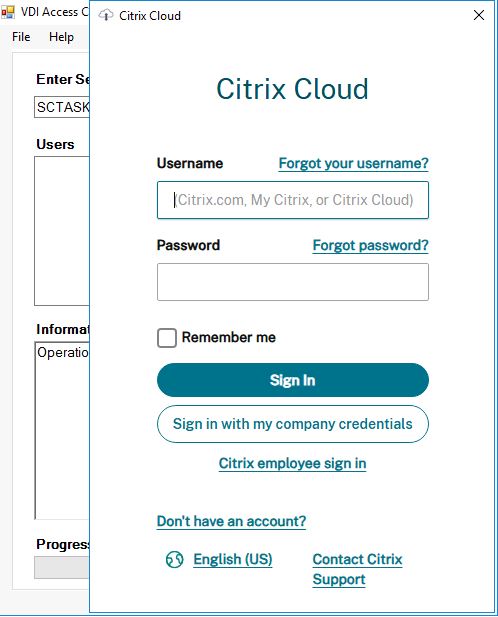
To get the app up and running, you'll need to sign in to your Citrix Cloud account first.
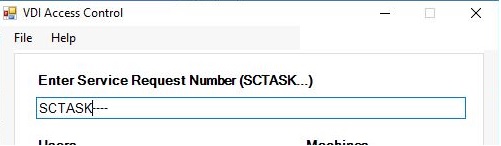
To grant or revoke access for users, you must first enter a service request number. The program is designed so that the user cannot avoid entering a service request number; without it, you can generate only report.
To create a report, click the "Report" button. After the report will be generated application will show the exact place where it was saved.
Report is generated into csv file, so it may be opened with MS Excel application. The report displays the names of VDI computers, Delivery Groups, and users, as well as the AD groups assigned to the VDI computers.
To grant a user access, enter the user ID in the "Users" field and the computer names in the "Machines" field.
If there is a single user who needs access to single computer, enter below.
If there are different users and different computers, enter them all in both fields.
If there is a single user who needs to be granted access to multiple computers, enter below:
During each operation, you will see a confirmation window. You can always cancel the operation.
When you grant or revoke a user's access, you see the information in the Information window.
If you make a mistake and that user or computer does not exist, you will see a message in the "Information" box.
This information will also be recorded in the log file. The log file contains information about which users were granted\revoked access to which computers, who performed the operation, when it was performed, and the service request number.
Granted access:

Revoked access:
The "Clear" button clears all fields.
A progress bar will display the progress of the operation.
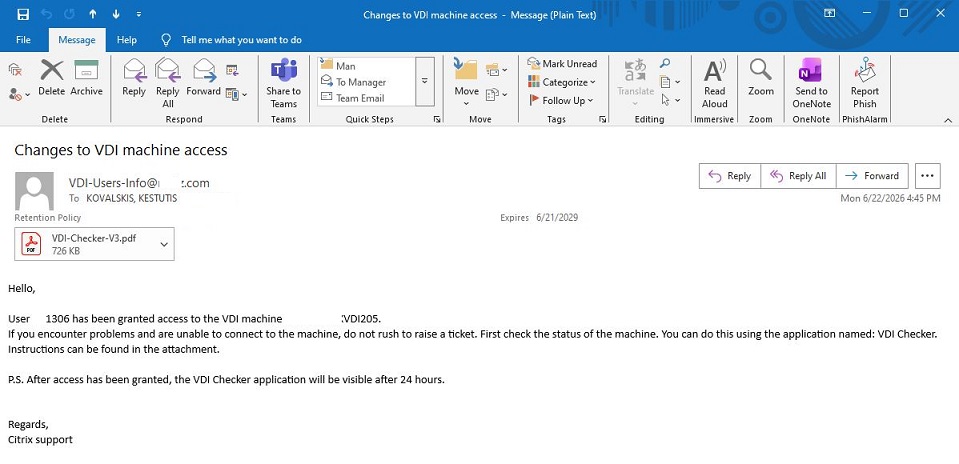
When users are granted or denied access to the VDI computers, they are also notified of this via email. When they gain access to a computer, they are also informed via email about another program I have created which they may use to check VDI computer status.
Granting access email:
Revoking access email:
VDI Checker
In our company, Citrix single-session VDI virtual machines are assigned to more than one user. A problem arises when one user is working on a VDI computer and another user attempts to connect to that same computer at the same time. The user trying to connect is unable to do so and does not know why. Previously, they would submit a ticket to the Citrix support team, asking for help connecting to the desired VDI computer.
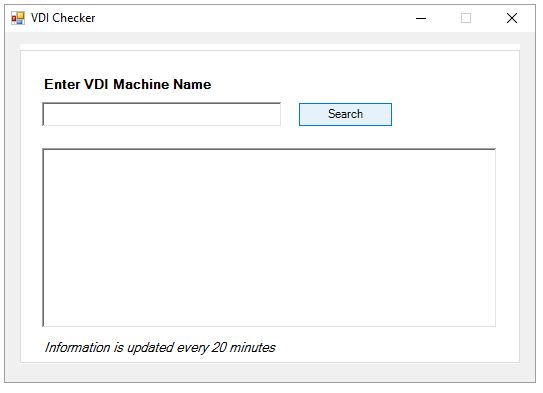
To solve this problem and reduce the number of tickets, I created a program that I named "VDI Checker." All the user needs to do in the program is enter the VDI computer's name, and they can then view information about that computer's status.
The program displays the following information:
· MachineName
· RegistrationState
· SessionUserName
· UserFullName
· SessionState
· SessionProtocol
· TimeInState
· InMaintenanceMode
· MachinePowerState
· Updated Before (Min)
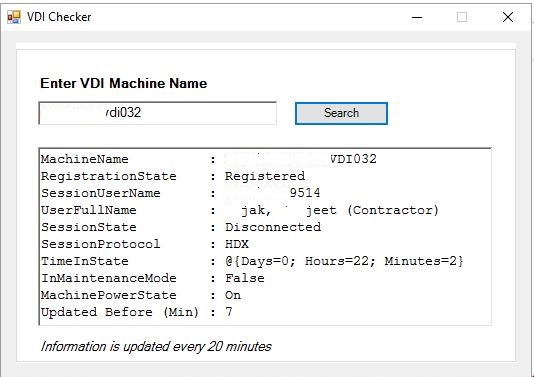
Another example:
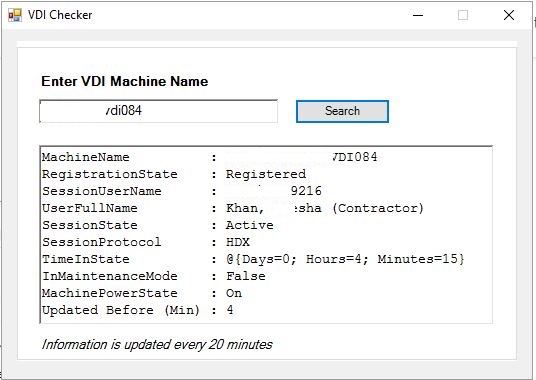
Therefore, users no longer need to submit a ticket to the Citrix support team, since they know who is currently logged in to the VDI computer and what its status is.
To solve this problem and reduce the number of tickets, I created a program that I named "VDI Checker." All the user needs to do in the program is enter the VDI computer's name, and they can then view information about that computer's status.
The program displays the following information:
· MachineName
· RegistrationState
· SessionUserName
· UserFullName
· SessionState
· SessionProtocol
· TimeInState
· InMaintenanceMode
· MachinePowerState
· Updated Before (Min)
Another example:
Therefore, users no longer need to submit a ticket to the Citrix support team, since they know who is currently logged in to the VDI computer and what its status is.
Citrix Access Information
When working in a Citrix environment—especially when a user encounters some kind of problem at the start—it’s helpful to know what kind of access the user has in general. The Citrix Cloud Console usually does not provide complete information, so you have to look for additional information, which takes time. What if you had a program that displayed all the information related to user access in a Citrix environment? To address these issues, I created a program that provides information about all of the user's Citrix access and name it "Citrix Access information".
The program itself consists of 3 separate parts:
Access to a single-session VDI computer
Access to a multi-session shared computer
Access to the published applications.
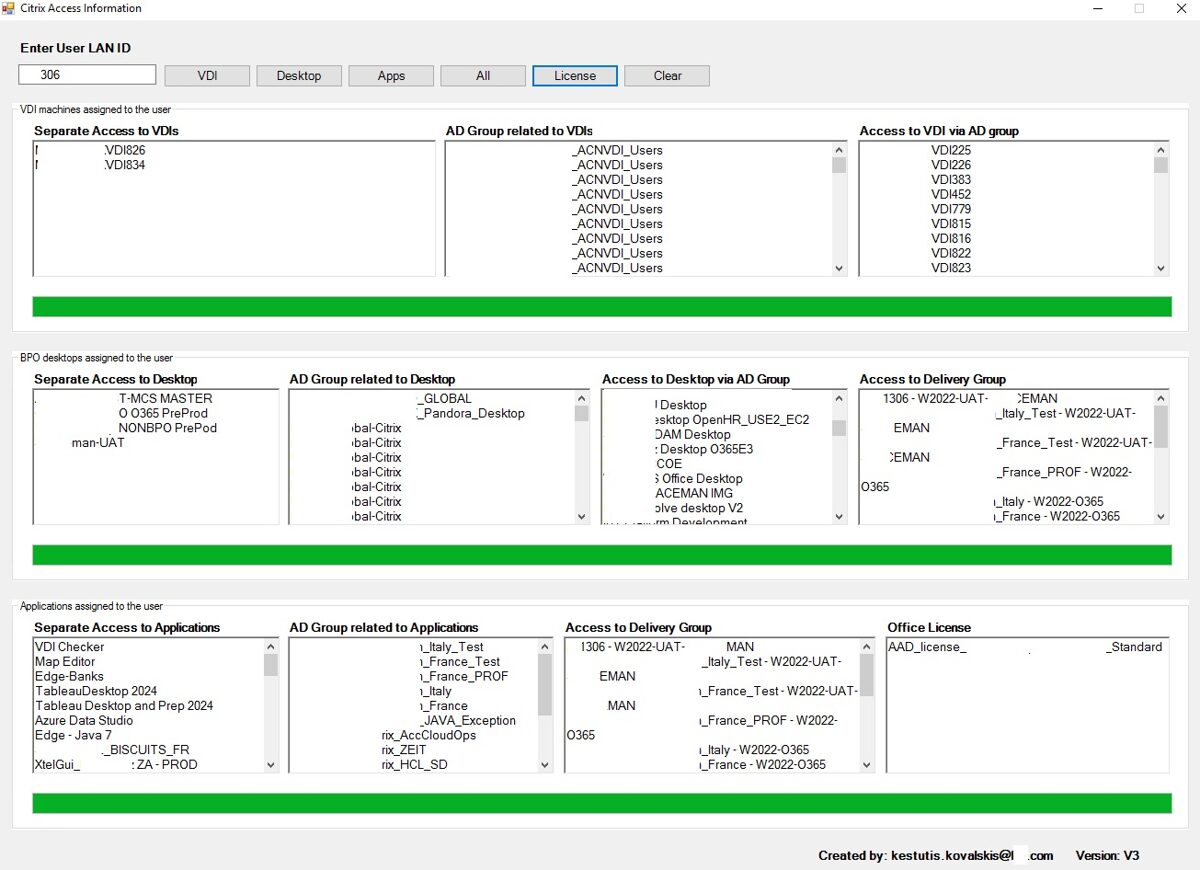
The program allows you to check each part separately, or you can check them all at once. Additionally, you can verify the user's Microsoft Office license.
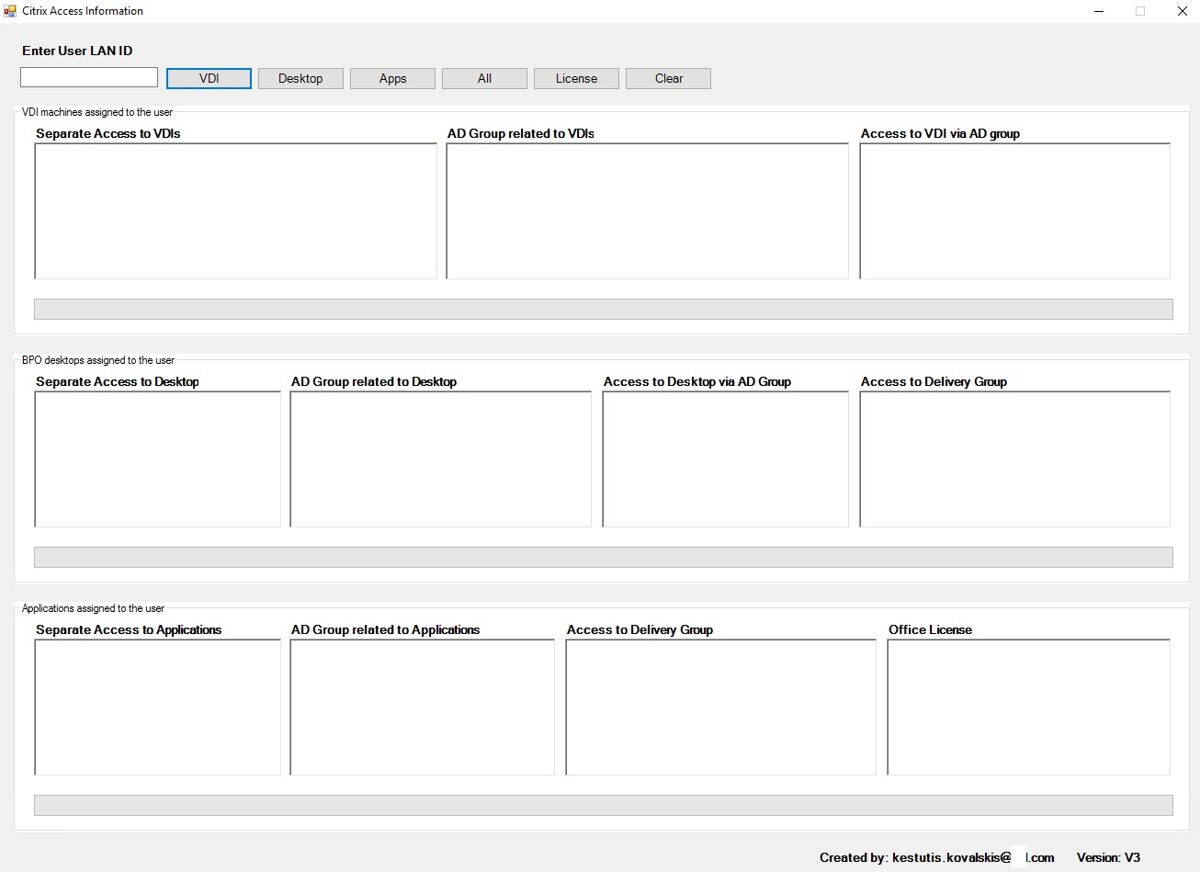
To check
what access a user has to a single-session VDI computer, enter the user ID and
click the VDI button. The program will show what access the user has, not only
if access was provided by his ID, but also through an Active Directory group.
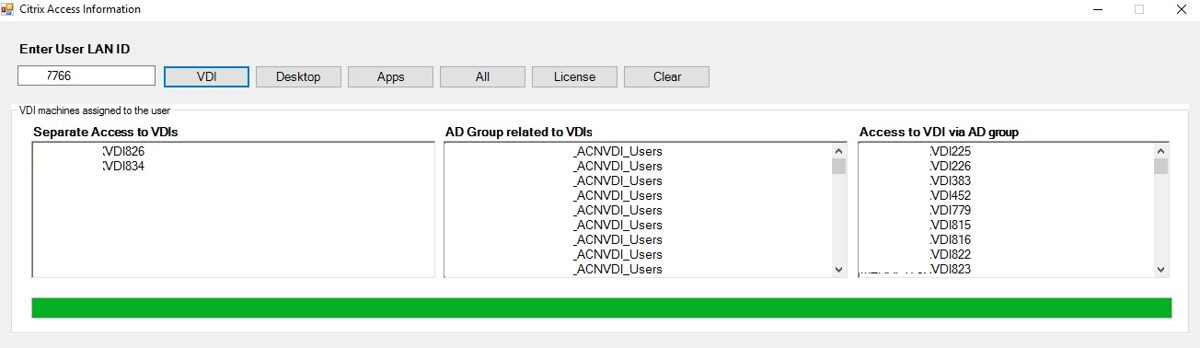
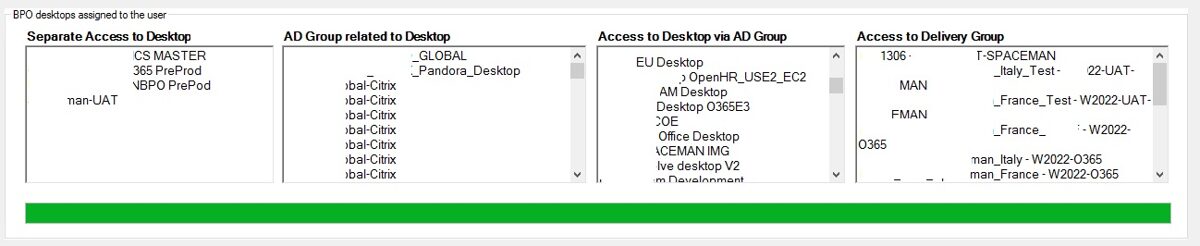
To check what access a user has to a shared desktop, enter the user ID and click the desktop button. The program will show what access the user has, not only if access was provided by his ID, but also through an Active Directory group. Also, it shows access to the Citrix Delivery Group.
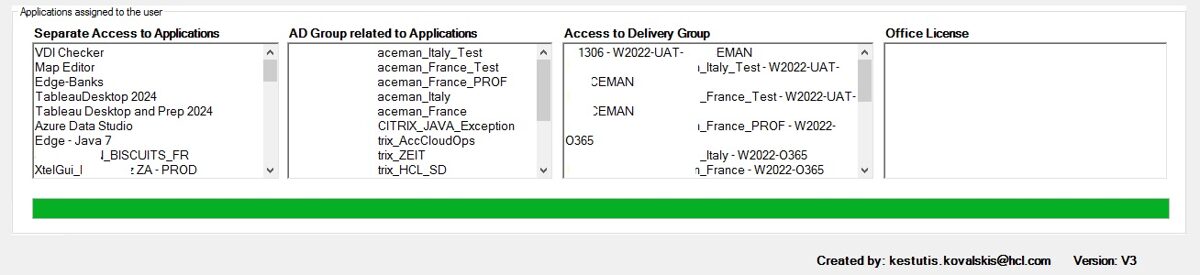
To check what access a user has to a published applications, enter the user ID and click the Apps button. The program will show what access the user has, not only if access was provided by his ID, but also through an Active Directory group. Also, it shows access to the Citrix Delivery Group.
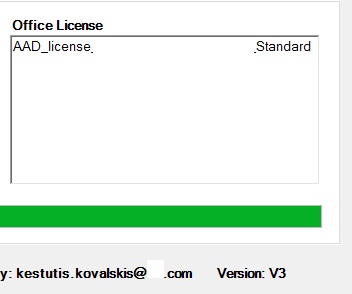
To check what license a user has, enter his ID and click the "License" button.
To check all access at once, press on "All" button.
The "Clear" button clears all windows.
User session latency in Citrix
One of the common problems users encounter and complain about in a Citrix environment is delay. This delay is noticeable when launching applications, clicking buttons, moving documents, and so on. And very often, users report that their internet speed is excellent, and that they don't experience any lag anywhere else except in the Citrix environment. The easiest way to check this is to view the delay of his Citrix ICA session in the Citrix Cloud console. However, there are situations where a user submits a ticket but cannot be reached on the same day. So, how can you view historical information? As you know, the Citrix Cloud console displays information about Citrix user sessions only for the last 24 hours. To solve these problems, I created an app and named it "User Sessions Latency".
Behind the scenes, an exe file is copied to remote computers, which collects the following information:
·
ICA Session Latency
· RRT Session Latency
· CPU usage
· RAM usage
· Disk queue length
And it stores the collected information in one place. The program simply retrieves the collected information and displays it.
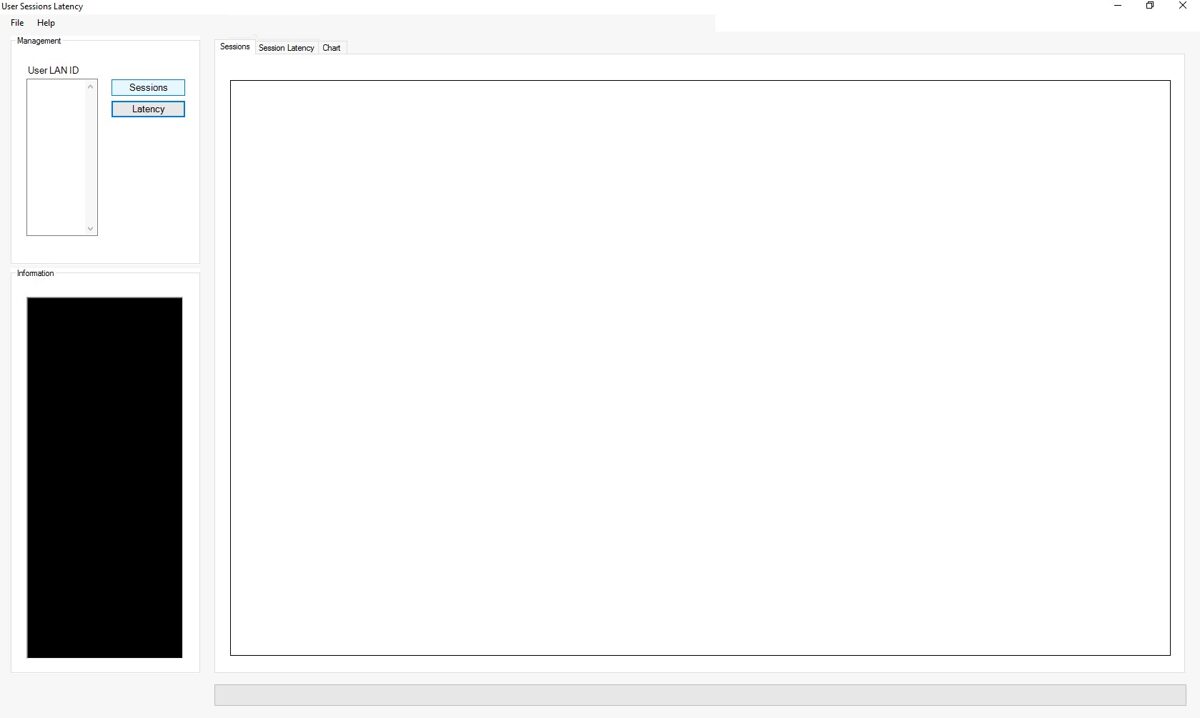
The program allows you to view the current status of the user sessions in Citrix.
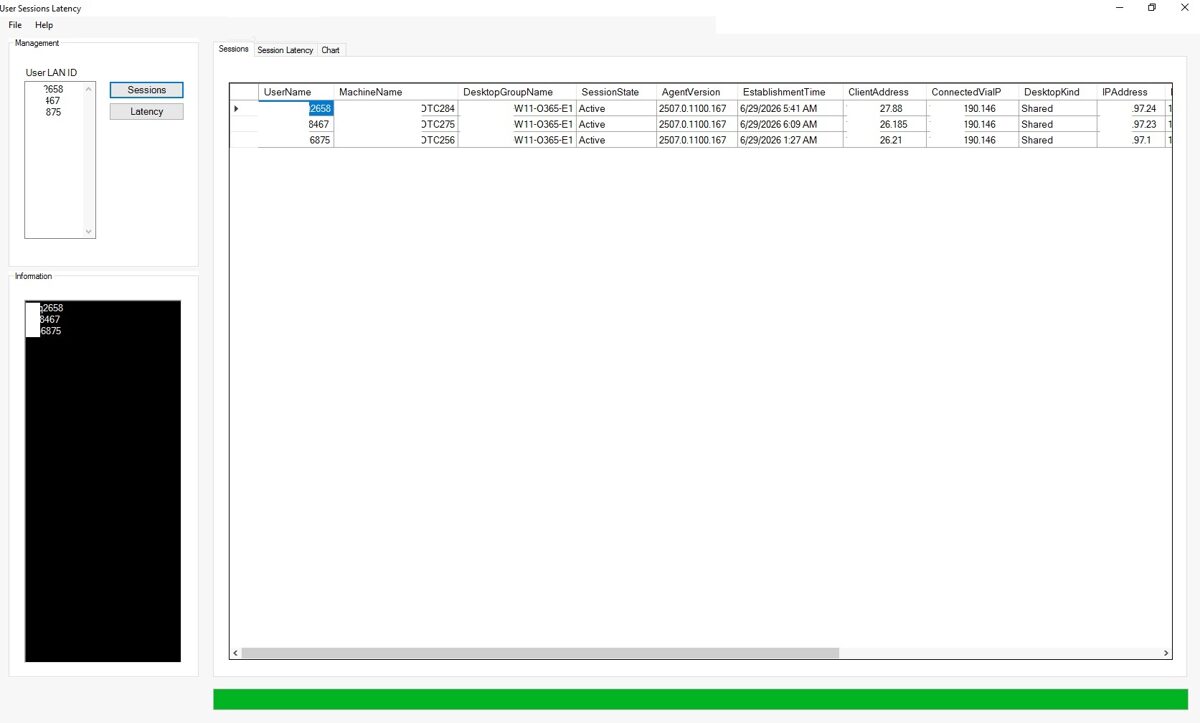
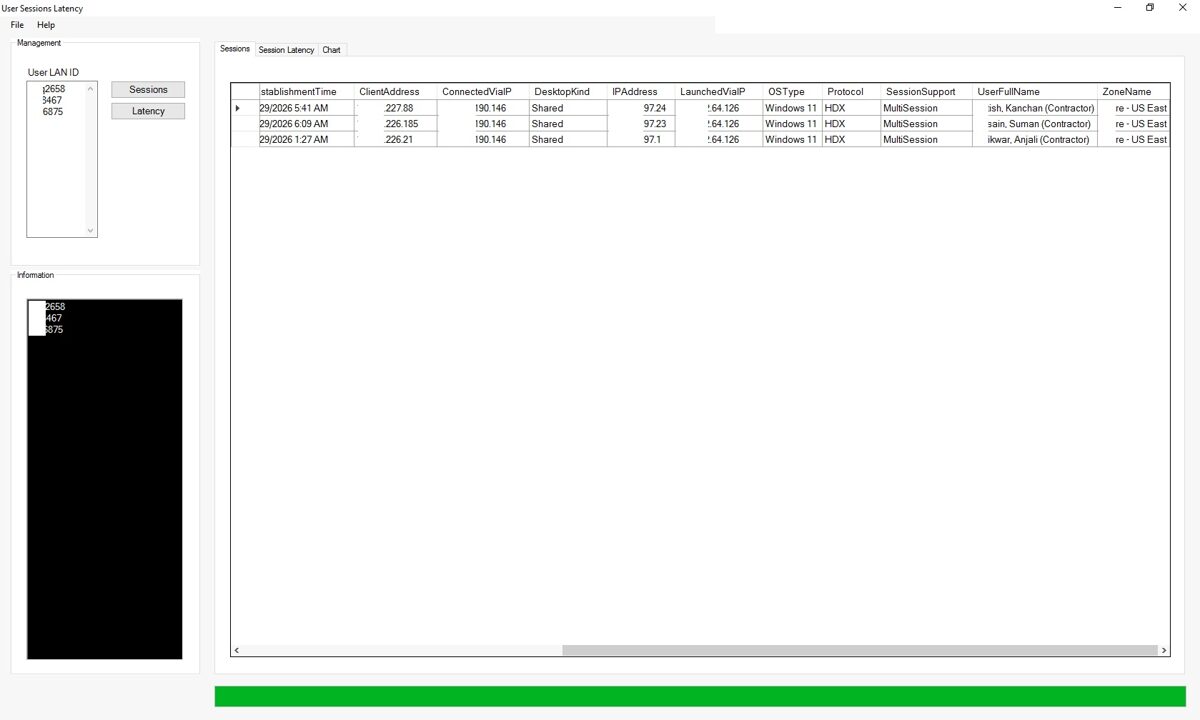
continued
· RRT Session Latency
· CPU usage
· RAM usage
· Disk queue length
And it stores the collected information in one place. The program simply retrieves the collected information and displays it.
The program allows you to view the current status of the user sessions in Citrix.
When you click the "Session Latency" tab, you'll see historical information about user sessions entered into the program.
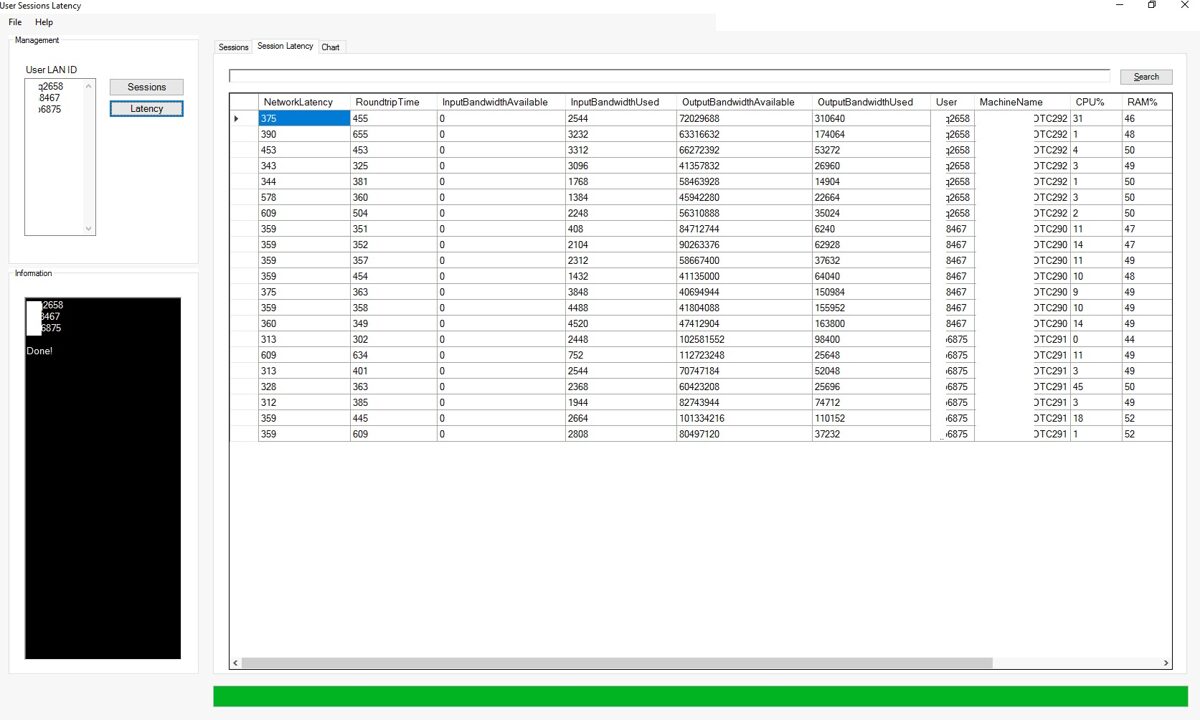
Continued
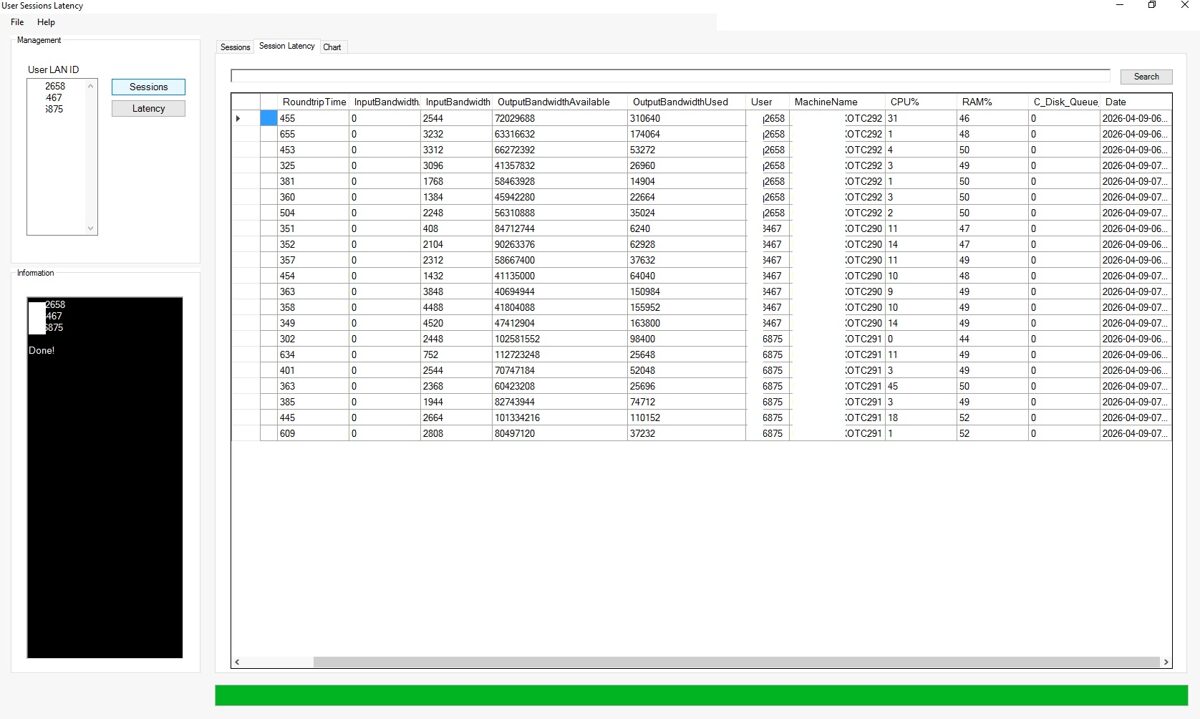
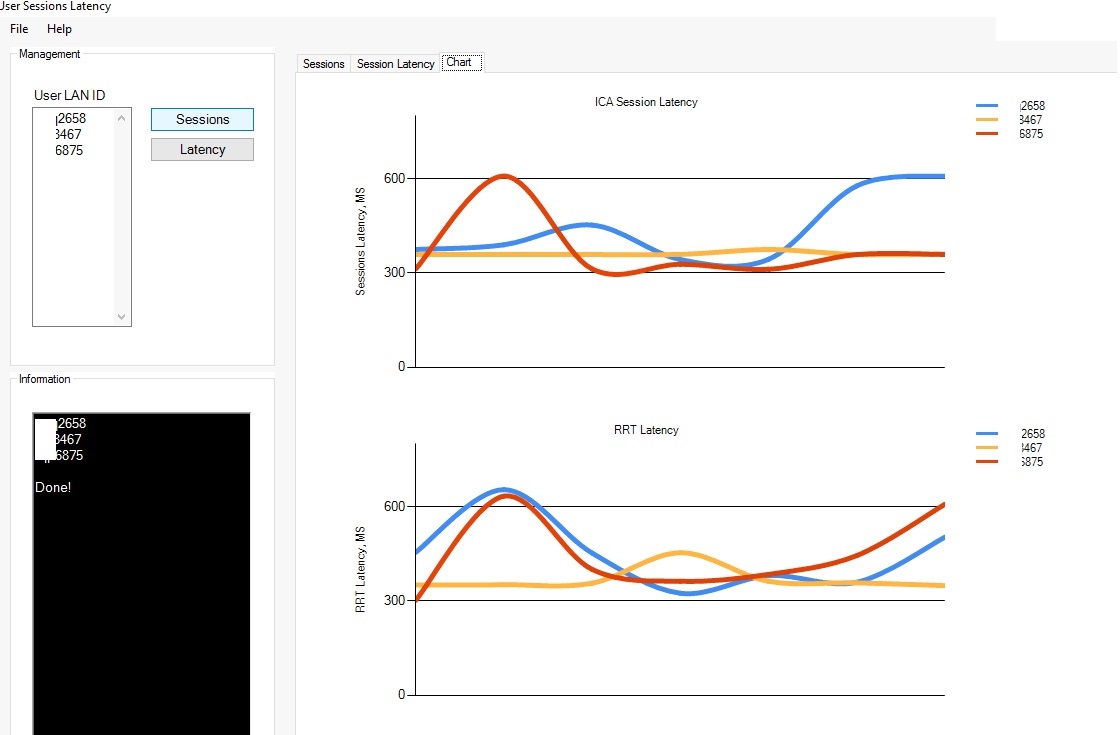
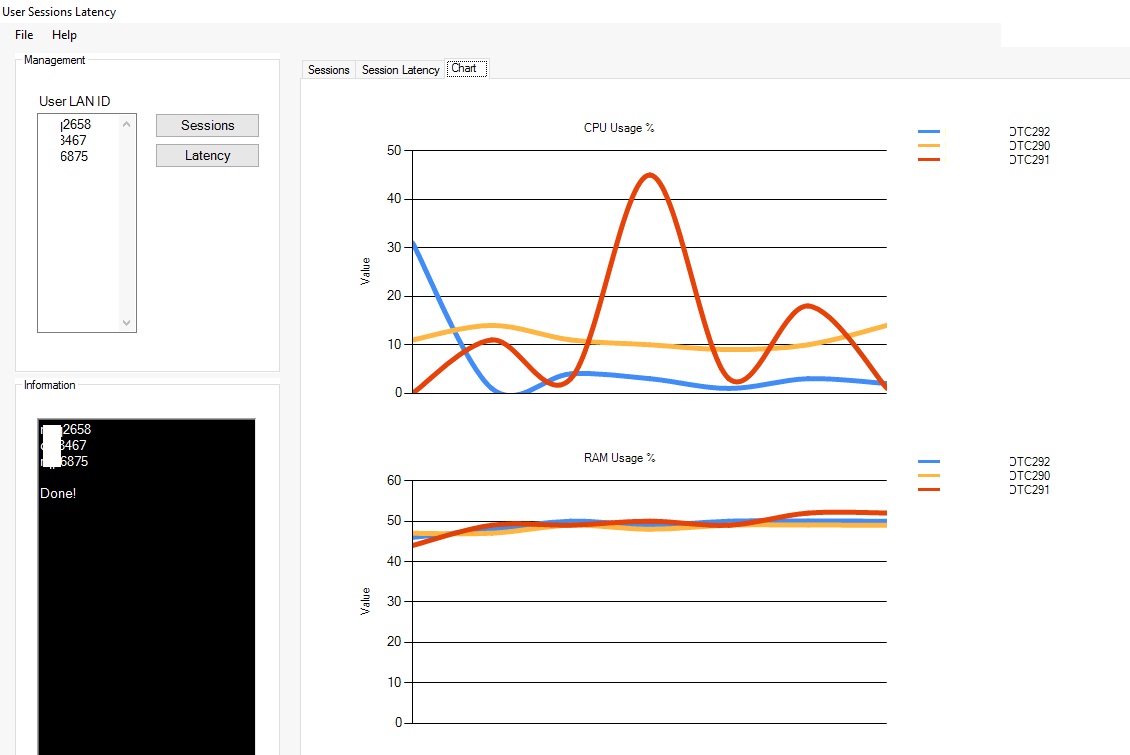
Chart tab displays visual charts related with user sessions in Citrix.
Continued
Chart tab displays visual charts related with user sessions in Citrix.
Continued
Continued